

Nothing ruins productivity like preparing an important document only for your printer to remain silent. Whether you are setting up a new device or troubleshooting a connection, knowing exactly how to print from laptop to printer is a critical skill for any user. The process depends on your operating system and whether you use USB, Wi-Fi, or Bluetooth connections. With the correct steps, you can resolve these issues and start printing within minutes.
This guide details every method to connect your hardware, install necessary drivers, and configure settings for success. You will learn how to make your laptop recognize your printer, ensure both devices share the same network, and send jobs without confusion. We cover specific fixes for Windows and Mac users along with essential troubleshooting tips.
Connect Your Printer Using a USB Cable
A direct USB connection offers the most reliable way to set up a printer or force driver recognition. This method bypasses network complications and ensures a stable data link between your computer and the device. It is often the best first step if wireless methods fail.
Plug In and Power On the Device
Connect one end of the USB cable to your laptop and the other to the printer port. Ensure the printer is powered on before connecting the cable. Most modern laptops running Windows or macOS automatically detect the device and install basic drivers within seconds. If the printer does not appear immediately, wait a moment for the operating system to finish its background installation process.
Force Driver Installation via USB
Use a USB connection to force the operating system to identify hardware if wireless setup fails. Once the OS recognizes the hardware through the cable, it installs the necessary software components. After successful installation, you can disconnect the cable and often connect over Wi-Fi using the same printer profile. This technique effectively “trains” your computer to recognize the device.
Pro Tip: Always use the USB cable that came with your printer whenever possible. Cheap third-party cables often lack the necessary data pins and can cause connection drops or failed installations.
Set Up a Wi-Fi Printer Connection

Wireless printing allows you to print documents from anywhere within your home or office network range. This method eliminates cable clutter and enables multiple users to access the same device simultaneously. Proper configuration ensures a seamless experience for all connected devices.
Match Network Names and Passwords
Both your laptop and printer must connect to the exact same Wi-Fi network name or SSID. Check your laptop’s network settings to confirm the active network name. Navigate to the Network or Wireless Setup menu on your printer display and select the matching SSID from the list. Enter your Wi-Fi password carefully as a single typo here is the most common cause of setup failure.
Complete the Wireless Setup Process
Follow the on-screen prompts on your printer to confirm the connection details. The device will attempt to handshake with your router and establish a secure link. Once connected, the printer display usually shows a “Connected” status or illuminates a solid Wi-Fi indicator light. Refer to your specific manual if the light patterns are unclear.
Visual Cue: Look for a blinking wireless icon during setup which turns solid once the connection is successful. Consult your printer manual for exact light meanings.
Reboot Devices to Refresh Detection
Restart your router, printer, and laptop if the printer appears offline or missing from your list. This simple sequence refreshes the network handshake and clears temporary glitches. Many detection issues resolve themselves after a full power cycle of all involved hardware.
Add a Printer on Windows 10 and 11
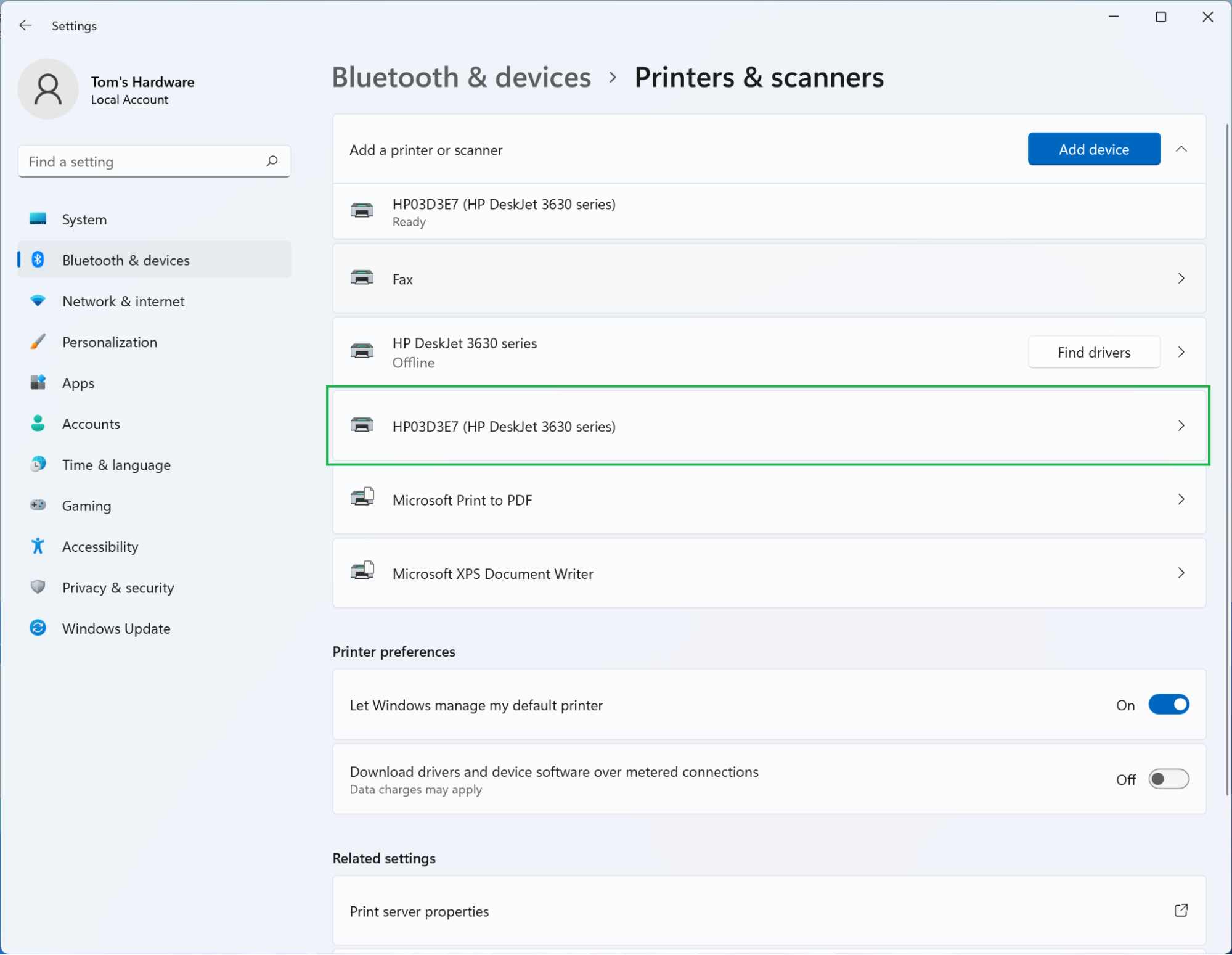
Windows manages printers through a unified settings panel that handles discovery and driver installation. The process is similar across Windows 10 and 11 though menu labels may vary slightly. Following the correct path ensures your system finds the device quickly.
Open the Printers and Scanners Menu
Press Windows + I to open Settings and navigate to Bluetooth & devices then Printers & scanners. Click the Add device button to start the search process. Wait a few moments while Windows scans for available printers on your network or connected via USB.
Manually Add a Missing Printer
Click Add device and select The printer that I want isn’t listed if automatic detection fails. Choose the option to Add a printer using a TCP/IP address for networked devices. Enter the printer’s IP address which you can find in your router admin page or printer network settings. Follow the prompts to install the correct drivers for your specific model.
Warning: Avoid third-party driver sites at all costs. Download drivers only from the manufacturer’s official support page using your exact model number to ensure safety.
Remove Old or Broken Printer Entries
Go to Printers & scanners in your settings menu to clear conflicting entries. Select the problematic printer from the list and click Remove device to delete it. Re-add the printer cleanly to ensure fresh settings apply without old errors.
Note: Windows 10 support ends on October 14, 2025. After this date, Microsoft will no longer provide new driver updates or security fixes for this operating system.
Add a Printer on macOS

Mac users benefit from AirPrint technology which requires no manual driver installation for most modern printers. The system handles the heavy lifting automatically once the device is on the network. This streamlined approach makes adding hardware incredibly fast on Apple devices.
Use AirPrint for Automatic Setup
Ensure your Mac and printer are on the same Wi-Fi network before starting. Click the + button in System Settings under Printers & Scanners. If your printer supports AirPrint, it will appear instantly in the list for selection. Select it and click Add to let macOS install everything in the background.
Share a Printer Over the Network
Connect your printer to your Mac via USB if you want to share it with other devices. Open Printers & Scanners and select the connected printer from the list. Check the box labeled Share this printer on the network to enable access. Other devices on the same network can now access this printer through your Mac.
Install Software for Non-AirPrint Models
Download the manufacturer’s software from their website if your printer is not detected automatically. macOS may prompt you to allow system extensions during the installation process. Approve these requests to complete the setup and enable full functionality for your device.
Pair Your Printer via Bluetooth
Bluetooth printing is useful when Wi-Fi is unavailable or for portable printing scenarios. This method connects devices directly without needing a router or network infrastructure. It works best for occasional text documents or small photo prints.
Enable Pairing Mode on the Printer
Put your printer in pairing mode according to its specific manual instructions. This process varies by model but usually involves holding a specific button until a light blinks. Look for a blinking Bluetooth icon on the device to confirm it is discoverable.
Connect on Windows Systems
Turn on Bluetooth via the notification panel on your taskbar. Go to Settings then Devices and select Printers & scanners. Click Add a printer or scanner and wait for your device to appear in the list. Select the printer and click Add device to let Windows install the necessary drivers.
Connect on Mac Systems
Open System Settings and go to Printers & Scanners on your Mac. Click the Add (+) button to search for new devices. Select the Default tab or search manually for your Bluetooth printer. Choose the printer from the list and click Add to complete the pairing process.
Limitation: Bluetooth is slower and has a shorter range of about 30 feet. It is best suited for occasional text or photo printing rather than large jobs.
Print Your Document Successfully
Sending a job to your printer is simple once the device is set up correctly. Understanding the print dialog options ensures you get the desired output every time. Proper configuration saves paper and ink while delivering professional results.
Open the Print Dialog Box
Open your document in any application like Word, Chrome, or a PDF reader. Press Ctrl + P on Windows or Cmd + P on Mac to open the print dialog. This universal shortcut works across almost all software programs.
Select the Correct Printer Destination
Double-check the destination dropdown menu to ensure the right printer is selected. If multiple printers are listed, pick the specific one you intend to use. On Mac, ensure the correct destination is selected under the “Printer” heading to avoid sending jobs to the wrong device.
Configure Essential Print Settings
Customize your job using these key options found in the print dialog:
* Copies: Set exactly how many prints you need.
* Page Range: Choose “All,” “Current Page,” or enter specific pages like “1-3, 5”.
* Color Mode: Switch between Color and Black & White to save ink.
* Orientation: Pick Portrait for standard documents or Landscape for wide layouts.
* Paper Size: Match the setting to your loaded tray such as Letter or A4.
* Print Quality: Use Draft for quick internal copies and Best for presentations.
* Two-Sided Printing: Enable Duplex if supported to save paper.
Preview and Click Print
Use the preview pane to check layout, margins, and page breaks before committing. Fix any formatting issues now to avoid wasting paper on incorrect prints. Click the Print button and allow a few seconds for network printers to receive the job.
Queue Tip: If the printer is offline, jobs stack in the queue. They may print unexpectedly later when connectivity returns. Always clear stuck jobs to prevent this.
Fix Printer Not Detected Issues
When your laptop fails to see the printer, a systematic checklist helps identify the problem. Most detection failures stem from simple power or network mismatches. Following these steps resolves the vast majority of connectivity issues.
Verify Power and Network Status
Ensure the printer is powered on and connected to the same Wi-Fi network as your laptop. A mismatched SSID is a top reason for detection failure between devices. Double-check that both devices show the exact same network name in their respective settings.
Restart All Devices
Reboot the printer, router, and laptop in that specific order. This resets network handshakes and clears temporary glitches that block communication. Wait for each device to fully restart before moving to the next one in the sequence.
Use USB to Force Recognition
Connect via USB to install drivers if wireless detection continues to fail. Once the operating system recognizes the hardware, try reconnecting wirelessly. This method often resolves stubborn driver issues that prevent network discovery.
Check for Offline Mode Status
Open the print queue on Windows to check the printer status. If “Use Printer Offline” is checked, uncheck it immediately. This setting blocks all jobs even if the printer is online and ready to work.
Clear Stuck Print Jobs
A frozen document in the queue can halt all printing activities completely. Clearing these jobs restores functionality and allows new documents to print. Regular maintenance of the print queue prevents future bottlenecks.
Open the Print Queue
On Windows, go to Settings > Devices > Printers & scanners, select your printer, and click Open queue. On Mac, click See what’s printing in the Printers & Scanners settings. This view shows all pending and active jobs waiting to process.
Cancel Problematic Documents
Right-click the stuck document in the queue and select Cancel to remove it. If the job refuses to delete, restart the print spooler service on Windows. Press Windows + R, type services.msc, find Print Spooler, right-click, and select Restart. Then restart the printer to clear its internal buffer completely.
Improve Print Quality Output
Streaky, faded, or misaligned output indicates a need for maintenance. Running specific cleaning cycles often resolves these quality issues without professional help. Regular upkeep keeps your documents looking sharp and professional.
Clean Print Heads
Access the printer’s maintenance menu via its control panel or laptop software. Select Clean Print Heads and run one or two cycles as needed. This process clears dried ink from nozzles that cause streaks or gaps in printing.
Warning: Cleaning uses a significant amount of ink. Perform this task only when necessary to avoid wasting supplies.
Align Cartridges for Precision
Use the Print Head Alignment tool to fix blurry text or color misalignment. The printer prints a test page with various patterns for you to evaluate. Follow the on-screen instructions to select the best pattern for optimal alignment.
Prevent Clogs with Regular Use
Print at least once a week to keep ink flowing smoothly through the nozzles. Ink dries in nozzles during long periods of inactivity, causing blockages. Regular use is the best prevention against clogged print heads.
Manual Setup Using IP Address

Adding a printer manually using its IP address works when automatic detection fails. This method provides a stable connection for networked printers. It requires knowing the specific numerical address of your device.
Find the Printer IP Address
Go to Network Settings or Wireless Report on the printer to print a configuration page. Alternatively, log into your router’s admin page at 192.168.1.1 and check Attached Devices. Look for the printer by name and note its IP address such as 192.168.1.25.
Add via TCP/IP on Windows
Navigate to Settings > Devices > Printers & scanners and click Add device. Select The printer that I want isn’t listed then choose Add a printer using a TCP/IP address. Enter the IP address, click Next, and follow prompts to install drivers.
Add via IP on Mac
Go to System Settings > Printers & Scanners and click Add (+). Select the IP tab and enter the printer’s IP address. Choose the protocol such as HP Jetdirect (Socket), LPD, or IPP. Click Add to complete the manual configuration.
Note: AirPrint or manufacturer software may be needed for full functionality when using manual IP setup.
Compare Connection Types for Your Needs
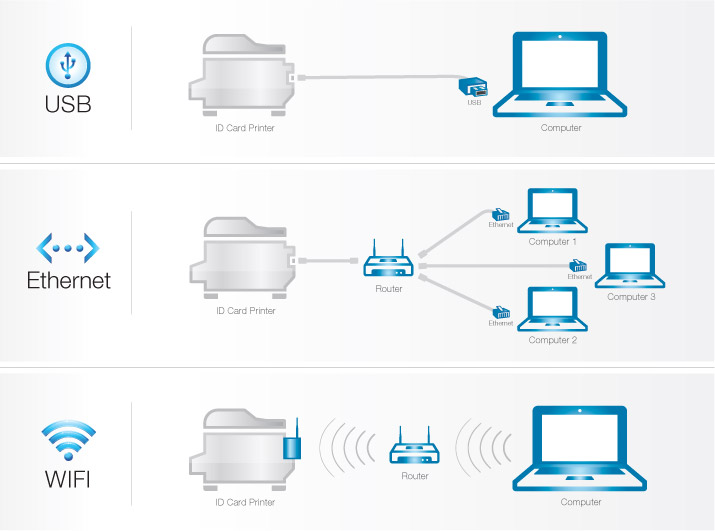
Choosing the right connection method depends on your specific usage scenario. Each type offers distinct advantages regarding speed, range, and setup complexity. Understanding these differences helps you select the best option.
| Feature | USB | Wi-Fi | Bluetooth |
|---|---|---|---|
| Speed | Fastest | Moderate | Slow |
| Setup | Plug & Play | Network Config | Pairing Required |
| Range | Tethered | Whole Network | ~30 Feet |
| Multi-Device | No | Yes | Limited |
| Best For | Reliability | Shared Use | Portability |
- USB: Best for single-user, high-volume printing where reliability is key.
- Wi-Fi: Ideal for home offices or teams needing shared access.
- Bluetooth: Useful for travel or temporary setups without a network.
Prevent Future Printing Issues
Adopting good habits keeps your printing experience smooth and frustration-free. Regular updates and proper configuration prevent many common problems before they start. These simple steps extend the life of your printer and ensure consistent performance.
Update Firmware and Drivers Regularly
Allow updates during setup and check for them periodically. Manufacturers release firmware patches for security, stability, and compatibility improvements. Keeping software current ensures your printer works well with the latest operating system updates.
Use Official Manuals and Resources
Search online using your exact model number found on a sticker on the device. Download manuals only from the official brand website rather than third-party sites. This ensures you get accurate instructions and safe software files.
Avoid Network Band Conflicts
Be aware that dual-band routers use 2.4GHz and 5GHz frequencies. Some printers only work on 2.4GHz bands while laptops might be on 5GHz. Switch your laptop temporarily to the 2.4GHz band during setup if connection issues arise.
Frequently Asked Questions About Printing from Laptop
Why won’t my laptop find my wireless printer?
Your laptop and printer must be on the exact same Wi-Fi network name or SSID. Restart your router and printer to refresh the connection if they are already on the same network. A mismatched network or temporary glitch is the most common cause.
How do I print if I don’t have a USB cable?
You can connect via Wi-Fi if both devices are on the same network or use Bluetooth if supported. For Wi-Fi, navigate to network settings on your printer display to join your home network. Bluetooth requires pairing mode activation on the printer before adding it in system settings.
What does it mean when my printer says offline?
This status indicates a communication break between your laptop and the printer. Check that the printer is powered on and connected to the correct network. On Windows, ensure the “Use Printer Offline” mode is not accidentally enabled in the queue settings.
Can I print from my laptop to a printer at a different location?
Standard printing requires the laptop and printer to be on the same local network or directly connected. Cloud printing services like HP ePrint or Epson Connect allow remote printing but require initial local setup. Without these services, physical proximity or a shared network is necessary.
How do I stop my printer from printing blank pages?
Run a print head cleaning cycle through your printer’s maintenance menu to clear clogged nozzles. Check your ink levels and replace cartridges if they are empty or dried out. Ensure your document does not have large blank sections selected in the page range settings.
Key Takeaways for Printing from Laptop to Printer
Mastering how to print from laptop to printer requires ensuring both devices share the same network and have correct drivers installed. Whether using USB for reliability or Wi-Fi for convenience, the setup process follows logical steps specific to your operating system. Regular maintenance like clearing queues and cleaning heads prevents most common issues.
Start by checking your physical connections and network settings before attempting complex troubleshooting. Use the USB forcing method if wireless detection fails to install necessary drivers quickly. Keep your firmware updated and use official resources to maintain long-term printer health.


