
You’ve unboxed your HP printer, but Wi-Fi setup feels complicated or unreliable. You’re not alone. Many users prefer a direct, stable connection that doesn’t depend on network performance. Using an HP printer with a USB cable is a simple, secure way to print without relying on your router or wireless signal. Whether you have an HP ENVY Inspire 7255e, 7955e, DeskJet 2827e, or another model, a wired connection ensures consistent results and better privacy.
The process is straightforward: plug in the cable, install the right drivers, and start printing. But knowing when to connect the cable and which software to use can make or break the experience. This guide walks you through every step, from locating the hidden USB port under that misleading sticker to scanning documents with the built-in Windows app. You’ll learn how to avoid common setup traps, choose the best driver method, and verify your connection works flawlessly.
Locate the USB Port on Your HP Printer

On most HP printers like the ENVY Inspire 7255e or 7955e, the USB port sits on the back panel, toward the right side. Look for a small sticker labeled “USB” with a Wi-Fi icon above it. This label promotes wireless use but hides the actual port. Peel it off to expose the USB-B socket. For models like the DeskJet 2827e, the port is also on the back but typically uncovered. Use a standard USB-A to USB-B cable, which HP does not include in the box.
Plug In the USB Cable Correctly
- Turn on your HP printer
- Insert the square-shaped USB-B end into the printer’s port
- Connect the rectangular USB-A end to your computer
- Wait a few seconds for Windows to detect the device
Pro Tip: Never force the cable. If it doesn’t fit, flip the USB-B end; only one side inserts correctly. If using Windows built-in drivers, connect the cable first. For manual driver installs, wait until prompted during setup.
Install Drivers the Right Way
Use HP Smart App for Full Features
The HP Smart app gives you complete control: print, scan, copy, monitor ink, and print remotely. Here’s how to install it:
- Open a browser and go to 123.hp.com
- Type your printer model (e.g., HP ENVY Inspire 7255e)
- Click Install HP Smart
- Follow the prompts to download and install
- Open the app; it will auto-detect your USB-connected printer
If detection fails, tap the + icon to add manually. This method supports scanning, mobile printing, and Instant Ink setup. It’s the best choice for users who want everything working out of the box.
Try HP Easy Start for Guided Setup
HP Easy Start walks you through installation with clear choices:
- Visit 123.hp.com
- Click Install HP Easy Start
- Run the downloaded file
- Click Continue
- When your printer isn’t found, select My printer is not shown
- Choose USB cable as the connection type
- Connect the USB cable when prompted
- Select either Full Software and Drivers (recommended) or Basic Drivers (printing only)
- Wait for download and follow the remaining prompts
This method prevents driver mismatches and ensures optimal configuration.
Skip Installation: Use Windows Built-in Drivers
Need to print fast? Windows 10 and 11 include basic HP printer drivers:
- Connect the USB cable to a powered-on printer
- Open Settings > Bluetooth & devices > Printers & scanners
- Wait for your printer to appear (e.g., HP DeskJet 2800 series USB)
- Click Add device
No extra downloads needed. You can print immediately, but scanning and advanced tools won’t work without additional software.
Download Drivers Manually from HP
If automatic tools fail, get drivers directly from the source:
- Search
HP [your model] driver(e.g., HP DeskJet 2827e driver) - Go to the official HP Support site (look for the blue HP logo)
- Confirm your operating system (e.g., Windows 11)
- Under “Full basic driver support,” click Download
- Run the installer, but do not connect the USB yet
- When prompted with “Connect your printer,” plug in the cable
- Select USB cable and continue
This avoids driver conflicts and ensures full print and scan support.
Set Up Your Printer in Windows
Add Printer via Settings
After driver installation, verify the printer appears:
- Press Windows + I to open Settings
- Go to Bluetooth & devices > Printers & scanners
- Your printer should list as:
– HP ENVY Inspire 7255e (for ENVY models)
– HP DeskJet 2800 series USB (for DeskJet 2827e)
If missing, click Add device and wait for detection. A green checkmark during HP setup confirms success.
Avoid Duplicate Printer Entries
If the same printer appears multiple times, remove old entries:
- In Printers & scanners, select the outdated version
- Click Remove device
- Restart your PC before reconnecting
This prevents confusion when selecting printers in apps.
Start Printing Immediately
Print Any Document with USB
Once installed, printing is simple:
- Open a file (PDF, Word, etc.)
- Press Ctrl + P or go to File > Print
- Select your HP printer from the list
- Adjust copies, page range, or layout if needed
- Click Print
The output tray will extend automatically (if applicable), and printing starts instantly. No internet required after setup.
Set Default Printer
To avoid selecting the printer each time:
- In Printers & scanners, click your HP model
- Select Set as default
All future print jobs will route here automatically.
Scan Documents via USB
Install Windows Scan App
Scanning requires a separate app on most systems:
- Press Start, type “scan”
- Click Printers & scanners
- Select your HP printer, then click Scanner settings
- Click Get scanner app to install Windows Scan from the Microsoft Store
Alternatively, search “Scan” in the Store and install it directly.
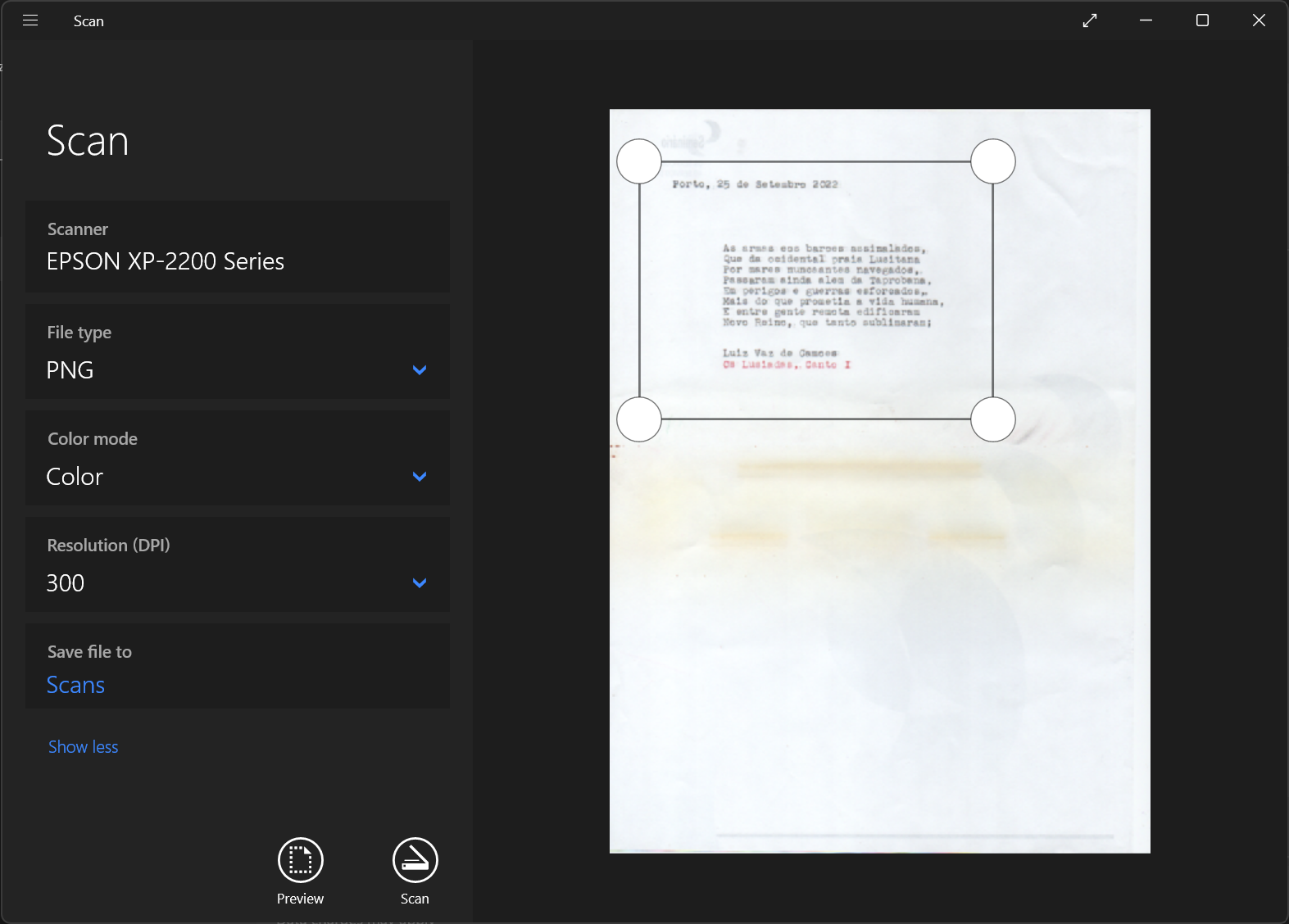
Perform a USB Scan
- Open the Windows Scan app
- Under Scanner, confirm your HP printer is selected
- Choose Source: Flatbed (for single pages) or Auto (default)
- Pick File type: PDF, JPEG, PNG, or TIFF
- Click Show more to set save location (e.g., Desktop)
- Click Scan
A notification confirms success. Click View to open the file.
Fix Missing Scan Button
If the Scan button is grayed out or invisible:
- Maximize the app window
- Ensure the USB cable is securely connected
- Reinstall the Windows Scan app
- Use HP Smart app instead for better compatibility
Choose the Best Setup Method
| Method | Best For | Scanning? | Remote Print? |
|---|---|---|---|
| HP Smart App | Full features, remote access | ✅ Yes | ✅ Yes |
| HP Easy Start | Guided setup with choices | ✅ (with full drivers) | ❌ No |
| Windows Built-in | Quick printing only | ❌ No | ❌ No |
| Manual Driver Download | Offline or failed auto-setup | ✅ Yes | ❌ No |
Recommendation: Use HP Smart if you scan or want mobile printing. Use Windows built-in only for emergency printing.
When to Use USB Over Wi-Fi
USB beats Wi-Fi when:
– Your network is unstable
– You need maximum security (no data over airwaves)
– You’re setting up a single-computer system
– Wi-Fi drivers keep failing
USB provides a direct, interference-free link, making it ideal for offices or privacy-focused users.
Troubleshoot Common Issues
Printer Not Detected via USB
Try these fixes:
– Restart both devices
– Swap USB ports on your computer
– Try a different USB cable (faulty cables are common)
– Reinstall drivers using HP Easy Start
– Disable USB selective suspend in Power Options
If the printer shows up as “Unknown Device” in Device Manager, update the driver manually.
Scanning Not Working
Even if printing works, scanning may fail due to missing software:
– Install HP Smart or Windows Scan app
– Ensure Full Software and Drivers was installed
– Check that the USB cable is fully inserted
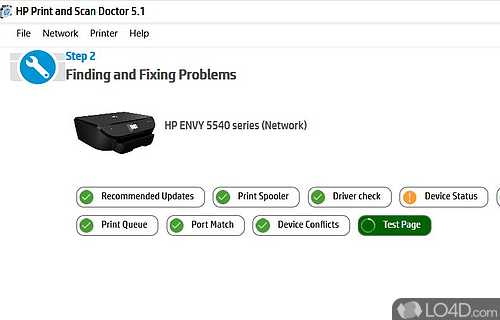
– Run HP Print and Scan Doctor (free tool from HP)
Green Checkmark Missing After Setup
During HP installer, a missing green checkmark means:
– USB cable connected too early
– Internet dropped during download
– Incorrect driver selected
Solution: Uninstall, restart, and retry using HP Easy Start with USB selected when prompted.
Maintain Your USB Printer
Keep Drivers Updated
Outdated drivers cause errors. Update them:
1. Open HP Smart app
2. Tap your printer, then go to Settings > Update firmware
3. Or visit HP Support and download the latest drivers
Set a reminder every 6 months.
Prevent Cable Damage
USB cables fail from bending. Extend their lifespan by:
– Avoiding tight bends near connectors
– Unplugging gently (pull by the plug, not the cord)
– Using a 6-foot cable to reduce strain
– Storing loosely coiled
Replace if printing stops or the connection drops.
Frequently Asked Questions About Using an HP Printer with USB
Do HP printers come with a USB cable in the box?
No. HP does not include a USB cable with most printers. You need to purchase a standard USB-A to USB-B cable separately. These cables are widely available and work universally with HP printers.
Where is the USB port on an HP ENVY Inspire 7255e?
The USB port is on the back panel, toward the right side. It’s hidden under a small “USB” sticker with a Wi-Fi icon above it. Peel off the sticker to reveal the USB-B socket. This labeling is HP’s way of emphasizing wireless connectivity as the default option.
Can I scan using a USB connection?
Yes, but you need the right software. Install the HP Smart app or the Windows Scan app from the Microsoft Store. Windows built-in drivers only support basic printing, not scanning. For full scan features, choose the “Full Software and Drivers” option during HP Easy Start installation.
Why is my HP printer not detected when I plug in the USB cable?
Common causes include a faulty cable, wrong USB port, or outdated drivers. Try restarting both devices, switching USB ports, testing a different cable, or reinstalling the driver through HP Easy Start. If the printer appears as “Unknown Device” in Device Manager, update the driver manually.
Should I use USB or Wi-Fi to connect my HP printer?
USB is better when you need maximum reliability, stronger security, or a simple single-computer setup. Wi-Fi is better for multi-device access and mobile printing. USB eliminates network interference and keeps your print data off wireless networks.
How do I set my HP printer as the default in Windows?
Go to Settings > Bluetooth & devices > Printers & scanners, click your HP model, and select Set as default. All future print jobs will automatically use that printer.
Final Takeaways for Reliable USB Printing
Using an HP printer with a USB cable gives you a direct, stable connection that bypasses Wi-Fi complications. The key steps are simple: locate the USB port (often hidden under a sticker on ENVY models), install the right drivers, and connect the cable at the correct moment during setup. For full features including scanning and mobile printing, the HP Smart app is your best option. For quick printing without extra software, Windows built-in drivers work in a pinch.
Always remove old printer entries before setting up a new connection, wait for the prompt before plugging in the USB during manual installs, and test both print and scan after setup to confirm everything works. With the right approach, your HP printer will perform reliably through USB, no Wi-Fi needed. Now that everything’s configured, print a test page or scan a document to confirm your setup is working perfectly.


