

You’re five minutes from an important meeting, hit print, and nothing happens. The document sits in the queue, the printer ignores you, and now the document your boss needs is trapped behind three old jobs that refuse to cancel. A stuck print queue is one of the most common Windows headaches, and it always seems to happen at the worst possible time. The good news: how to clear printer queue in Windows is almost always fixable in under five minutes. This guide walks you through every proven method, starting with the easiest fix and ending with emergency resets for stubborn queues.
Cancel Stuck Print Jobs Through Windows Settings
Before diving into advanced troubleshooting, try canceling jobs directly through the print queue interface. This method works when your printer is still responsive and jobs haven’t completely frozen.
Clear Printer Queue in Windows 10
- Press Windows + I to open Settings
- Click Devices, then select Printers & scanners
- Choose your printer from the list
- Click Open queue
- Right-click each stuck job and select Cancel
- Confirm the cancellation when prompted
This approach lets you remove individual jobs without disturbing the entire printing system. It’s perfect for clearing duplicate or accidental prints.
Clear Printer Queue in Windows 11
- Click Start > Settings > Bluetooth & devices > Printers & scanners
- Select the printer experiencing issues
- Click Open print queue
- Right-click the problematic job and choose Cancel
Windows 11 includes a Restart option for paused or error-flagged jobs. If a job failed but you want to retry it immediately, right-click and select Restart instead of Cancel.
Use the Taskbar Printer Icon for Quick Access
If a job is actively printing, skip the Settings menu entirely. Look for the printer icon in your system tray (bottom-right corner of your screen).
- Double-click the printer icon to open the queue
- Right-click any job in the list
- Select Cancel to remove it
⚠️ Warning: If the job has already started printing, cancellation stops it mid-print. Any remaining pages won’t print.
Pause vs. Cancel: When to Use Each Option
Sometimes you don’t want to delete a job entirely. Maybe you just need to refill the ink cartridge or swap paper. In those cases, pausing is the better option.
Pause a Print Job Temporarily
- Open the print queue using any method above
- Click Printer in the menu bar
- Select Pause printing to hold all jobs
- Uncheck the same option when you’re ready to resume
Paused jobs stay in the queue and can be resumed later. Canceled jobs are permanently deleted.
Restart the Print Spooler Service
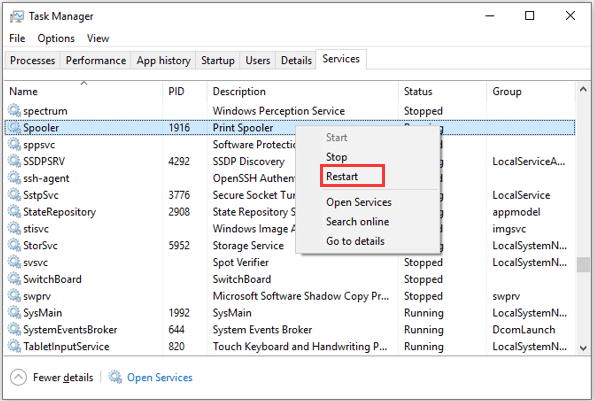
When print jobs freeze or get stuck in “Deleting” status, the Print Spooler service is likely unresponsive. This Windows service manages all printing operations, and restarting it often clears the queue automatically.
Restart via Services Console
- Press Windows + R, type
services.msc, and press Enter - Scroll down and locate Print Spooler
- Right-click and select Restart
If the Restart option is grayed out, stop and start it manually:
- Right-click Print Spooler and choose Stop
- Wait 10 seconds
- Right-click again and select Start
This resets the entire printing system and clears temporary holdups that prevent jobs from processing.
Restart via Command Prompt
For faster access, use Command Prompt with admin privileges.
- Press Windows + X and select Command Prompt (Admin) or Windows PowerShell (Admin)
- Run these commands one at a time:
net stop Spooler

net start Spooler
- Restart your computer and test printing
This method works equally well on Windows 10 and Windows 11, making it ideal for users comfortable with command-line tools.
Manually Clear the Spool Folder
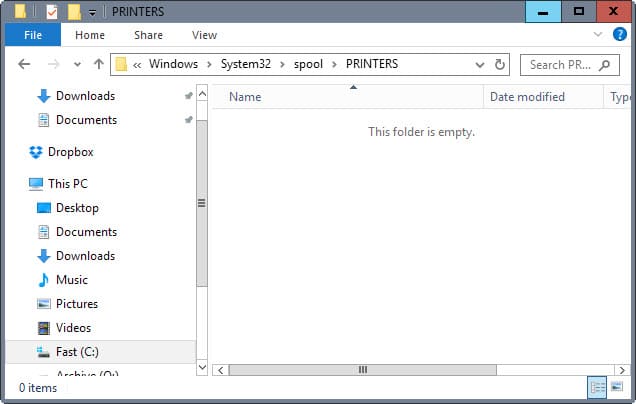
When canceling jobs and restarting the spooler don’t work, the problem lives in the spool folder, where Windows stores temporary print files. Clearing this folder forces a complete queue reset.
Delete Stuck Files in the Spool Directory
- Press Windows + R, type
services.msc, and press Enter - Find Print Spooler, right-click it, and select Stop
- Open File Explorer and navigate to
C:\Windows\System32\spool\PRINTERS - Delete all files in this folder (both SHD and SPL files)
- Return to the Services window
- Right-click Print Spooler and select Start
- Restart your computer
Expert Note: If Windows prompts you about access permissions, click Continue to confirm file deletion. All pending print jobs will be permanently removed, including any held jobs.
This nuclear option clears everything, so use it when other methods fail.
Create a One-Click Batch File for Recurring Issues
If your printer queue gets stuck regularly, save yourself time with an automated batch file. This script stops and restarts the spooler in seconds.
Build a ResetSpooler.bat File
- Open Notepad
- Paste the following two lines:
net stop Spooler

net start Spooler
- Save the file as
ResetSpooler.bat(change the file type to “All Files” in the Save dialog) - Right-click the file and select Run as Administrator whenever the spooler freezes
Pro Tip: Sometimes you need to run the batch file two or three times to clear all stubborn jobs. Keep it pinned to your taskbar for quick access.
Restart Your PC and Printer Together
Hardware-level resets resolve communication issues that software fixes can’t touch. When your printer and computer stop talking to each other, a full restart often restores the connection.
Power Cycle Both Devices
- Turn off your printer
- Wait at least 60 seconds
- Turn the printer back on
- On your PC, select Start > Power > Restart
- Try printing again after both devices fully boot
This method works especially well for wireless printers and network-connected devices.
Emergency Fix: Unplug the Printer
When nothing else works, a hard disconnect can force the queue to empty. This is a last-resort method, but it’s surprisingly effective for frozen jobs.
Force the Queue to Clear
- Unplug the printer or turn it off
- Wait about 10 minutes
- Turn the printer back on
- Check the print queue; it should now be empty
⚠️ Caution: Any held jobs will also be lost. This method isn’t ideal for shared or network printers, so use it only on personal setups.
Access Print Queue via Device Manager
If the Settings menu isn’t cooperating, Device Manager offers another route to the print queue.
Use Device Manager as Administrator
- Press Windows + X and click Device Manager
- Scroll to Print queues and expand the section
- Double-click your printer to open its queue
- Right-click any job and select Cancel
This alternative path works on both Windows 10 and Windows 11 when the standard Settings method fails.
Quick-Reference Table: All Methods Compared
| Method | Difficulty | Best For |
|---|---|---|
| Cancel via Settings | Low | Basic job cancellation |
| Cancel via Taskbar Icon | Low | Quick access during active prints |
| Restart Print Spooler | Medium | Stuck or frozen jobs |
| Clear Spool Folder | High | When cancellation fails entirely |
| Batch File Reset | Medium | Recurring spooler issues |
| Restart PC and Printer | Low | Communication failures |
| Unplug Printer | Low | Emergency last resort |
Frequently Asked Questions About Clearing the Printer Queue
Why is my print job stuck on “Deleting” in Windows?
A job stuck in “Deleting” status usually means the Print Spooler service is unresponsive or the job file is corrupted. Restart the spooler through services.msc, and if that doesn’t work, manually delete files in C:\Windows\System32\spool\PRINTERS after stopping the service.
Will canceling a print job damage my printer?
No. Canceling a print job simply tells Windows to stop sending data to the printer. If the job had already started printing, the printer will stop mid-page, but no hardware damage occurs. You may need to clear a partial page from the output tray.
How do I clear the printer queue if I can’t cancel individual jobs?
Stop the Print Spooler service first, then manually delete all files in the spool folder at C:\Windows\System32\spool\PRINTERS. Restart the spooler afterward. This forces a complete queue reset when standard cancellation methods fail.
Is there a difference between pausing and canceling a print job?
Yes. Pausing temporarily holds jobs in the queue so you can resume them later, which is useful for refilling ink or paper. Canceling permanently deletes the job, and it cannot be recovered or reprinted without sending it again.
Can I create a shortcut to clear the print queue quickly?
Yes. Create a batch file with net stop Spooler and net start Spooler commands, save it as a .bat file, and run it as Administrator whenever the queue freezes. Pin it to your taskbar for one-click resets.
Why does my printer queue keep getting stuck repeatedly?
Recurring queue issues often point to driver problems, Windows Spooler bugs, or network communication errors. Reinstalling your printer drivers may help temporarily, and upgrading to Windows 11 is recommended since Windows 10 support ended on October 14, 2025.
Key Takeaways for Clearing Your Windows Printer Queue
Start with the simplest solution first: cancel stuck jobs through Settings or the taskbar icon. If that fails, restart the Print Spooler service via services.msc or Command Prompt. For stubborn queues, manually clear the spool folder after stopping the service. Create a batch file if you deal with recurring issues; it’s a five-minute setup that saves hours over time. And if all else fails, power cycle both your printer and PC, or unplug the printer as a last resort. With these methods in your toolkit, a stuck print queue will never derail your workday again.


