

You just unboxed your Brother printer, but now you are stuck wondering how to connect Brother printer to computer without errors. Whether you have a home office model or a mobile label printer, the setup steps vary by connection type.
This guide covers every method including wireless, wired, and Bluetooth with clear instructions for Windows and Mac. You will learn to install drivers correctly and verify your device is ready to print immediately.
Install Full Software Package for Wi-Fi Setup
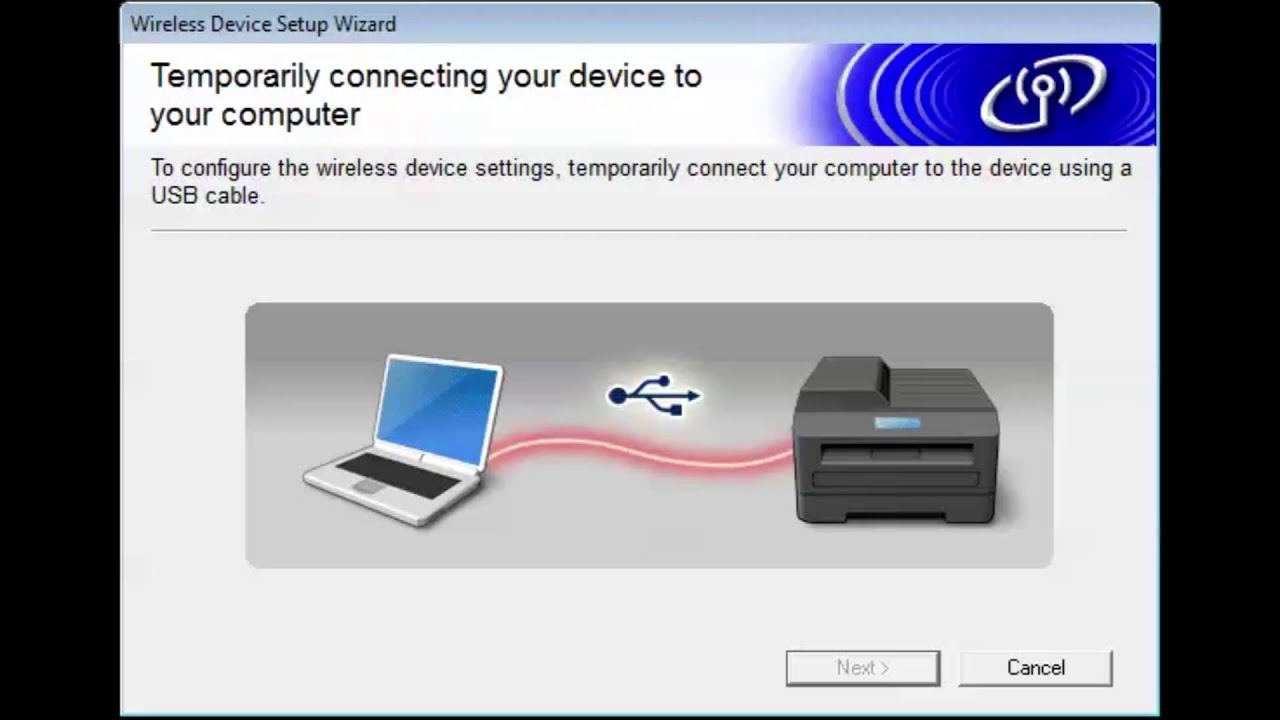
The most reliable way to establish a wireless connection involves installing the Full Software Package from the official Brother website. This package includes the printer driver, P-touch Editor, and the essential setup wizard.
Run the Wireless Network Wizard
Start by downloading the correct software for your specific model and operating system. Run the installer and select Wireless Network Connection when prompted to begin the configuration process.
- Choose Brother Peer-to-Peer Network Printer if you use Windows.
- Allow firewall changes when the system asks to enable network communication.
- Select Yes when asked if you have a USB cable for temporary use.
Transfer Settings via USB Cable
Connect your printer to the computer using a standard USB cable when the installer requests it. This temporary link allows the software to securely transfer your Wi-Fi credentials to the printer.
- The software detects available networks automatically.
- Select your specific SSID from the displayed list.
- Enter your network password or passphrase accurately.
- Wait for the software to confirm the settings transferred successfully.
Verify Connection Status
Disconnect the USB cable once the software instructs you to do so. Check the Wi-Fi LED on your printer to ensure it is solid rather than flashing.
✅ Success Sign: A solid Wi-Fi LED means the printer is connected to your network.
Configure Wireless Settings Manually
You may need to configure network settings manually if the driver is already installed or the initial wizard fails. This method uses the Printer Setting Tool on Windows or the Wireless Device Setup Wizard on Mac.
Manual Setup on Windows
Open the Printer Setting Tool from your applications folder after connecting the printer via USB. Navigate to the Communication Settings menu to access network options.
- Click the Wireless LAN tab to view configuration fields.
- Set Communication Mode to Infrastructure.
- Enter your SSID and Passphrase manually or search for them.
- Click Apply to save changes and update the printer.
Manual Setup on macOS
Mac users running macOS 11 or later should use the dedicated utility found in the Utilities folder of the downloaded software package. This tool syncs your printer with the network your Mac is currently using.
- Launch Wireless Device Setup Wizard.app.
- Follow the on-screen prompts carefully.
- Use a USB cable for the most reliable data transfer.
- Confirm the Wi-Fi LED turns solid blue upon completion.
Use WPS for Fast Router Pairing
Some Brother models like the RJ-3150 support WPS for a quick one-button connection without entering passwords. This method works only if your wireless router has a WPS button.
Activate WPS Mode
Press the Menu button on your printer and navigate to the WPS option. Set this feature to On to prepare the device for pairing.
- Press the WPS button on your wireless router.
- Press OK on the printer display to start the search.
- Wait up to two minutes for the connection to finalize.
💡 Pro Tip: Press the Menu button during the two-minute window to extend the timer if the router takes longer to respond.
Confirm WPS Success
Watch the LCD screen on your printer for visual confirmation of the link. The process is complete when the specific network icon appears.
✅ Success Sign: A blue WLAN icon appears on the display.
Enable Wireless Direct for Mobile Printing
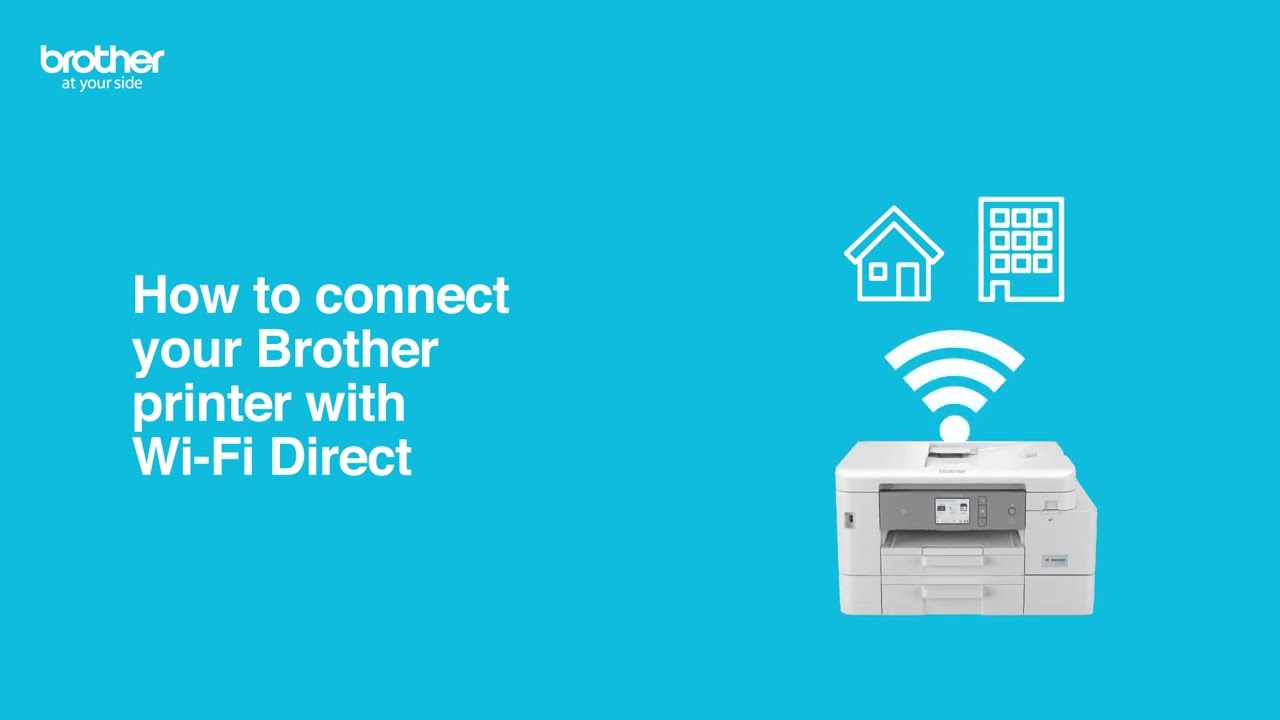
Wireless Direct allows your computer to connect directly to the printer without a router. This peer-to-peer mode is ideal for environments without existing Wi-Fi infrastructure.
Activate Direct Mode
Turn on the feature using the specific method for your model series. Mobile printers often use a button hold while desktop models use the menu system.
- RJ-3050 Models: Hold the power button until the Wi-Fi LED flashes blue.
- RJ-3150 Models: Go to Menu > WLAN and set to On.
Connect Computer to Printer
Open the Printer Setting Tool on your computer and select Wireless Direct under the interface options. Your computer will then detect the printer as a standalone network.
- Go to Wi-Fi settings on your computer.
- Find the SSID starting with
DIRECT-br. - Enter the default password (usually
00000000). - Wait for the Wi-Fi LED to stay lit blue.
Establish Direct USB Connection
A USB connection offers the most stable performance for single-computer setups. This method requires no network credentials and works immediately after driver installation.
Plug and Play Installation
Connect your printer to the computer using a high-quality USB Type A to B cable. Turn on the printer and let the operating system detect the new hardware.
- Download the Full Software Package from the Brother support site.
- Run the installer and let it detect the USB port automatically.
- Set the device as default in your system settings.
Verify Default Settings
Ensure your computer sends jobs to the correct device by setting it as default. This prevents errors when multiple printers are available in your office.
✅ Done: You can now print directly from any application without network delays.
Pair via Bluetooth Technology
Select Brother models support Bluetooth connectivity for wireless printing without a Wi-Fi network. This feature is common in mobile label printers like the TD-4650TNWB series.
Check Model Compatibility
Verify that your specific printer model includes Bluetooth hardware before attempting setup. Not all Brother printers support this wireless standard.
- Supported: TD-4650TNWB, RJ-2035B, MFC-J995DW.
- Not Supported: TD-4420TN, TD-4520TN.
- Check: Look for the Bluetooth logo on the device or check the back label.
Pair with Windows Computer
Enable Bluetooth on your PC and search for available devices. Your printer will appear with a name starting with PS- followed by six digits.
- Go to Settings > Bluetooth & other devices.
- Click Add Bluetooth or other device.
- Select your printer from the list.
- Confirm pairing if a code appears on both screens.
Add Printer Manually via IP Address

Sometimes your computer cannot find the printer automatically even when it is on the network. You can bypass discovery issues by adding the device manually using its IP address.
Locate Printer IP Address
Find the unique address assigned to your printer by printing a network configuration page. Alternatively, check the Current Status screen in the Printer Setting Tool.
- Print the Network Configuration Page from the printer menu.
- Note the IPv4 Address (e.g., 192.168.1.25).
- Ensure the address matches your computer’s network range.
Add via TCP/IP on Windows
Open your printer settings and choose to add a device that is not listed. Select the option to add using a TCP/IP address to enter the details manually.
- Choose Add a printer using a TCP/IP address.
- Enter the IP address in the hostname field.
- Ensure Query the printer is checked.
- Select Use the driver that is currently installed.
Troubleshoot Common Connection Issues
Connection problems often stem from simple configuration errors or signal interference. Follow these diagnostic steps to resolve most issues quickly.
Printer Not Found on Network
Ensure both your computer and printer are on the exact same Wi-Fi network name. A solid Wi-Fi LED confirms the printer has a valid connection to the router.
- Restart both your router and the printer.
- Print a network configuration page to verify the IP.
- Reset network settings on the printer if problems persist.
Weak Signal or Dropped Jobs
Poor signal strength causes intermittent connectivity and failed print jobs. Move the printer closer to the router or remove physical obstacles blocking the signal.
✅ Fix: Most Brother printers work best on the 2.4 GHz band rather than 5 GHz.
Driver Installation Fails
Old or corrupted drivers often prevent successful setup. Uninstall any existing Brother software completely before downloading the latest version.
- Run the installer as an administrator on Windows.
- Temporarily disable antivirus software during installation.
- Use a USB cable for the initial setup even for wireless models.
Model-Specific Setup Notes

Different Brother series have unique requirements for power and activation. Ignoring these specifics can prevent your printer from connecting at all.
Power Requirements for Label Printers
The PT-P750W and similar label printers have strict power rules for wireless functions. Using the wrong power source disables the Wi-Fi radio entirely.
- Required: AC adapter or Li-ion battery.
- Prohibited: Alkaline or Ni-MH batteries disable wireless.
Variations by Series
Industrial mobile printers like the RJ series often use button combinations for activation. Home office models typically use the LCD menu for all network tasks.
- RJ-3050: Hold power button to activate Wi-Fi.
- TD-4420TN: USB connection only (no Wi-Fi).
- MFC Series: Use the control panel wizard for setup.
Frequently Asked Questions About Connecting Brother Printers
Why is my Brother printer Wi-Fi LED flashing?
A flashing Wi-Fi LED means the printer is in wireless mode but not connected to a network. You must run the setup wizard or use the Printer Setting Tool to enter your SSID and password.
Can I connect my Brother printer without a USB cable?
Yes, some models support WPS or manual SSID entry via the LCD panel. However, using a USB cable temporarily during the initial driver installation is the most reliable method.
How do I find the IP address of my Brother printer?
Print a Network Configuration Page from the printer menu or check the Current Status tab in the Printer Setting Tool. The IPv4 address will be listed clearly on the report.
Why does my printer only work on 2.4 GHz networks?
Most Brother printers do not support 5 GHz wireless bands. Ensure your router broadcasts a 2.4 GHz signal and connect your computer to that specific band during setup.
What should I do if the computer cannot find the printer?
Check that both devices are on the same network and the firewall is not blocking the connection. Try adding the printer manually using its IP address via the TCP/IP port.
Key Takeaways for Connecting Brother Printer to Computer
Successfully learning how to connect Brother printer to computer depends on choosing the right method for your needs. Wireless setups require the Full Software Package and often a temporary USB link, while Bluetooth and direct USB offer simpler alternatives for specific models.
Always verify your connection by checking for a solid Wi-Fi LED or printing a test page immediately after setup. Keep your drivers updated and use the Printer Setting Tool for any future network changes to ensure reliable performance.


