

You have unboxed your new HP printer and powered on your HP computer, but the two devices are not talking to each other yet. Whether you need a quick wired link or a flexible wireless setup, knowing exactly how to connect HP printer to HP computer saves you time and frustration.
This guide walks you through every step for Windows and Mac users to get your system running smoothly. You will learn to install drivers, configure Wi-Fi settings, and fix common errors so you can start printing documents immediately.
Prepare Your Devices for Successful Connection
Proper preparation prevents connection failures and driver conflicts during your setup process. Ensuring both devices are ready creates a stable foundation for installation.
Verify Power and Administrator Access
Turn on your HP printer and check that the power light is solid with no error messages. Your HP computer must have administrator rights enabled to allow driver installation and system changes.
Make sure both devices are plugged into a reliable power source to prevent interruptions. A sudden power loss during setup can corrupt driver files or stall the connection process.
Gather Necessary Tools and Data
Collect the following items before you begin the installation process:
* Printer model number found on the front or back label
* Network name (SSID) and password for wireless setups
* Administrator password for your computer login
* High-quality USB cable for wired connections
Having these details ready speeds up the process significantly. You will need the model number to download specific drivers from the official support site.
Connect HP Printer to Computer Using USB Cable

A direct USB connection offers the fastest and most reliable method to link your devices. This approach is ideal for initial setup or if you lack a wireless network.
Plug In and Detect Hardware
Insert one end of the USB cable into your printer and the other into an available USB port on your computer. Wait ten to twenty seconds for the system to recognize the new hardware automatically.
Windows usually displays a notification stating it is installing device driver software. If nothing happens, you may need to manually trigger the detection through your system settings.
Install Full Feature Drivers
Even if the computer detects the hardware, you should install the full driver package for complete functionality.
- Visit the official HP support website in your browser.
- Enter your specific printer model number in the search bar.
- Download the Full Feature Driver matching your operating system.
- Run the installer and select USB Connection when prompted.
Pro Tip: Avoid using generic drivers provided by Windows Update. Official HP drivers ensure access to scanning features and maintenance tools.
Set Up Wireless HP Printer Connection
Wireless printing provides flexibility by allowing multiple devices to print without physical cables. Follow these steps to join your printer to your home network.
Use HP Smart App for Easy Setup
The HP Smart application simplifies the wireless configuration process for most users.
- Download HP Smart from the Microsoft Store or Apple App Store.
- Open the app and select Set Up a New Printer.
- Allow the app to locate your printer model automatically.
- Follow the on-screen prompts to send Wi-Fi credentials to the printer.
The app uses a temporary direct connection to transfer your network password securely. Your printer will then connect to your main Wi-Fi network independently.
Configure Wi-Fi via Printer Control Panel
You can also enter network settings directly using the buttons on your printer.
- Tap the Wireless icon or go to Settings on the printer display.
- Select Network Setup or Wireless Settings.
- Choose Wi-Fi Setup Wizard from the menu options.
- Select your network name from the list and enter your password.
Wait for the wireless light on the printer to turn solid blue. A blinking light indicates the printer is still searching for a signal or has the wrong password.
Warning: Ensure your router uses WPA2 or WPA3 security. Older WEP security protocols are often incompatible with modern HP printers.
Add Wireless Printer to Your HP Computer
Once the printer joins the network, you must add it to your computer to enable printing tasks.
Add Printer on Windows 10 and 11
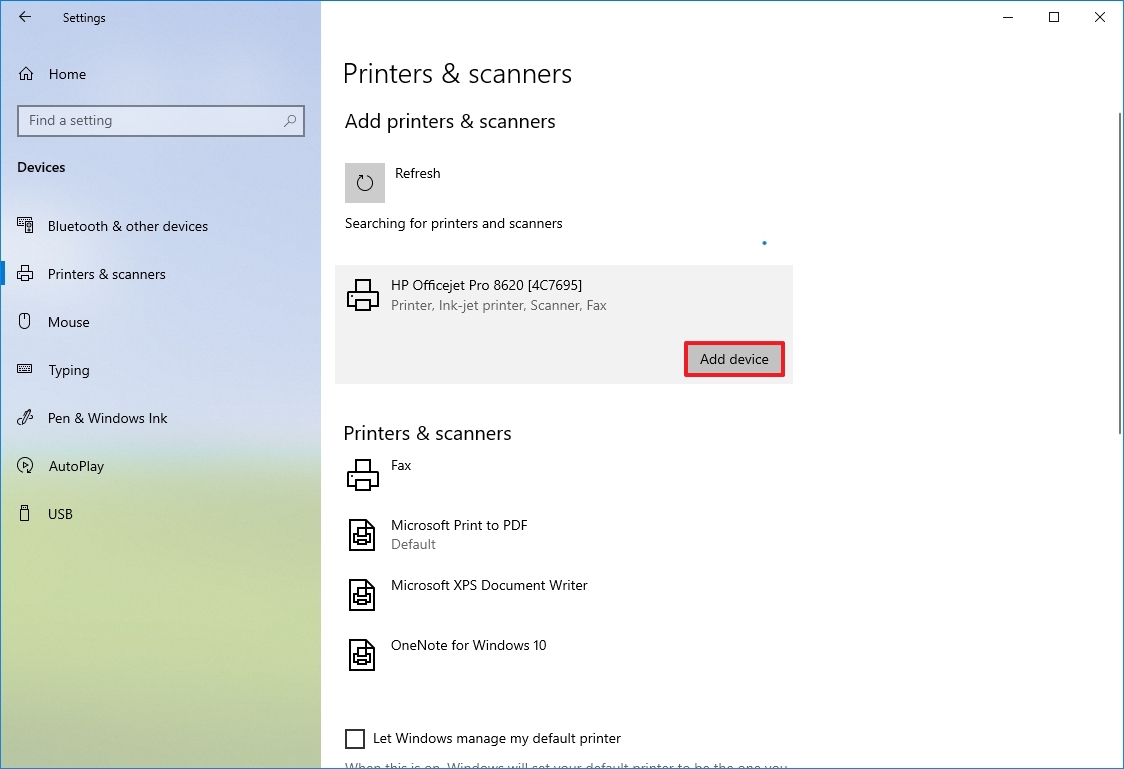
Navigate to your system settings to locate and install the networked device.
- Open Settings and select Bluetooth & devices.
- Click on Printers & scanners in the main menu.
- Press the Add device button to start the search.
- Select your HP printer from the list and click Add device.
If your printer does not appear, ensure both the computer and printer are on the exact same Wi-Fi network. Guest networks often isolate devices and prevent discovery.
Add Printer on macOS

Mac users can add printers through the system preferences panel.
- Open System Settings or System Preferences.
- Select Printers & Scanners from the sidebar.
- Click the + button to add a new printer.
- Choose your HP printer from the list and click Add.
macOS typically downloads necessary drivers automatically via AirPrint. If the printer shows as “Generic,” download the specific driver package from the HP website.
Troubleshoot Common Connection Issues
Connection problems can occur due to signal interference or software glitches. Use these targeted fixes to resolve them quickly.
Printer Not Found During Search
- Restart both the printer and the computer to refresh network connections.
- Check that your USB cable is not damaged if using a wired setup.
- Temporarily disable firewall software that might block discovery.
- Ensure the printer is not in “Sleep” mode during the search.
Wireless Connection Drops Frequently
- Move the printer closer to the wireless router to improve signal strength.
- Keep the printer away from microwaves and cordless phones to reduce interference.
- Assign a static IP address to the printer via your router settings.
Driver Installation Fails Completely
- Uninstall any old HP software using the official HP Uninstaller tool.
- Download the latest driver version directly from the support site.
- Right-click the installer and select Run as administrator.
Use HP Print and Scan Doctor Tool
This free utility from HP diagnoses and fixes many connection problems automatically. It is an essential tool when manual steps do not work.
Run Automatic Diagnostics
- Search for HP Print and Scan Doctor on the HP support site.
- Download and launch the tool on your computer.
- Select your printer from the list of detected devices.
- Click Start to begin the automated troubleshooting process.
The tool checks network connectivity, printer status, and driver integrity. It often resolves issues like “Printer Offline” with a single click.
Maintain Your Printer Connection Long Term
Regular maintenance keeps your connection stable and prevents future interruptions.
Update Firmware Regularly
Outdated firmware can cause compatibility issues with new operating system updates.
- Open the HP Smart app on your device.
- Select your printer image to view details.
- Tap Printer Settings and look for Update Firmware.
- Follow prompts to install any available updates.
Clear Print Spooler on Windows
Corrupted print jobs can stop communication between devices.
- Press Win + R and type
services.mscthen press Enter. - Locate Print Spooler in the list of services.
- Right-click and select Stop.
- Delete all files in the
C:\Windows\System32\spool\PRINTERSfolder. - Right-click Print Spooler again and select Start.
When to Reset Your HP Printer

A factory reset clears all network data and returns the printer to its original state. Use this only when other troubleshooting steps fail.
Perform a Cold Reset
This process clears all configuration data including network settings.
- Turn on the printer and wait for it to initialize.
- Press and hold the Cancel and Start Copy buttons for five seconds.
- Wait for all lights to flash simultaneously to confirm the reset.
You will need to reconfigure your Wi-Fi settings and reinstall drivers after this step. This is a last resort for persistent connection errors.
Frequently Asked Questions About Connecting HP Printers
Do I need a USB cable to set up wireless printing?
Most modern HP printers require a temporary USB connection or the HP Smart app to transfer Wi-Fi credentials initially. Once configured, you can remove the cable and print wirelessly.
Why is my HP printer not showing up on my computer?
This usually happens if the computer and printer are on different networks. Ensure both devices connect to the same Wi-Fi name and that the printer signal is strong.
Can I connect my HP printer without the HP Smart app?
Yes, you can use the printer’s control panel to select your network and enter your password manually. You can also add the printer via IP address in your computer settings.
What should I do if the driver installation fails?
Uninstall any existing HP software, restart your computer, and download the full feature driver from the official HP support website. Run the installer as an administrator.
How do I find my printer model number for drivers?
Look for a label on the front, back, or inside the cartridge access area of your printer. The model number is also displayed on the printer screen under settings or information.
Key Takeaways for Connecting HP Printer to HP Computer
Successfully linking your devices requires preparing your equipment, choosing the right connection method, and installing official drivers. Whether you use USB for speed or Wi-Fi for flexibility, following the correct sequence ensures a stable setup.
Remember to keep your firmware updated and use the HP Print and Scan Doctor for quick fixes. Now that you know how to connect HP printer to HP computer, you can enjoy seamless printing for all your home and office needs.


