

Is your Brother printer refusing to connect or printing strange characters? A corrupted driver often causes these frustrating errors, but you can fix them by learning how to reinstall Brother printer software. This process clears out old data that blocks communication between your computer and the device.
This guide shows you exactly how to remove your current driver and install a fresh version on Windows 8 or 8.1. You will discover how to access device settings, select the correct model, and verify your setup with a simple test page. Follow these steps to restore full printing functionality today.
Remove Old Brother Printer Driver Completely
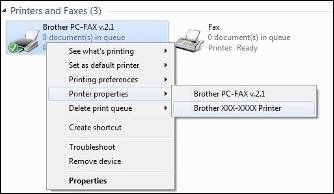
You must delete the existing driver before attempting a new installation to prevent file conflicts. Leaving old files behind can cause the new software to malfunction or fail entirely. This clean slate approach ensures your system recognizes the fresh driver without interference from previous settings.
Access Devices and Printers Menu
Start by opening the system settings where your hardware is managed. This central hub allows you to view and manage all connected peripherals.
- Move your cursor to the bottom-left corner of your screen.
- Right-click the mouse button and select Control Panel from the menu.
- Click Hardware and Sound to view hardware options.
- Select View devices and printers to see your list.
Delete Existing Brother Device Entry
Locate your specific printer in the list and remove it to clear the way for reinstallation. This step is critical when you need to reinstall Brother printer components effectively.
- Find your Brother printer under the Printers section.
- Right-click the printer driver entry to open the context menu.
- Select Remove Device from the available options.
- Click Yes when the confirmation box appears.
Note: If you do not see your printer, click the small arrow next to Printers to expand the list. Wait a few seconds for Windows to finish uninstalling the device completely.
Start New Brother Printer Installation Process
With the old configuration gone, you can now begin adding your Brother printer as a new device. Windows will search for available hardware to initialize the connection.
Launch Add Printer Wizard
Initiate the setup tool to detect your printer on the network or via USB. This wizard guides you through the necessary configuration steps.
- Stay in the Devices and Printers window.
- Click the Add a printer button at the top.
- Wait while Windows searches for available printers on your network.
- Select your Brother machine if it appears in the results.
- Click Next to continue the process.
Ensure your printer is powered on and connected via USB or Wi-Fi before starting. For wireless models, verify that the device is linked to the same network as your computer.
Select Correct Brother Model from List

Choosing the exact driver for your specific model is essential for full feature support. Using a generic driver may limit functionality or cause printing errors.
Pick Manufacturer and Device Name
You may need to manually select your model if Windows does not find it automatically. This ensures you get the specific features designed for your machine.
- Click The printer that I want isn’t listed if your model is missing.
- Choose Add a local printer or network printer with manual settings.
- Click Next to proceed to the driver selection screen.
- Select Brother from the Manufacturer list on the left.
- Scroll through the Printers list on the right and pick your exact model.
Handle Missing Models via Update
Your specific model might not appear in the default list if your system lacks recent updates. You can download the necessary files directly through Windows.
- Click the Windows Update button located near the list.
- Wait while Windows connects to the internet and downloads updated drivers.
- Allow several minutes for the update process to complete.
- Look for your Brother model to appear in the refreshed list.
Select your printer model once it becomes visible and click Next to proceed.
Complete Driver Setup and Configuration
Finalize the installation by configuring naming conventions and sharing preferences. These settings determine how your computer interacts with the printer daily.
Replace Conflicting Drivers Prompt
If Windows detects an existing driver file during this stage, you must choose the correct action. This prevents version conflicts that could stop the printer from working.
- Watch for a message stating “Driver already installed.”
- Select Replace the current driver to overwrite the old files.
- Click Next to apply the new driver.
Keep Default Printer Name
Maintaining the default name helps avoid recognition issues with network protocols. Custom names can sometimes confuse the system during automatic discovery.
- Leave the preset name in the text field unchanged.
- Click Next to accept the default naming convention.
Configure Printer Sharing Options
Decide whether other users on your network need access to this specific device. Most home users will not need to enable sharing features.
- Select No if you do not need to share the printer (Recommended).
- Select Yes only if others on your local network require access.
- Click Next to save your sharing preference.
Note: Network printers generally do not require sharing since other devices can connect directly using the IP address.
Set as Default and Print Test Page
Finish the setup by designating this printer as your primary output device. A test print confirms that the reinstallation was successful.
- Check Set as the default printer if you want all jobs to go here automatically.
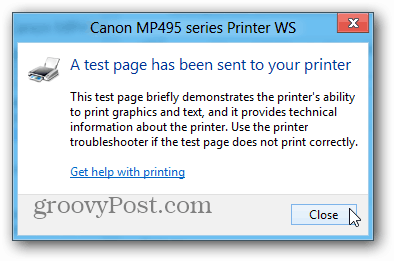
- Select Print a test page to verify the connection.
- Click Finish to complete the installation.
A clear test page indicates you have successfully reinstalled Brother printer drivers.
Troubleshoot Common Reinstall Issues
Even with careful steps, you might encounter obstacles during the process. These solutions address the most frequent problems users face.
Printer Not Found After Reinstall
If your computer cannot locate the printer, check your physical connections first. Connection issues are the most common cause of detection failures.
- Ensure the printer is powered on and ready.
- For USB: Try a different port or replace the cable.
- For Wi-Fi: Restart both your router and the printer.
- Re-run the Add a printer tool to search again.
Driver Installation Fails Unexpectedly
Manual installation gives you more control if the automatic wizard fails. This method bypasses potential Windows Update glitches.
- Visit the official Brother support website.
- Enter your specific model number in the search bar.
- Download the full driver package for Windows 8.1.
- Run the installer file and follow the on-screen prompts.
Test Print Comes Out Garbled
Poor quality output usually means the wrong driver model was selected. You must match the software exactly to your hardware model.
- Return to Devices and Printers in the Control Panel.
- Remove the printer again to clear the incorrect driver.
- Re-add the device and ensure the exact model is chosen.
- Avoid generic PCL or PostScript drivers unless specifically required.
Prevent Future Driver Problems
Regular maintenance keeps your Brother printer running smoothly for years. These habits reduce the need for future reinstalls.
Update Drivers Regularly
Check for software updates periodically to ensure compatibility and security. New updates often fix bugs found in older versions.
- Visit the Brother website every six months.
- Install firmware updates when they become available.
- Download the latest driver packages for your operating system.
Use Static IP for Network Printers
Assigning a fixed address prevents connection drops caused by changing IPs. This makes reconnecting much easier if issues arise later.
- Access your router settings to assign a fixed IP address.
- This prevents the address from changing when the router restarts.
- Consistent addressing simplifies future reinstallation tasks.
Clean Print Spooler When Stuck
Clearing the print queue can resolve issues where jobs stick and mimic driver failure. This resets the communication channel between PC and printer.
- Press Windows + R, type
services.msc, and press Enter. - Find Print Spooler, right-click it, and select Stop.
- Navigate to
C:\Windows\System32\spool\PRINTERSand delete all files. - Return to Services and restart the Print Spooler.
Choose USB vs Network Reinstall Method

Your connection method impacts the reliability of the installation process. Choose the right approach based on your current situation.
USB Reinstall for Troubleshooting
Direct connection is the most reliable method for fixing persistent errors. It bypasses network variables that often cause installation failures.
- Plug the printer directly into your PC using a USB cable.
- Use this method for the initial reinstall attempt.
- Switch to network mode only after confirming basic functionality.
Network Reinstall for Shared Access
Wireless or Ethernet installation is best for multi-user environments. Ensure your network is stable before attempting this method.
- Choose this option when multiple users need printer access.
- Verify Wi-Fi or Ethernet connectivity before starting.
- Use USB first if the network install fails repeatedly.
Frequently Asked Questions About Reinstalling Brother Printers
Do I need to uninstall the old driver before reinstalling?
Yes, removing the old driver prevents file conflicts that can cause errors. You should always delete the existing device entry before adding it back to ensure a clean installation.
What if my Brother printer model is not listed?
Click the Windows Update button during the selection step to download newer drivers. This process may take a few minutes but will add missing models to the list.
Can I reinstall my Brother printer without an internet connection?
You can use a USB cable and existing local drivers, but downloading the latest package is recommended. Without internet, you cannot access updated drivers via Windows Update.
Why does my test page print garbled text?
This usually means you selected the wrong driver model or a generic driver. Remove the printer again and ensure you select the exact model number from the Brother list.
Should I share my printer during the reinstall process?
Most home users should select No for printer sharing. Network-connected printers are accessible by other devices without enabling the sharing feature in Windows.
Key Takeaways for How to Reinstall Brother Printer
Reinstalling your Brother printer involves removing the old driver, selecting the correct model, and verifying the setup with a test print. By following these steps on Windows 8 or 8.1, you can resolve most connectivity and printing errors quickly. Always ensure you choose the exact model number to avoid functionality issues.
If automatic detection fails, download the full driver package directly from the Brother website for the best results. Regular updates and proper connection methods will keep your printer running smoothly in the future. Try printing a test page now to confirm your success.


