

Printing a document should be simple, yet selecting the wrong device every single time creates unnecessary frustration and wasted paper. Learning how to set default printer in Windows 11 solves this by automatically routing every job to your preferred machine without extra clicks.
This guide shows you exactly how to manually assign a specific printer or let Windows manage selections based on your location. You will also discover how to fix missing buttons, add unlisted devices, and customize settings for a seamless workflow.
Disable Automatic Management to Manually Set Default
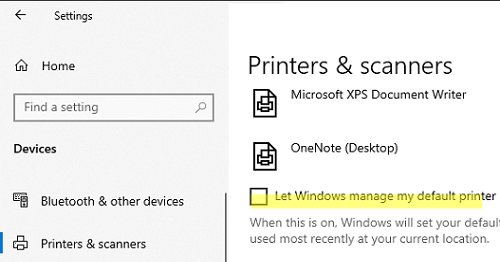
Windows 11 tries to be helpful by automatically switching your default printer to the last one you used. While useful for some, this feature prevents you from locking in a specific device until you turn it off. You must disable this automation before the system allows you to manually choose a permanent default.
Turn Off Let Windows Manage My Default Printer
The toggle for automatic management hides the manual selection button you need. Follow these steps to reveal your options and take control.
- Right-click the Start button on your taskbar.
- Select Settings from the context menu.
- Click Bluetooth & devices in the left sidebar.
- Choose Printers & scanners on the right side.
- Find the toggle labeled Let Windows manage my default printer.
- Switch the toggle to Off.
Pro Tip: If you do not see the “Set as default” button later, return here and ensure this toggle is strictly off.
Assign a Specific Printer as Your Permanent Default
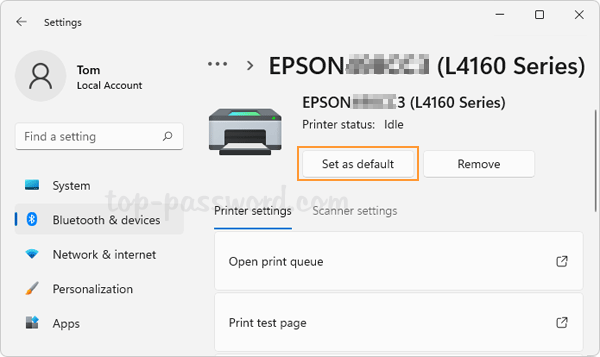
Once automatic management is disabled, you can designate your primary printer. This ensures every document goes to the correct tray or network location without you checking the print dialog box.
Steps to Set Default Printer in Windows 11
Use this sequence to lock in your choice for all future print jobs.
- Stay in the Printers & scanners section of Settings.
- Click on the name of the printer you want to use.
- Press the Manage button that appears below the printer name.
- Look for the Printer status section on the new screen.
- Click the Set as default button.
- Verify the status label changes to Default.
✅ Success Check: The printer list will now show a small “Default” tag under your chosen device name.
Enable Dynamic Switching for Multiple Locations
If you move between home and office or use different printers for specific tasks, automatic management might actually suit your needs better. This mode lets Windows decide the best printer based on your recent history and physical location.
How Location-Based Printing Works
Enabling this feature changes how Windows 11 handles your print queue. It is ideal for laptop users who connect to different networks throughout the day.
- Turn the Let Windows manage my default printer toggle back to On.
- Windows remembers the last printer used at your current network location.
- When you return to a previous location, the system reverts to the printer used there last.
Note: This feature relies on location services and network detection, making it most effective on mobile devices rather than stationary desktops.
Fix Missing Set as Default Button Issues
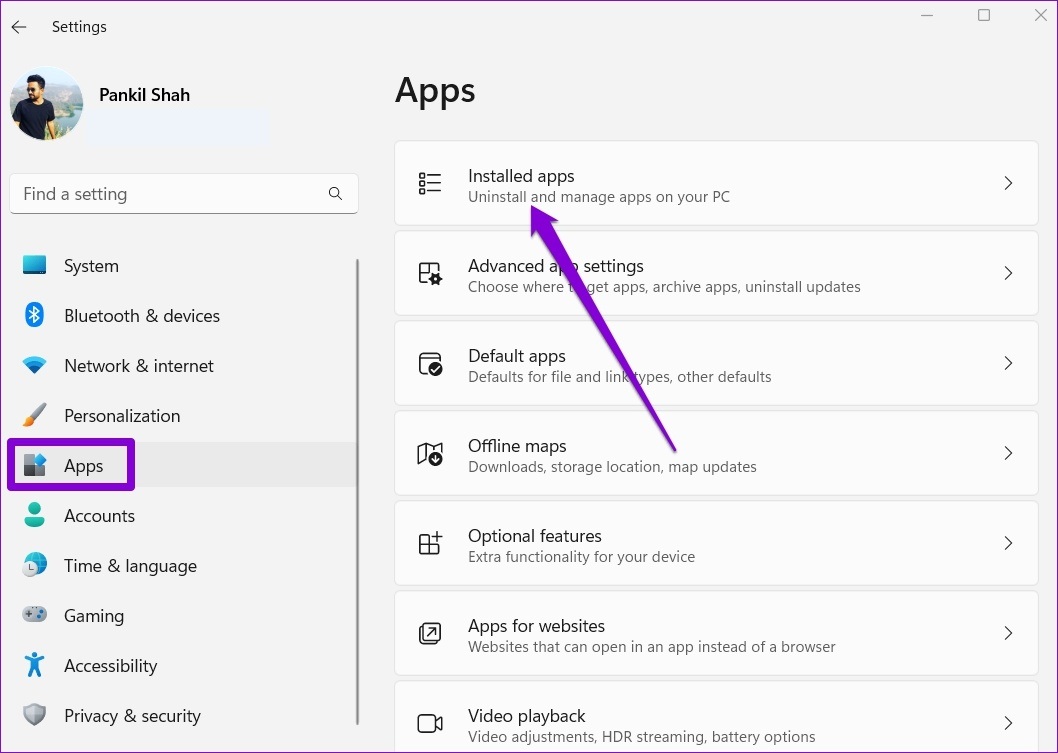
Many users panic when the “Set as default” button disappears from their screen. This is not a glitch but a designed behavior when automatic management is active.
Why the Option Disappears and How to Restore It
The button vanishes because Windows assumes you want it to choose for you. To restore manual control, you simply need to flip one switch.
- Navigate back to Settings > Bluetooth & devices > Printers & scanners.
- Locate the Let Windows manage my default printer toggle.
- Switch it to Off immediately.
- Return to the Manage screen for your printer.
- The Set as default button will reappear instantly.
🔄 Quick Fix: If the button remains missing after toggling, restart the Settings app or reboot your computer to refresh the interface.
Add Unlisted Printers to Your Device List

You cannot set a printer as default if Windows 11 does not know it exists. If your desired machine is missing from the list, you must install it first before changing any default settings.
Install New Printers via Settings
Windows 11 includes a built-in tool to find and install drivers for most modern printers.
- Go to Printers & scanners in your Settings menu.
- Click the blue Add device button.
- Wait for Windows to search for nearby printers.
- If your printer appears, click Add device next to its name.
- If the search fails, click The printer that I want isn’t listed to enter an IP address or select a shared printer manually.
Visual Cue: A successful installation shows the printer appearing in the main list with a status of “Idle” or “Ready.”
Customize Preferences for Your Default Device
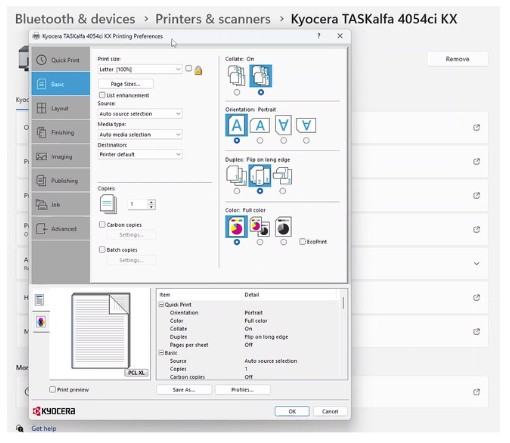
Setting a default printer does not mean you are stuck with factory settings. You can adjust paper size, color modes, and duplex printing options so every job prints exactly how you want.
Access Advanced Printing Preferences
Fine-tune your default behavior to save time on every single print job.
- Click Manage next to your default printer.
- Select Printing preferences to change paper source, quality, and layout.
- Choose Printer properties to update drivers or configure sharing options.
- Use See what’s printing to view or cancel active jobs in the queue.
🔧 Expert Note: Set your preferred paper size and double-sided options here once so you never have to adjust them manually again.
Remove Unused Printers to Clean Your List
Over time, your printer list accumulates old devices, public printers, and failed installation attempts. Removing these keeps your list clean and prevents accidental selection of the wrong device.
Uninstall Old or Unnecessary Devices
Deleting a printer is simple and helps avoid confusion when you are in a hurry.
- Open Printers & scanners in Settings.
- Click on the printer you wish to remove.
- Select the Remove button.
- Confirm the action when prompted.
Troubleshoot Common Printer Problems
Even with a default set, connectivity issues or driver errors can stop printing entirely. Windows 11 includes a dedicated troubleshooter to diagnose and fix these problems automatically.
Run the Built-In Printer Troubleshooter
Use this tool if your default printer shows an error status or refuses to print.
- Go to Settings > System > Troubleshoot.
- Select Other troubleshooters.
- Find Printer in the list and click Run.
- Follow the on-screen prompts to let Windows detect and repair issues.
🛠️ Common Fixes: This tool often restarts the print spooler service, reinstalls corrupt drivers, or fixes network handshake errors.
Frequently Asked Questions About Setting Default Printer in Windows 11
Why can’t I see the “Set as default” button for my printer?
The button is hidden because the “Let Windows manage my default printer” feature is currently turned on. You must switch this toggle off in the Printers & scanners settings to reveal the manual option.
Can Windows automatically switch printers based on where I am?
Yes, if you enable automatic management, Windows 11 uses location data on mobile devices to switch your default printer to the last one used at your current network location.
What happens if I uninstall my current default printer?
If you remove the device set as default, Windows will either have no default printer or automatically assign a new one based on your current settings and available devices.
Does setting a default printer work for all applications?
Yes, once set, the default printer applies system-wide to Word, browsers, PDF readers, and other software unless you manually select a different device in the print dialog.
How do I know which printer is currently set as default?
Look at the Printers & scanners list in Settings. Your default device will have a small label saying “Default” underneath its name, and the status section will confirm it.
Key Takeaways for Managing Your Default Printer in Windows 11
Mastering how to set default printer in Windows 11 gives you full control over your printing workflow. Remember that you must disable automatic management to manually assign a specific device, while enabling it allows for dynamic switching based on your location. Regular maintenance, such as removing old devices and running troubleshooters, ensures your preferred printer remains ready for action.
Take action now by checking your current settings to see if Windows is managing your printer or if you have a permanent default set. A quick adjustment today saves you from selecting the wrong printer every time you need to print a document.


