

You just unboxed your first 3D printer, and excitement quickly turns into confusion. Cables, settings, software, filament. Where do you start? Knowing how to use a 3D printer correctly separates a flawless first print from a tangled mess of plastic. From setup to finishing, every step matters whether you own a Creality Ender 3, Prusa i3, or Bambu Lab P1S.
This guide walks you through the full workflow. You will learn setup essentials, model preparation, slicing, printing, troubleshooting, and post-processing. No jargon overload. No guesswork. Just clear steps to get you printing with confidence on day one.
Set Up Your 3D Printer the Right Way
A shaky or misconfigured setup causes failed prints, even with perfect slicer settings. Take time to prep your workspace before powering on.
Remove All Transit Hardware First
Most printers ship with safety screws, braces, or foam inserts to protect moving parts. Leaving these in can damage motors or cause binding.
Check these areas:
– Z-axis lead screws and gantry bolts
– Plastic spacers in X or Y rail systems
– Frame stabilizers or corner braces
Refer to your manual. Brands like Creality and Bambu Lab also post unboxing videos worth watching.
Place Your Printer on a Stable Surface
Your printer needs a rigid, vibration-free platform. Even small wobbles create layer misalignment and ghosting on tall prints.
Best options include:
– A concrete floor with a sturdy printer table
– A heavy-duty desk with minimal flex
– A dedicated 3D printing enclosure
Skip wobbly tables, folding trays, or soft surfaces.
Inspect Mechanics and Connections
Before powering on, do a quick physical check:
– Manually move X, Y, and Z axes; motion should feel smooth
– Check belt tension (tight like a guitar string, not slack)
– Ensure no cables are pinched or loose
– Verify all frame screws are snug
Lubricate linear rails with PTFE dry lubricant before your first print. Avoid liquid oils that attract dust.
Prepare Your 3D Model for Printing
You cannot simply hand a 3D file to the printer. The model must be clean, error-free, and within your printer’s build volume.
Choose or Create a 3D Model
You can:
– Download free models from Thingiverse, MyMiniFactory, or GrabCAD
– Design your own using Tinkercad (beginner), Fusion 360 (intermediate), or Blender (advanced)
Always check dimensions. A 220×220 mm printer cannot print a 300 mm cube.
Use Compatible File Formats
Most slicers accept:
– .STL (the most common)
– .OBJ
– .3MF (gaining popularity for multi-material support)
Avoid .STEP or .DWG files. These are CAD formats, not mesh files.
Repair Model Errors Before Slicing
A broken mesh causes slicing failures. Free tools like Meshmixer or Netfabb Online Repair can fix issues such as:
– Holes in the surface
– Inverted normals
– Overlapping geometry
Your model must be watertight, meaning a sealed container with no gaps.
Slice Your Model with Correct Settings
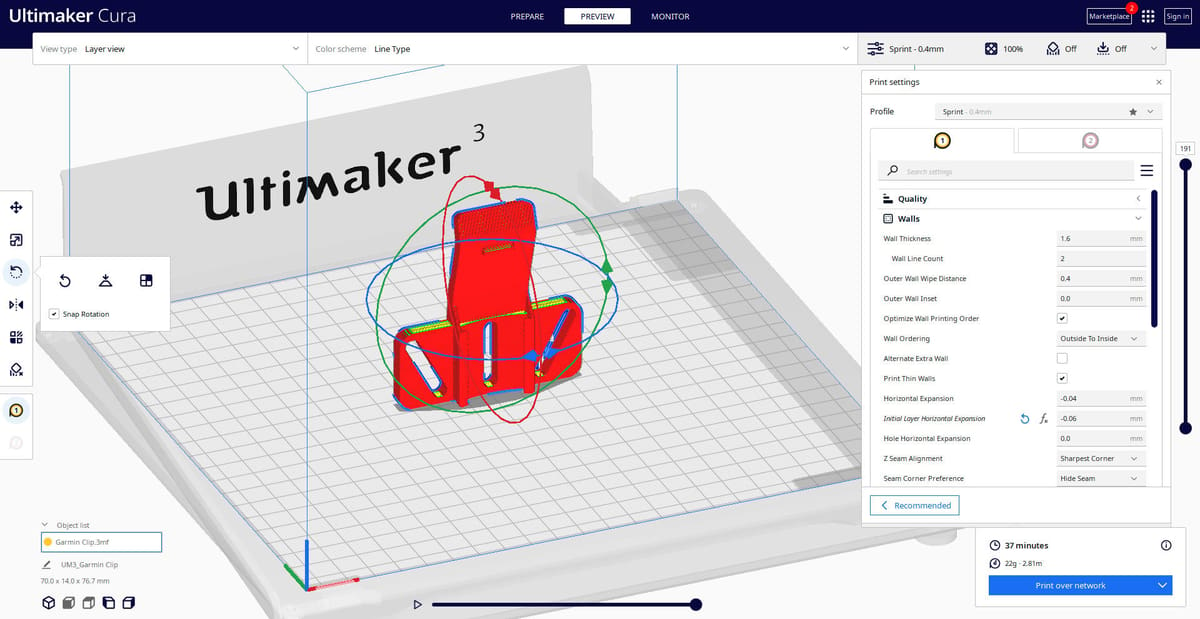
Slicing converts your 3D model into G-code, the language your printer understands. This step controls quality, speed, and strength.
Pick the Right Slicer Software
Choose based on your printer and experience:
– Cura: free, universal, beginner-friendly
– PrusaSlicer: excellent for Prusa, works with others
– Bambu Studio: required for Bambu Lab AMS systems
– Simplify3D: paid, with advanced controls
Install the latest version and select your exact printer model for accurate preset profiles.
Set Key Print Parameters
Optimize these settings before slicing:
- Layer Height: 0.2 mm is the beginner sweet spot. Lower (0.1 mm) means finer detail; higher (0.3 mm) means faster prints
- Print Speed: Start at 40–60 mm/s. Faster speeds risk ringing and layer shifts
- Infill: 10–20% for display models, 30–50% for functional parts
- Walls: 2–3 perimeters (roughly 0.8–1.2 mm with a 0.4 mm nozzle)
- Supports: Enable for overhangs over 45°, bridges over 10 mm, or floating features. Tree supports are easier to remove
Set Nozzle and Bed Temperatures
Use these standard ranges:
| Material | Nozzle (°C) | Bed (°C) |
|---|---|---|
| PLA | 190–210 | 50–60 |
| PETG | 230–250 | 70–90 |
| ABS | 230–250 | 100–110 |
Always check your filament spool label, since brands vary.
Generate and Transfer G-Code
Click “Slice” to generate the G-code. Transfer it via:
– SD card (most reliable)
– USB (direct connection)
– WiFi or network (Bambu Lab, Prusa Connect)
Wait for the file to fully transfer before starting. Corrupted files cause mid-print failures.
Load Filament Correctly
Improper loading leads to clogs, under-extrusion, and failed prints. Handle filament with care.
Dry Filament Before Use
Moisture causes bubbling, poor adhesion, and weak prints. Store filament in:
– Airtight bins with desiccant packs
– Filament dry boxes
– Vacuum-sealed bags
Nylon, PETG, and PC absorb moisture especially fast.
Insert Filament Step-by-Step
- Heat the nozzle to printing temperature
- Feed filament into the extruder until it oozes from the nozzle
- Trim the tip at a 45° angle for smoother feeding next time
For Bowden setups, push slowly without forcing. Direct drive systems feed more easily.
Use AMS for Multi-Color Prints
If you own a Bambu Lab P1S or X1C, the Automatic Material System lets you load up to four spools. Add desiccant packs, use weight holders to prevent tangles, and check that tubes are kink-free.
Prepare the Build Plate for Adhesion
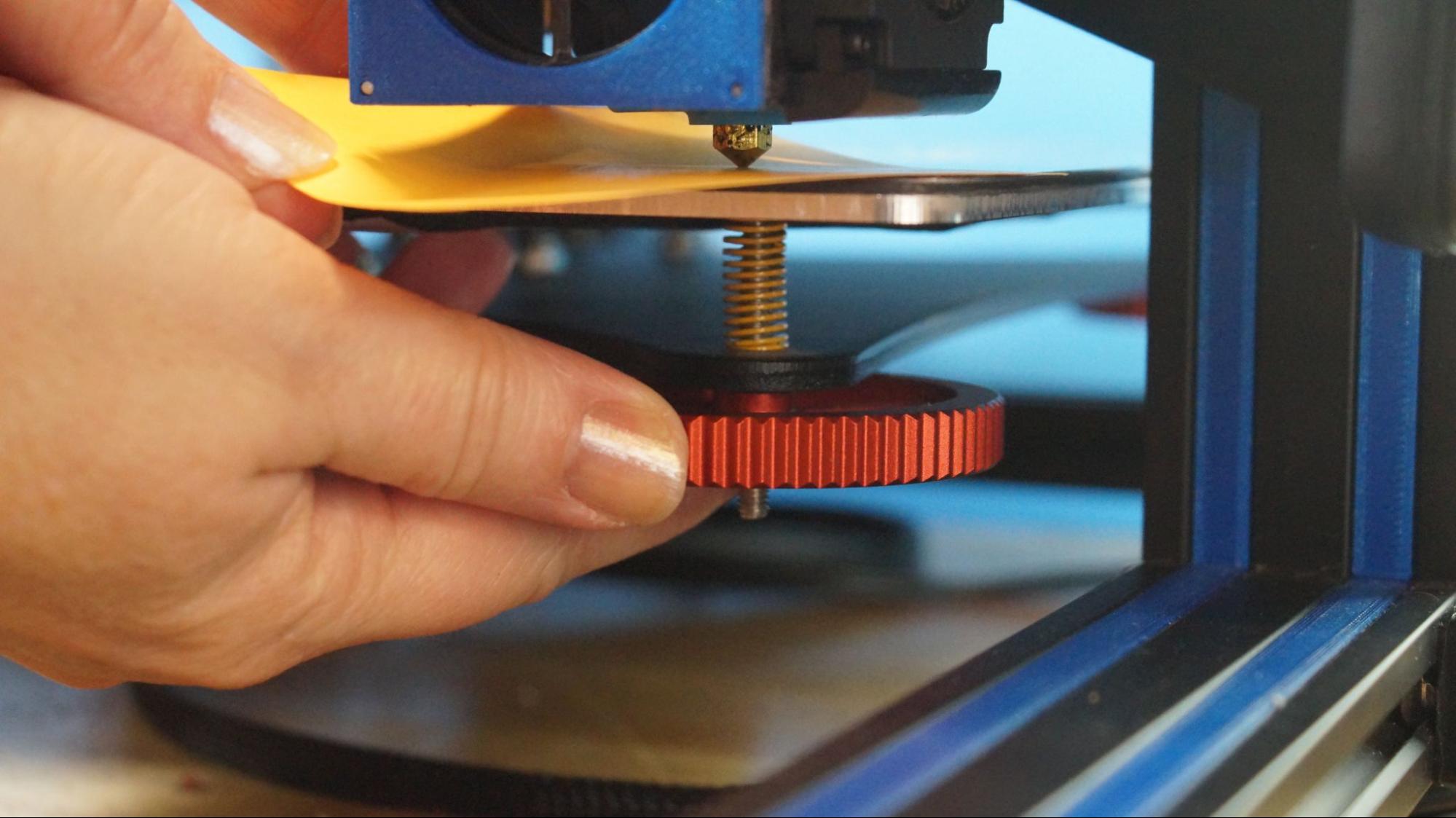
A failed first layer ruins the entire print. Proper bed prep is non-negotiable.
Clean the Build Plate
Use:
– Warm soapy water for the initial clean
– 70–90% isopropyl alcohol between prints
Avoid harsh chemicals that damage PEI or coated surfaces. For Bambu Lab SuperTack plates, a light wipe is enough for PLA and PETG.
Skip Glue When Unnecessary
- Do not use glue stick on SuperTack or textured PEI for PLA or PETG
- Use glue stick or hairspray for ABS, ASA, or bare glass beds
- Try Magigoo for high-temperature materials
Extra glue leaves residue and creates uneven first layers.
Level the Bed Accurately
Manual Leveling
- Heat the bed and nozzle
- Home the printer, then move the nozzle to each corner and the center
- Slide a piece of paper between the nozzle and bed
- Adjust screws until you feel slight resistance
Paper tearing means the nozzle is too close. Paper sliding freely means it is too far.
Auto-Leveling
If your printer supports it (Prusa, Bambu, Anycubic Kobra):
– Run auto bed leveling from the menu
– It creates a mesh map to compensate for minor warps
– Re-run after moving the printer or updating firmware
Start and Monitor Your First Print
The first 30 minutes are critical. Watch closely and catch problems early.
Begin with a Simple Test Print
Print a:
– Calibration cube (checks dimensions)
– Benchy (tests overhangs and details)
– Scraper or spool holder (practical items)
Avoid complex models until you have built confidence.
Watch the First Layers Closely
Look for:
– Even extrusion across the entire layer
– No gaps or skipped spots
– No nozzle scraping the bed
If filament squishes like toothpaste, the bed is too close. If it looks wispy, the bed is too far.
Monitor for Early Failures
Check every 10–15 minutes during the first hour. Look for corner warping (common with ABS), stringing, and layer shifting. Clicking sounds often signal under-extrusion.
Troubleshoot Common Printing Problems

Even with perfect prep, issues happen. Here is how to fix the most frequent ones.
Fix Poor Bed Adhesion
Symptoms: corners peel or print detaches mid-print.
Solutions:
– Re-level the bed
– Increase bed temperature by 5–10°C
– Clean the bed with IPA
– Add a brim (10–20 mm) to increase surface area
For ABS, enclose the printer to reduce warping.
Stop Stringing and Oozing
Cause: filament oozes during travel moves.
Fix in slicer:
– Increase retraction distance: 5–7 mm (direct drive), 2–4 mm (Bowden)
– Increase retraction speed: 40–60 mm/s
– Enable coasting and wipe features
– Lower nozzle temperature by 5–10°C
Test changes with a retraction tower print.
Eliminate Under-Extrusion
Symptoms: thin layers, gaps, weak structure.
Check:
– Nozzle clog (perform a cold pull)
– Filament diameter consistency
– Extruder gear tension and cleanliness
– Flow rate (calibrate extruder steps/mm)
Prevent Layer Shifting
Cause: motors skip steps due to obstruction or speed.
Fix:
– Tighten belts
– Reduce print speed
– Ensure the print head moves freely
– Check stepper driver current if adjustable
Avoid touching the printer during prints. Vibrations can shift layers.
Remove and Finish Your 3D Print
The print is done. Now make it look professional.
Wait for the Bed to Cool
Let the build plate cool below 50°C before removing prints. PLA and PETG contract slightly as they cool, releasing naturally. For stubborn prints, use a plastic scraper. Avoid metal tools that can scratch coated beds.
Remove Supports Carefully
Use needle-nose pliers, flush cutters, or your fingernail for small nubs. Cut supports flush, then sand smooth. Pro tip: some supports are easier to remove while slightly warm.
Sand and Paint for a Smooth Finish
Sanding steps:
1. Start with 120-grit paper
2. Progress to 220, 400, and 600+ grit for a glossy finish
3. Use wet sanding for smoother results
Painting:
– Apply acrylic primer first
– Sand between coats
– Finish with clear coat for durability
For ABS, acetone vapor smoothing melts the surface for a glossy look. Use it in a ventilated area.
Calibrate and Maintain Your Printer
A well-maintained printer prints reliably for years. Do not skip routine care.
Calibrate Before First Use
Never trust out-of-box settings. Calibrate:
– Bed leveling (auto or manual)
– Extrusion flow rate (print a 20 mm cube, measure walls)
– Retraction (test tower)
– Temperature (temperature tower)
Make one change at a time and document results.
Follow a Maintenance Schedule
| Frequency | Task |
|---|---|
| Before every print | Clean bed, check filament |
| Weekly | Lubricate Z-rod, check belt tension |
| Monthly | Inspect nozzle, clean extruder, check wiring |
Use PTFE dry lubricant on rails. Keep spare 0.4 mm nozzles and PTFE tubes on hand.
Replace Worn Components
- Nozzles: replace every 3–6 months with heavy use
- Belts: replace if stretched or frayed
- Build plates: swap when coating peels or adhesion fails
Frequently Asked Questions About 3D Printing
What is the best 3D printer for beginners?
Budget-friendly options like the Creality Ender 3 and Anycubic Kobra are popular for beginners. The Bambu Lab A1 Mini offers a more automated experience with auto-leveling and a compact footprint. Choose based on your budget and desired features.
How long does it take to 3D print something?
Print time depends on size, layer height, and speed. A small calibration cube takes 15–30 minutes, while a Benchy boat takes 1–2 hours. Larger functional parts can take 10+ hours.
What is the easiest filament to print with?
PLA is the most beginner-friendly filament. It prints at low temperatures (190–210°C), has minimal warping, and produces minimal odor. PETG is a good next step for slightly stronger parts.
Do I need to use glue on the build plate?
Not always. SuperTack and textured PEI beds provide strong adhesion for PLA and PETG without adhesive. Use glue stick or hairspray for ABS, ASA, or bare glass beds where extra adhesion is needed.
Why is my 3D print not sticking to the bed?
Common causes include incorrect bed leveling, a dirty surface, bed temperature too low, or wrong first-layer height. Clean the bed with IPA, re-level, and increase bed temperature by 5°C as a starting point.
How do I fix stringing in my prints?
Increase retraction distance and speed in your slicer settings, then lower nozzle temperature by 5–10°C. Drying your filament also helps, since moisture causes stringing. Print a retraction tower to dial in the best values.
Key Takeaways for Mastering 3D Printing
Mastering how to use a 3D printer takes practice, but following this guide helps you avoid the most common pitfalls. Start simple, calibrate thoroughly, monitor early prints, and maintain your machine. With each print, you will gain confidence and skill.
Your next step: unbox your printer, complete the setup checklist, and run a calibration cube today. Once you nail your first print, explore advanced materials, multi-color setups, and custom designs. Your 3D printing journey has just begun.


