

Your Brother printer won’t join your Wi-Fi network because it likely requires a 2.4 GHz signal instead of 5 GHz. Many users fail at this step due to hidden router settings or simple password typos on small keypads. This guide shows you exactly how to connect your Brother printer to Wi-Fi using the control panel, WPS, or mobile app. You will learn to verify network bands, enter credentials correctly, and troubleshoot common connection errors effectively.
Verify 2.4 GHz Network and Encryption Settings
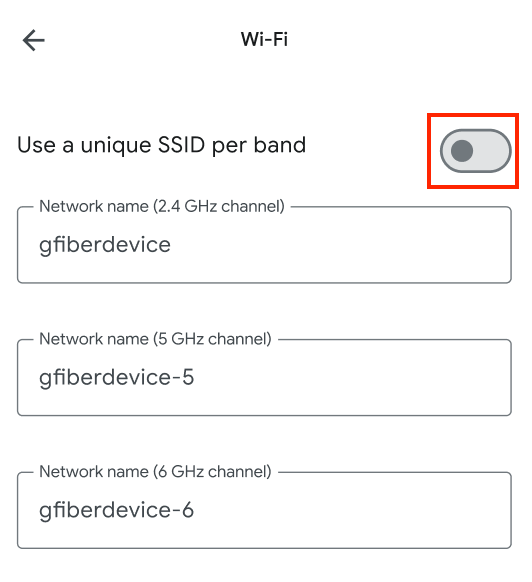
Most connection failures occur because the printer cannot see 5 GHz networks. You must ensure your router broadcasts a dedicated 2.4 GHz signal for the printer to find it.
Split Dual-Band Router Signals
Modern routers often combine 2.4 GHz and 5 GHz bands under one name. Brother printers generally do not support 5 GHz networks and need a distinct 2.4 GHz SSID.
* Log into your router admin page to separate the bands.
* Name them clearly, such as HomeNetwork_2.4G and HomeNetwork_5G.
* Select the 2.4G network name during the printer setup process.
Configure WPA2-PSK AES Encryption
Your security settings must match specific standards or the printer will reject the connection.
* Set encryption to WPA2-PSK with AES only.
* Avoid TKIP or mixed WPA/WPA2 modes as these cause “Connection Failed” errors.
* Ensure DHCP is enabled so the printer receives a valid IP address automatically.
Gather Required Network Credentials
You need exact information from your router before touching the printer controls. Missing a single character in your password will stop the process.
Locate SSID and Network Key
Find the sticker on your router or check your ISP documentation for these details.
* Network Name (SSID): This is case-sensitive and must match exactly.
* Network Key: Enter all capital letters, numbers, and symbols precisely.
* WEP Users: If using older WEP security, enter only the first key listed.
Use Control Panel Setup Wizard Method
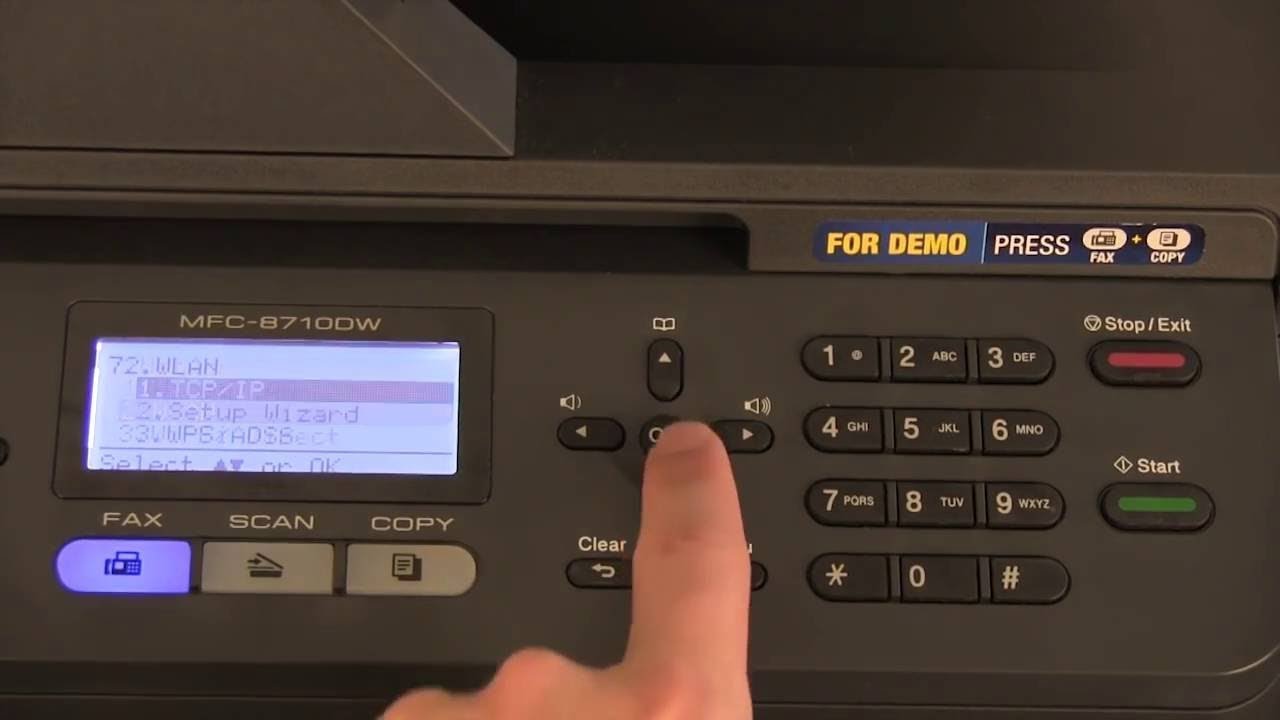
This standard method works on almost all models without needing a computer or smartphone.
Navigate to WLAN Settings
- Press Menu or Settings on the printer control panel.
- Select Network then press OK.
- Choose WLAN and press OK again.
- Select Setup Wizard and choose Yes when asked to enable WLAN.
Select and Connect to SSID
The printer scans for available networks and displays a list.
* Use arrow keys to find your 2.4 GHz SSID.
* Press OK to select it.
* If your network is hidden, choose
Enter Wi-Fi Password Manually
Use the arrow keys to cycle through characters for your password.
* Press Up/Down to change letters and Left/Right to move positions.
* Use the Back button to correct mistakes before confirming.
* Press OK to submit the password and apply settings.
Connect via WPS Push Button
Use this fast method if your router has a physical WPS button and supports the feature.
Initiate WPS on Printer
- Press Menu > Network > Wi-Fi (WPS).
- Select WPS Push Button and press OK.
- The printer enters a waiting mode for two minutes.
Activate Router WPS Feature
Locate the WPS button on your router, usually found on the back panel.
* Press and hold the button for 2–3 seconds until lights flash.
* Wait for the printer display to show “Connected”.
* A network report prints automatically upon success.
Pair Using Brother Mobile Connect App
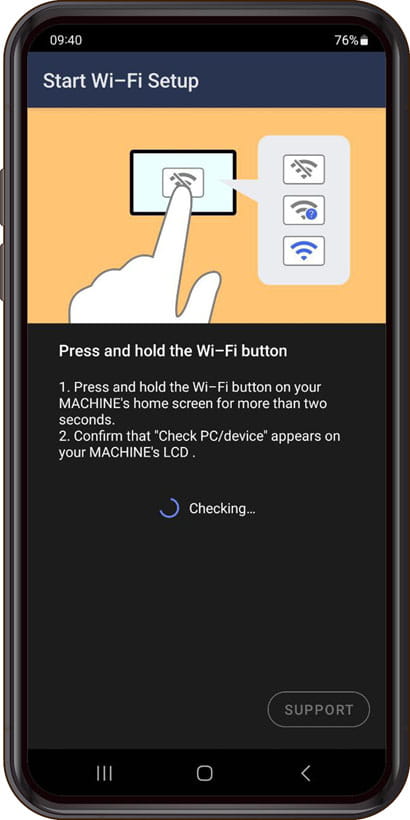
This method reduces typing errors by transferring credentials from your phone to the printer.
Install and Launch App
Download Brother Mobile Connect from the iOS App Store or Google Play Store.
* Open the app and tap Add Device or Set Up Wi-Fi.
* Grant location permissions if your Android device requests them.
* Follow prompts to connect your phone to the printer’s temporary setup network.
Transmit Credentials Securely
Enter your home Wi-Fi details directly into the app interface.
* The app sends the SSID and password to the printer wirelessly.
* Wait for the success message on your phone screen.
* The printer prints a confirmation page once connected.
Scan QR Code on Newer Models
Select touchscreen models allow you to bypass manual entry entirely using a QR code.
Generate Code on Display
Navigate to Settings > Network > QR Code on the printer screen. A unique code appears for scanning.
Complete Setup via App
- Open Brother Mobile Connect on your smartphone.
- Tap the Scan QR Code option.
- Point your camera at the printer screen to auto-configure the connection.
Enable Wi-Fi Direct Without Router
Print directly from your mobile device without joining your main home network.
Activate Wi-Fi Direct Mode
- Go to Settings > Network > Wi-Fi Direct > Manual.
- Note the displayed Wi-Fi Direct Name and Password.
Connect Mobile Device
Open Wi-Fi settings on your phone and select the Brother network name.
* Enter the password shown on the printer LCD.
* Tap Connect Anyway if warned about no internet access.
* Print or scan using the Brother app while connected to this direct link.
Troubleshoot Common Connection Failures
Follow these steps if the printer refuses to connect or shows an error message.
Restart Router and Printer
Power cycling often clears temporary glitches preventing connection.
* Turn off your router for 15 seconds then power it back on.
* Wait one minute before turning the printer back on.
* Retry the Setup Wizard process.
Reset Network Settings
Clear old configurations that might be conflicting with new settings.
* Navigate to Menu > Network > Network Reset.
* Confirm the reset to wipe all stored Wi-Fi data.
* Run the Setup Wizard again from the beginning.
Check for Interference and MAC Filtering
Physical obstacles or router security blocks can stop the signal.
* Move the printer closer to the router during setup.
* Ensure MAC filtering is disabled or add the printer MAC address to the allowed list.
* Verify AP Isolation is turned off in router settings.
Verify Wi-Fi Connection Status

Do not assume the printer is online until you confirm it with physical proof.
Check Status Lights and LCD
Look at the wireless indicator on the printer control panel.
* A blinking light means it is searching or connecting.
* A solid light indicates a successful connection.
* The LCD should read “Connected” or “Connection OK”.
Print Network Configuration Report
This document provides definitive proof of your connection status.
* Go to Menu > Print Reports > Network Configuration.
* Check that the IP Address is valid (e.g., 192.168.x.x).
* Ensure the address is not 0.0.0.0 or 169.254.x.x, which indicates failure.
Frequently Asked Questions About Connecting Brother Printer to Wi-Fi
Why does my Brother printer only connect to 2.4 GHz networks?
Brother printers generally lack 5 GHz radio hardware and cannot detect those signals. You must split your router bands or ensure your 2.4 GHz network has a unique name for the printer to find it.
What should I do if the printer says “Connection Failed”?
This error usually means the password is incorrect or the encryption type is unsupported. Verify you are using WPA2-PSK with AES encryption and re-enter your password carefully checking capitalization.
Can I connect my printer without a router using Wi-Fi Direct?
Yes, Wi-Fi Direct allows you to print and scan directly from your phone to the printer without a home network. You simply connect your device to the printer’s own wireless signal.
How do I find my network password for the printer setup?
Check the sticker on the bottom or back of your router for the default key. If you changed it previously, log into your router admin page or contact your Internet Service Provider for the current credentials.
What does an IP address starting with 169.254 mean?
This APIPA address indicates the printer connected to the router but failed to get an IP from the DHCP server. You should restart your router and ensure DHCP is enabled to fix this issue.
Key Takeaways for Connecting Brother Printer to Wi-Fi
Successfully connecting your Brother printer relies on using the correct 2.4 GHz band and WPA2-PSK AES encryption settings. Always verify your network name and password before starting, and use the Mobile Connect app or WPS button to avoid typing errors on small keypads.
If standard setup fails, try resetting the network settings on the printer or using the USB hybrid method for a reliable fallback. Check your printed network configuration report to confirm you have a valid IP address before attempting to print documents.


