

Your HP printer powers on and makes noise but refuses to print, often feeding blank pages or showing no error messages. This “HP printer not printing” scenario is a frequent frustration for home users and small offices relying on daily document output. Whether wireless or wired, the culprit is usually a simple fix like a paper jam, connectivity drop, or outdated driver.
This guide provides a proven, step-by-step process to restore your printer based on official HP diagnostics. You will learn how to clear print queues, reset hardware, and reinstall drivers to solve the problem quickly. By following these specific actions, you can avoid unnecessary service calls and get your documents printing again.
Perform a Full Power Cycle to Reset Hardware

A hard reset clears internal memory errors and restores communication between your printer and network. Many “HP printer not printing” cases resolve immediately after this simple procedure.
Execute the 30-Second Hard Reset
- Press the power button to turn off the printer completely.
- Unplug the power cord directly from the wall outlet.
- Wait exactly 30 seconds to let capacitors discharge fully.
- Plug the cord back in and turn the printer on.
Visual Cue: Look for a solid blue Wi-Fi light. If it flickers or stays off, your network connection needs attention.
Pro Tip: Skipping the 30-second wait prevents a true reset. You must let the system drain power to clear temporary glitches.
Clear Paper Jams and Reload Paper Trays

Physical obstructions stop the printing process instantly. Even if the tray looks full, misaligned paper can trigger feed errors that halt operations.
Inspect and Clear the Paper Path
- Open all access doors and paper trays to check for stuck sheets.
- Gently pull any jammed paper straight out to avoid tearing.
- Reload the tray with 10 to 20 sheets, ensuring they lie flat.
- Slide paper guides snugly against the stack edges.
Warning: If you hear grinding noises without printing, check the paper path first before testing software.
Verify Ink Cartridge Installation and Levels

Blank pages often appear after installing new ink because cartridges are not seated correctly. You must ensure they lock into place properly.
Secure Cartridges and Check Levels
- Open the ink access door on your printer.
- Press down on each cartridge until you hear a distinct click.
- Close the lid firmly to engage the mechanism.
Check ink levels via the printer screen or HP Smart app. Replace any cartridge marked as low or empty to prevent blank outputs.
Expert Note: For refillable models, ensure no air bubbles block the ink system, as this mimics an empty cartridge.
Diagnose Wi-Fi and USB Connectivity Issues
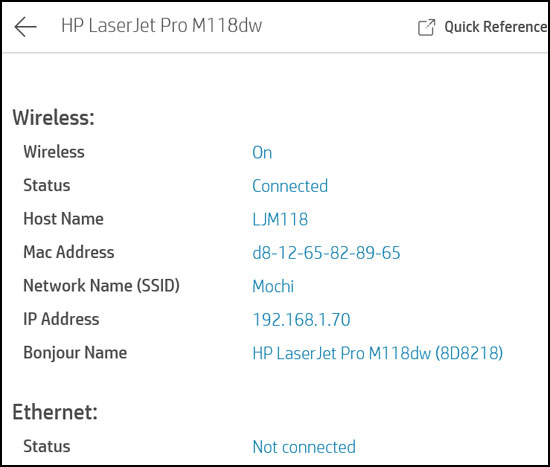
Your printer must share the same Wi-Fi network as your computer to receive jobs. A network mismatch is a leading cause of silent failures.
Confirm Network Matching and Cable Stability
- Go to Menu > Network > Wireless Settings on the printer.
- Verify the displayed network name matches your computer’s Wi-Fi.
- For USB users, ensure the cable connects directly to the PC, not a hub.
If the printer shows “Offline,” reboot your router and reconnect via Settings > Network Setup. Try a different USB port if using a wired connection.
Isolate Device vs. Printer Failure
- Attempt to print from a second device like a phone or tablet.
- Success on another device indicates a computer-specific setting error.
- Failure on all devices points to a printer or network hardware issue.
Reinstall Drivers and Update Software
Corrupted or outdated drivers frequently cause “HP printer not printing” errors. Reinstalling fresh drivers from the official source resolves most software conflicts.
Complete Driver Reinstallation Steps
- Disconnect the USB cable if your printer uses one.
- Uninstall all HP software via Settings > Apps on Windows.
- Restart your computer to clear residual files.
- Download the latest driver from the official HP support website.
- Install the driver and reconnect the printer when prompted.
Key Tip: Never use third-party driver sites. Official HP drivers ensure compatibility with your specific model.
Set HP Printer as Default Device
Your computer might send jobs to the wrong printer. Navigate to Settings > Printers & scanners, select your HP model, and click Set as default.
Clear Stuck Print Queue Jobs
Old print jobs stuck in the queue can block all new requests. Clearing this list often restores immediate functionality.
Remove Pending Documents
- Press
Win + R, typecontrol printers, and hit Enter. - Double-click your HP printer icon to open the queue.
- Right-click each job and select Cancel.
- Choose Printer > Cancel All Documents to clear everything.
Mac users can find this option under System Settings > Printers & Scanners > Open Print Queue.
Run Printhead Cleaning and Diagnostics
If the printer runs but prints blank pages, the printhead is likely clogged with dried ink. Regular maintenance prevents this common issue.
Clean Printhead and Use Diagnostic Tools
- Navigate to Setup > Tools > Clean Printhead on the screen.
- Select Clean Color and Clean Black options.
- Run two to three cycles if the first attempt fails.
Download the HP Print and Scan Doctor tool for automated repairs. This free utility detects and fixes connection, driver, and queue issues automatically.
Prevention: Run a cleaning cycle every few weeks if you do not print daily to keep ink flowing.
Resolve Blank Pages After Ink Replacement
New ink installed but still getting blank sheets? This specific scenario often involves Wi-Fi loss during the changeover or improper seating.
Follow the Post-Replacement Workflow
- Perform a full power cycle with a 30-second disconnect.
- Re-seat cartridges until you hear the confirmation click.
- Run printhead cleaning cycles to prime the nozzles.
- Print a test page to verify color output.
Ensure your printer reconnects to Wi-Fi after changing ink, as the process can sometimes drop the network link.
Avoid Common Print Command Errors
Some users encounter blank pages due to how they send print commands. Improper workflows can strip formatting or send empty data streams.
Use Direct Print Methods
- Print directly from applications like Word or Chrome instead of saving as PDF first.
- Select your HP printer in the dialog box without intermediate conversion steps.
- If using PDF is necessary, open the file in Adobe Reader before printing.
Prevent Future Printing Failures with Maintenance
Routine care keeps your HP printer reliable and reduces downtime. A simple schedule prevents most “HP printer not printing” issues from returning.
Schedule Regular Maintenance Tasks
- Weekly: Print a test page if you use the printer frequently.
- Monthly: Run printhead cleaning to prevent ink coagulation.
- Every 6 Months: Check the HP website for driver and firmware updates.
Keep your user manual handy for model-specific reset codes and menu paths.
Final Thoughts on Fixing HP Printer Not Printing
Most “HP printer not printing” problems stem from simple connectivity drops, paper jams, or driver glitches rather than hardware failure. By performing a hard reset, checking your network, and clearing the print queue, you can resolve the vast majority of issues in minutes. Regular maintenance like printhead cleaning ensures long-term reliability.
Start with the power cycle and paper check, then move to driver reinstallation if needed. If these steps do not work, use the HP Print and Scan Doctor tool for automated diagnosis. Taking these actions yourself saves time and avoids unnecessary service fees.
Frequently Asked Questions About HP Printer Not Printing
Why is my HP printer making noise but not printing?
This usually indicates a paper jam, empty ink cartridges, or a clogged printhead. Check the paper tray for obstructions, ensure cartridges are seated with a click, and run a cleaning cycle.
How do I force my HP printer to print when it says offline?
Perform a hard reset by unplugging the printer for 30 seconds. Then verify both your computer and printer are on the same Wi-Fi network and set the printer as default.
What should I do if my printer only prints blank pages?
Blank pages often mean the printhead is clogged or cartridges are not installed correctly. Re-seat the cartridges until they click and run the built-in printhead cleaning tool.
How often should I clean my HP printhead?
You should run a cleaning cycle every few weeks if you print infrequently. This prevents ink from drying inside the nozzles and causing blockages.
Can outdated drivers cause printing failures?
Yes, corrupted or old drivers are a leading cause of printing errors. Always download and install the latest drivers directly from the official HP support website.
What if my wireless HP printer keeps disconnecting?
Reboot your router and ensure the printer is within range of the Wi-Fi signal. You may need to reconnect the printer to the network via the wireless settings menu.



