

Is your new HP printer sitting idle because you cannot figure out how to connect HP printer to Wi-Fi? You are not alone in this struggle as millions of users face similar setup hurdles every year. The good news is that connecting your device wirelessly has never been easier with the right tools.
This guide shows you exactly how to use the HP Smart app to link your printer to your 2.4 GHz network quickly. You will learn step-by-step instructions for various models plus troubleshooting tips to fix common connection errors immediately.
Start Setup with the HP Smart App

The HP Smart app is the fastest and most reliable method to connect your HP printer to Wi-Fi. It works across mobile and desktop platforms to handle everything from discovery to driver installation without physical discs.
Download and Install the Application
Visit 123.hp.com on your phone or computer to download the official HP Smart app. This tool is available for iOS, Android, Windows, and macOS systems. Open the app after installation and sign in with your HP account to unlock remote printing features.
Activate Printer Setup Mode
Your printer must enter Setup Mode before the app can detect it for configuration. This temporary state allows your device to send Wi-Fi credentials securely to the printer hardware. The specific button combination varies by your printer model type.
- Most HP Printers: Press and hold Wireless and Cancel buttons for 5 seconds until the light blinks.
- HP LaserJet Pro: Hold the Wireless button until Ready and Attention lights blink together.
- Smart Tank 5101: Press and hold the Wireless button for 3 seconds until it starts blinking.
- Smart Tank 5103: Press Info until all lights turn on, then hold Wireless and Cancel for 3 seconds.
Reset your network settings first if your printer was previously connected to a different wireless network.
Complete the Wi-Fi Connection Process
Tap the + icon or select “Set up a new printer” within the application interface. The app searches for your printer using Bluetooth or a direct signal connection automatically. Select your Wi-Fi network name when it appears on your screen.
The app auto-fills your password from your connected mobile device or computer. Enter the password manually if the automatic transfer fails for any reason. Wait 60 to 90 seconds for the process to finish completely.
A solid blue Wi-Fi light on your printer indicates success. The app installs necessary drivers in the background and may update your firmware automatically. Print a test page to confirm your connection is stable.
Use WPS Push Button Method

Prefer not to use an app for your setup? WPS (Wi-Fi Protected Setup) lets you connect without typing passwords manually. This method works best if your router has a physical WPS button available.
Press the Router WPS Button First
Locate the WPS button on your wireless router hardware. Press and hold it until the indicator light starts blinking actively. You have exactly two minutes to complete the next step on your printer. This action activates WPS discovery mode on your network.
Trigger WPS Mode on Printer
Press and hold the Wi-Fi or Wireless button on your printer within the two-minute window. Hold the button for 3 seconds on Smart Tank models until the light blinks rapidly.
The printer and router exchange credentials automatically without user input. Your connection is complete when the Wi-Fi light turns solid blue. No passwords or apps are required for this one-touch setup method.
Note: WPS only works on 2.4 GHz networks and requires both devices to support the protocol. Disable WPS in your router settings after use for better security.
Connect via Manual Touchscreen Setup
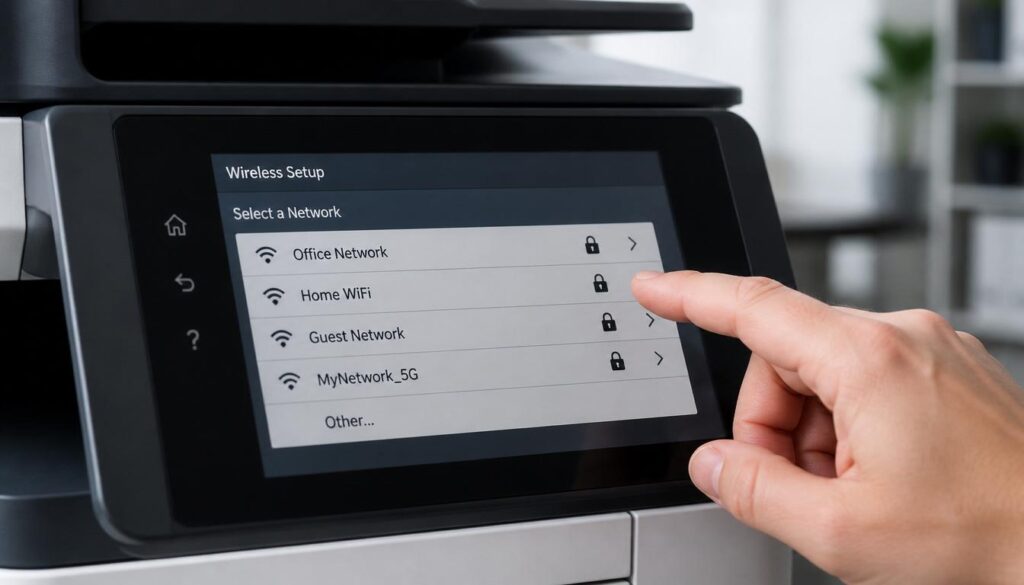
If your HP printer has a control panel, you can connect directly without an app. This method requires no router button or mobile device intervention.
Navigate to Network Settings
Go to Setup on the printer screen and select Network then Wireless Setup Wizard. The printer scans for all available wireless networks in your area. Select your 2.4 GHz SSID from the displayed list to proceed.
Avoid selecting any 5 GHz network names as HP printers generally do not support them.
Enter Password On-Screen
Use the on-screen keypad to type your Wi-Fi password carefully. Double-check every character for accuracy since hidden characters can cause failed attempts. Tap Connect to initiate the handshake process.
Wait for the confirmation message to appear on your display. A solid blue Wi-Fi light and an on-screen “Connected” message mean success. This method is slower but useful when mobile devices are unavailable.
Connect via USB Cable Temporarily
Need to install drivers before going wireless? Use a USB cable as a temporary bridge for initial setup.
Install Using USB Connection
Connect the printer to your computer with a standard USB cable. Your Windows or Mac operating system detects the printer and prompts installation automatically. Use the HP Smart app if prompted during the detection phase.
Navigate to Printer Settings then Network and Wireless Setup after installation. Switch the connection type from USB to Wi-Fi within the menu options. Remove the cable once the wireless connection is established successfully.
Model-Specific Setup Tips

Certain HP models have unique workflows that differ from the standard procedure. Know your specific model to avoid confusion during setup.
Smart Tank Series Configuration
HP Smart Tank printers offer high-capacity ink and reliable Wi-Fi connectivity. Setup sequences differ slightly between specific models in this series.
- Smart Tank 5101: Hold the Wireless button for 3 seconds to enter setup mode.
- Smart Tank 5103: Press Info until all lights are on, then hold Wireless and Cancel for 3 seconds.
- Smart Tank 7602: Uses a touchscreen for direct password entry and works well with mesh networks.
All models support the HP Smart app and WPS methods described earlier. Enable scan-to-cloud and remote printing in the app after setup completes.
DeskJet 2827e Wi-Fi Direct Setup
This model focuses on Wi-Fi Direct which lets you print without a router. Press and hold the Paper/Print Job icon and Wi-Fi button for 2 to 3 seconds. The screen shows a smartphone-with-printer icon when Wi-Fi Direct is active.
Press the Info (I) button once to get the password. The printer outputs a sheet with the network name and password automatically. Connect your phone to this SSID directly without needing a home network.
This method is useful for travel but limits multi-device access unless shared properly.
Post-Setup Printing and Scanning
Unlock full functionality across all devices once your printer is connected successfully.
Print From Any Device
- iPhone/iPad: Open any app, tap Share, select Print, and choose your HP printer via AirPrint.
- Android: Tap three dots, select Print, and choose your HP printer from the list.
- Windows/Mac: Select your printer in the dialog box of any application. HP Smart enables remote printing from outside the home.
Adjust settings like color, quality, and paper type in the print menu before sending jobs. Use Draft mode for fast internal prints and Best mode for photos.
Scan Using HP Smart App
Scanning requires the HP Smart app on your mobile device or computer. Place your document face down with the top edge aligned to the right side. Tap Scan in the app and choose your type such as Document or Photo.
Edit your scan by cropping, rotating, or combining multiple pages easily. Save as PDF or JPEG formats or share instantly via email. Scans typically take about 12 seconds to complete.
Add Printer to Multiple Devices
One printer can serve many users across your household or office space easily.
Install HP Smart on New Devices
Download HP Smart on another phone, tablet, or computer in your home. Open the app and tap Add Printer to find your existing device. It will detect your HP printer on the network automatically.
No reinstallation of drivers is needed for additional devices. Each user can print and scan independently once added. Guests can print by joining your Wi-Fi or using Wi-Fi Direct if enabled.
Fix Common Wi-Fi Issues

Even with perfect setup, problems can occur occasionally. Here is how to fix them fast.
App Cannot Find Printer
This is the most common issue users face during setup. Confirm the following items first.
- Your phone and printer are on the same 2.4 GHz network.
- The printer is in Setup Mode with a blinking light.
- Location access is enabled for HP Smart on iOS or Android.
- VPN is disabled and firewall allows HP app traffic.
Restart the router, printer, and device if the issue persists. Try adding the printer manually using its IP address in advanced settings.
Network Not Showing Up
Move the printer closer to the router if your Wi-Fi does not appear. Ensure your network name (SSID) is not hidden in router settings. Confirm you are not trying to connect to a 5 GHz band since HP printers do not support it.
Restart all devices and retry the setup process if problems continue.
Blinking Blue Light Meaning
A blinking blue Wi-Fi light means the printer is in setup mode or has lost connection. A solid blue light confirms a stable connection to your network. Run the Wireless Setup Wizard again if it blinks after initial setup.
Reset Network Settings
Reset the printer’s network config if you need to switch Wi-Fi networks. This fixes persistent connection issues effectively.
Use Control Panel Reset
Go to Settings then Network Settings and select Restore Network Defaults. Confirm the action when prompted. The printer reboots and clears all saved networks automatically.
Use Button Combo Reset
Press and hold Wireless and Cancel for 5 seconds until the wireless light blinks. This forces a reset on most HP printer models instantly. Re-run setup using HP Smart or WPS after the reset completes.
Maintain Secure Connection
A connected printer is part of your network so you must protect it properly.
Use Strong Wi-Fi Password
Avoid weak or default router passwords for your home network. Use WPA2/WPA3 encryption for maximum security protection. Rotate passwords every few months to maintain safety.
Enable Firmware Updates
Go to Printer Settings then Firmware Update in HP Smart. Enable auto-updates to keep your device secure. New firmware patches security flaws and improves performance significantly.
Limit Remote Access
Turn off remote printing if you do not need it regularly. Use PIN-protected printing on shared networks if your model supports it. Never leave your printer on an open, public network.
Frequently Asked Questions About Connecting HP Printer to Wi-Fi
Why won’t my HP printer connect to my 5 GHz network?
HP printers generally operate exclusively on the 2.4 GHz band and do not support 5 GHz networks. Ensure your mobile device is connected to the 2.4 GHz SSID if your router broadcasts both bands. You may need to split your network names in your router settings to see the correct option.
What does a blinking blue light mean on my HP printer?
A blinking blue light indicates the printer is in setup mode or has lost its wireless connection. A solid blue light confirms a successful and stable connection to your Wi-Fi network. Run the Wireless Setup Wizard again if the light continues blinking after initial setup.
How do I find the Wi-Fi password for Wi-Fi Direct?
Press the Info (I) button on your printer once to print an information sheet. This sheet contains the unique Wi-Fi Direct network name and password required for connection. Connect your mobile device to this specific SSID using the printed credentials.
Can I connect my HP printer without the HP Smart app?
Yes, you can use the WPS push button method or the manual Wireless Setup Wizard on the printer control panel. These methods allow connection without downloading the app but offer fewer management features. The HP Smart app remains the recommended method for full functionality.
How do I reset my HP printer network settings?
Press and hold the Wireless and Cancel buttons for 5 seconds until the light blinks. Alternatively, navigate to Settings > Network Settings > Restore Network Defaults on the control panel. Re-run the setup process via HP Smart or WPS after resetting.
Key Takeaways for Connecting HP Printer to Wi-Fi
Connecting your HP printer to Wi-Fi is simple when you use the HP Smart app as your primary tool. Remember that most models require a 2.4 GHz network and a solid blue light indicates success. Resetting network settings via button combos solves most persistent connection issues quickly.
Start by unboxing your printer fully and installing cartridges before attempting any wireless setup. Follow the model-specific button sequences carefully to enter Setup Mode correctly. Your printer will be ready for wireless printing, scanning, and remote management in minutes.


