

Stuck trying to print a document but cannot figure out how to connect printer to iPhone? You are not alone as millions face Wi-Fi glitches or missing drivers daily. The solution often lies in Apple’s built-in AirPrint feature or specific manufacturer apps designed for seamless mobile integration.
This guide details every reliable method including wireless setup, app configuration, and wired USB connections for offline needs. You will learn exact steps to fix common errors and print photos or documents in under a minute.
Verify AirPrint Compatibility and Network Status
AirPrint is the fastest way to print without installing extra software, but your hardware must support it. Most modern printers from HP, Epson, Canon, and Brother include this feature natively.
Check Official Support Lists
Not every printer works with iOS devices out of the box. Consult your printer manual or visit the official Apple support page to confirm your specific model appears on the AirPrint list. If your device is older or lacks this certification, you must use a dedicated app instead.
Ensure Shared Wi-Fi Connection
Your iPhone and printer must exist on the exact same Wi-Fi network to communicate. Guest networks or separate 2.4GHz and 5GHz bands with isolation enabled will block discovery.
- Open Settings on your iPhone and tap Wi-Fi.
- Verify the network name matches the one your printer uses.
- Avoid public hotspots that prevent device-to-device communication.
Execute Wireless Printing via AirPrint
Once compatibility and network settings are confirmed, printing becomes a simple multi-step process. This method works across Photos, Safari, Mail, and many third-party apps.
Initiate the Print Command
Open the content you wish to print, such as a photo or email attachment. Tap the Share icon, which looks like a square with an upward arrow. Scroll down the menu and select Print.
Select Device and Adjust Settings
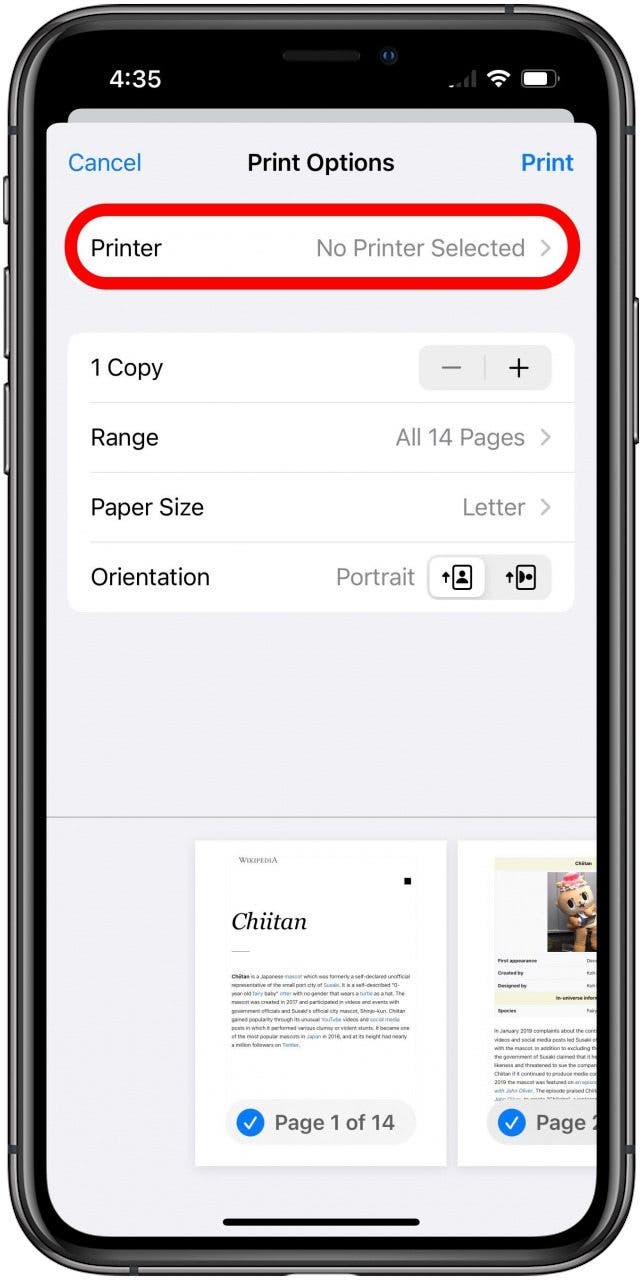
Tap the field labeled “No Printer Selected” to reveal available devices. Choose your AirPrint-enabled printer from the list. You can now adjust the number of copies, page range, or color options before tapping Print in the top right corner.
Install Manufacturer Apps for Advanced Control

Dedicated apps provide features AirPrint lacks, such as scanning, ink monitoring, and advanced layout options. These are essential for non-AirPrint models or users needing specific print qualities.
Download Brand-Specific Software
Identify your printer brand and install the corresponding free application from the App Store.
- HP Smart for HP printers
- Epson iPrint for Epson models
- Canon PRINT Inkjet/SELPHY for Canon devices
- Brother iPrint & Scan for Brother printers
Configure Printer Within the App
Open the installed app and follow the on-screen wizard to add your device. Ensure both your phone and printer remain on the same Wi-Fi network during this process. The app will scan for and detect your printer automatically.
Utilize App Integration Features
You can print directly from the app’s file browser or use the iOS Share sheet. When sharing from another app, look for the option saying “Print with [App Name]” to access advanced settings like duplex printing or borderless photo modes.
Deploy Third-Party Printing Solutions
Universal apps act as a bridge for printers that lack native iOS support or dedicated brand applications. These tools translate iOS commands into formats your specific printer understands.
Select a Universal Printing App
Applications like Printer Pro and PrintCentral support hundreds of models including older or niche brands. They often include direct cloud printing capabilities for services like Google Drive and Dropbox.
Manually Configure IP Connections
If automatic detection fails, you can add your printer manually using its IP address.
- Open the third-party app and select Add Printer.
- Choose the IP Address or Bonjour connection method.
- Enter the printer’s IP address found in its network settings.
- Select the correct driver model and test the connection.
Establish Wired USB Connections

Wi-Fi networks sometimes fail or are unavailable in secure environments. A physical USB connection bypasses wireless requirements entirely for reliable printing.
Acquire Correct USB Adapters
You need a specific adapter based on your iPhone model to connect a standard USB printer cable.
- Lightning to USB Camera Adapter for iPhone 8 and earlier models.
- USB-C to USB Adapter for iPhone 15 and newer models with USB-C ports.
- Standard USB-A to USB-B cable usually included with the printer.
Authorize and Print via Cable
Connect the USB cable to the printer and the adapter, then plug the adapter into your iPhone. Tap OK when the “USB Device Supported” prompt appears on your screen. Open your document, tap Share, select Print, and choose the USB printer from the list.
Troubleshoot Common Connection Failures
Connectivity issues often stem from simple configuration errors rather than hardware defects. Systematic checking resolves most discovery problems quickly.
Resolve Network Discovery Issues
If your printer does not appear, verify that both devices are on the same subnet. Restart your router, printer, and iPhone to clear temporary glitches. You can also forget the Wi-Fi network on your iPhone and rejoin it to refresh the connection.
Address AirPrint and App Glitches
Ensure your printer firmware is up to date via the manufacturer’s website. Disable any router settings that separate 2.4GHz and 5GHz bands if possible. For app-based failures, check that location services are enabled for the specific printing application in your iPhone settings.
Optimize Printing for Specific Content Types

Different media types require slightly different approaches to ensure the best output quality and formatting.
Print Photos and Text Messages
Use the native Photos app with AirPrint for standard quality. For high-end photo prints, use brand apps to control paper type and color correction. To print text messages, take screenshots of the conversation or copy the text into an email to yourself before printing.
Handle Cloud Documents and Files
Files stored in Google Docs or Microsoft Word may require exporting to PDF first. Open the file, tap the three-dot menu, select Share, and choose Print. If the option is missing, save the file to the iOS Files app and print from there.
Frequently Asked Questions About Connecting Printers to iPhone
Why is my AirPrint printer not showing up on my iPhone?
This usually happens because the iPhone and printer are on different Wi-Fi networks. Ensure both devices are connected to the exact same network name and that the printer is not in sleep mode.
Can I connect my printer to iPhone without Wi-Fi?
Yes, you can use a wired USB connection with a Lightning or USB-C adapter. This method works independently of any wireless network and is ideal for travel.
Do I need an app to print from my iPhone?
No, not if your printer supports AirPrint. You can print directly from the Share menu in most apps. Apps are only required for non-AirPrint models or advanced features.
How do I print text messages from my iPhone?
You cannot print messages directly. You must take screenshots of the conversation or copy the text into an email or note, then print that document using the standard Share method.
What adapter do I need to connect a USB printer to iPhone?
You need a USB On-The-Go (OTG) adapter. Use a Lightning to USB adapter for older iPhones or a USB-C to USB adapter for newer models with USB-C ports.
Key Takeaways for Connecting Your Printer to iPhone
Successfully learning how to connect printer to iPhone relies on matching the right method to your hardware. AirPrint offers the quickest wireless solution for compatible devices, while manufacturer apps provide necessary control for advanced tasks. Wired USB connections remain a reliable fallback when networks fail.
Start by checking your printer’s AirPrint status and ensuring both devices share a Wi-Fi network. If issues persist, install the specific app for your printer brand or try a universal third-party alternative. With these tools, you can print photos, documents, and emails effortlessly from anywhere in your home.


