
Running out of ink does not mean you must buy expensive replacements. Learning how to refill printer ink cartridges can cut your printing costs by up to 70% while maintaining sharp output quality. Most users discard cartridges that still hold valuable components when a simple refill extends their life significantly.
This guide details the exact steps to refill foam-based and mechanical cartridges safely for Epson, HP, Canon, and Lexmark models. You will discover how to avoid air locks, reset smart chips, and troubleshoot recognition errors without professional help.
Prepare Your Workspace and Tools for Refilling
Success starts before you touch the printer. Gathering the right supplies prevents messy accidents and ensures a smooth process from start to finish.
Essential Supplies Checklist
You need specific items to handle ink safely and effectively.
* Refill ink bottles matched to your printer model
* Blunt-tipped needles and 10–20ml syringes
* Rubber gloves to protect skin from permanent stains
* Glass cleaner and paper towels for immediate spill cleanup
* Priming tips for clearing air in new cartridges
* Electrical tape or rubber plugs for sealing holes
Setting Up a Safe Zone
Choose a flat, well-lit surface covered with disposable paper. Wear gloves because pigment ink stains fabric and skin permanently. Keep glass cleaner nearby to wipe spills instantly. Organize your tools so you do not need to reach for anything mid-process. Avoid open windows since dust can contaminate open cartridges.
Inspecting Cartridge Condition
Check every cartridge for cracks or leaks before filling. Ensure the electronic chip sits flat against the body. A loose or bent chip causes the printer to reject the cartridge entirely. Compare chip numbers with original labels if you are unsure about compatibility.
Identify Your Cartridge Type and Ink System
Knowing your printer mechanics prevents costly mistakes during the refill process. Different brands use distinct methods to push ink onto paper.
Thermal vs. Piezoelectric Mechanisms
Your printer uses one of two propulsion systems.
* Thermal Systems: HP, Canon, and Lexmark use heat to create bubbles that force ink out. Running these dry burns the resistors permanently.
* Piezoelectric Systems: Epson uses electric pulses to flex metal and push ink. These are durable but sensitive to air locks.
Thermal cartridges often integrate the printhead, making immediate refilling critical when the “empty” warning appears.
Foam vs. Mechanical Storage Designs
Internal storage varies by brand and affects your filling technique.
* Foam-Based: Common in HP and Canon, these soak ink into a sponge. They resist leaks but hold less volume.
* Mechanical: Epson refillables use sealed chambers filled through top ports. These hold more ink but require precise venting.
Foam degrades over time and may need replacement after a year of heavy use.
Open and Fill Epson-Style Refillable Cartridges

Epson users with refillable kits follow a specific procedure to avoid air pockets. Precision matters more here than with foam models.
Accessing the Fill Port
Locate the colored rubber plug on top of the cartridge. Remove this plug carefully without damaging the surrounding seal. Keep the air vent tab closed during this entire step. Insert your blunt needle gently into the hole without forcing it.
Injecting Ink Without Air Locks
Follow these steps to fill the chamber correctly.
1. Draw exactly 15ml of ink into your syringe.
2. Hold the cartridge at a 45-degree angle with the fill hole up.
3. Push the plunger slowly while tapping the side to release trapped air.
4. Stop when ink nearly reaches the top, leaving a tiny bubble is acceptable.
5. Remove the needle and reinsert the rubber plug firmly.
Pro Tip: Injecting too fast saturates the internal filter. Take at least 60 seconds per cartridge for best results.
Refill Foam-Based Cartridges for HP and Canon

HP and Canon users must modify the cartridge casing slightly. This process is permanent but allows multiple refills.
Drilling Fill Holes Safely
You must create an entry point for the ink.
1. Identify the chambers for black, cyan, magenta, and yellow.
2. Use a 1/8-inch drill bit or a specialized hole-making tool.
3. Drill one hole per chamber on the top surface only.
4. Wipe away any plastic debris with a damp cloth.
Drilling does not harm internal components because the foam traps all debris immediately.
Filling and Sealing the Chambers
Attach a blunt needle to your syringe and insert it into the drilled hole. Inject 8–12ml of the correct color ink carefully. Do not overfill or the ink will leak out the sides. Seal the holes tightly with electrical tape or rubber plugs. Never tip the cartridge sideways during this step to avoid leaking into the vent filter.
Manage Ventilation to Ensure Proper Flow
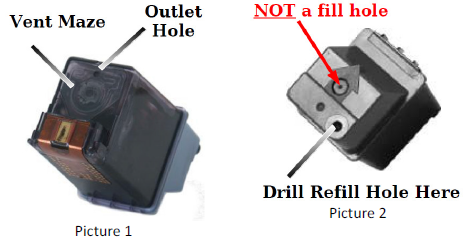
Airflow is the hidden key to consistent printing. Without it, a vacuum forms and stops ink from leaving the cartridge.
Why Vents Matter
As ink exits the nozzle, air must enter through a vent hole to replace the volume. If this path is blocked, the printer cannot draw ink. This is the most common cause of “no ink” errors after refilling.
Opening the Vent After Filling
Complete this step before installing the cartridge.
1. Tap the outlet down on a paper towel to settle the ink.
2. Remove the vent plug or tab completely.
3. Confirm the hole is clear and never cover it with tape.
Warning: Never attempt to print with the vent closed. This causes immediate flow failure.
Prime and Install Refilled Cartridges Correctly
Installation requires patience to let physics work in your favor. Rushing this stage leads to streaky prints and false errors.
Letting Ink Settle
Place the refilled cartridges firmly into the printer slots. Wait 10–15 minutes before powering on. This pause allows gravity to pull ink down to the outlet and prevents air locks in the feed tubes.
Running Cleaning Cycles
Power on the printer and access the maintenance menu. Run 1–3 nozzle cleaning cycles immediately. Print a nozzle check pattern to verify all colors fire correctly. If lines are missing, wait another 15 minutes and repeat the cleaning cycle. New cartridges may need a priming tip to pull 1ml of ink out manually to clear initial air.
Reset Ink Level Chips Automatically
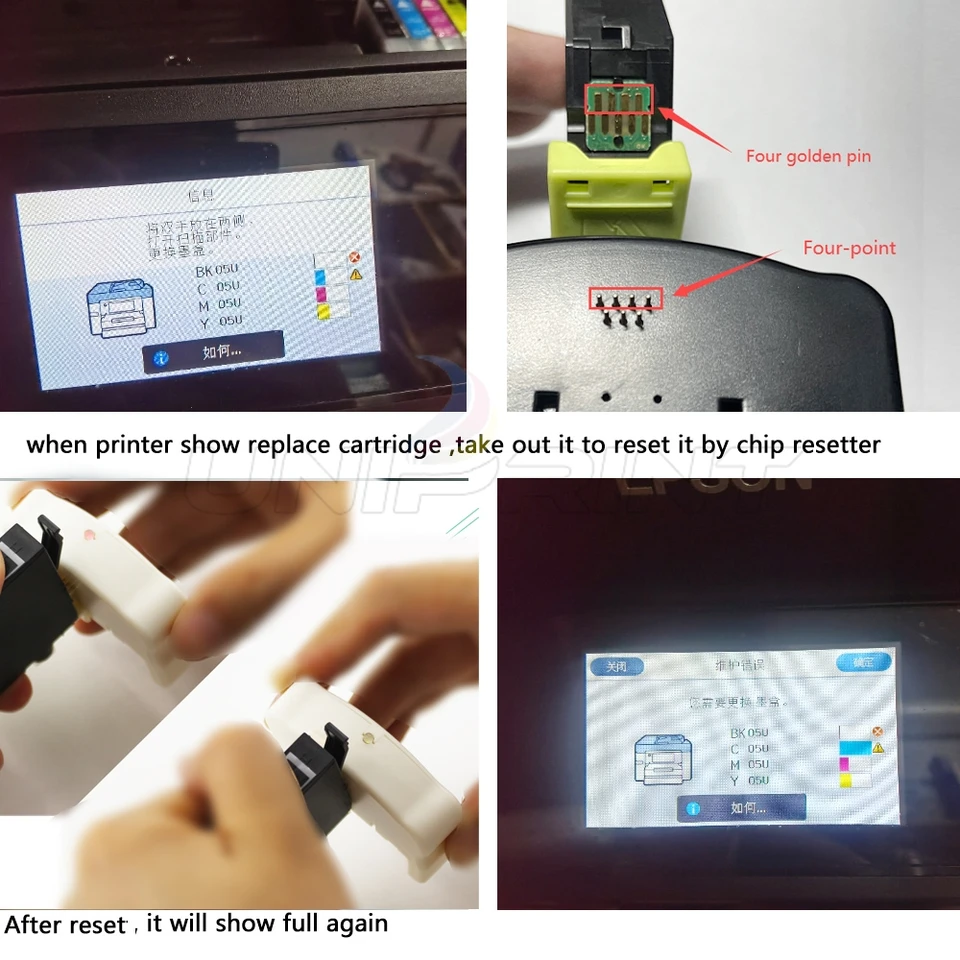
Smart chips track ink levels and must be reset to show “Full” again. Understanding this logic saves frustration.
How Auto-Reset Chips Function
Refillable chips reset only under one specific condition. The printer must display an “Ink Out” message first. Once you refill and reinsert the cartridge, the chip detects the transition from empty to full and resets automatically. This safety feature prevents damage from running the printhead dry.
Using a Chip Resetter Tool
If you want to refill before the “empty” warning appears, you need a manual tool.
1. Remove all cartridges from the printer.
2. Press the chip resetter against each chip until it beeps or flashes.
3. Refill the cartridges and reinstall them immediately.
Note that resetters are model-specific. A tool for an Epson 1400 will not work on an R2880.
Troubleshoot Common Refill Issues
Even perfect technique can encounter hurdles. These solutions address the most frequent problems users face.
Printer Does Not Recognize Cartridge
Try this reset sequence if the printer rejects the cartridge.
1. Remove all cartridges and unplug the printer.
2. Wait 30 minutes with the power cord disconnected.
3. Plug it back in without the USB cable.
4. Reinstall cartridges and wait for recognition.
5. Reconnect the USB cable once the printer sees the ink.
No Ink Output After Refill
Check that the vent hole is fully open and the cartridge sits snugly. Tap the outlet on a paper towel to remove air locks. Ensure you waited the full 15 minutes after installation. Run a cleaning cycle if these checks pass.
Print Has Lines or Gaps
Print a nozzle check pattern to diagnose the issue. If nozzles are missing, clean the vents and run another cycle. If nozzles look clear but lines persist, run the head alignment utility for your specific paper type. Banding is usually an alignment issue rather than an ink problem.
Maintain and Store Cartridges Properly
Long-term care extends the life of both your cartridges and your printer hardware.
Preventing Drying with Regular Use
Print a test page at least once a week. This keeps the nozzles moist and ink flowing freely. Printers left inactive for days often develop stubborn clogs that require multiple cleanings to fix.
Storing Ink for Longevity
Keep ink bottles upright and tightly sealed in a cool, dark place. Temperatures between 15–25°C are ideal. Shake bottles gently before use to re-suspend pigment particles. If storing the printer for over 30 days, remove pigment cartridges and install flush cartridges with cleaning solution to prevent permanent clogging.
Know When to Replace Cartridges
Refillable cartridges are durable but not immortal. Knowing when to stop saves you from poor print quality.
Lifespan Expectations
Replace refillable cartridges after one year of use or if they show repeated clogging. Foam degradation leads to leaks and poor flow over time. Thermal printheads in HP and Canon models cannot be repaired if the resistors burn out from running dry.
Signs of Permanent Damage
Discard the cartridge if you see persistent clogs after multiple cleanings. Look for ink leaking from vents or the outlet. Error messages like “Cartridge Error” or “Head Alignment Failed” often indicate the hardware has reached its end of life. Do not over-refill beyond 5–10 cycles if quality drops significantly.
Final Tips for Reliable Refilling
Refilling printer ink cartridges becomes second nature with practice. Always refill when the “empty” warning appears to protect thermal heads. Use only compatible inks and never mix brands or types. Label your syringes by color to avoid cross-contamination disasters. Work slowly to prevent spills and ensure accurate filling. Keep your original cartridges as backups if possible. By following these steps, you reduce waste and enjoy professional results at a fraction of the cost.
Frequently Asked Questions About Refilling Printer Ink
How many times can I refill a printer cartridge?
Most cartridges can be refilled 5 to 10 times before the foam degrades or the printhead wears out. Thermal cartridges may last fewer cycles if the resistors get damaged by running dry.
What happens if I put the wrong color ink in a cartridge?
You must discard the cartridge immediately. Mixing ink chemistries or colors causes permanent clogs that cannot be cleaned. The cartridge cannot be saved once contaminated.
Why does my printer say the cartridge is empty after refilling?
The smart chip only resets if the printer registered an “Ink Out” state first. If you refilled it early, use a manual chip resetter tool to force the indicator back to full.
Can I leave refilled cartridges in the printer while traveling?
No, remove cartridges for long storage or travel. Ink can leak or dry out if the printer sits unused for over a month. Install flush cartridges or seal them in plastic bags.
Why is my print quality streaky after refilling?
Streaks usually mean air is still in the system or the vent is blocked. Tap the cartridge outlet on a paper towel, ensure the vent is open, and run 1–3 cleaning cycles.
Key Takeaways for Refilling Printer Ink Cartridges
Refilling printer ink cartridges is a cost-effective skill that requires patience and the right tools. By understanding your specific printer architecture and following strict venting protocols, you can extend cartridge life significantly. Remember to always wait 15 minutes after installation and verify your nozzle health before printing important documents. Start with one cartridge to build confidence and enjoy the savings on your next refill.


