

Printing documents or photos directly from your smartphone eliminates the need for cables and computers. Connecting your HP printer to your phone allows instant access to files, emails, and images using the HP Smart app.
This guide explains how to install the app, configure Wi-Fi settings, and troubleshoot common connection errors. You will learn to print and scan wirelessly from any location within your network range.
Install the HP Smart App on Your Device
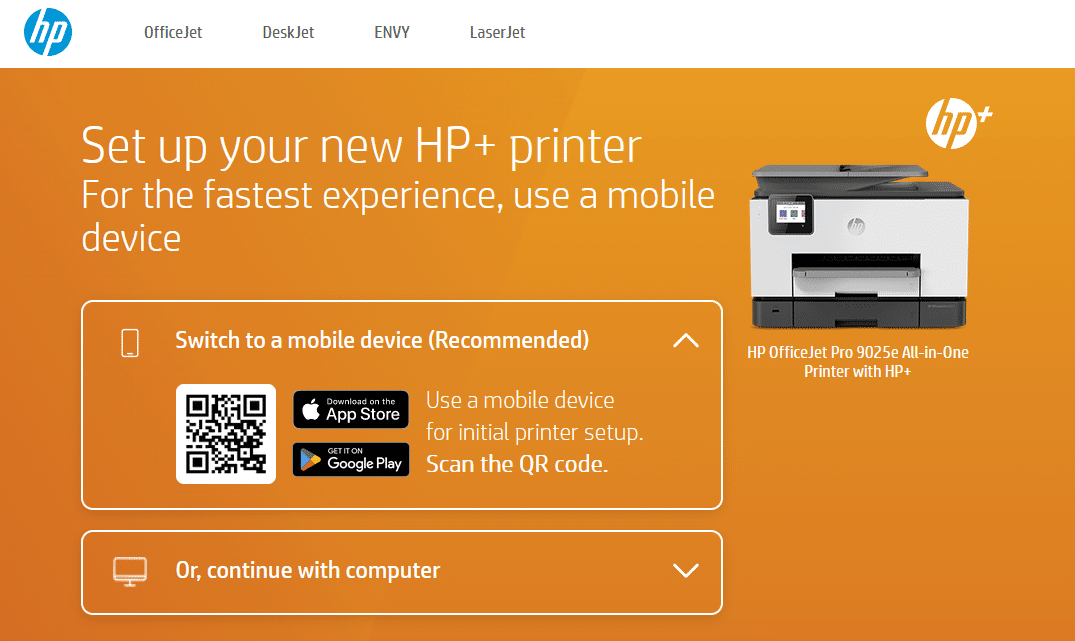
The HP Smart app serves as the central command center for your printer operations. It enables wireless printing, scanning, and ink monitoring directly from your mobile device. Without this application, you cannot access the full range of features offered by modern HP printers.
Where to Download the Application
You can obtain the official software from your device’s dedicated store.
* Android Users: Visit the Google Play Store.
* iPhone and iPad Users: Visit the Apple App Store.
* Web Option: Navigate to 123.hp.com in your mobile browser for a direct redirect.
Configure Your HP Account
Open the app and sign in with an existing HP account or create a new one. While you can skip this step, signing in unlocks remote printing and firmware updates. If a prompt for HP Instant Ink appears, select “Skip offer” to proceed without a subscription.
Enable Mandatory Location Services
The app requires location permissions to detect your printer on the local network. This step is critical for the initial setup process.
On Android:
Navigate to Settings > Apps > HP Smart > Permissions > Location and select Allow.
On iOS:
Go to Settings > Privacy > Location Services > HP Smart and choose “While Using the App.”
Without this permission, the app cannot find your hardware.
Prepare Your HP Printer for Wi-Fi Setup
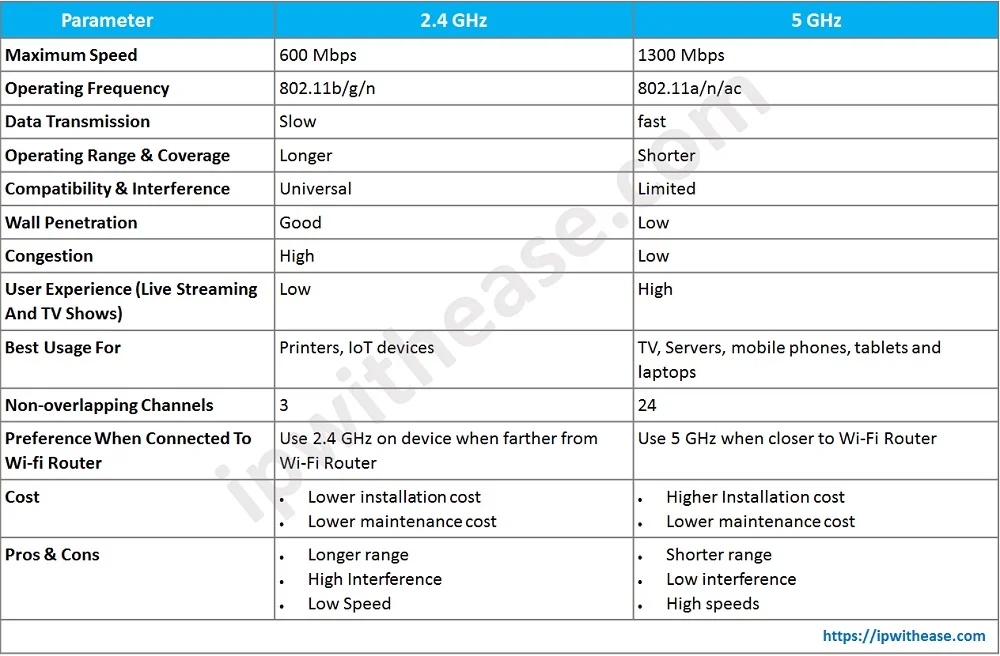
Your printer must be in a specific state to accept new network credentials. Ensuring the device is ready prevents connection timeouts and errors during the pairing process.
Power On and Check Status Lights
Plug in your printer and turn it on. Observe the Wi-Fi light indicator on the control panel.
* Steady Light: The printer is already connected to a network.
* Flashing Light: The device is ready to connect or in pairing mode.
If the printer was previously used on a different network, you must reset the network settings. Use the control panel to select Network > Restore Network Settings. Alternatively, hold the Wireless and Cancel buttons simultaneously for 5 seconds on models without a screen.
Verify Wi-Fi Band Compatibility
Most HP printers operate exclusively on 2.4 GHz Wi-Fi networks. If your smartphone is connected to a 5 GHz band, the app may fail to detect the printer.
Check your router settings to ensure it broadcasts a 2.4 GHz signal. Dual-band routers often have similar network names (SSIDs). Switch your phone to the 2.4 GHz network before starting the setup in the app.
Add Printer in HP Smart App
Once your devices are prepared, you can link them through the application interface. This process automates the discovery and configuration steps.
Initiate New Printer Setup
Launch the HP Smart app and tap the Plus (+) icon located in the top-right corner. Select “Set up a new printer” from the menu. Choose “Wi-Fi” as your connection type when prompted. The app will immediately begin scanning for nearby HP devices.
Activate Pairing Mode Manually
If your printer does not appear in the list after 20 seconds, you must manually trigger pairing mode.
For Models With a Display Screen:
Press and hold the Wireless Setup Button (signal icon) until the light begins to flash.
For Screenless Models (e.g., HP DeskJet 4255e):
Press and hold the Wi-Fi button and the X button together for 3 seconds. The power light will blink, and the Wi-Fi light will flash blue after approximately 20 seconds.
Return to the app screen. Your printer model (e.g., “HP DeskJet 42000 series”) should now appear. Tap the name to proceed.
Connect Printer to Your Home Wi-Fi Network
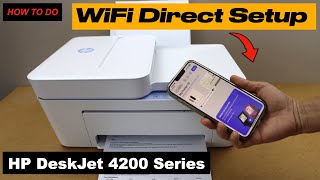
The app will display the Wi-Fi network your phone is currently using. Confirm this is the correct network for your printer.
Enter Network Credentials
Tap “Continue” to proceed. Enter your Wi-Fi password exactly as it appears on your router. Passwords are case-sensitive, so double-check capitalization. Tap the checkmark to submit the credentials.
The printer will attempt to join the network. During this phase:
* The Wi-Fi light may blink rapidly.
* Some models require you to press a blinking button on the device to confirm.
* The app may download and install firmware updates automatically.
Wait 1 to 2 minutes for the process to complete. Do not close the application during this time.
Resolve Setup Error Messages
On certain models like the DeskJet 42000 series, you might see a “Something went wrong” message even if the connection is successful.
Check the physical printer. If the Wi-Fi light is steady, the device is connected. Simply tap “Exit setup” in the app. Return to the main screen and tap “Add printer” again. The printer should now appear as an available device.
Print Documents and Photos From Your Phone
You can now generate hard copies from almost any application on your smartphone. Two primary methods exist for sending print jobs.
Use the Native System Print Menu
This method works quickly for standard documents and images.
1. Open the file, email, or photo you wish to print.
2. Tap the Share icon or the three-dot menu (⋮).
3. Select “Print” from the options list.
4. Choose your HP printer from the available devices.
5. Adjust settings for copies, paper size, and color mode.
6. Tap “Print” to send the job.
Print Via HP Smart App for Advanced Control
Use the app for higher quality settings and file management.
1. Open the HP Smart app and tap “Print documents” or “Print photos.”
2. Select the file from your device storage.
3. Use Print Preview to verify the layout.
4. Adjust print quality, paper type, and color settings.
5. Tap “Print” to execute.
Note: Jobs sent through the HP Smart app require an active internet connection and a signed-in HP account because they process via cloud servers.
Scan Documents Directly to Your Phone
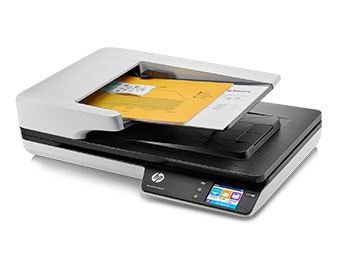
Transform your printer into a digital scanner without needing a computer. The app supports both single-page and multi-page scanning workflows.
Scan Single Pages Using the Flatbed
- Place the document face down on the glass, aligning the top-left corner with the guide.
- Close the lid securely.
- Open the HP Smart app and tap “Scan” > “Printer Scan.”
- Set the source to Flatbed and choose Document or Photo mode.
- Select 200 DPI for text or 300–600 DPI for photos.
- Tap “Scan” and wait for the image to appear.
- Crop, rotate, or apply filters as needed.
- Tap Save, choose PDF or JPEG, and select a folder.
Scan Multiple Pages With Automatic Document Feeder
If your model includes an Automatic Document Feeder (ADF), you can scan batches.
1. Remove protective tape from the feeder and extend the input flap.
2. Load pages face up with the top edge facing left.
3. In the app, select Scan > Printer Scan.
4. Change the Source setting to “Document Feeder.”
5. Tap “Scan” to feed and digitize pages automatically.
6. Review the multi-page file and reorder pages if necessary.
7. Save the collection as a single PDF file.
Fix Common Connection and Printing Issues
Even with careful setup, you may encounter obstacles. These solutions address the most frequent problems users face.
Printer Not Detected by App
- Ensure location services are enabled for the HP Smart app.
- Verify both phone and printer are on the same Wi-Fi network.
- Confirm you are using a 2.4 GHz band rather than 5 GHz.
- Restart your router and printer to refresh the connection.
- Move your phone closer to the printer during the search phase.
Wi-Fi Setup Fails Repeatedly
- Reset the printer network settings using the button combination.
- Try connecting to a different Wi-Fi network to isolate the issue.
- Re-enter your Wi-Fi password carefully, checking for typos.
- Temporarily disable strict firewall or MAC filtering settings on your router.
Unable to Print From HP Smart App
- Check that your internet connection is active.
- Ensure you are signed into your HP account within the app.
- Close and restart the HP Smart application.
- Update the app and printer firmware to the latest versions.
Maintain Your Mobile Printing Setup
Regular maintenance ensures your wireless connection remains stable and efficient over time.
Update Firmware Regularly
The HP Smart app checks for firmware updates automatically. Always install these updates when prompted, as they fix bugs and improve performance.
Monitor Ink Levels and Share Access
The app displays real-time ink levels and alerts you when supplies are low. You can also share the printer with other users on the same network. They simply need to install the app and add the printer to their own devices.
Utilize Remote Printing Features
With an HP account and internet access, you can print from anywhere. Send a job through the app while away from home, and it will print when the printer comes online.
Frequently Asked Questions About Connecting HP Printer to Phone
Why does the HP Smart app require location permissions?
The app uses location services to detect printers on your local Wi-Fi network. Without this permission enabled on your phone, the app cannot discover or communicate with your device during setup.
Can I connect my HP printer if I only have a 5 GHz Wi-Fi network?
Most HP printers only support 2.4 GHz networks. You must ensure your router broadcasts a 2.4 GHz signal and connect your phone to that specific band during the setup process.
What should I do if I get a “Something went wrong” error?
This message can appear even if the connection is successful. Check if the Wi-Fi light on your printer is steady. If it is, exit the setup and try adding the printer again from the main app screen.
Do I need an internet connection to print from my phone?
Printing via the native system menu may work offline for local jobs. However, print jobs sent through the HP Smart app require an active internet connection and a signed-in HP account.
How do I scan multiple pages into one file?
If your printer has an Automatic Document Feeder (ADF), load the pages and select “Document Feeder” as the source in the app. Save the final result as a PDF to keep all pages in a single file.
Key Takeaways for Connecting HP Printer to Phone
Connecting your HP printer to your phone provides seamless wireless access to printing and scanning features. By installing the HP Smart app, enabling location services, and ensuring you use a 2.4 GHz network, you can complete the setup in minutes. Remember that cloud-based features require an HP account and internet access, while troubleshooting often involves checking permissions and network bands.
Start by downloading the app today to unlock the full potential of your mobile printing capabilities. If you encounter issues, revisit the troubleshooting steps to verify your network settings and permissions.


