

Your computer cannot find the printer even though both devices sit on the same Wi-Fi network. This common frustration often stems from a missed setting or a simple discovery delay that blocks the connection.
You will learn exactly how to add a network printer across Windows 11, 10, 8, and macOS using proven manual and automatic methods. This guide covers every step from initial verification to advanced troubleshooting when standard scans fail.
Verify Your Network and Device Compatibility
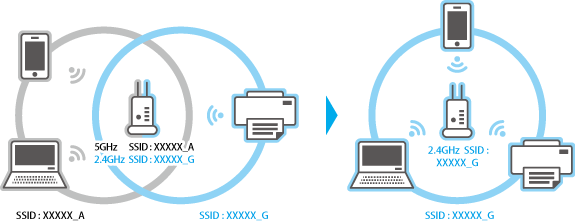
Your printer and computer must share the exact same network segment to communicate effectively. A guest Wi-Fi network or separate frequency bands like 2.4 GHz versus 5 GHz can prevent your computer from seeing the printer entirely.
Confirm Same-Network Connection Status
Check that your printer display shows a strong Wi-Fi signal matching your computer’s network name.
- Ensure both devices connect to the same router or mesh system
- Verify no firewall rules block local device communication
- Check that the printer status reads “Online” or “Ready”
Check System Type on Windows ARM Devices
Some modern laptops use ARM processors that require specific driver architectures. You must verify your system type before attempting installation to avoid compatibility errors.
- Press Windows + I to open Settings
- Navigate to System and select About
- Locate System type under Device specifications
- Confirm if it lists an ARM-based processor
Pro Tip: Most modern printers use universal protocols, yet advanced features often need specific x64 drivers.
Add a Network Printer in Windows 11
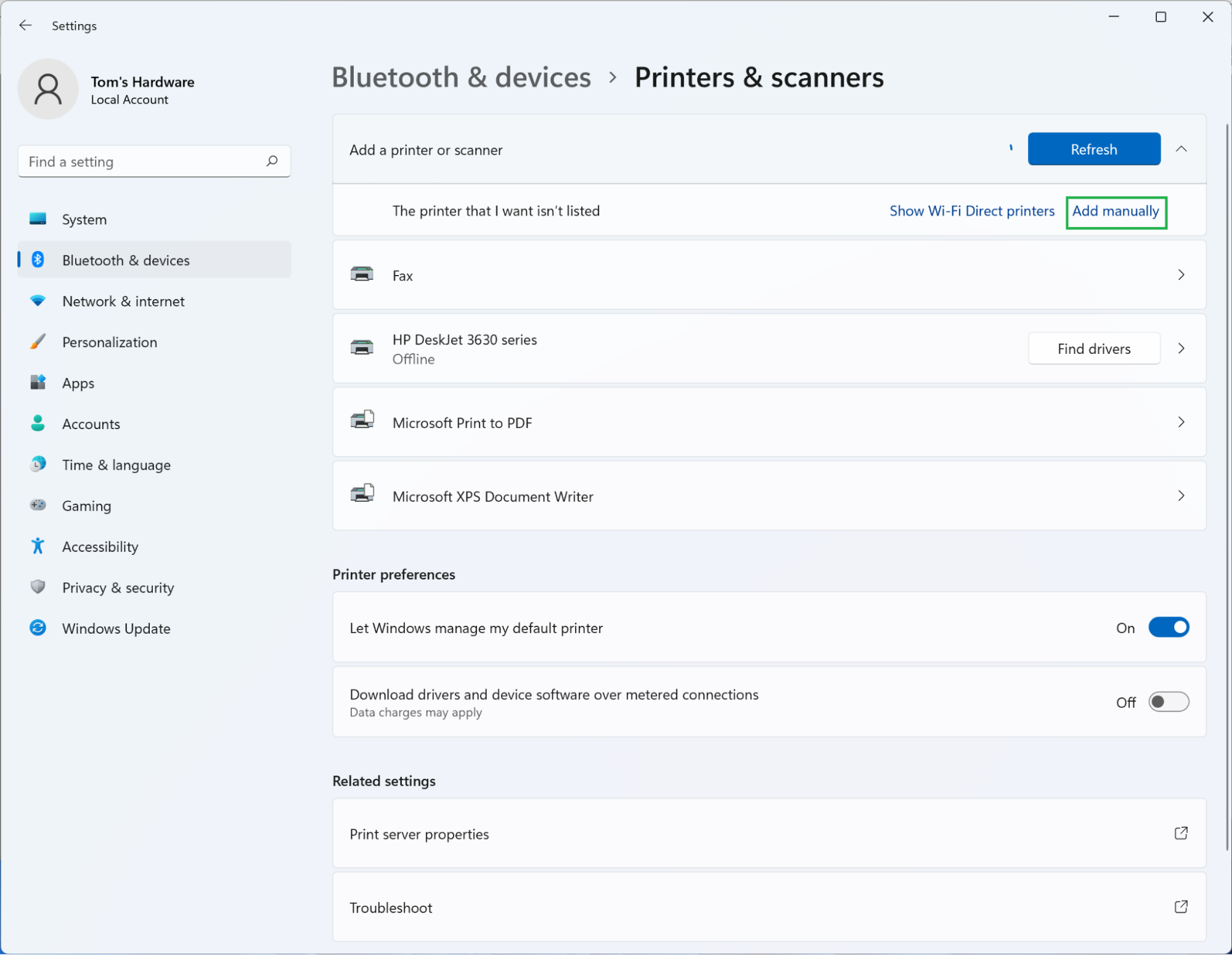
Windows 11 uses a streamlined Settings interface that simplifies device management compared to older control panels. This modern approach centralizes all your peripheral connections in one logical location.
Navigate to Printers and Scanners Menu
You need to access the correct settings panel to initiate the search for your device.
- Click Start or press the Windows key
- Select the Settings gear icon
- Choose Bluetooth & devices from the left menu
- Click Printers & scanners
Search and Add Your Device
Let the operating system scan your local network for available printing devices.
- Click Add a printer or scanner
- Select Add device when the option appears
- Wait 1 to 3 minutes for the discovery process
- Click your printer name when it appears
- Select Add Device to complete installation
Windows installs basic drivers automatically upon selection. You may need manufacturer software for full scanning or ink level features.
Add a Network Printer in Windows 10

Windows 10 offers two pathways to manage printers through either the modern Settings app or the classic Control Panel. Both methods achieve the same result for network discovery.
Access Printer Settings Interface
You can reach the necessary tools through multiple entry points depending on your preference.
Method 1: Settings App
* Press Windows + I
* Go to Devices then Printers & scanners
* Click Add a printer or scanner
Method 2: Control Panel
* Type “Control Panel” in the search bar
* Click Devices and Printers
* Select Add a printer from the toolbar
Complete the Installation Process
Follow the on-screen prompts to finalize the connection and driver installation.
- Wait for the network scan to finish completely
- Choose your printer from the populated list
- Click Next or Add Device
- Allow Windows to install required drivers
Security Note: Windows 10 support ends October 14, 2025. Upgrade to Windows 11 soon for continued security updates.
Add a Network Printer in Windows 8
Legacy Windows 8 systems rely on the classic Control Panel layout for all device management tasks. The interface differs slightly but the underlying discovery logic remains similar.
Use Control Panel for Device Addition
Navigate the traditional menu structure to find and connect your network printer.
- Press Windows + X and select Control Panel
- Click Devices and Printers
- Select Add a printer in the top toolbar
- Wait while the system searches the network
- Select your printer when listed
- Click Next and follow installation prompts
Older printers with legacy drivers often perform better on Windows 8 than newer operating systems. However, be aware that this OS lacks modern security patches.
Add a Network Printer on macOS

MacOS handles network printers seamlessly through System Settings or System Preferences depending on your version. The process is generally more automatic than on Windows platforms.
Open Printers and Scanners Section
Access the central hub for all printing devices on your Mac.
- Click the Apple menu in the top-left corner
- Select System Settings (Ventura+) or System Preferences (older)
- Click Printers & Scanners
Add Via Network Discovery
Allow macOS to scan and configure the device automatically.
- Click the + (plus) button
- Wait for macOS to scan the network
- Select your printer from the available list
- Click Add to begin configuration
The system often downloads drivers automatically. If prompted, allow installation of manufacturer software like HP Easy Start.
Expert Tip: If your printer does not appear, click the IP tab to enter the address manually.
Troubleshoot When Printer Is Not Found
Network scanning is not instant and some printers take up to five minutes to appear in the list. Patience is often the most effective troubleshooting tool during this phase.
Wait for Full Discovery Cycle
Keep the search window open and avoid closing it repeatedly. Ensure the printer is idle and not processing another job from a different user.
Reboot Devices to Reset Connection
A simple restart often resolves hidden connectivity glitches between devices.
- Turn off the printer completely
- Restart your computer
- Power on the printer and wait for readiness
- Try adding the device again
Remove and Re-Add Printer
Stuck print jobs or corrupted driver data can block new connections entirely. Removing the old entry forces a fresh handshake between devices.
Delete Existing Printer Entry
Clear out old configurations before attempting a fresh installation.
- Go to Settings > Devices > Printers & scanners
- Find the problematic printer in the list
- Click it and select Remove device
- Confirm the deletion
Restart both devices after removal. This process clears outdated driver data effectively.
Use USB for Initial Setup Fallback
If wireless discovery fails completely, connect via USB to force initial recognition. This method bypasses network discovery issues entirely.
Install Over USB Connection
Use a physical cable to establish the first connection successfully.
- Plug printer into PC using a USB cable
- Turn on the printer
- Wait for Windows to detect and install
- Go to Printers & scanners settings
- Right-click printer and select Printer properties
- Switch to Standard TCP/IP Port under Ports tab
Unplug the USB cable after switching ports. Printing continues over Wi-Fi automatically.
Connect Via Bluetooth Alternative
Some portable printers use Bluetooth instead of Wi-Fi for direct device connections. This requires a specific pairing process distinct from network scanning.
Pair Bluetooth Printer
Enable wireless pairing mode on both devices to establish a link.
- Enable Bluetooth on computer and printer
- Put printer in pairing mode per manual
- Go to Settings > Bluetooth & devices
- Select Add device then choose Bluetooth
- Complete the pairing sequence
Not all printers support Bluetooth connectivity. Check your model specifications first.
Manual IP Address Addition Method
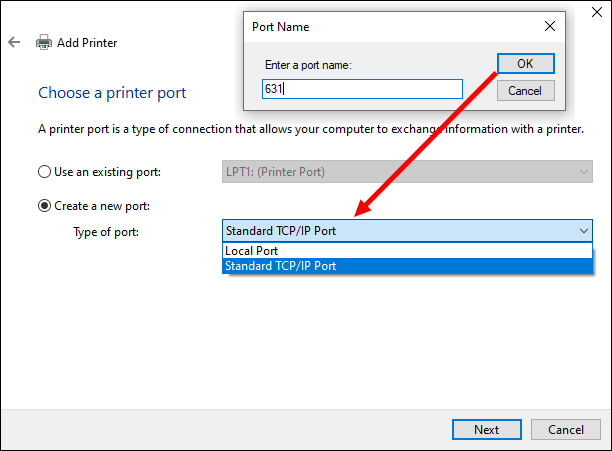
Automatic discovery sometimes fails in complex networks. Adding the printer via its static IP address bypasses broadcast issues completely.
Find Printer IP Address
Locate the specific network address assigned to your device.
- Print a network configuration page from printer menu
- Look for IP Address like 192.168.1.25
Add TCP/IP Printer on Windows
Manually input the address to force a direct connection.
- Go to Settings > Devices > Printers & scanners
- Click Add a printer or scanner
- Select The printer that I want isn’t listed
- Choose Add using TCP/IP address
- Enter the printer IP address
- Click Next and install drivers
This method works well when standard discovery protocols fail.
Update Drivers Via Windows Update
Sometimes the correct driver exists but needs a manual nudge to install. Windows Update often holds optional driver packages for printers.
Check for Optional Updates
Search specifically for driver updates in the advanced settings menu.
- Open Settings > Windows Update
- Click Advanced options
- Select Optional updates
- Expand Driver updates
- Install any printer-related updates
Updated drivers unlock full features like duplex printing. Do not ignore these optional updates.
Consult Manufacturer Resources
Every printer brand provides unique setup tools designed for their specific hardware. These apps often fix issues faster than generic OS tools.
Recommended Tools by Brand:
* HP: Use HP Smart App for Wi-Fi configuration
* Canon: Run IJ Network Tool for testing
* Epson: Download Epson Net Config for IP setup
* Brother: Use Brother iPrint&Scan for mobile setup
These proprietary tools handle complex network configurations automatically.
Prevent Future Connection Issues
Dynamic IP addresses change occasionally and break your printer connection. Assigning a static IP ensures your printer always has the same address.
Assign Static IP to Printer
Configure your router to reserve a specific address for your device.
- Access router admin page at 192.168.1.1
- Find DHCP reservation settings
- Reserve an IP for your printer MAC address
- Reconfigure printer with that static IP
Keep Software Updated Regularly
Outdated firmware causes silent failures over time. Run regular system updates and check the manufacturer website for firmware patches. Reboot your printer monthly to clear memory leaks.
Frequently Asked Questions About How to Add a Network Printer
Why won’t my computer find my network printer?
Your computer and printer likely sit on different networks or frequency bands. Ensure both devices connect to the exact same Wi-Fi SSID and that the printer is powered on.
How do I add a printer using an IP address?
Select “The printer that I want isn’t listed” in Windows settings. Choose the TCP/IP option and enter the specific IP address found on your printer’s configuration page.
Do I need special drivers for ARM-based Windows devices?
Yes, ARM processors require specific driver architectures. Check your System Type in Settings > About before installing to ensure compatibility.
What should I do if the printer list stays empty?
Wait at least three minutes for the scan to complete. If nothing appears, restart both the printer and computer, then try the manual IP addition method.
Can I use a USB cable to set up a Wi-Fi printer?
Yes, connect via USB first to install drivers, then switch the port settings to TCP/IP in Printer Properties. This forces recognition before switching to wireless.
Key Takeaways for Adding a Network Printer Successfully
Adding a network printer requires patience and precise network configuration. Ensure both devices share the same Wi-Fi network and wait fully for the discovery scan to complete before troubleshooting.
Use manual IP addition if automatic detection fails. Regularly update drivers and assign static IPs to prevent future disconnection issues.
Start by verifying your network connection today. Follow these steps to restore your wireless printing capability immediately.


