

Scanning documents with your Brother printer becomes effortless once you know the correct steps for your specific model. Whether you use a mobile device or a Windows PC, this guide shows you exactly how to scan on Brother printer models like the MFC-J1010DW and HLL2390DW.
You will learn to connect your device via Wi-Fi, choose between flatbed and automatic feeders, and optimize settings for crisp PDFs or JPEGs. We also cover common troubleshooting tips to fix blurry scans or connection errors quickly.
Connect Your Brother Printer to Wi-Fi Network

Wireless scanning requires your printer and your controlling device to share the same network connection. A stable Wi-Fi link ensures your mobile app or computer can communicate with the scanner instantly.
Use Touchscreen Setup Wizard on Modern Models
Models like the MFC-J1010DW and DCP-L2640DW feature intuitive touch displays for easy setup.
* Press Menu then select Network followed by Wi-Fi.
* Choose Setup Wizard from the list of options.
* Select your specific Wi-Fi network name from the displayed list.
* Enter your password using the on-screen keyboard and press OK.
* Select Yes to apply the new settings.
Success Indicator: The Wi-Fi and Wi-Fi Direct lights will remain solid and stop blinking once connected.
Configure Network Settings Using Button Navigation
Button-based models like the HLL2390DW require arrow key navigation for setup.
* Navigate to Menu then Network and select Wi-Fi.
* Choose Setup Wizard to begin the search for networks.
* Use the arrow keys to input your Wi-Fi password character by character.
* Press OK to confirm your entry and select Yes to save.
* Wait for the network indicator lights to stabilize before proceeding.
Add Brother Printer to Windows PC
Your computer must recognize the Brother device before you can initiate a scan from your desktop. Windows usually handles driver installation automatically once the printer is on the network.
Install Printer via Built-in Windows Setup
- Open Settings on your computer and go to Devices.
- Select Printers & scanners from the left-hand menu.
- Click the Add a printer or scanner button.
- Wait for Windows to detect your Brother model name in the list.
- Select your printer and click Add device to finish installation.
Access Scanner Functions from PC
Once added, you can access scanning tools directly through the operating system.
* Click Manage next to your Brother printer name in the settings list.
* Select the Scanner option from the menu.
* Click Open Scanner to launch the built-in scanning utility.
Set Up Brother Mobile Connect App
The Brother Mobile Connect app provides the most flexible scanning experience for iOS and Android users. It allows direct control over scan settings and immediate file sharing.
Download App and Register Your Device
Start by installing the official application from your device’s app store.
* Install Brother Mobile Connect from the App Store or Google Play.
* Launch the app and tap I Agree followed by OK to accept terms.
* Select Register Your Machine to begin the pairing process.
* Grant camera and location permissions when the app prompts you.
Connect Mobile Device to Printer on Network
The app will search for available Brother printers on your local Wi-Fi network.
* Tap your printer’s model name when it appears in the search results.
* Select Skip in the top-right corner if a subscription prompt appears.
* Choose Activate Later to continue using free scanning features.
* Look for a green checkmark to confirm successful pairing.
Scan Documents Using Flatbed Scanner
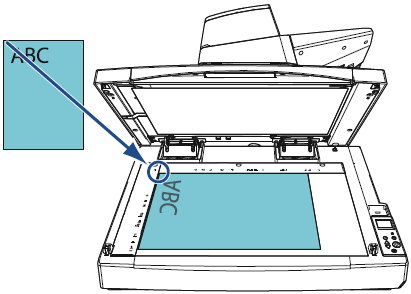
The flatbed glass is ideal for single pages, photos, books, or fragile items that cannot go through a feeder. Proper alignment ensures your entire document is captured without dark edges.
Place Document Correctly on Glass
Proper placement prevents skewed images and ensures the scanner captures the whole page.
* Lift the scanner lid to expose the glass platen.
* Place your document face down on the glass surface.
* Align the top-left corner with the arrow mark on the frame.
* Ensure the top edge is flush against the left side guide.
* Close the lid securely to block ambient light.
Initiate Scan from App or Computer
You can start the scanning process from multiple interfaces once the document is ready.
* Mobile: Open Brother Mobile Connect and tap Scan.
* PC: Open the Scanner utility and click the Scan button.
* Control Panel: Press the physical Scan button on supported models.
Scan Multi-Page Jobs with Automatic Document Feeder
The Automatic Document Feeder (ADF) saves time by processing multiple pages automatically. This method works best for contracts, reports, and multi-page forms.
Load Pages with Correct Orientation
Critical: Orientation varies by model series, so check your specific device type.
* MFC-J Series: Stack pages face down with the top edge first.
* DCP-L Series: Stack pages face up with the top edge first.
* Adjust the ADF side guides to match your paper width exactly.
* Extend the output tray fully to catch ejected pages.
* Insert the stack gently until the rollers grip the paper.
Begin ADF Scanning Process
Start the job and let the machine work without interference.
* Initiate the scan via the app, PC software, or control panel.
* Do not touch the printer or paper stack during feeding.
* Allow pages to eject naturally into the output tray.
* Use the included plastic tab to keep your scanned stacks organized.
Optimize Scan Settings for Quality and Size

Adjusting resolution and file formats ensures your digital copies meet your specific needs. Default settings often work, but manual tweaks improve results for archives or photos.
Choose Correct Resolution DPI
Resolution determines image clarity and file size, so select based on your goal.
* 100 DPI: Avoid this setting as it creates blurry text and pixelated images.
* 200 DPI: Acceptable for quick text scans where small file size matters.
* 300 DPI: Recommended for most documents to ensure clear text and good quality.
* 600 DPI: Best for photos or archival work requiring fine detail.
Select Appropriate File Format
Choose the right format to maintain document structure or image quality.
* PDF: Best for multi-page documents as it combines all pages into one file.
* JPEG: Ideal for photos or single images intended for social media sharing.
Customize Advanced Scan Options
Deepen your control over the scanning process by accessing advanced settings in the app or PC software. These options help manage file organization and color accuracy.
Set Color Mode and Document Size
Tailor the output to match your original document type.
* Color Mode: Select Color for photos or Black & White to reduce file size for text.
* Document Size: Match the setting to your paper size like Letter or A4 for accurate cropping.
* File Name: Rename files immediately after scanning to avoid confusion later.
* Quality: Keep settings at Normal unless you specifically need high resolution.
Manage Multi-Page Scans Efficiently
Combine multiple sheets into a single organized document using the app’s management tools. This prevents having dozens of separate image files for one report.
Add and Edit Pages in App
Review and organize your pages before saving the final document.
1. Tap Add Pages after the first scan to capture more sheets.
2. Scan the next page using the flatbed or ADF.
3. View all thumbnails in the preview pane to check order.
4. Tap the X icon to delete any unwanted or blurry pages.
5. Pinch to zoom and verify clarity before finalizing.
Merge Pages Into Single PDF
Consolidate your images into one professional file before saving.
* Tap the Settings cog icon located above the Save button.
* Set the File Type option to PDF.
* Tap Done and then Save to create your combined document.
Edit and Enhance Scanned Images
Improve readability and appearance directly within the Brother Mobile Connect app. Basic editing tools eliminate the need for separate photo editing software.
Rotate and Crop Images
Fix orientation issues and remove unnecessary background space.
* Rotate: Tap the rotation icon to turn the image 90 degrees at a time.
* Crop: Drag the corners to trim excess borders or white space.
Adjust Brightness and Contrast
Enhance text legibility or photo quality with simple adjustments.
* Use preset options like Brighten for quick fixes.
* Manually slide Brightness and Contrast controls for precision.
* Preview changes on screen before applying them permanently.
Save and Share Scanned Files
Distribute your digitized documents instantly to email, cloud storage, or messaging apps. The app integrates directly with popular platforms for seamless sharing.
Save File to Device Storage
Choose where your digital copy resides on your phone or computer.
* Mobile: Files save to your photo gallery or the app folder.
* PC: Select a specific folder like Documents or Desktop during save.
Share Directly From App
Tap Share to send your document through various channels immediately.
* Email clients
* Messaging apps like WhatsApp or Messages
* Cloud storage services like Google Drive
* Social media platforms
* AirDrop for iOS devices
Fix Common Scanning Issues
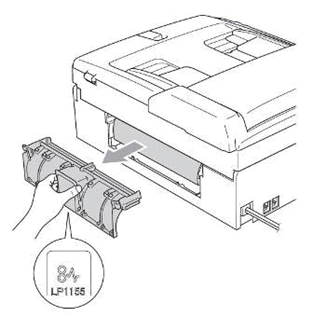
Resolve frequent problems quickly to get back to work without frustration. Most issues stem from simple settings or alignment errors.
Blurry or Pixelated Scans
Low resolution settings often cause poor image quality.
* Cause: Resolution set to 100 DPI.
* Fix: Change setting to 300 DPI or higher in scan options.
Skewed or Cropped Text
Misalignment leads to cut-off edges or tilted documents.
* Cause: Document not aligned with arrow mark or loose ADF guides.
* Fix: Realign top-left corner and tighten ADF side tabs to fit paper.
Printer Not Found on Network
Connection issues prevent the app or PC from seeing the scanner.
* Cause: Device and printer are on different Wi-Fi networks.
* Fix: Confirm both are on the same network and restart router and printer.
Paper Jams in ADF
Feeding errors occur when paper handling is incorrect.
* Cause: Overloading tray or touching paper during feed.
* Fix: Load recommended page count and keep hands off during operation.
Maintain Scanner for Best Results
Regular cleaning ensures your Brother printer continues producing high-quality scans. Dust and debris are the main enemies of clear imaging.
Clean Scanner Glass Regularly
Spots on your scans usually come from dirt on the glass platen.
* Wipe glass gently with a lint-free cloth.
* Dampen slightly with water only if needed.
* Avoid chemical cleaners that could damage the surface.
Check ADF Rollers and Path
Debris in the feeder path causes jams and streaks.
* Ensure no paper fragments block the feed path.
* Wipe rollers with a dry cloth to remove dust and grime.
* Inspect periodically to prevent feeding issues.
Frequently Asked Questions About Scanning on Brother Printers
What is the best DPI setting for scanning text documents?
Use 300 DPI for most text documents as it balances clarity and file size effectively. Lower settings like 100 DPI often result in blurry text, while 600 DPI creates unnecessarily large files for standard text.
Why does my Brother scanner say “Not Found” on my phone?
This usually happens when your phone and printer are on different Wi-Fi networks. Ensure both devices connect to the exact same network name and restart your router if the issue persists.
Can I scan multiple pages into one PDF file?
Yes, use the Add Pages feature in the Brother Mobile Connect app after the first scan. Set your file type to PDF in the settings before saving to merge all pages into a single document.
How do I fix skewed or crooked scans from the ADF?
Adjust the side guides on the Automatic Document Feeder to match your paper width exactly. Also, ensure you place the document stack with the correct face-up or face-down orientation for your specific model.
Is the Brother Mobile Connect app free to use?
Yes, the app is free to download and use for standard scanning features. If a subscription prompt appears during setup, simply tap Skip and select Activate Later to proceed without paying.
Key Takeaways for Scanning on Brother Printer
Mastering how to scan on Brother printer devices requires proper network setup and correct document placement. Always ensure your printer and device share the same Wi-Fi network, and choose 300 DPI resolution for clear, professional results. Regular cleaning of the glass and rollers prevents common quality issues.
Start by connecting your printer using the Setup Wizard, then download the Brother Mobile Connect app for the easiest workflow. With these steps, you can digitize contracts, photos, and reports efficiently from anywhere in your home or office.


