

You installed your Epson printer, but now you cannot find the settings to adjust quality or check ink. Many users know how to install the hardware but struggle with how to open Epson printer driver interfaces after the initial setup. The solution lies in specific system menus rather than a standalone desktop icon.
This guide details the exact steps to access your driver on Windows 10, Windows 11, and macOS. You will learn to locate printing preferences, launch utility tools like Status Monitor, and fix common access issues quickly.
Locate Your Epson Printer in Windows Devices
Your computer must recognize the printer before you can access its driver settings. Windows lists all connected hardware in a central management hub.
Verify Device Recognition
- Press
Windows + Son your keyboard. - Type Devices and Printers or Printers & scanners and press Enter.
- Scan the list for your specific model name like Epson L3250 or ET-2760.
- Ensure the icon does not show a grayed-out status or error mark.
If your printer is missing from this list, the driver installation may be incomplete. Reconnect your USB cable or verify your Wi-Fi connection before proceeding.
Access Printing Preferences via Control Panel

The primary method to open Epson printer driver settings on Windows is through the Printing Preferences menu. This interface hosts all essential configuration options.
Step-by-Step Access Guide
- Open Control Panel and select Hardware and Sound.
- Click Devices and Printers to view your hardware list.
- Right-click your Epson printer icon carefully.
- Select Printing preferences from the context menu.
This action launches the main driver window where you can change print quality, set paper size, and enable borderless printing.
Common Mistake Alert: Do not click “Properties” at the bottom of the menu. That option opens system-level data, whereas Printing preferences gives you full control over print behavior.
Launch Epson Utilities Using Windows Search
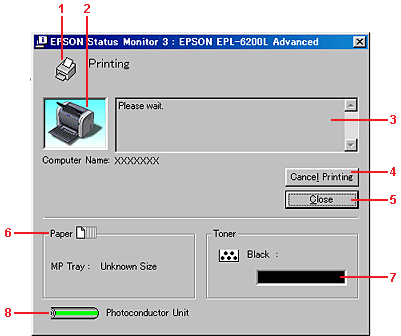
Modern Windows installations often hide specific utility icons from the desktop. You can bypass this by using the built-in search function to find driver tools directly.
Find Hidden Driver Tools
- Press
Windows + Sto open the search bar. - Type Epson Print or Epson Status Monitor.
- Click the application result to launch the tool immediately.
These utilities provide real-time data on ink levels and print head alignment. The Epson Status Monitor runs in the background to alert you of potential clogs or errors.
Open Epson Driver Settings on macOS

Mac users follow a different path to access printer drivers since macOS integrates these settings into System Settings. The process remains straightforward if you know where to look.
Navigate Mac Printer Options
- Click the Apple menu () in the top left corner.
- Select System Settings or System Preferences.
- Click Printers & Scanners in the sidebar.
- Select your Epson printer from the device list.
- Click Options & Supplies to view detailed driver features.
From this window, you can adjust resolution, media type, and color modes. Hold the Option key while clicking the printer name to reveal advanced utility buttons like Open Printer Utility.
Manually Start Epson Software Suite Components

Your driver installation includes a suite of specialized tools for scanning and network management. You can launch these manually if they do not start automatically.
Key Utility Functions
- Epson Print Settings: Adjust layout and ink usage directly from the Start Menu.
- Epson ScanSmart: Execute one-click document scans and save to PDF.
- Epson Net Config: Manage IP addresses and Wi-Fi settings for network printers.
- Printer Connection Checker: Diagnose why a printer appears offline.
You can find these tools in the Start Menu under the Epson folder or by navigating to C:\Program Files (x86)\Epson\Software\[Model]\ on your hard drive.
Troubleshoot When Driver Will Not Open
Clicking “Printing preferences” sometimes yields no result if the driver software is corrupted. Specific diagnostic steps can restore access to your settings.
Resolve Unresponsive Driver Windows
- Press
Windows + R, typeservices.msc, and hit Enter. - Locate Print Spooler in the list and right-click it.
- Select Restart to refresh the printing service.
- Try opening the driver again via Devices and Printers.
If the window remains frozen, remove the device from Devices and Printers and re-add it. Ensure your ink tanks are filled, as empty tanks can block access to certain maintenance utilities.
Access Advanced Driver Tabs for Power Users
Standard preferences cover daily tasks, but the Advanced tab offers deeper system control. This section allows you to manage how Windows handles print jobs.
Enable Advanced Configuration
- Right-click your Epson printer in Devices and Printers.
- Choose Printer properties (distinct from Printing preferences).
- Navigate to the Advanced tab at the top of the window.
- Click Printing Defaults to set global rules.
Here you can configure spooling options to improve speed or assign specific forms for custom paper sizes. Use caution when changing spool settings as they affect overall system performance.
Set Default Printer and Create Shortcuts

Save time by configuring your system to prioritize your Epson printer automatically. This ensures every document defaults to your preferred settings.
Configure Quick Access Options
- Right-click your Epson model in Devices and Printers.
- Select Set as default printer to make it the primary choice.
- Press
Ctrl + Pin any application to verify the selection.
You can also create a desktop shortcut for Printing preferences by dragging the icon from the Start Menu to your desktop. Rename it “Epson Settings” for instant access to your most used controls.
Update Driver to Restore Missing Features
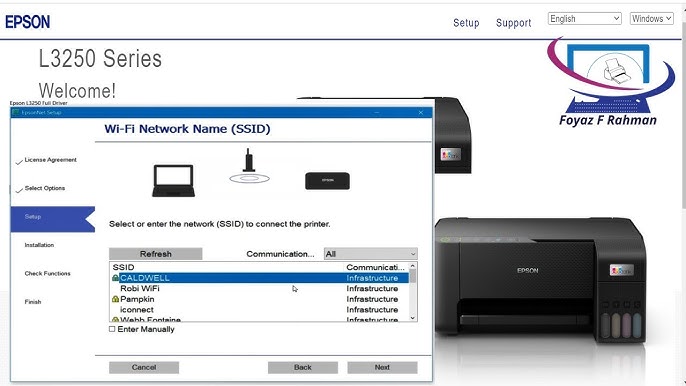
An outdated driver often causes the “cannot open” error or missing features. Updating ensures compatibility with your current operating system version.
Download Latest Software Version
- Visit the official Epson support website.
- Enter your exact model number like WF-3820.
- Select your OS version such as Windows 11 or macOS Sonoma.
- Download and run the Epson Web Installer.
Newer driver versions fix bugs that prevent the interface from launching. Always use the official installer to ensure you receive the complete software suite.
Frequently Asked Questions About Opening Epson Drivers
Where is the Epson printer driver located on my computer?
The driver interface lives within the Windows Control Panel under Devices and Printers. Right-click your printer and select Printing preferences to open it. On Mac, find it in System Settings under Printers & Scanners.
Why does nothing happen when I click Printing Preferences?
This usually indicates a corrupted print spooler service or an incomplete installation. Restart the Print Spooler service in Windows or reinstall the driver using the official Epson Web Installer to fix the issue.
Can I open Epson utilities without a printer connection?
You can launch some tools like Epson ScanSmart from the Start Menu without an active connection. However, features checking ink levels or performing head cleaning require the printer to be powered on and connected.
How do I find my Epson model number for driver updates?
Check the front panel display, look under the scanner lid for a label, or inspect the rear casing near the power port. Common formats include EcoTank ET-2760 or L3250.
Is it safe to download drivers from third-party websites?
No, you should only download drivers from official Epson domains like epson.com. Third-party sites may host outdated files or malware that compromises your computer security.
Key Takeaways for Opening Your Epson Printer Driver
Knowing how to open Epson printer driver settings empowers you to manage print quality and maintenance effectively. Always use Printing preferences in the Control Panel for Windows or Options & Supplies on Mac for full access. Keep your driver updated via the official website to prevent access errors and ensure compatibility.
If standard methods fail, restart your print spooler service or reinstall the software suite. With these steps, you can maintain optimal printer performance and resolve issues without external help.


