

You placed a document on your Canon printer glass, but the computer still shows no scanner detected. This frustrating gap between hardware and software is why so many users search for how to scan on Canon printer models effectively. Without the right setup, your multifunction device remains just a printer.
This guide provides a clear path to digitizing your documents using official Canon tools and built-in system features. You will learn to install essential drivers, connect via Wi-Fi or USB, and troubleshoot common detection errors quickly.
Install Required Canon Scanning Software
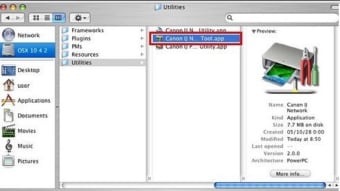
Your computer cannot communicate with the scanner hardware without specific drivers. Canon printers require their proprietary software to unlock full scanning capabilities beyond basic printing functions. Installing the correct utility is the mandatory first step for any workflow.
Download IJ Scan Utility for Home Users
Home and small office models like PIXMA and MAXIFY rely on the IJ Scan Utility. This free application simplifies the process of creating PDFs or sending images directly to email.
- Visit the official Canon support website.
- Enter your specific printer model number.
- Navigate to the “Drivers & Downloads” section.
- Locate “IJ Scan Utility” under the applications list.
- Download the file and run the installer.
- Follow the on-screen prompts to finish installation.
Pro Tip: Always download the full driver package alongside the utility to ensure all features function correctly.
Use MP Drivers for imageCLASS Series
Business-grade imageCLASS printers often require the MP Drivers package instead of the standard utility. This comprehensive suite includes ScanGear for advanced image adjustment and TWAIN drivers for third-party compatibility.
Missing these specific drivers often results in the computer recognizing the printer but failing to see the scanner component. Ensure you select the correct package for your specific series to avoid connection gaps.
Establish a Stable Printer Connection
A weak or incorrect connection is the primary cause of scanning failures. Your computer and printer must communicate clearly before any scanning software can detect the device.
Choose Between USB and Wi-Fi
Select the connection type that matches your workflow needs. USB offers the highest reliability for single-user setups, while Wi-Fi provides flexibility for multiple users.
- USB Cable: Best for fast, uninterrupted scans on one computer.
- Wi-Fi Network: Ideal for sharing the scanner across multiple devices.
- Ethernet: Recommended for office environments with dedicated network ports.
Verify Connection Status
Check the physical indicators on your printer before attempting to scan. The display should show a solid wireless icon or a steady USB connection light.
If the icon is missing or blinking, restart both your router and the printer. Remember that successful printing does not guarantee scanning functionality, as these often use different network ports.
Execute Scans Using IJ Scan Utility
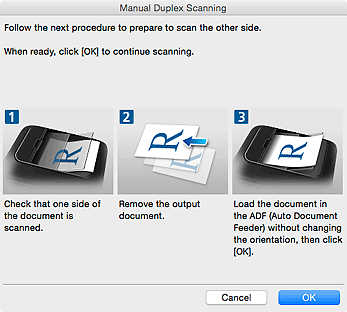
The IJ Scan Utility provides the most user-friendly interface for daily tasks. It offers one-click solutions for documents and photos without complex configuration.
Launch the Application
Find the software in your Start Menu on Windows or the Applications folder on Mac. The main window presents three clear options: Photo, Document, and Custom.
Select Document for text pages or Photo for images to apply automatic enhancements. The Custom button allows you to define specific resolution and file type preferences.
Perform a Standard Document Scan
- Place your paper face-down on the scanner glass.
- Align the corner of the page with the marked arrow.
- Close the lid gently to block external light.
- Click the Document button in the utility window.
- Select your preferred color mode and file format.
- Press Scan to begin the process.
The resulting file saves automatically to your default pictures or documents folder. You can rename the file immediately after the scan completes.
Configure Scan to Email or Cloud
You can bypass saving to your hard drive by setting up direct destinations. Go to Settings within the utility and select Destination Settings.
Add your email address or link cloud services like Google Drive. Once configured, select Send to Email after scanning to transmit the file instantly.
Scan Directly from Mobile Devices
The Canon PRINT Inkjet/SELPHY app allows you to scan wirelessly from smartphones and tablets. This method is perfect for quick digitization when you are away from your desk.
Set Up Mobile Scanning
- Download the Canon PRINT app from your device store.
- Ensure your phone and printer share the same Wi-Fi network.
- Open the app and tap the Scan icon.
- Select your specific Canon printer from the list.
- Place the document on the glass and tap Start.
- Preview the image and crop edges if necessary.
- Save to your phone or share via messaging apps.
This method supports multi-page PDF creation and works on both iOS and Android platforms. It requires the printer to have Wi-Fi Direct capability or an active network connection.
Utilize Windows Fax and Scan Tool

Windows users can access basic scanning features without installing extra Canon software. The built-in Windows Fax and Scan tool works with most Canon models that have updated drivers.
Add Your Printer as a Scanner
- Type “Fax and Scan” in the Windows search bar.
- Open the application and click New Scan.
- Select your Canon model from the scanner dropdown menu.
- Click Refresh if your device does not appear immediately.
Adjust Scan Profiles
Configure the settings bar to match your document type. Choose between Color, Grayscale, or Black and White modes.
Set the resolution to 150 dpi for text documents or 300 dpi for photos. Click Scan to generate a file that saves to your Scanned Documents folder.
Note: Some newer Canon models may have limited functionality with this native tool. Use IJ Scan Utility if you encounter missing features.
Troubleshoot Common Scanning Errors

Even with proper setup, technical glitches can interrupt your workflow. Identifying the root cause quickly helps you resume scanning without delay.
Resolve Scanner Not Detected Issues
If the software cannot find your printer, check your physical connections first. A loose USB cable or a dropped Wi-Fi signal often causes this error.
- Reconnect the USB cable to a different port.
- Restart the printer to reset the network module.
- Reinstall the IJ Scan Utility if the driver is corrupted.
- Run the Canon Connection Problem Doctor tool available on their support site.
Fix Blank or Dark Scan Results
Dark images usually indicate light leakage or dirty glass. Ensure the scanner lid is closed tightly during operation to block ambient light.
Clean the glass surface with a soft, lint-free cloth to remove dust or fingerprints. If the issue persists, open ScanGear settings and increase the brightness level manually.
Address Slow or Frozen Scans
Large file sizes or weak signals can cause the scanning process to hang. Close other heavy applications on your computer to free up system resources.
Lower the scanning resolution from 600 dpi to 300 dpi for faster performance. Switching from Wi-Fi to a USB connection often resolves persistent freezing issues.
Optimize Image Quality with ScanGear

Advanced users can access ScanGear for granular control over image output. This tool is included in the MP Drivers or accessible through the IJ Scan Utility settings.
Access Advanced Settings
Open IJ Scan Utility and click Settings to find the ScanGear launch button. Alternatively, search for “ScanGear” in your program list to open it directly.
This interface provides professional controls for color correction and detail enhancement. It is essential for archiving high-value documents or restoring old photos.
Adjust Resolution and Color Depth
Select the correct Document Type to optimize the scan algorithm. Choose Reflective for standard paper and Film only if your model supports transparency units.
- 150–200 dpi: Ideal for standard text documents.
- 300 dpi: Recommended for photos and magazines.
- 600 dpi: Use for detailed graphics or small text.
Use the Preview button to test adjustments before committing to a full scan. Save your preferred settings as a custom profile for future use.
Organize and Share Scanned Documents
Efficient file management ensures you can find your digitized records later. Proper naming conventions and folder structures save time during retrieval.
Rename Files and Create Folders
Avoid generic filenames like “Scan001.pdf” which become confusing over time. Rename files immediately to reflect their content, such as “Invoice_June2024.pdf”.
Create dedicated folders for different categories like Receipts, Contracts, or Personal IDs. In IJ Scan Utility, go to Save Settings to change the default destination folder.
Combine Multiple Pages into One PDF
Use the Custom Mode in IJ Scan Utility to create multi-page documents. Enable the multi-page option before scanning the first page.
Continue placing pages on the glass and scanning until the document is complete. The software merges all pages into a single PDF file automatically.
Maintain Scanner Performance Long Term

Regular maintenance prevents image quality degradation and hardware failures. Simple habits keep your Canon scanner operating at peak efficiency.
Clean Scanner Glass Monthly
Dust accumulation causes streaks and dark spots on every scan. Power off the printer and open the lid to access the glass surface.
Wipe the glass gently with a slightly damp, lint-free cloth. Avoid using alcohol or abrasive cleaners that could damage the coating.
Update Software Regularly
Operating system updates can sometimes break older driver compatibility. Check the Canon support site every few months for firmware and driver updates.
Reinstall the scanning software after major computer upgrades like moving to Windows 11. This ensures continued communication between your device and the computer.
Frequently Asked Questions About Scanning on Canon Printers
Why is my Canon printer printing but not scanning?
Printing and scanning use different communication ports. You likely need to install the specific IJ Scan Utility or MP Drivers to enable the scanning function on your computer.
Can I scan from my Canon printer to my email directly?
Yes, if you configure the destination settings in IJ Scan Utility. You must add your email account details within the software settings first.
How do I scan multiple pages into one PDF file?
Select “Custom” mode in the IJ Scan Utility and enable the multi-page option. Scan each page sequentially, and the software will merge them into a single document.
What resolution should I use for scanning documents?
Use 150 to 200 dpi for standard text documents to keep file sizes small. Increase to 300 dpi if the document contains small text or photos.
Is the Canon PRINT app free to use?
Yes, the Canon PRINT Inkjet/SELPHY app is free to download and use. It allows wireless scanning and printing from iOS and Android devices.
Key Takeaways for Scanning on Canon Printer
Mastering how to scan on Canon printer models requires installing the correct IJ Scan Utility or MP Drivers. Proper connection via USB or Wi-Fi ensures your computer detects the scanner hardware reliably. Regular cleaning of the glass and software updates prevent common quality issues.
Start by downloading the official utility for your specific model today. Follow the installation steps carefully to unlock the full potential of your multifunction device.


