
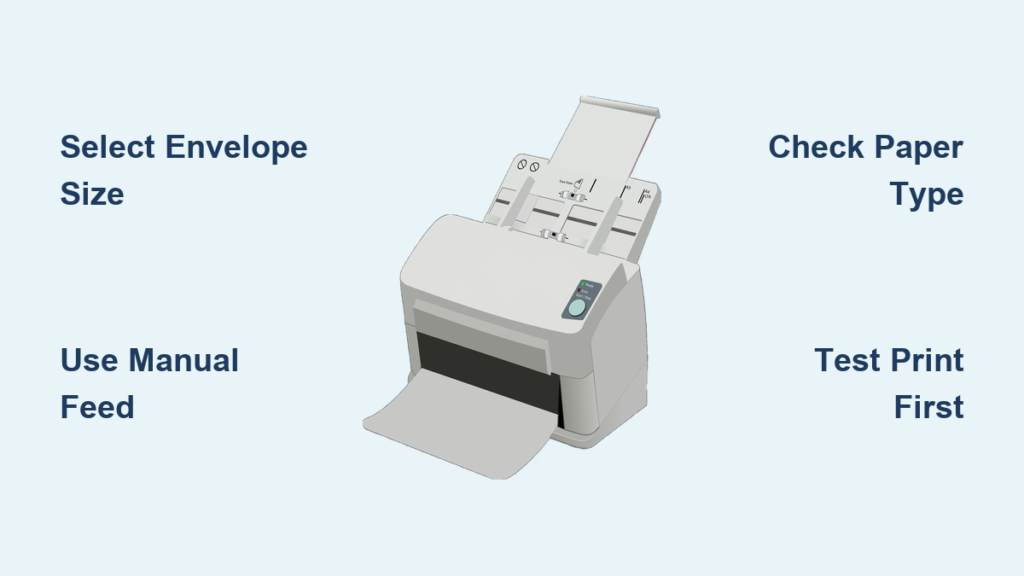
Your invitation looks perfect, but a handwritten address ruins the professional appeal. Learning how to print envelope in printer settings solves this instantly without messy labels. This guide shows you exactly how to format documents, load trays correctly, and fix common jams. You will master setup steps for Word, Google Docs, and Photoshop along with specific loading tricks for HP and Canon devices.
Choose the Right Envelope Size for Your Printer
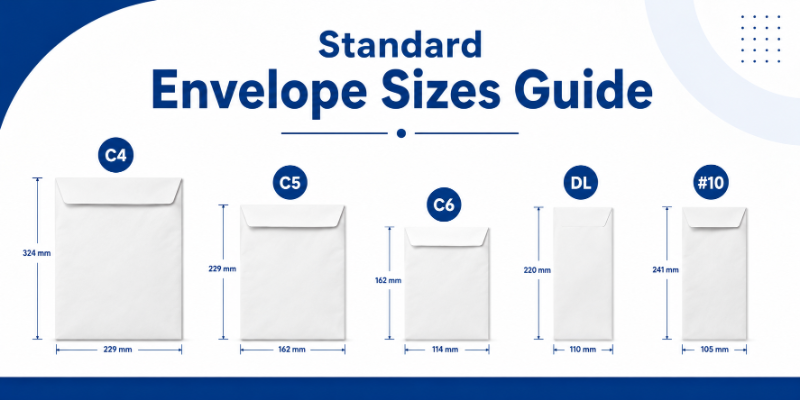
Selecting the correct dimensions prevents mechanical errors before you even click print. Most home and office machines handle standard business sizes but struggle with odd shapes.
Identify Common Envelope Dimensions
You must match your physical envelope to a supported digital size setting.
* #10 Size: Measures 4.125 inches by 9.5 inches and suits most business letters.
* DL Size: Measures 4.33 inches by 8.66 inches and fits folded A4 paper perfectly.
* C5 Size: Measures 6.38 inches by 9.02 inches for unfolded A4 sheets.
* Custom Sizes: Required for wedding invites or non-standard mailers.
Check your device manual to confirm minimum and maximum thickness limits.
Verify Hardware Compatibility
Not every machine supports thick cardstock or small mailers. Look for a manual feed tray or a single-sheet feeder slot on your unit. Your printer must explicitly list “envelope” or “cardstock” as a supported media type. If your model lacks these features, consider using address labels instead of direct printing.
Set Up Envelope Printing in Microsoft Word
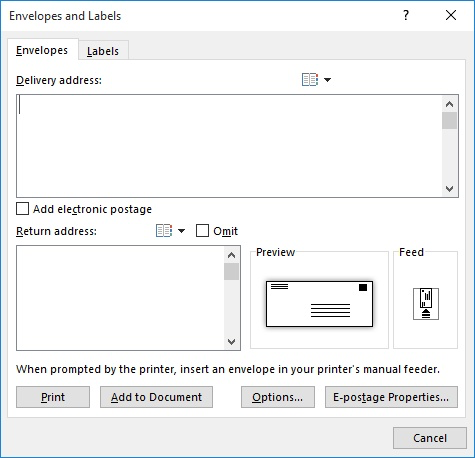
Microsoft Word provides built-in tools that automate address placement and formatting. This method ensures your text aligns with postal standards every time.
Access the Envelopes Tool
Navigate to the Mailings tab at the top of your screen. Click the Envelopes button within the Create group to open the dialog box. Type your delivery address in the main field and your return address in the smaller field below. Word automatically positions these based on standard postal guidelines.
Configure Size and Feed Options
Click the Options button to access detailed configuration menus. Select your specific envelope size from the dropdown list to match your physical stock. Adjust the printing direction to ensure text runs top-to-bottom or left-to-right as needed. Choose the correct feed method such as face up or face down based on your tray type.
Add Envelope to Your Document
Select Add to Document if you want the envelope to appear as a page in your file. This feature allows you to preview the layout alongside your letter content. It is highly useful when combining correspondence and mailing into a single print job.
Format Custom Envelopes in Google Docs
Google Docs lacks a dedicated envelope wizard, but you can create custom sizes manually. This approach works well for simple address printing needs.
Create a Custom Page Size
Open a new document and select File followed by Page setup. Choose Custom from the paper size dropdown menu. Enter the exact width and height of your envelope, such as 9.5 by 4.1 inches for a #10 size. Click OK to apply these dimensions to your workspace.
Manually Position Address Text
Type your return address at the top left and the delivery address in the center. Use the Insert menu to add tables or text boxes for precise alignment control. You can also insert drawings or logos to brand your outgoing mail professionally.
Preview Before Printing
Select File and then Print to open the print dialog box. Ensure the paper size setting matches your custom envelope dimensions exactly. Save the file as a PDF first to verify text placement before wasting physical envelopes.
Design Branded Envelopes in Photoshop
Photoshop offers total creative control for designers needing logos, backgrounds, or unique layouts. This method requires careful attention to resolution and color modes.
Define Document Dimensions and Resolution
Select File and then New to create a workspace matching your envelope size exactly. Set the resolution to 300 PPI to guarantee sharp text and clear graphics. Choose CMYK color mode if you plan to send the file to a professional print shop. Include a small bleed area if your design extends to the very edge of the paper.
Place Text and Graphics Safely
Use the Text Tool to type addresses using clear fonts like Arial or Times New Roman. Keep font sizes between 12 and 14 points for optimal readability by mail sorting machines. Avoid placing critical information near the flaps or seams where folds occur.
Print with Precision Settings
Go to File and select Print to access advanced output options. Uncheck the Scale to Fit Media box to prevent unwanted resizing of your design. Adjust the X and Y offset values manually if your test print shows misalignment.
Adjust Printer Settings for Envelope Media

Correct software formatting fails if the printer driver does not match the physical media. These settings prevent jams and ensure proper ink adhesion.
Select the Correct Paper Type
Open your printer properties or settings menu from the print dialog. Locate the Paper Type or Media section and choose Envelope or Cardstock. This setting slows down the printing process to allow ink or toner to dry properly. Using the wrong type often results in smudged text or internal paper jams.
Match the Driver Paper Size
Ensure the Paper Size dropdown in your driver matches your physical envelope exactly. Create a custom size entry if your specific dimensions do not appear in the default list. Mismatched size settings cause the printer to grab multiple sheets or skew the image.
Enable Manual Feed Mode
Select Manual Tray or Single Sheet Feed if your printer has multiple input options. This forces the machine to wait for you to insert the envelope manually. It prevents the printer from pulling the wrong paper from the main cassette.
Load Envelope Correctly to Avoid Jams
Improper loading is the leading cause of printing failures and skewed addresses. Follow brand-specific instructions for the best results.
HP Printer Loading Instructions
Place the envelope face-down in the input tray with the printing side facing the rollers. Position the flap on the left side and feed the short edge first. Some all-in-one models may require front loading with opposite orientation, so check your specific diagram.
Canon Printer Loading Instructions
Insert the envelope face-up into the manual feed slot so you can read the address. Position the flap to the right and push the leading edge in gently. Canon devices often display an on-screen graphic confirming the correct orientation.
Guidelines for Other Brands
Look for envelope icons printed directly on the paper tray for Ricoh or Konica Minolta units. Consult your user manual if the loading path is not immediately obvious. Test the feed mechanism with a plain sheet of paper cut to envelope size first.
Execute the Print Job Safely
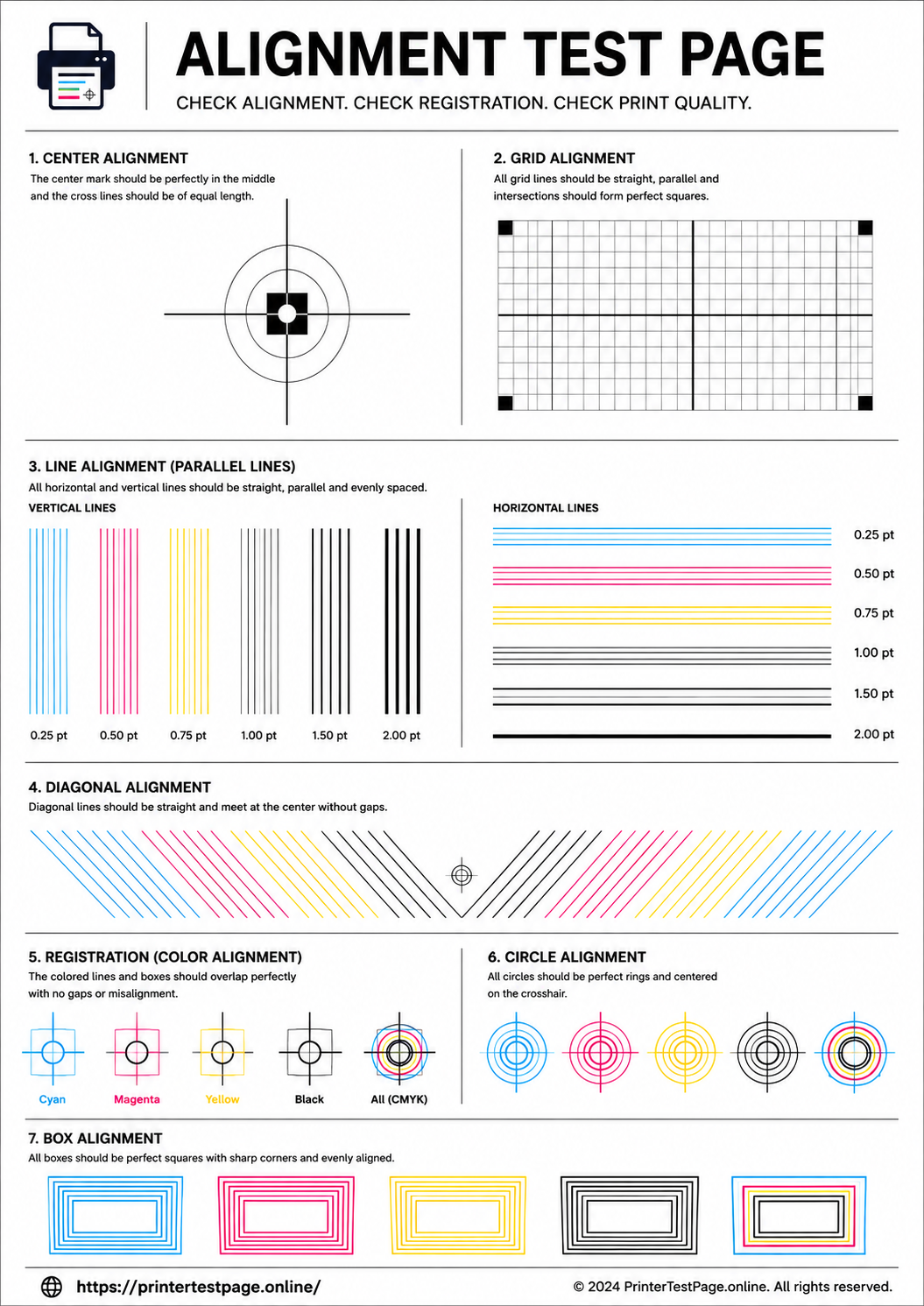
Run a test cycle to verify alignment before committing your actual envelopes to the printer. This step saves money and reduces frustration.
Perform a Test Print on Plain Paper
Print your design on a standard sheet of regular paper first. Cut this test sheet to the exact size of your envelope. Hold it up to the light behind your actual envelope to check address positioning.
Run the Final Print Cycle
Load only one envelope at a time into the designated feed slot. Click Print and wait for the machine to prompt you if using manual feed mode. Allow the device to pull, print, and eject the item without pulling it manually.
Handle Printed Envelopes with Care
Let inkjet prints dry for at least 10 to 15 seconds before touching the surface. Stack finished envelopes flat to prevent creasing the fresh ink or toner. Store them in a cool, dry environment to maintain print quality until mailing.
Troubleshoot Common Printing Issues
Even perfect preparation can encounter mechanical hiccups. Use these solutions to fix common errors quickly.
Fix Envelope Jams During Printing
Power off the device immediately if you hear grinding or see a jam warning. Gently remove the stuck envelope without tearing it to avoid leaving paper scraps inside. Clean the rollers with a lint-free cloth and ensure you selected the correct paper type.
Correct Crooked or Misaligned Text
Recheck the feed orientation to ensure the flap and face direction match your settings. Verify that the software document dimensions match the physical envelope size exactly. Use the print preview function to catch alignment errors before printing.
Resolve Printer Recognition Errors
Update your printer driver from the manufacturer website if the envelope option is missing. Install the latest firmware to ensure full compatibility with your operating system. Reset your print settings to default and reconfigure the envelope options from scratch.
Address Smudged or Faded Output
Switch to a slow print mode to give inkjet printers more time to dry each line. Ensure you selected the Envelope media type in your driver settings. For laser printers, check toner levels and avoid using overly glossy envelopes that repel toner.
Maintain Quality for Professional Results
Consistent quality requires attention to materials and workflow efficiency. These tips help you produce batch results reliably.
Use High-Quality Envelope Stock
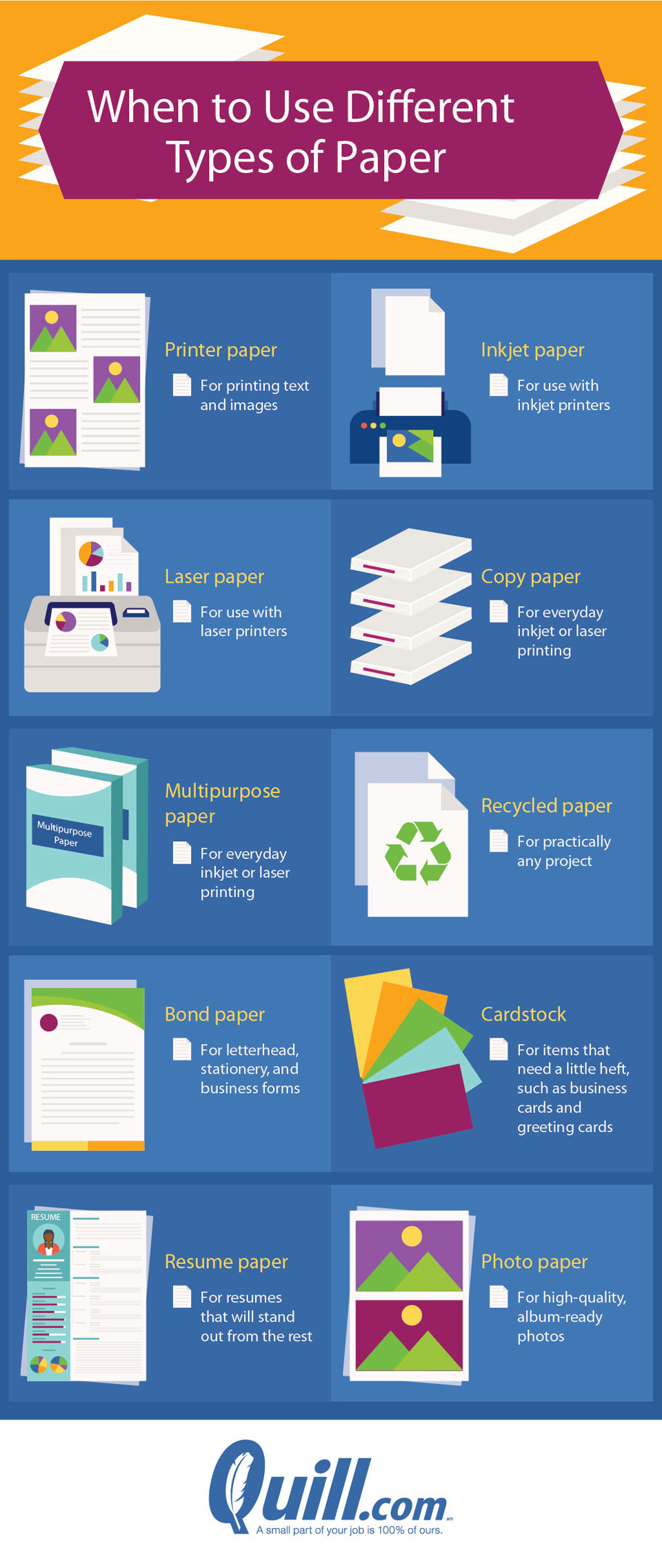
Choose envelopes with a smooth finish to ensure clean text execution. Select stock rated specifically for laser or inkjet use depending on your machine. Avoid textured or handmade papers unless your printer explicitly supports heavy cardstock.
Save Templates for Future Use
Save your formatted files as templates in Word or Google Docs for instant reuse. Name them clearly, such as Business #10 or Wedding DL, to find them easily later. This practice eliminates setup time for recurring mailing tasks.
Batch Print with Confidence
Print in small batches of five to monitor consistency throughout the job. Fan your stack of envelopes before loading to prevent them from sticking together. Keep a few spare envelopes nearby to replace any that get damaged during feeding.
Frequently Asked Questions About How to Print Envelope in Printer
Can I print envelopes on any home printer?
Most modern inkjet and laser printers support standard envelope sizes like #10 or DL. You must check your manual for a manual feed tray or single-sheet slot. Printers without these features may struggle with thicker envelope stock.
Why does my printer keep jamming on envelopes?
Jams often occur due to incorrect paper type settings or improper loading orientation. Ensure you selected Envelope mode in your driver and loaded the flap correctly. Dirty rollers or old envelopes can also cause feeding issues.
How do I stop the ink from smudging on envelopes?
Select the Cardstock or Envelope setting in your printer properties to slow down the printing speed. Allow the ink to dry completely for 15 seconds before handling the printed piece. Avoid touching the printed area immediately after ejection.
What is the best way to center addresses in Word?
Use the built-in Envelopes tool under the Mailings tab for automatic centering. If designing manually, use text boxes or tables to position text precisely. Always run a test print on plain paper to verify alignment.
Do I need special envelopes for laser printers?
Yes, ensure your envelopes are labeled as laser-safe to withstand high heat. Using non-compatible envelopes can cause them to curl or release harmful fumes. Check the packaging to confirm compatibility with your specific printer type.
Key Takeaways for Learning How to Print Envelope in Printer
Mastering how to print envelope in printer settings transforms your mail into professional correspondence. Success depends on matching your software dimensions to the physical stock and selecting the correct media type in your driver. Always run a test print on plain paper to verify alignment before using your actual envelopes.
Start by checking your printer manual for specific loading diagrams and size limits. Save your formatted templates to streamline future projects and reduce setup time. With these steps, you can eliminate handwritten addresses and achieve crisp, centered results every time.


