

Printing documents or photos directly from your Samsung phone often feels confusing when your device cannot find the printer. You might be stuck trying to share a file only to see no printing options available in the menu. This guide explains exactly how to print from Samsung phone to printer using two reliable methods that work with most models.
You will learn how to install the correct plugins, configure the Samsung Mobile Print app, and fix common connection errors quickly. Follow these steps to start printing photos, emails, and web pages wirelessly from your Galaxy device today.
Activate Native Android Printing Services
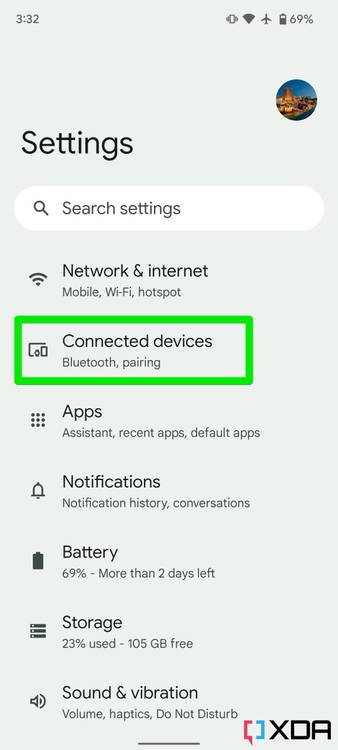
Your Samsung device uses a built-in framework to communicate with printers, but it requires a specific plugin for your printer brand. Without this small software addition, your phone remains unable to detect any printing hardware nearby. Installing the correct service is the first critical step for wireless printing.
Install the Correct Brand Plugin
You must download a plugin that matches your specific printer manufacturer to enable communication. The Google Play Store hosts these plugins, which act as translators between your phone and the printer.
- Open Settings on your Galaxy device.
- Tap Connections then select More connection settings.
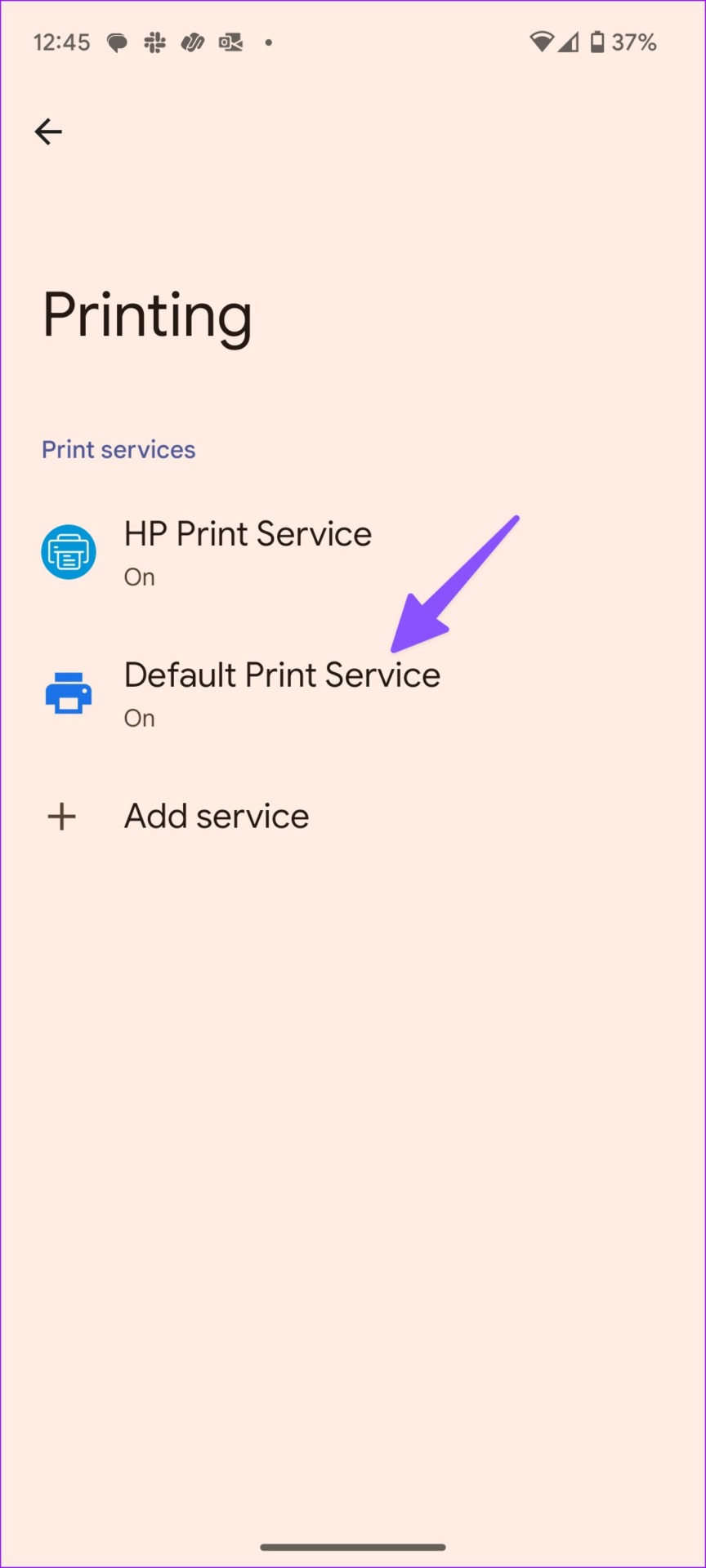
- Choose Printing from the list.
- Tap + Download Plugin to open the Google Play Store.
- Search for your brand, such as HP Print Service Plugin or Samsung Print Service Plugin.
- Install the app and return to the Printing menu to enable it.
✅ Pro Tip: If your brand does not appear in the initial list, search the Play Store manually using your printer model name.
Add and Connect Your Printer
Once the plugin is active, your phone can search for available devices on your network. You need to ensure both devices share the same Wi-Fi connection for this discovery process to work.
- Tap the three-dot menu inside the printing settings.
- Select Add Printer to begin the scan.
- Wait for your phone to list available devices on the network.
- Select your printer to complete the pairing process.
⚠️ Note: You must grant location permissions when prompted, as Android requires this to find Wi-Fi Direct printers.
Print Documents Using the Share Menu
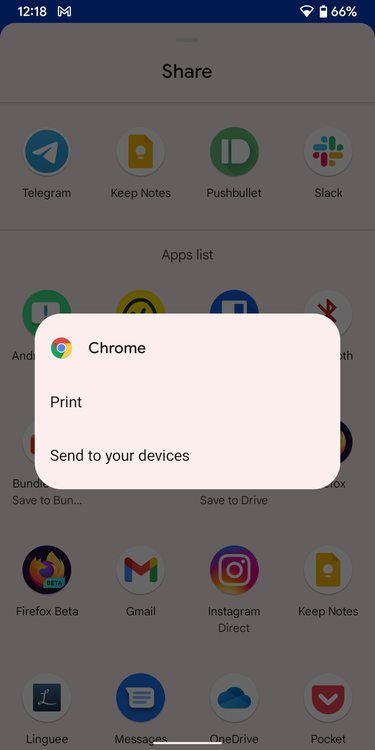
The fastest way to generate hard copies is through the universal Share function found in almost every Android application. This method works seamlessly for photos in your gallery, PDFs in your file manager, and web pages in your browser.
Print Photos and Local Files
You can print images and documents stored directly on your device without opening complex menus. This process is identical whether you are using the Gallery or the My Files app.
- Open Gallery or My Files and locate your item.
- Tap the three-dot menu or the Share icon.
- Select Print from the sharing options.
- Choose your connected printer from the dropdown list.
- Adjust copies or color settings and tap Print.
📌 Visual Cue: If the “Print” option is missing, verify that your printer plugin is enabled in Settings.
Print Web Pages from Browsers
Browsing the web on Chrome or Samsung Internet allows you to save articles or tickets instantly. Both browsers integrate deeply with the Android printing framework for easy access.
From Google Chrome
- Open the webpage you wish to print in Chrome.
- Tap the three-dot menu in the top corner.
- Select Share and then tap Print.
- Confirm your printer and settings before printing.
From Samsung Internet
- Navigate to the page in the Samsung Internet app.
- Tap the menu icon (three dots or squares).
- Choose Print/PDF from the options.
- Select your printer and execute the job.
💡 Time-Saving Shortcut: Select “Save as PDF” within these menus if you need a digital copy before printing physically.
Print Emails and Attachments
Gmail and other email clients allow direct printing of message bodies and attached files. This eliminates the need to download attachments to your storage first.
- Open the Gmail app and tap the email you need.
- Tap the three-dot menu usually found in the top corner.
- Select Print to open the print preview.
- Choose your printer and adjust layout options.
- Tap the print icon to start the job.
📎 Bonus: You can open an attachment directly and use Share > Print to print only that specific file.
Use Samsung Mobile Print for Advanced Tasks
Owners of Samsung laser printers can access superior features by using the dedicated Samsung Mobile Print application. This app provides scanning, faxing, and cloud integration that the native Android framework cannot offer.
Install and Configure the App
Although branded as Samsung, this application is now developed and managed by HP Inc. following their acquisition of the printer division. It requires several permissions to function correctly.
- Download Samsung Mobile Print from the Google Play Store.
- Open the app and grant access to Storage, Location, and Camera.
- Allow Internet access for cloud features and NFC for tap-to-print.
- The app will automatically detect supported Samsung printers on your network.
Access Cloud Storage Directly
A major benefit of this app is the ability to print files directly from cloud services without downloading them to your phone first. This saves storage space and streamlines your workflow.
- Open Samsung Mobile Print and tap Print.
- Select Cloud to view connected services.
- Choose from Google Drive, Dropbox, OneDrive, Box, or Facebook.
- Log in to your account and select the file to print.
- Adjust settings and send the job to your printer.
☁️ Pro Tip: This feature is ideal for printing Office documents like DOCX or XLSX files stored in the cloud.
Scan Documents to Your Phone
If your printer has scanning capabilities, you can digitize paper documents directly to your Galaxy device. The app supports both flatbed scanning and automatic document feeders.
- Tap Scan within the Samsung Mobile Print app.
- Choose your source: Flatbed or ADF.
- Select your output format: PDF, JPG, or PNG.
- Press Scan and follow prompts to align your document.
- Save the file or share it immediately via email or messaging.
📏 Note: Scanning supports sizes up to A3, depending on your specific printer hardware capabilities.
Utilize Corporate Security Features
Business users can leverage advanced security protocols to protect sensitive information during the printing process. These features prevent unauthorized access to confidential documents.
- Confidential Print: Jobs remain in the queue until you enter a PIN at the printer.
- Secure Release: Ensures documents only print after user verification at the device.
- Job Accounting: Tracks usage by department or user for cost management.
- Auto Toner Ordering: Automatically orders supplies when levels are low (US and UK only).
📦 Auto Toner Ordering: Available in specific regions to prevent printing interruptions due to low supplies.
Select the Right Method for Your Printer
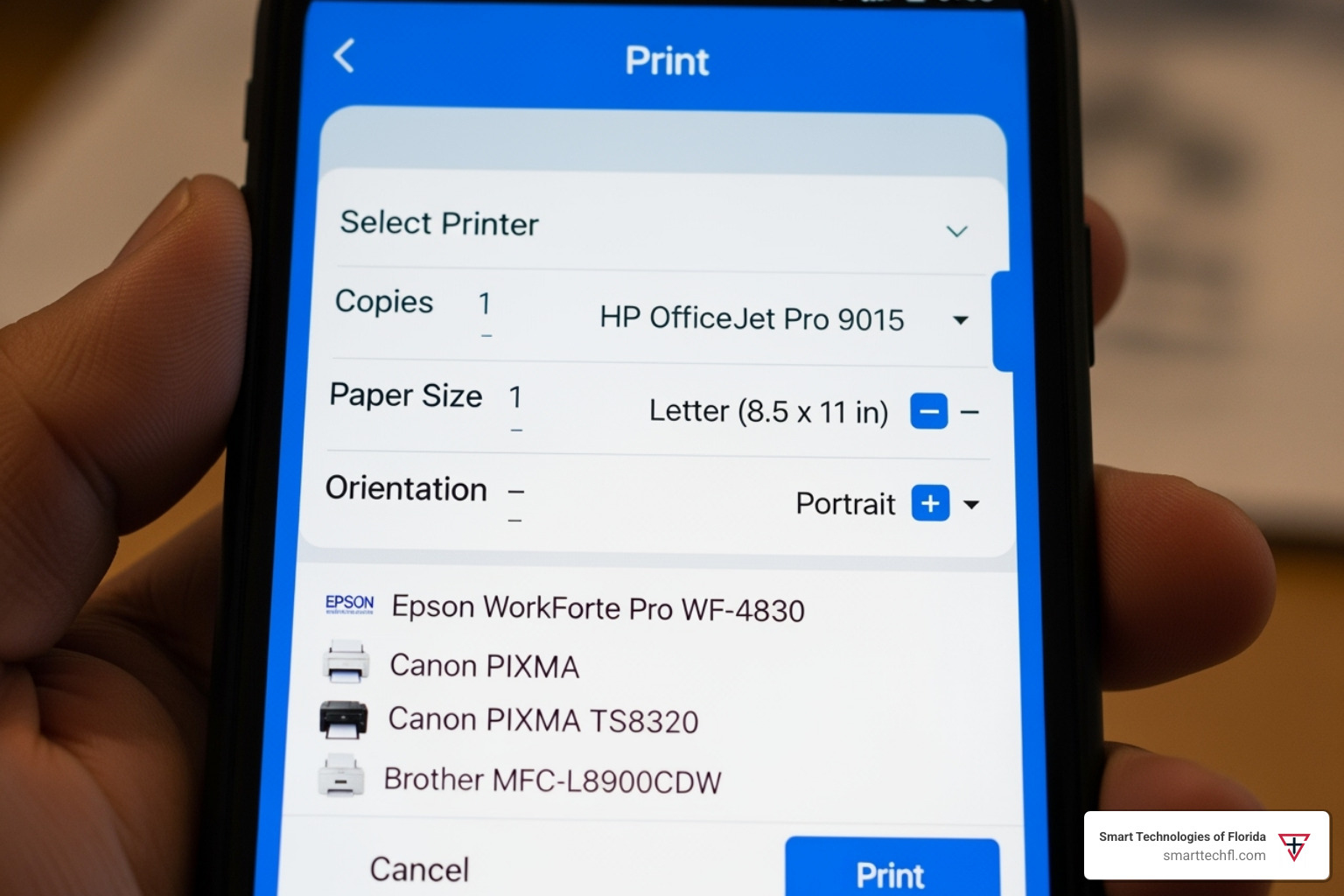
Choosing the wrong application leads to frustration and failed print jobs. You must match your method to your printer brand and specific model requirements.
Printing with Non-Samsung Printers
If you own an HP, Epson, or Canon printer, you must use the Native Android Printing Framework. The Samsung Mobile Print app will not detect or work with these devices.
- Install the manufacturer’s specific plugin from the Play Store.
- Use the Share > Print workflow in your apps.
- Avoid downloading the Samsung Mobile Print app as it is incompatible.
🔧 Example: For an Epson printer, install “Epson Print Enabler” and print via Settings.
Printing with Samsung Printers
Samsung printer owners have the flexibility to choose between basic native printing or the advanced mobile app. Your choice depends on whether you need scanning or cloud features.
- Use Native Printing for quick photos and web pages.
- Use Samsung Mobile Print for scanning, faxing, and cloud access.
- Enjoy full hardware integration with the dedicated app.
Special Cases for CJX Models
Owners of the CJX-1050W or CJX-2000FW models face a specific limitation with the standard application. These legacy photo printers require a different software solution.
✅ Solution: Download Samsung Mobile Print Photo instead of the standard app. This specialized version is optimized for these specific photo printer models.
Fix Common Printing Connection Issues
Connectivity problems often prevent successful printing, but most have simple solutions. Understanding how to diagnose these issues saves time and frustration.
Resolve Printer Not Found Errors
This is the most frequent issue users encounter when setting up wireless printing. It usually stems from network mismatches or permission settings.
- Verify both phone and printer are on the same Wi-Fi network.
- Restart your router, phone, and printer to refresh connections.
- Check Settings > Apps > Samsung Mobile Print > Permissions and enable Location.
- Try connecting via Wi-Fi Direct if your router connection fails.
- Reinstall the printing plugin if the device still does not appear.
🔍 Visual Cue: Look for a Wi-Fi Direct symbol on your printer display to confirm direct mode availability.
Fix Stalled or Failed Print Jobs
Sometimes a job starts but stops halfway or fails to execute entirely. This often relates to file size, app version, or printer status.
- Update the App: Ensure Samsung Mobile Print targets API 34 or higher.
- Clear Cache: Go to Settings > Apps > [App Name] > Storage > Clear Cache.
- Reduce File Size: Large high-resolution images may fail; try printing one page at a time.
- Check Supplies: Verify the printer has paper and toner before sending jobs.
Troubleshoot NFC Tap-to-Print
NFC allows instant printing by tapping your phone against the printer, but it requires specific settings to function.
To fix NFC issues:
* Enable NFC in your phone’s quick settings panel.
* Place the back of your phone directly over the printer’s NFC tag.
* Enable vibration feedback in the app to confirm successful reads.
* Clean the NFC area on both devices to remove dust or cases.
📱 Supported Devices: Most Galaxy S and Note series from S10 onward support NFC printing features.
Maintain Your Mobile Printing Setup
Regular maintenance ensures your printing experience remains smooth and reliable over time. Simple habits prevent most common issues from occurring.
Keep Software Updated
Outdated software causes compatibility issues with new security protocols and printer firmware. Regular updates fix bugs and improve connection stability.
- Update your Samsung phone OS regularly via Settings.
- Check the Play Store for printing plugin updates weekly.
- Install printer firmware updates via the printer control panel.
Avoid Common Configuration Mistakes
Users often make assumptions about compatibility that lead to wasted time. Being aware of these pitfalls ensures a smoother setup process.
❌ Mistake: Assuming the Samsung app works with all printer brands.
✅ Fix: Verify your printer brand before installing specific apps.
❌ Mistake: Denying location permissions during setup.
✅ Fix: Always allow location access for Wi-Fi Direct discovery.
❌ Mistake: Using the wrong app for CJX models.
✅ Fix: Use Samsung Mobile Print Photo for CJX-1050W and CJX-2000FW.
Save Time with Pro Tips
Small adjustments to your workflow can significantly speed up your printing tasks. These tips help you work more efficiently.
- Pin Printers: Mark your main printer as a favorite in the app for quick access.
- Batch Print: Select multiple photos in Gallery to print them all at once.
- Use Dark Mode: Toggle dark mode in app settings to reduce eye strain.
Frequently Asked Questions About Printing from Samsung Phone
Can I print from my Samsung phone without Wi-Fi?
Yes, you can use Wi-Fi Direct to connect your phone directly to the printer without a router. You can also use NFC tap-to-print if both devices support it and are in close proximity.
Why does my Samsung phone say no printer found?
This usually happens if your phone and printer are on different Wi-Fi networks. Ensure Location permissions are enabled for your printing app, as Android requires this to discover nearby devices.
Does the Samsung Mobile Print app work with HP printers?
No, the Samsung Mobile Print app only works with Samsung printers. For HP printers, you must install the HP Print Service Plugin and use the native Android printing framework.
How do I scan documents using my Samsung phone?
Open the Samsung Mobile Print app and tap Scan. Choose your source (Flatbed or ADF), select PDF or JPG format, and press Scan to save the document to your phone.
What app do I need for Samsung CJX-1050W printers?
The standard Samsung Mobile Print app does not support this model. You must download the specific Samsung Mobile Print Photo app from the Google Play Store.
Can I print directly from Google Drive on my Samsung device?
Yes, if you use the Samsung Mobile Print app, you can access Google Drive directly within the app. Alternatively, open the file in the Google Drive app and use Share > Print.
Key Takeaways for Printing from Samsung Phone to Printer
Printing from your Samsung device is simple once you choose the correct method for your hardware. Use the Native Android Printing Framework with brand plugins for general tasks, and switch to the Samsung Mobile Print app for advanced scanning and cloud features. Remember to check compatibility for legacy models like the CJX series to avoid connection failures.
Start by installing the correct plugin for your printer brand today. Follow the setup steps carefully, grant necessary permissions, and you will enjoy seamless wireless printing from any app on your Galaxy device.


