

You just bought a new printer or switched offices, and now you need to print an important document. Your MacBook, however, does not recognize the device. This is a common frustration for Mac users, but the fix is usually quick. Adding a printer to a MacBook works seamlessly when the device supports AirPrint, Apple’s built-in wireless printing technology. macOS detects most modern printers automatically and walks you through the rest.
This guide covers every reliable method to add a printer to your MacBook, including Wi-Fi, USB, Bluetooth, IP address, configuration profiles, and AirPort base stations. You will also learn how to install drivers, fix common connection errors, and set up printers on enterprise networks. By the end, you will be able to connect any printer to your Mac with confidence.
Open Printers and Scanners Settings

Access System Settings
Click the Apple menu (in the top-left corner of your screen) and choose System Settings. On macOS Ventura and later, this is where all your Mac’s controls live. If you are using Monterey or Big Sur, choose System Preferences instead. The steps below work the same on both versions.
Navigate to Printers and Scanners
Scroll through the sidebar and click Printers and Scanners. This panel manages every printing device connected to your Mac. First-time users will see an empty list, while returning users will see previously added printers.
Click the Add Button
Click the Add Printer, Scanner or Fax button (marked with a plus “+” icon). A new window opens, showing all available printers on your network or connected via cable.
Connect a Wi-Fi or Network Printer
Select from Available Devices
If your printer is already connected to the same Wi-Fi network as your MacBook, it should appear in the list automatically. Click the printer name, then click Add.
Note: It can take up to two minutes for the printer to show up. Be patient before taking further action.
Set Up Wi-Fi via USB
If your Wi-Fi printer has never been connected to a network, you may need to link it first using a USB cable.
- Plug the USB cable into both devices.
- Install the setup software that came with the printer, or download it from the manufacturer’s website.
- Run the setup assistant and follow the prompts to connect the printer to Wi-Fi.
- Unplug the USB cable once setup is complete.
- Return to System Settings > Printers and Scanners and click Add Printer again. The device should now appear over Wi-Fi.
Connect a USB Printer
Plug in the Printer
Use the correct USB cable (often USB-A to USB-B) to connect the printer directly to your MacBook. For newer MacBooks with only USB-C ports, use a multiport adapter to make the connection.
Pro Tip: If your MacBook has a single USB-C port, plug in a power adapter at the same time to avoid draining your battery during long print jobs.
Automatic Detection
macOS usually detects USB printers immediately. When you click Add Printer, your device should appear in the list. Select it and click Add.
If the printer does not appear:
– Confirm the printer is powered on
– Check for error messages like “out of paper” or “ink low”
– Restart both devices and try again
Pair a Bluetooth Printer
Enable Bluetooth on the Printer
Make sure your printer supports Bluetooth and is in pairing mode. Check the printer’s manual for the exact steps. Most models require holding a specific button for several seconds to activate pairing.
Add from the Bluetooth List
In the Add Printer window, locate your printer under the Bluetooth section. Click it, then click Add.
Troubleshooting: If the printer does not appear:
– Confirm Bluetooth is enabled on your Mac under System Settings > Bluetooth
– Install the latest Bluetooth driver from the manufacturer
– Restart both devices and try the pairing process again
Add a Printer via IP Address

Use the IP Button
For network printers that do not appear automatically, click the IP button (blue globe icon) in the Add Printer window.
Enter Printer Details
Fill in the following fields to connect your printer:
- Address: IP address (for example,
192.168.20.11) or host name (for example,printer.example.com) - Protocol: Choose AirPrint, IPP, HP Jetdirect (Socket), or LPD
- Queue: Queue name, if your printer uses one (leave blank if unsure)
- Name: A custom name like “Office Colour Printer”
- Location: Optional description such as “Conference Room”
- Use: Your printer model or software. If blank, click Select Software to pick the correct driver
Find the Right Driver
If the Use field defaults to “Generic PostScript Printer,” you may need to install the manufacturer’s driver.
- Click Select Software
- Search for your printer model
- If the model is not listed, download the latest macOS driver from the manufacturer’s website
Warning: Generic drivers may limit access to features like duplex printing, stapling, or scanning.
Install an AirPrint Configuration Profile
When Profiles Are Needed
Some enterprise or institutional printers require a configuration profile to be discovered through AirPrint. These profiles are typically distributed by your IT department.
Install the Profile
- Download or receive the
.mobileconfigprofile file - Double-click the file to open it
- Click Continue, then Install
- Enter your Mac password if prompted
- Click Done
The profile is saved in System Settings > Privacy and Security > Device Management.
Add the Printer
Return to Printers and Scanners and click Add Printer. Your printer should now appear as an AirPrint Profile. Select it and click Add.
Connect a Printer via AirPort Utility
For Shared Network Printers
If you use an AirPort Base Station or Time Capsule, you can share a USB printer across your network.
- Plug the printer into the base station’s USB port
- Open AirPort Utility (in Applications > Utilities)
- Select your base station and click Edit
- Go to Disks > Printer and enable printer sharing
Any Mac or iOS device on the network can now add the printer through System Settings > Printers and Scanners.
Add a WPS-Compatible Printer
To connect a WPS-enabled printer to your Wi-Fi network:
- Open AirPort Utility
- Select your base station and click Edit
- Choose Base Station > Add WPS Printer
- Select PIN (enter the 8-digit PIN from the printer) or First attempt (allow the next device trying to connect)
- Save and update the base station
Wait for the printer to appear in your device list.
Manually Add a Windows Print Server Printer
For Corporate or School Networks
Many institutions use Windows print servers to manage shared printers. This method requires enabling an advanced tool in macOS.
Enable the Advanced Tool
- In System Settings > Printers and Scanners, click Add Printer
- Control-click (or right-click) the toolbar and choose Customize Toolbar
- Drag Advanced into the window and click it
Configure the Settings
Fill in the following fields:
- Type: Windows printer via spools
- Device: Another Device
- URL:
smb://PRINTSERVERNAME/PRINTERQUEUE - Name: A descriptive name
- Use: Select Generic PostScript Printer or download the manufacturer’s driver
Authenticate
When you print, a login prompt appears. Enter your credentials in this format:
DOMAIN\username
Example: ALFRED.EDU\jsmith
Use your institutional username and password, which is often the same as your email login.
Note: Some departments require a print release code. Check with your office administrator before printing.
Install Printer Drivers
When You Need Drivers
Even with AirPrint, some printers require manufacturer drivers to unlock full functionality such as duplex printing, color calibration, stapling, or high-resolution output.
Get the Right Driver
- Visit the manufacturer’s website (such as hp.com, epson.com, or business.toshiba.com)
- Navigate to Support > Drivers and Downloads
- Search by your printer model
- Download the latest macOS driver
- Open the installer and follow the on-screen steps
After installation, return to Printers and Scanners and re-add the printer to apply the new driver.
Fix Keychain Access Password Issues
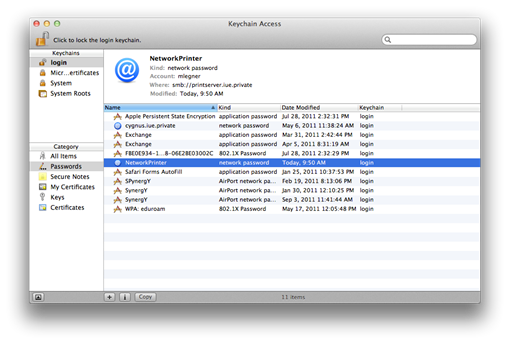
Update Stored Credentials
If you cannot print to a Windows print server, outdated passwords in Keychain Access are a common cause.
Delete the Old Entry
- Open Spotlight by pressing Command + Space
- Type Keychain Access and press Enter
- Search for your print server name (for example,
AUPrintorprt01win16pr) - Select the entry and press Delete (use Command + Click if right-click does not work)
Re-Authenticate
Try printing again. You will be prompted to log in. Enter:
– Username: DOMAIN\yourusername
– Password: Your institutional password
If that fails, try your full email address and password instead.
Set Your Default Printer
Choose Your Go-To Printer
After adding a printer, you can set it as default so it appears automatically in print dialogs.
- Go to System Settings > Printers and Scanners
- Click the Default Printer dropdown
- Select your preferred printer, such as “Last Used,” “Most Recent,” or a specific device
Now, whenever you press Command + P, your chosen printer is selected by default.
Troubleshoot a Printer That Is Not Found
Check the Network Connection
- Confirm both your Mac and printer are on the same Wi-Fi network
- Restart your router if needed
Restart Both Devices
- Power off the printer, wait 10 seconds, then turn it back on
- Restart your MacBook
Verify the Printer Status
- Make sure the printer is not showing errors such as low ink, paper jam, or offline status
- Print a test page directly from the printer’s control panel
Reset the Printing System
Use this as a last resort:
1. Go to System Settings > Printers and Scanners
2. Control-click in the printer list
3. Select Reset printing system
4. Re-add all printers
Warning: This removes all saved printers and settings. Only use this when other fixes fail.
Post-Setup Tips
Run a Test Print
Always confirm the printer works after setup:
1. Press Command + P in any app
2. Select your new printer
3. Click the PDF dropdown and choose Open PDF in Preview
4. Click Print to confirm everything is working
Label the Printer
If you are in a shared workspace, label the physical printer with its name (such as “kplz404-lw”). This avoids confusion and helps others connect quickly.
Keep Software Updated
Regularly check the manufacturer’s website for:
– Firmware updates
– New drivers
– Security patches
Outdated software can cause printing errors and compatibility issues with macOS updates.
Quick Reference Checklist
- Unpack the printer and install ink or toner
- Load paper and power on the device
- Connect to Wi-Fi, USB, or network
- Open System Settings > Printers and Scanners
- Click Add Printer, Scanner or Fax
- Select the printer from the list or use the IP button
- Install drivers if prompted
- Confirm accessories like duplex units or extra trays
- Run a test print
- Set the printer as default if desired
Frequently Asked Questions About Adding a Printer to MacBook
Why is my printer not showing up on my MacBook?
Your printer may not be on the same Wi-Fi network as your Mac. Confirm both devices share the same network, restart your router, and power cycle the printer. If the issue continues, try adding the printer through the IP address method.
Do I need to install drivers to add a printer to my MacBook?
Not always. AirPrint-compatible printers work without additional drivers. However, installing the manufacturer’s driver is recommended for full access to features like duplex printing, color management, and scanning.
How do I find my printer’s IP address?
Check the printer’s control panel under Network Settings or print a configuration page from the printer itself. You can also ask your IT department or look in your router’s connected devices list.
Can I add a printer without a Wi-Fi network?
Yes. You can connect a printer directly through a USB cable or pair it via Bluetooth. For USB connections on newer MacBooks, use a multiport adapter if your device only has USB-C ports.
What is an AirPrint configuration profile?
A configuration profile is a file that helps macOS discover enterprise or institutional printers on the network. These profiles are typically provided by IT departments and installed in System Settings > Privacy and Security > Device Management.
How do I remove a printer from my MacBook?
Go to System Settings > Printers and Scanners, select the printer, and click the minus “-” button. Confirm the removal when prompted.
Final Thoughts on Adding a Printer to Your MacBook
Adding a printer to your MacBook is designed to be fast and intuitive, especially with AirPrint-compatible models from Canon, Epson, HP, Brother, and other major brands. For most home users, simply turning on a Wi-Fi printer is enough for it to appear in macOS. USB connections are plug-and-play, and Bluetooth pairing only takes a few extra steps.
In enterprise or academic environments, additional setup like configuration profiles, Windows print server connections, or Keychain troubleshooting may be required. When in doubt, contact your IT support team for printer names, IP addresses, drivers, and authentication details.
Now that you understand every connection method, you can confidently add any printer to your MacBook and start printing in minutes. Start by opening System Settings > Printers and Scanners and choose the method that matches your setup.


