

Double-sided printing, known as duplex printing, saves paper, cuts down on bulk, and gives your documents a polished, professional look. It works for reports, booklets, presentations, and everyday printing tasks. If you want to print double-sided in printer setups at home, in the office, or at school, this guide walks you through every reliable method.
You’ll learn how to check your printer’s duplex capabilities, choose the right settings in Word, and troubleshoot common problems that lead to misaligned or smudged pages. No special software needed, just the right steps.
Check If Your Printer Supports Duplex Printing
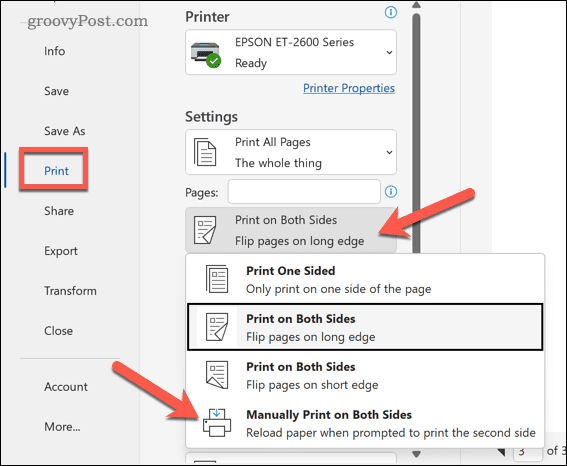
Before you try printing on both sides, confirm your printer can handle the job.
Automatic vs Manual Duplex Support
Not every printer can print both sides without help. Many modern models include a built-in duplex unit that flips pages automatically, while budget or older printers require manual reloading. Here’s how to find out which type you have:
- Open any document in Microsoft Word
- Press Ctrl + P or click File > Print
- Under Settings, look at the dropdown near Print One Sided
- Check if you see Print on Both Sides as a single option
If “Print on Both Sides” appears directly, your printer supports automatic duplex. If the option reads “Manually Print on Both Sides,” you’ll need to flip and reload the pages yourself.
Verify Through Printer Properties
For a deeper check, open your printer’s advanced settings:
- In the Print window, click Properties, Preferences, or Options
- Navigate to the Advanced or Features tab
- Search for 2-Sided Printing, Duplex, or Two-Sided options
- If Automatic appears as a choice, your printer has full duplex capability
Pro Tip: If you have multiple printers installed, always verify the setting on the selected printer, not just the default app view. One printer may support duplex while another does not.
Use Automatic Double-Sided Printing
If your printer has a duplex unit, this method is the fastest and most reliable.
Enable Auto Duplex in Word
- Open your document in Word
- Click File > Print
- Select Properties, Preferences, or Options
- Go to the Advanced tab
- Find the 2-Sided Printing section
- Choose Automatic from the drop-down menu
- Select your flip style (see below)
- (Optional) Enable Extend dry time for humid conditions
- Click OK, then Print
Your printer will handle both sides without any user intervention.
Choose the Right Flip Option
The flip style affects how your pages turn when you flip through the finished document.
Sideflip (Magazine Style)
- Pages flip horizontally like a magazine or book
- Best for brochures, booklets, and long-edge binding
- The most commonly used setting
Topflip (Legal Pad Style)
- Pages flip vertically like a notepad
- Ideal for top-bound reports or specialty layouts
- Used less often but essential for specific formats
Visual Cue: If your document reads correctly when turning pages from the side, use Sideflip. If you need pages to read when flipping from the bottom, choose Topflip.
Print Double-Sided Manually
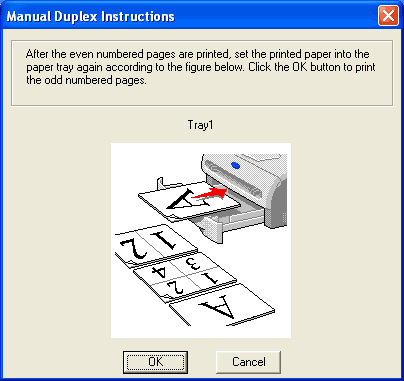
If your printer lacks an automatic duplex unit, you can still get two-sided prints with a little extra effort.
Step-by-Step Manual Duplex in Word
- Open your document
- Click File > Print
- Under Settings, click Print One Sided
- Select Manually Print on Both Sides
- Click Print
- After the first side finishes, Word displays:
“Please turn over the stack and click OK to continue.”
- Flip the printed stack and reload it into the input tray
- Click OK to print the reverse side
Reload Paper Correctly
Reloading the paper the wrong way leads to upside-down or backward pages. Follow these tips:
- After printing the first side, flip the entire stack vertically (top to bottom)
- Reinsert with the printed side facing up or down based on your printer model
- Feed the top edge first into the tray
Critical: Always run a test with 2 to 4 pages first. Print documents with page numbers to verify proper alignment before running a full job.
Use the Instruction Page Feature
Some printers offer a “Print Instruction Page to Assist in Reloading” option. This helpful tool:
- Prints a visual guide showing how to rotate and reload your pages
- Found under Printer Properties > Advanced > Manual Duplex Options
- Extremely useful for first-time users
Print Odd and Even Pages Separately
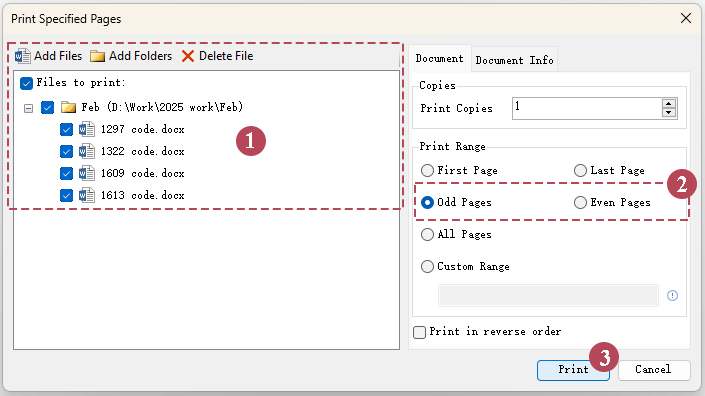
This method gives you full control and works well for specialty paper or older printers.
Print Odd Pages First
- Open your document and click File > Print
- Under Settings, select Print All Pages
- Scroll to the bottom of the gallery and choose Only Print Odd Pages
- Click Print
Wait for all odd-numbered pages to finish printing before continuing.
Flip and Print Even Pages
- Carefully flip the stack over without rotating it
- Reload the paper into the input tray
- Return to the Print settings
- Select Only Print Even Pages
- Click Print
Your document now has one side on odd pages and the other side on even pages.
Set Page Order Correctly
To prevent misalignment between odd and even pages:
- Go to File > Options > Advanced
- Scroll to the Print section
- Select Print on front of the sheet when printing odd pages
- Select Print on back of the sheet when printing even pages
This setting ensures proper page orientation when you bind or flip through the final document.
Paper and Print Settings to Know
Even with correct settings, paper type and environment play a major role in print quality.
Supported Paper for Auto Duplex
Automatic two-sided printing only works with:
- Plain paper (no cardstock or labels)
- Letter (8.5 x 11″) or A4 (210 x 297 mm) sizes
Avoid automatic duplex for:
- Cardstock
- Greeting cards
- Labels
- Envelopes
- Custom paper sizes
Rule of Thumb: If your paper is not standard letter or A4 plain paper, switch to manual duplex instead.
Extend Dry Time in Humid Conditions
Ink needs time to dry before the second pass. If your double-sided prints smudge or smear:
- Open Printer Properties > Advanced
- Find the 2-Sided Printing section
- Check Extend dry time
- Print your document again
This setting delays the paper’s return to the print path, giving ink extra time to dry. It’s especially useful for inkjet printers in high-humidity environments.
Troubleshoot Common Duplex Issues

Even experienced users run into problems. Here’s how to solve the most common ones.
No Duplex Option Appears
- Cause: Your printer doesn’t support duplex, or the driver is outdated
- Fix:
- Confirm your printer model supports duplex in the manufacturer’s specs
- Update your printer driver from the manufacturer’s website
- Try printing from a different app, like Adobe Reader
Pages Print in the Wrong Order
- Cause: Incorrect flip method or page order setting
- Fix:
- Re-test the manual reload direction
- Use Only Print Odd/Even Pages with the correct sequence
- Adjust Print on front/back of sheet in Word Options
Smudged or Ghosted Printing
- Cause: Ink hasn’t fully dried before the second pass
- Fix:
- Enable Extend dry time in printer settings
- Use a lighter ink density setting
- Switch to manual duplex to allow natural drying time
Printer Skips the Second Side
- Cause: The manual duplex prompt was ignored or canceled
- Fix:
- Restart the print job from the beginning
- Make sure to click OK after reloading the paper
- Close background apps that may interfere with the print queue
Best Practices for Reliable Double-Sided Printing
Follow these tips to make every print job smooth and error-free.
Always Test First
Print a 4-page test document before committing to a full job. This helps you confirm:
- Correct flip orientation
- Proper page alignment
- No ink drying issues
Know Your Printer’s Input Tray
Different trays handle paper differently:
- Main tray: Best for standard plain paper
- Manual feed slot: Ideal for thick or custom paper
- Always follow the paper path diagram in your printer’s manual
Use the Right Software Settings
Duplex options vary across applications, so adjust accordingly.
In Microsoft Word:
- Use Manually Print on Both Sides for full control
- Configure odd/even settings under File > Options > Advanced
In Adobe Acrobat:
- Go to Print > Page Handling > Print On Both Sides
- Choose Flip on Long Edge (Sideflip) or Flip on Short Edge (Topflip)
In Web Browsers (Chrome, Edge):
- Click More settings in the Print dialog
- Look for Two-sided or Duplex options
- Note: Browser support depends on your installed printer drivers
Quick Decision Guide: Which Method to Use?
| Scenario | Recommended Method |
|---|---|
| Modern printer with duplex unit | Automatic duplex |
| No auto duplex feature | Manual duplex in Word |
| Printing on cardstock or custom paper | Manual reload or odd/even method |
| High humidity or smudging issues | Extend dry time + manual duplex |
| Booklet or brochure layout | Sideflip (long-edge binding) |
| Report or notebook style | Topflip (short-edge binding) |
Frequently Asked Questions About Double-Sided Printing
How do I know if my printer can print double-sided automatically?
Open any document in Word, press Ctrl + P, and look under Settings. If you see Print on Both Sides as a single option, your printer supports automatic duplex. If it says Manually Print on Both Sides, you’ll need to flip and reload the pages yourself. You can also check the Advanced tab under Printer Properties for the 2-Sided Printing option.
What paper types work with automatic double-sided printing?
Automatic duplex only works with plain paper in Letter (8.5 x 11″) or A4 (210 x 297 mm) sizes. For cardstock, greeting cards, labels, envelopes, or custom paper sizes, you must use the manual duplex method to avoid jams and misprints.
Why is my second side printing upside down?
This usually means the paper was reloaded in the wrong direction. After printing the first side, flip the entire stack vertically (top to bottom) before reinserting it. Always run a 2 to 4-page test first to confirm the correct orientation for your specific printer.
Can I print double-sided from apps other than Word?
Yes. Most applications, including Adobe Acrobat, Google Chrome, and Microsoft Edge, offer duplex options through their print dialogs. Look for settings like Two-sided, Duplex, or Print on Both Sides under More settings or Page Handling.
What does “Extend dry time” do?
The Extend dry time option adds a delay between printing the first and second sides. This gives the ink extra time to dry, which helps prevent smudging in humid environments or with slower-drying inkjet inks. You can find it under Printer Properties > Advanced > 2-Sided Printing.
Should I use Sideflip or Topflip?
Choose Sideflip for most documents, including booklets, brochures, and reports with side binding. Choose Topflip for documents with top binding, like legal pad-style layouts. Sideflip is the default and most commonly used setting.
Key Takeaways for Double-Sided Printing Success
Double-sided printing is simple once you know your printer’s limits and the right settings. Start by confirming whether your printer supports automatic duplex or requires manual reloading. Use automatic duplex for plain letter or A4 paper, and switch to manual or odd/even page methods for specialty paper. Always test with a few pages before running a full job, and enable Extend dry time in humid conditions to avoid smudges.
Now that you know how to print double-sided in printer environments on any device, you can save paper, reduce clutter, and produce professional-looking documents with confidence. For model-specific guidance, check your printer’s user manual or the manufacturer’s website.


