

Printing a document from your phone while sitting on the couch feels like magic until the connection fails. You might wonder exactly how does a wireless printer work without any physical cables linking your devices. These peripherals use radio waves instead of USB wires to communicate with computers and smartphones.
This guide explains the specific technologies like WiFi and Bluetooth that enable cable-free printing. You will learn about setup steps, security risks, and how to fix common signal issues quickly. By understanding these core concepts, you can optimize your home or office printing experience today.
WiFi Network Printing Explained
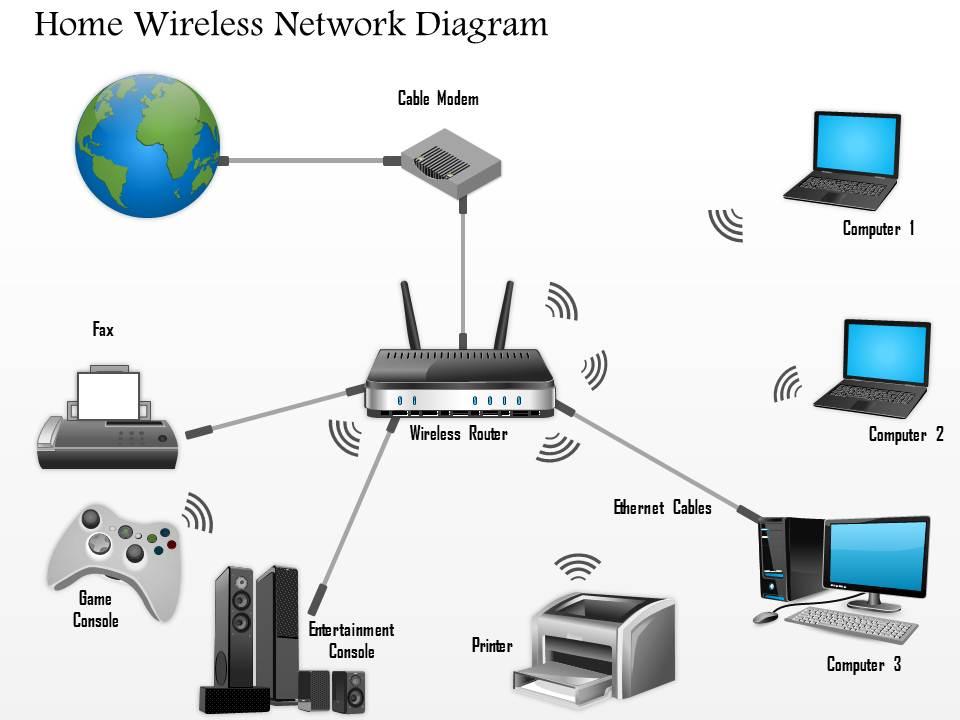
Most wireless printers join your existing home or office network to function as a shared resource. This setup allows multiple users to send documents to the same device from different rooms.
Connect to a Shared Network
The printer links to your wireless router using 2.4 GHz or 5 GHz frequency bands. You enter your network name and password on the printer screen or via a mobile app during installation. The router assigns a unique IP address to the printer so devices can find it. This process makes the printer visible to every authorized computer on the system.
Multi-User Access and Sharing
Households and offices benefit from simultaneous access to a single machine. The internal processor queues print jobs from different users and processes them in order. This eliminates the need for individual printers for every employee or family member. Collaboration becomes seamless when everyone shares the same central output device.
Speed Depends on WiFi Standard
Transmission speed relies on the IEEE 802.11 standard your router supports. Newer standards like 802.11ac transfer large photo files much faster than older versions. The 5 GHz band offers quicker data rates with less interference than the 2.4 GHz band. Dual-band printers automatically select the best channel for optimal performance.
Bluetooth Direct Printing Setup
Bluetooth provides a direct peer-to-peer link for printing without a central network. This method is ideal for portable printers or quick tasks when WiFi is unavailable.
Pair Device to Printer Directly
You must enable Bluetooth on both your smartphone and the printer to begin. Your device scans for nearby hardware and displays the printer name in the menu. Select the device and confirm the matching PIN code to establish a secure link. Once paired, you can send photos or documents directly from supported applications.
Best for Mobile and On-the-Go Use
This technology shines when you need to print away from established networks. Travelers often use it for boarding passes or receipts at temporary locations. It consumes less power than WiFi and sets up quickly for single users. However, it generally supports only one connected device at a time.
Limited Range and File Size
Effective range typically stays within 30 feet or 10 meters of the printer. Physical barriers like walls significantly reduce this distance and may cause dropouts. Large image-heavy files transfer slowly compared to WiFi connections. Use this method for small text documents or single photos rather than full reports.
WiFi Direct Cable-Free Connection
WiFi Direct bridges the gap between standard networking and direct device pairing. It offers high-speed data transfer without requiring a router or internet access.
Establish Peer-to-Peer Connection
The printer creates its own secure network signal that your device detects instantly. You connect using WiFi Protected Setup (WPS) or a specific PIN code displayed on the screen. This creates a dedicated link between your computer and the printer alone. No external infrastructure is needed for this direct communication path.
Faster Than Bluetooth No Network Needed
Data speeds can reach up to 250 Mbps depending on the supported standard. This makes it suitable for large albums or complex multi-page PDFs. The theoretical range extends up to 200 meters in open spaces. Real-world performance depends on walls and electronic interference in the room.
Use Case for Temporary Secure Printing
Confidential documents benefit from this isolated connection method. Data does not pass through a main office network where it could be intercepted. Guests can print tickets or itineraries without accessing your primary WiFi password. It provides a secure bubble for sensitive printing tasks.
Signal Range and Environmental Impact

Radio waves travel through the air but encounter obstacles that weaken their strength. Understanding these limits helps you place your printer for maximum reliability.
Real-World Range vs Theoretical Max
Standard WiFi works up to 100 feet indoors under ideal conditions. Thick walls, metal furniture, and appliances like microwaves block these signals. A printer hidden in a cabinet may lose connection frequently. Open spaces allow signals to travel much farther than cluttered rooms.
Optimize Printer Placement
Position your device in a central location for the best coverage area. Keep it away from large metal objects and other electronics that cause interference. Line of sight to the router improves signal stability significantly. Avoid placing the unit in basements or behind refrigerators.
Boost Signal with Network Upgrades
Dual-band routers help avoid congestion on crowded frequencies. Use the 2.4 GHz band for better wall penetration and range. Switch to 5 GHz for faster speeds if you are close to the source. WiFi extenders can fill dead zones in large homes or offices.
Setup Steps for Wireless Installation

Installing your printer without cables follows a logical sequence of actions. Modern tools make this process straightforward for most users.
Prepare Your Network First
Ensure your computer or phone connects to the correct WiFi network before starting. Have your network password ready since you cannot copy and paste it on some screens. This prevents confusion when the printer searches for available networks. A stable network foundation is essential for success.
Use Mobile App or Control Panel
Manufacturers provide dedicated apps to guide you through the configuration. Alternatively, use the LCD menu on the printer itself to navigate settings. Select your network name from the list and type the password carefully. Wait for the confirmation message indicating a successful connection.
Verify and Test Connection
Print a network configuration page to check the assigned IP address. Send a test document from your computer to ensure data flows correctly. On Windows, access the printer properties to print a test page. Mac users can find this option in the system settings menu.
Compatibility Across Devices and OS
Wireless printers support a wide array of operating systems and mobile platforms. This flexibility allows diverse devices to share the same hardware.
Works with Windows Mac Android iOS
Drivers are available for all major desktop operating systems. Mobile devices often use built-in printing services or manufacturer apps. Android users can access Google’s native printing service easily. iOS devices detect compatible printers automatically through AirPrint technology.
AirPrint and Mopria Support
Apple AirPrint allows printing without installing extra software on iPhones. Mopria provides similar driver-less functionality for Android smartphones. These standards detect printers on the network and enable instant printing. Just tap the share icon and select your printer to begin.
Cloud Printing From Anywhere
Remote printing services let you send jobs from anywhere with internet access. You can email documents to a unique address assigned to your printer. Manufacturer apps often include cloud storage integration for direct printing. This feature requires the printer to stay connected to the internet.
Security Risks and Protection Measures
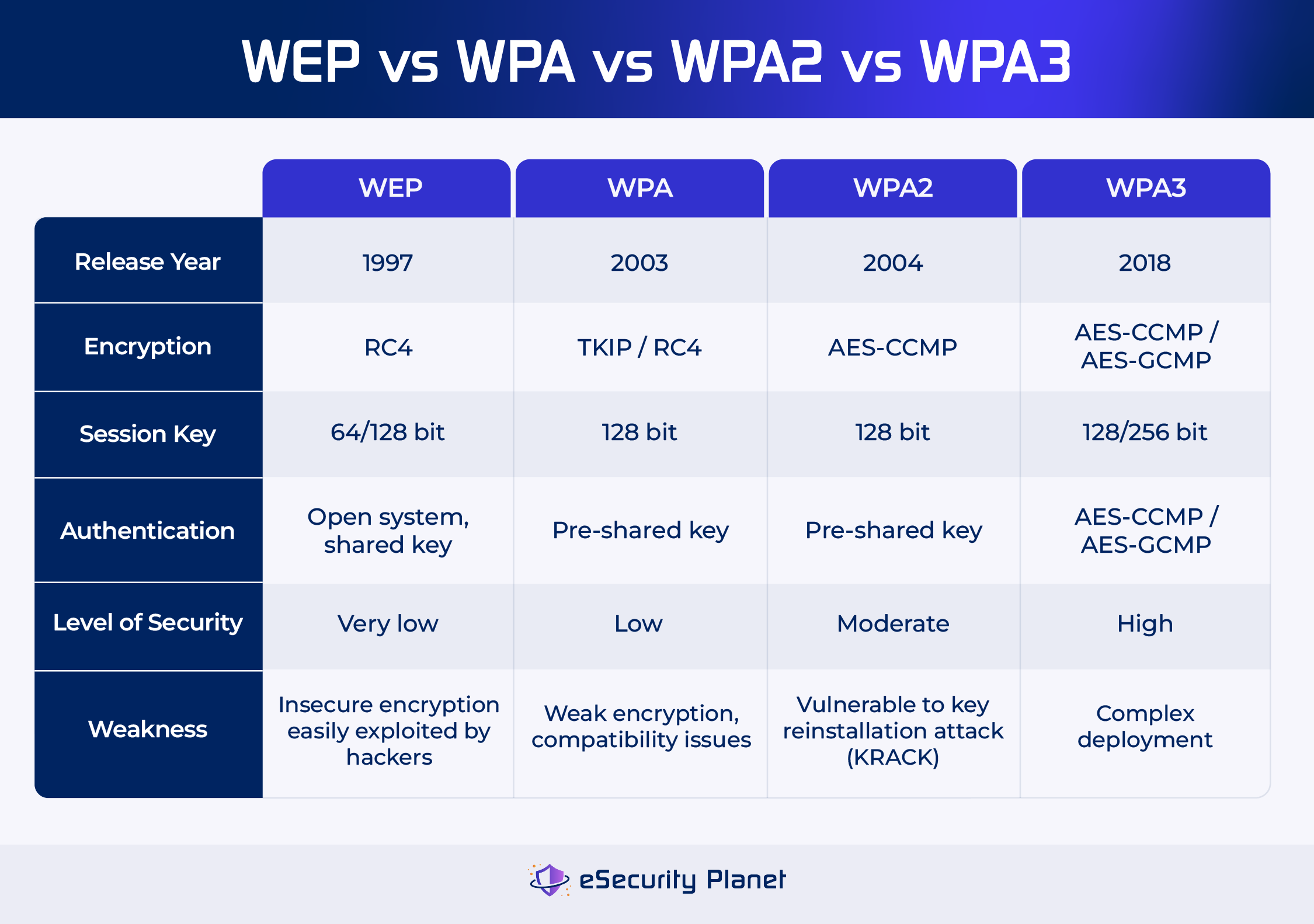
Networked printers can become entry points for hackers if left unsecured. Taking specific steps protects your data and network integrity.
Enable WPA2 WPA3 Encryption
Always secure your WiFi network with strong encryption protocols. Avoid using outdated WEP security or open networks for printing. This ensures data traveling between your device and printer remains encrypted. Strong passwords prevent unauthorized users from joining your network.
Use Secure Print and PIN Release
Sensitive documents should use the secure print feature available on many models. The job stays in memory until you enter a PIN code at the printer. This prevents confidential information from sitting in the output tray. It is essential for offices handling private client data.
Disable Unused Features
Turn off Bluetooth or WiFi Direct if you do not use them regularly. Each active feature increases the potential attack surface for intruders. Change default administrative passwords immediately after setup. Regularly check settings to ensure no unauthorized changes occurred.
Update Firmware Regularly
Manufacturers release updates to fix security holes and improve performance. Enable automatic updates if your model supports this function. Manual checks through the app or web interface also work effectively. Ignoring updates leaves your device vulnerable to known exploits.
Troubleshoot Common Wireless Issues
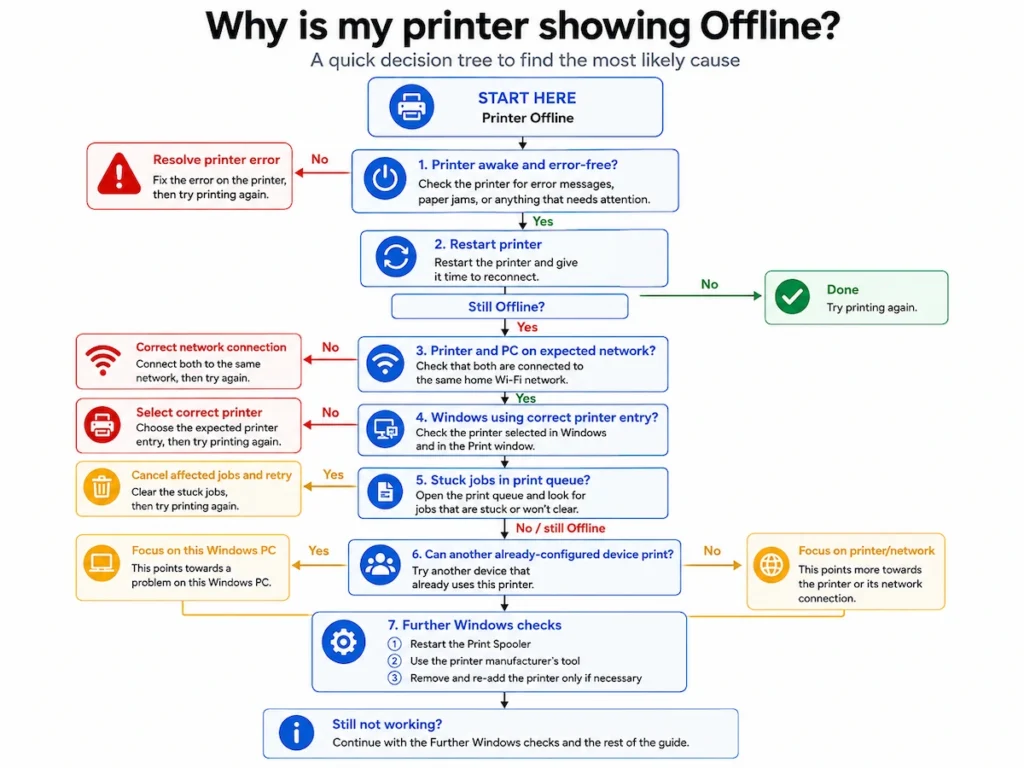
Connectivity problems are the most frequent complaint among wireless printer users. Simple diagnostic steps resolve most of these issues quickly.
Printer Not Found on Network
Restart your printer, router, and computer to refresh the connection. Verify that all devices are on the exact same WiFi network name. Reinstall the printer driver if the device remains invisible. Guest networks often block device discovery so avoid using them.
Print Jobs Stuck in Queue
Clear the print queue on your computer to remove frozen tasks. Restart the print spooler service on Windows to reset the system. Remove and re-add the printer in your system settings if errors persist. Ensure the printer status is set to online rather than offline.
Weak Signal or Intermittent Connection
Move the printer closer to the router to improve signal strength. Reduce interference by relocating cordless phones or microwaves nearby. Assign a static IP address to prevent connection drops after power outages. Switching frequency bands may also stabilize the link.
Maintenance for Long-Term Use
Regular upkeep ensures your wireless printer performs reliably for years. Digital maintenance is just as important as mechanical care.
Clean Heads and Align Cartridges
Run the cleaning utility from the printer menu to clear clogged nozzles. Perform alignment procedures after replacing ink cartridges for sharp text. These maintenance tasks are accessible remotely via the wireless connection. Regular cleaning prevents poor quality output and wasted ink.
Monitor Ink and Paper Levels
Wireless connectivity enables real-time supply monitoring on your phone. Many apps alert you when ink levels are low or paper is empty. Some models even offer automatic reordering services for convenience. Keeping track of supplies prevents interruptions during critical printing tasks.
Schedule Firmware Updates
Set a monthly reminder to check for new firmware versions. These updates often include performance improvements and bug fixes. Allow sufficient time for the update process to complete fully. Never turn off the printer while an update is in progress.
Benefits of Going Wireless
Switching to a wireless setup transforms how you interact with your documents. The advantages extend far beyond simply removing cables.
Freedom of Placement
You can place the printer in any room within signal range. There is no need to keep it next to a specific computer desk. This flexibility allows for better use of space in your home or office. Centralized placement serves multiple users more effectively.
Print from Mobile Devices
Smartphones and tablets become powerful printing stations with wireless tech. You can print recipes, tickets, or photos directly from your hand. This eliminates the need to transfer files to a computer first. Mobility enhances productivity for modern workflows.
Share Easily in Homes and Offices
Families and teams share one device without swapping cables. Multiple users send jobs simultaneously without conflict. Cloud features extend this sharing capability to remote locations. This collaborative approach streamlines document management for everyone.
Reduce Cable Clutter
Eliminating USB and Ethernet cables creates a cleaner workspace. Fewer wires mean less dust accumulation and easier cleaning. It also reduces tripping hazards in busy areas. A tidy setup improves the overall aesthetic of your environment.
Frequently Asked Questions About Wireless Printers
Does a wireless printer need internet to work?
No, a wireless printer only needs a local network to function. You can print from devices on the same WiFi without an active internet connection. Internet access is only required for cloud printing features or firmware updates.
Is wireless printing slower than USB printing?
The speed difference is negligible for most standard documents. Large graphic files might take slightly longer over WiFi depending on signal strength. However, modern WiFi standards are fast enough for almost all home and office tasks.
Can hackers access my documents through the printer?
Yes, unsecured printers can be vulnerable to data interception. Using strong encryption like WPA2 and enabling secure print features mitigates this risk. Regularly updating firmware also closes security gaps that hackers might exploit.
Why does my printer disconnect frequently?
Interference from other electronics or weak signal strength usually causes disconnections. Moving the printer closer to the router often solves the problem. Updating your router firmware or changing the WiFi channel may also help.
How do I print from my phone without an app?
Many printers support AirPrint for iOS or Mopria for Android natively. Open the document on your phone, tap share, and select print. Your phone will find compatible printers on the network automatically without extra software.
Key Takeaways for Understanding How a Wireless Printer Works
Wireless printers use WiFi, Bluetooth, or WiFi Direct to send data without physical cables. They connect to your network or pair directly with devices to offer flexibility and multi-user access. Proper placement, strong security settings, and regular firmware updates ensure reliable performance.
You now know how to set up, secure, and troubleshoot these essential devices effectively. Start by checking your current printer placement and updating its firmware today. This simple maintenance will improve your printing experience immediately.


