

Your HP printer sits idle while urgent documents wait, showing jobs disappearing from the queue without a single error message to explain the silence. This frustrating “HP printer not printing from computer” scenario often stems from software glitches rather than broken hardware.
You can resolve this common issue by clearing stuck queues, resetting corrupted drivers, and bypassing firewall blocks with our step-by-step guide. We will walk you through proven fixes for Windows and macOS that restore communication between your device and printer quickly.
Verify Physical Connections and Cable Integrity

Loose cables or damaged ports often mimic complex software failures, so you must rule out physical layer issues first. A secure connection ensures stable data transmission between your computer and the printer.
Check USB and Network Cable Seating
Ensure your USB or Ethernet cable is firmly plugged into both the printer and the computer. For USB connections, avoid using extension cords or unpowered hubs that can weaken the signal. If you use Wi-Fi, confirm the printer display shows a solid network icon rather than a blinking light.
Replace Overly Long USB Cables
USB 2.0 standards recommend a maximum cable length of 1.8 meters to prevent signal degradation. Some HP models, such as the DeskJet 2320, may fail to print even with slightly longer cables. Swap your current cable for a high-quality one under 1.5 meters to ensure reliable connectivity.
Test Alternative USB Ports
A faulty port on your computer can block communication entirely. Unplug the printer and connect it to a different USB port, preferably a rear port on desktop computers for better power delivery. Check Device Manager on Windows or Printers & Scanners on macOS to see if the system recognizes the change.
Eliminate Paper Jams and Ink Supply Problems
Internal obstructions or depleted consumables can halt printing silently even when the printer appears ready. You need to inspect the physical path and ink levels before troubleshooting software.
Inspect the Entire Paper Path
Open the rear access door, input tray, and cartridge area to look for torn paper fragments. Small pieces of paper stuck in rollers can trigger sensors that stop all printing activity. Gently remove any jammed sheets and ensure no debris remains inside the machine.
Replace Empty or Dried Cartridges
Printers often refuse to print if any cartridge is empty or not recognized. Replace cartridges showing low ink warnings immediately to restore functionality. If you use third-party ink, try switching to genuine HP cartridges to rule out compatibility errors.
Clean Clogged Printheads
Clogged nozzles prevent ink from reaching the paper effectively. Access the maintenance menu on your printer control panel and run a printhead cleaning cycle. If output remains poor after two or three cycles, perform a deep clean or align the printhead.
Clear Stuck Print Jobs and Reset Spooler
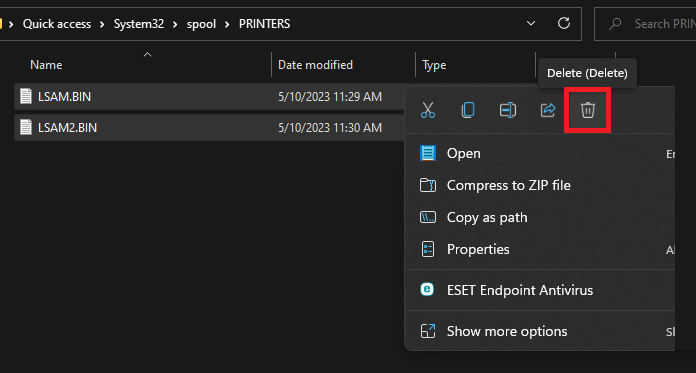
Stuck documents in the print queue are a leading cause of silent failures where jobs disappear without printing. Clearing this queue resets the communication channel between your OS and the printer.
Cancel All Documents on Windows
- Press Windows + R, type
control printers, and hit Enter. - Right-click your HP printer and select See what’s printing.
- Click the Printer menu and choose Cancel All Documents.
- Wait until the queue is completely empty before trying again.
Delete Pending Jobs on macOS
- Open System Settings and navigate to Printers & Scanners.
- Select your HP printer and click Open Print Queue.
- Highlight all pending jobs and click the Delete button.
- Confirm the deletion to purge the queue entirely.
Restart the Print Spooler Service
A frozen spooler service blocks new jobs from processing on Windows systems.
1. Press Windows + R, type services.msc, and press Enter.
2. Locate Print Spooler, right-click it, and select Stop.
3. Navigate to C:\Windows\System32\spool\printers and delete all files inside.
4. Return to the Services window, right-click Print Spooler, and click Start.
Correct Offline Printer Status Settings
Your printer may be set to “Offline” mode accidentally, preventing it from receiving any print commands from your computer.
Disable Offline Mode in Windows
- Go to Devices and Printers via the Control Panel.
- Right-click your HP printer and open the print queue window.
- Click the Printer menu at the top of the window.
- Uncheck Use Printer Offline if it has a mark next to it.
- Verify the status changes to Ready or Idle.
Resume Printer Queue on macOS
- Open Printers & Scanners in your System Settings.
- Select your HP printer and open the queue view.
- Click to disable Pause Printing or Use Printer Offline if active.
- Attempt to print a test page to confirm the status change.
Bypass Firewall and Antivirus Blocks
Security software sometimes mistakes printer communication protocols for threats and blocks them silently.
Temporarily Disable Security Software
Turn off third-party antivirus or firewall programs like Norton or McAfee temporarily. Do not disable Windows Defender unless absolutely necessary. Try printing a test page to see if the security software was the blocker.
Add Printer Exceptions to Firewall
Re-enable your antivirus and create a specific exception for your printer. Allow the HP printer software and Print Spooler service through the firewall settings. You may also need to whitelist the HP installation folder or the printer’s IP address.
Reinstall HP Drivers with Deep Clean Method
Corrupted or outdated drivers frequently cause printing failures, especially on older Windows builds like version 1909.
Download Official Full-Feature Drivers
Visit the official HP support website and enter your specific printer model. Download the full-feature driver package rather than relying on Windows Update. Avoid using the HP Smart App for older models if the full driver package is available.
Remove Old Driver Packages Completely
Standard uninstallation often leaves corrupted files behind that cause recurring issues.
1. Disconnect the USB cable from the computer.
2. Press Windows + R, type printui /s /t2, and press Enter.
3. In the Print Server Properties window, go to the Drivers tab.
4. Select your HP driver and click Remove, then check Remove driver and driver package.
5. Click OK to delete all remnants of the old software.
Reinstall Software with USB Disconnected
- Ensure the printer is turned off and the USB cable is unplugged.
- Run the downloaded HP installer file on your computer.
- Follow the on-screen prompts until the installer asks you to connect the cable.
- Plug in the USB cable only at that specific moment.
- Complete the installation and test your printing function.
Utilize HP Print and Scan Doctor Tool
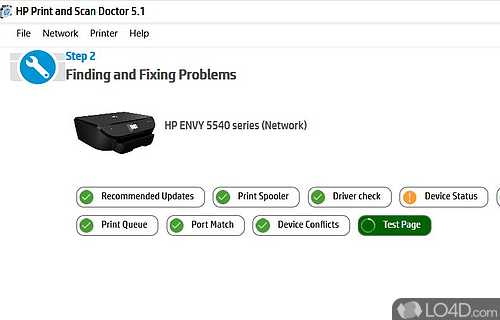
HP provides an official diagnostic tool that automates many common fixes for connectivity and driver issues.
Run Automated Diagnostics
- Download HP Print and Scan Doctor from the HP website.
- Launch the tool and select your printer from the detected list.
- Click Fix Printing and follow the automated prompts.
- Allow the tool to check connectivity, clear queues, and re-enable the printer.
Understand Tool Limitations
This tool may report “No issues found” on systems with disabled Windows Updates or outdated OS builds. If the tool fails to resolve the issue, proceed with manual driver reinstallation and spooler resets as described earlier.
Isolate Issues by Testing Another Computer

Determining whether the problem lies with your computer or the printer hardware is crucial for effective troubleshooting.
Connect Printer to a Different PC
Take your HP printer to another computer, ideally one with a newer operating system version. Connect it via USB and attempt to print a document. This simple test isolates the variable causing the failure.
Analyze Diagnostic Results
If the printer works on the second computer, the issue resides in your original computer’s OS or configuration. If it fails on both machines, the problem likely involves the printer hardware, firmware, or the cable itself.
Prevent Future Printing Failures
Proactive maintenance helps avoid recurring communication errors and keeps your printer running smoothly.
Maintain Updated Operating Systems
Keep your Windows or macOS updated to ensure compatibility with modern printer drivers. Critical patches often fix underlying communication protocols required for printing.
Schedule Regular Maintenance Tasks
Run a printhead cleaning cycle and print a test page once a month even if you do not print often. This prevents ink from drying out and verifies that your connectivity remains stable.
Frequently Asked Questions About HP Printer Not Printing from Computer
Why does my HP printer show jobs deleting but nothing prints?
This usually indicates a stuck print spooler or corrupted driver preventing data transmission. Clear your print queue completely and restart the Print Spooler service to reset the communication channel.
How do I fix an HP printer that says offline?
Navigate to Devices and Printers, open the queue, and uncheck “Use Printer Offline” in the Printer menu. Ensure your USB cable is secure and the printer is powered on.
Can a bad USB cable stop my HP printer from printing?
Yes, cables longer than 1.8 meters or damaged cables can cause signal loss. Replace long cables with high-quality ones under 1.5 meters to ensure stable data transfer.
What if HP Print and Scan Doctor finds no issues?
The tool may miss issues on older Windows versions or systems with disabled updates. Proceed with a manual deep clean of drivers using the printui /s /t2 command and reinstall the full driver package.
Why does my printer copy but not print from the computer?
This confirms the hardware engine works but indicates a software or connectivity issue. Focus on clearing the print queue, checking firewall settings, and reinstalling drivers.
Should I use HP Smart or full drivers for older models?
For older models like the DeskJet 2320, use the full-feature driver package from the HP website. The HP Smart app may not resolve deep driver conflicts on legacy systems.
Key Takeaways for Resolving HP Printer Not Printing from Computer Errors
Most “HP printer not printing from computer” issues stem from stuck queues, offline status settings, or corrupted drivers rather than hardware failure. By systematically clearing your print queue, verifying physical connections, and performing a deep driver reinstallation, you can restore functionality in minutes.
Start with the simplest fixes like checking cables and clearing the queue before moving to driver reinstallation. If these steps fail, testing the printer on a different computer will help you determine if the issue lies with your specific system configuration.




