
Your Dell laptop and new printer are sitting side by side, yet nothing happens when you try to print a document. This common connectivity gap often stems from missed steps in driver installation or network configuration.
This guide explains exactly how to connect Dell laptop to printer using USB cables or Wi-Fi networks. You will learn specific setup procedures for Windows 10, 8.1, and 7 while mastering essential troubleshooting techniques.
Connect Printer Using USB Cable Directly
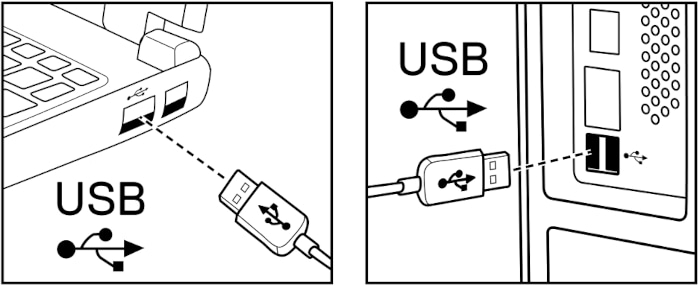
A wired connection offers the most stable link between your Dell laptop and printer. This method eliminates wireless interference and ensures immediate device recognition by the operating system.
Prepare Hardware Before Software Setup
Plug the USB cable into your printer first, then connect the other end to your Dell laptop. Ensure the printer power button is engaged so the device can send signals to the computer.
Windows typically detects the new hardware within seconds. Look for a notification in the system tray confirming that device driver software is installing automatically.
Add Device in Windows 10 and 8.1
Modern Windows versions handle most printer setups through the Settings menu. Follow these precise steps to complete the connection on your Dell system.
- Click the Start button and select the gear icon for Settings.
- Choose Devices from the menu options.
- Select Printers & scanners from the left sidebar.
- Click the Add a printer or scanner button.
- Wait for the search process to locate your connected hardware.
- Click your printer name when it appears and select Add device.
The operating system will download necessary files if an internet connection is available. Your printer is ready for use once the status changes to “Ready.”
Configure Setup on Windows 7
Older Dell laptops running Windows 7 use a slightly different interface for hardware management. The core process remains similar but requires navigating the Control Panel.
- Click Start and select Devices and Printers.
- Choose Add a printer from the top menu bar.
- Select Add a local printer if prompted for a choice.
- Pick the correct USB port, usually labeled USB001.
- Choose your manufacturer and model from the provided list.
- Follow the on-screen wizard to finalize driver installation.
You may need to visit the manufacturer website if your specific model does not appear in the default list. Download the driver file before returning to this step.
Establish Wireless Printer Connection
Wireless printing frees you from cable constraints and allows multiple users to access the same device. Your Dell laptop and printer must share the same Wi-Fi network for this method to work.
Configure Printer Wi-Fi Settings
Access the control panel on your printer to begin the wireless setup process. Navigate to the network settings menu and select your home or office Wi-Fi network name.
Enter your wireless password using the printer keypad or touchscreen interface. A solid Wi-Fi icon on the display confirms a successful connection to the router.
Some models support Wi-Fi Protected Setup for faster configuration. Press the WPS button on your router, then press the corresponding button on your printer within two minutes.
Link Wireless Printer to Windows 10
Once the printer connects to your network, your Dell laptop can discover it automatically. Ensure your computer is not using a guest network that isolates devices from each other.
- Open Settings and go to Devices.
- Click Printers & scanners.
- Select Add a printer or scanner.
- Allow time for the system to search the network.
- Click your printer name and choose Add device.
Windows installs the required drivers over the internet during this process. You can now print wirelessly from any application on your Dell laptop.
Connect Network Printer on Windows 7
Windows 7 users follow a similar path but access it through the Start menu. The system searches for all available network printers within range.
- Go to Start > Devices and Printers.
- Click Add a printer.
- Choose Add a network, wireless, or Bluetooth printer.
- Select your printer from the list of discovered devices.
- Complete the installation wizard to finish setup.
Manual entry of the IP address is possible if automatic detection fails. You can find this address in the network configuration page of your printer menu.
Troubleshoot Printer Detection Problems
Your Dell laptop may fail to detect the printer due to simple configuration errors. These troubleshooting steps resolve most connectivity issues quickly.
Verify Physical and Network Links
Check that all cables are seated firmly in their respective ports if using a wired connection. Swap the USB cable with a known working one to rule out hardware failure.
For wireless setups, confirm both devices are on the same network segment. Restart your router and printer to refresh the network handshake process.
Run Built-in Printer Troubleshooter
Windows includes a dedicated tool designed to fix common printing errors automatically. This utility checks for service issues and driver conflicts.
- Navigate to Settings > Update & Security.
- Select Troubleshoot from the left menu.
- Click Printer and then Run the troubleshooter.
- Apply any recommended fixes suggested by the tool.
The tool often resolves spooler errors that prevent device detection. It works effectively on both Windows 10 and Windows 8.1 systems.
Restart Print Spooler Service
The print spooler service manages all print jobs sent from your Dell laptop. A frozen service can stop your computer from seeing the printer entirely.
- Press Windows + R to open the Run dialog.
- Type
services.mscand press Enter. - Locate Print Spooler in the list of services.
- Right-click it and select Restart.
Try adding the printer again after the service restarts. This step clears stuck jobs and resets the communication channel.
Install Printer Drivers Manually

Automatic driver installation sometimes fails if the model is older or specialized. Manual installation ensures your Dell laptop has the exact software needed for full functionality.
Download Drivers From Manufacturer
Visit the official support website for your printer brand like HP, Canon, or Epson. Search using your specific model number to find the correct software package.
- Identify your printer model number on the device label.
- Go to the manufacturer support page.
- Select your Windows version from the dropdown menu.
- Download the full driver suite or basic driver package.
- Run the installer and follow the prompts carefully.
Choose the connection type when asked during installation. The installer will configure the port settings automatically based on your selection.
Update Drivers Via Windows Update
Microsoft often hosts generic drivers that provide basic printing functionality. These can serve as a temporary solution until you download the official software.
- Open Settings and go to Update & Security.
- Click Windows Update.
- Select Check for updates.
- Install any optional driver updates listed.
Return to the printers menu to see if the device now appears. This method works well for standard office printers.
Share Printer Across Network
Sharing a printer allows other devices on your network to print through your Dell laptop. This is ideal for offices with a single wired printer.
Enable Sharing Settings
You must configure the host computer to allow access from other systems. This setting is found within the printer properties menu.
- Open Control Panel and select Devices and Printers.
- Right-click your printer and choose Printer properties.
- Go to the Sharing tab.
- Check the box for Share this printer.
- Enter a simple name for network identification.
Other computers can now find this printer by searching for network devices. The host Dell laptop must remain powered on for others to print.
Connect Remote Devices
Remote computers need to add the shared printer as a network device. They will send print jobs to your laptop, which forwards them to the hardware.
Ensure file and printer sharing is enabled in the network settings. Remote users should look for the printer name you assigned during the sharing setup.
Test and Verify Connection

Always confirm your setup works before relying on it for important documents. A simple test page verifies the entire chain of communication.
Print Test Page
This action sends a standard diagnostic page to your printer. It confirms that drivers are communicating correctly with the hardware.
- Go to Settings > Devices > Printers & scanners.
- Click on your printer icon.
- Select Manage and then Print a test page.
Watch for the page to emerge from the output tray. Successful printing indicates your Dell laptop is fully connected.
Monitor Printer Queue
The print queue shows pending jobs and potential error messages. You can manage documents waiting to print from this window.
Right-click the printer and select See what’s printing. Cancel any stuck jobs that might block new tasks. A green checkmark indicates the printer is ready for use.
Maintain Printer Connectivity
Regular maintenance prevents future connection loss and ensures consistent performance. Small habits keep your Dell laptop and printer working together smoothly.
Update Drivers Periodically
Manufacturers release updates to fix bugs and improve compatibility. Check for new driver versions every few months to maintain optimal function.
Use the manufacturer software to enable automatic update notifications. This prevents unexpected issues after major Windows updates.
Reconnect After System Updates
Major Windows updates can sometimes reset device preferences. Your printer might disappear from the list after a system upgrade.
Re-run the add printer process if your device goes missing. You usually do not need to reinstall drivers unless the update was major.
Frequently Asked Questions About Connecting Dell Laptop to Printer
Why won’t my Dell laptop find my USB printer?
Check that the USB cable is plugged directly into the laptop rather than a hub. Try a different USB port and ensure the printer is powered on before connecting.
How do I connect without a CD drive?
Modern Dell laptops often lack CD drives, but you do not need one. Download the latest drivers directly from the manufacturer website using your browser.
Can I connect my printer to multiple Dell laptops?
Yes, wireless printers can connect to multiple laptops on the same network. For USB printers, you must enable sharing on the host laptop for others to access it.
What should I do if the test page fails to print?
Check the printer status for error messages like low ink or paper jams. Restart both the printer and your Dell laptop to clear any temporary glitches.
Does connecting via USB affect wireless capability?
No, many printers allow simultaneous USB and wireless connections. You can switch between methods depending on which device is accessing the printer.
Key Takeaways for Connecting Dell Laptop to Printer
Connecting your Dell laptop to a printer involves selecting the right method for your needs. USB offers stability for single users while wireless provides flexibility for multi-device homes.
Always verify your network settings and driver versions to prevent common issues. Regular maintenance ensures your printing experience remains smooth and efficient.
Start by plugging in your device or checking your Wi-Fi settings today. Follow the specific steps for your Windows version to complete the setup quickly.


