

Is your printer ignoring commands, producing blurry text, or missing critical features like duplex printing? A corrupted or outdated driver is often the root cause, especially after a system update. This guide details exactly how to reinstall printer driver software to restore full functionality across Windows and macOS devices.
You will learn specific methods to remove old files, download the correct updates, and install them without errors. Whether you use a standard PC or a new ARM-based Copilot+ device, these steps ensure a clean reset and optimal performance for your hardware.
Remove Existing Printer and Driver Completely
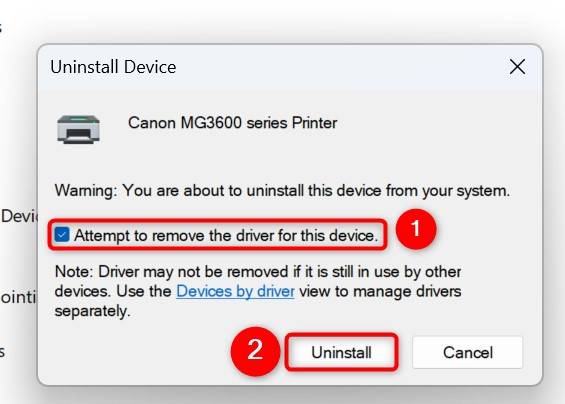
Leaving old driver files on your system often causes conflicts during reinstallation. You must delete the current setup entirely before attempting a fresh install to prevent corruption.
Uninstall Printer in Windows Settings
Start by removing the printer instance from your system settings. Navigate to Settings > Bluetooth & devices > Printers & scanners. Select your specific printer model and click Remove device. Confirm the action when prompted to delete the instance.
Clear Drivers via Device Manager
Removing the device icon does not always delete the underlying driver files. Press Win + X and select Device Manager to access deeper system controls. Expand the Print queues section to see all connected printing devices.
Right-click your printer name and choose Uninstall device. Check the box labeled Delete the driver software for this device if it appears. Repeat this step for any duplicate entries or unknown devices related to your printer brand.
Delete Print Spooler Files for Deep Clean
Stuck print jobs can mimic driver failure and block new installations. Press Win + R, type services.msc, and hit Enter to open the Services window. Locate Print Spooler in the list, right-click it, and select Stop.
Navigate to C:\Windows\System32\spool\PRINTERS using File Explorer. Delete every file inside this folder to clear temporary print data. Return to the Services window, right-click Print Spooler, and select Start to refresh the system.
Reinstall Driver Using Windows Update Methods
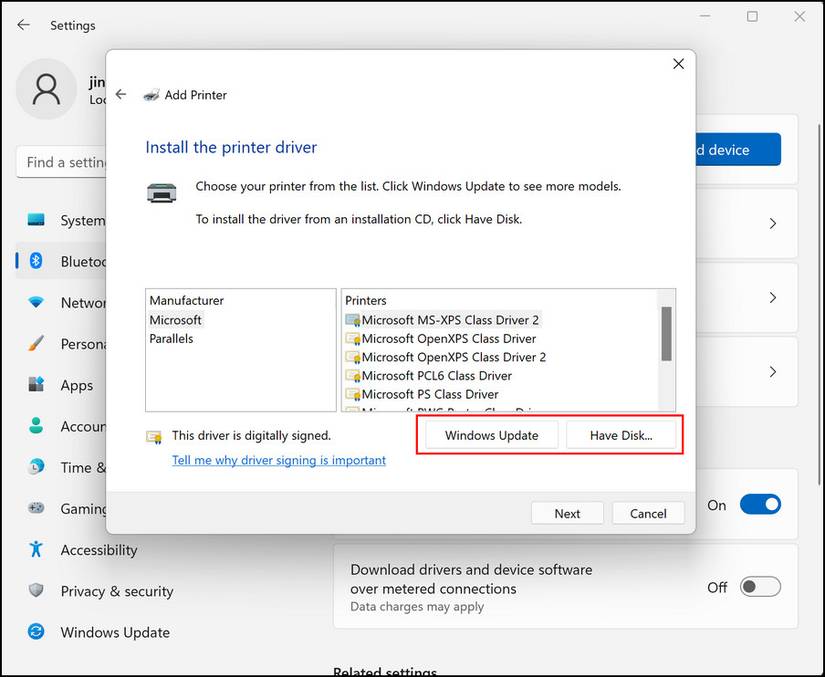
Windows Update provides the safest and fastest way to reinstall printer driver files for most users. Microsoft certifies these drivers to ensure stability with your current operating system version.
Use Built-in Hardware Detection
After removing the old printer, go back to Settings > Bluetooth & devices > Printers & scanners. Click the Add device button to start the search process. Wait while Windows scans for nearby printers on your network or USB connection.
When your printer appears in the list, select it immediately. Windows will automatically download and install the latest certified driver from its repository. This method minimizes compatibility risks and requires no manual file handling.
Force Driver Refresh via Optional Updates
If the automatic search fails, you may need to trigger a manual check. Go to Settings > Windows Update and click Check for updates. Look for an option labeled Advanced options followed by Optional updates.
Expand the Driver updates section if available. Find your printer model in the list and check its box. Click Download & install to force the system to retrieve and apply the specific driver package.
Download Driver from Manufacturer Website

Manual downloads are necessary when you need the latest features or if Windows Update cannot find your model. This method ensures you get the most recent software directly from the source.
Find Correct Model and OS Version
Check the physical label on your printer for the exact model number. Visit the official support website for your brand, such as hp.com or canon.com. Use their search tool to locate your specific model page.
Select your operating system version carefully, such as Windows 11 64-bit. Never download drivers from third-party sites, as they may contain malware or outdated files. Only official sources guarantee safe and updated software.
Install Full Software Suite with Admin Rights
Download the full driver and software package rather than the basic driver only. Right-click the downloaded .exe file and select Run as administrator to prevent permission errors. Follow the on-screen prompts to begin the installation wizard.
Choose your connection type, such as Wireless or USB, when asked by the installer. Connect the printer cable or confirm the network link when the software instructs you. Allow the process to finish completely and restart your computer if prompted.
Handle ARM-Based PCs and Copilot+ Devices
Standard installers often fail on devices with ARM processors, including new Copilot+ PCs. You must use a specific approach to reinstall printer driver software on these architectures.
Confirm ARM Architecture Before Installing
Go to Settings > System > About on your device. Look under “Device specifications” for the System type entry. If it reads “ARM-based processor,” you cannot use standard executable installers.
Use Windows Add Device Method Only
Avoid running .exe files downloaded from manufacturer sites on ARM devices. Instead, ensure your printer is powered on and connected to the same Wi-Fi network or via USB.
Navigate to Settings > Bluetooth & devices > Printers & scanners. Click Add device and wait for Windows to detect the hardware. The system will automatically install an ARM-compatible driver via Windows Update, avoiding architecture conflicts.
Reinstall on macOS Systems Correctly
Mac users often face printing issues after macOS updates break existing driver connections. Reinstalling the correct software restores full access to your printer features.
Remove Old Epson or Canon Software
Open Applications and look for any manufacturer utilities like Epson Software Updater. Delete these applications and empty your Trash to remove legacy components. Open System Settings and go to Printers & Scanners.
Select your printer and click the minus sign or Remove Printer button. This clears the current configuration and prepares the system for a fresh installation.
Install Updated macOS Driver
Visit the manufacturer support page and download the driver matching your current macOS version. Open the .dmg file and run the installer package. Follow the prompts to install the software and add the printer again.
Verify the installation by checking the Kind column in Printers & Scanners. It should display your specific model name, not “AirPrint,” to confirm advanced features are active.
Use Add Printer Driver Wizard for Legacy Models
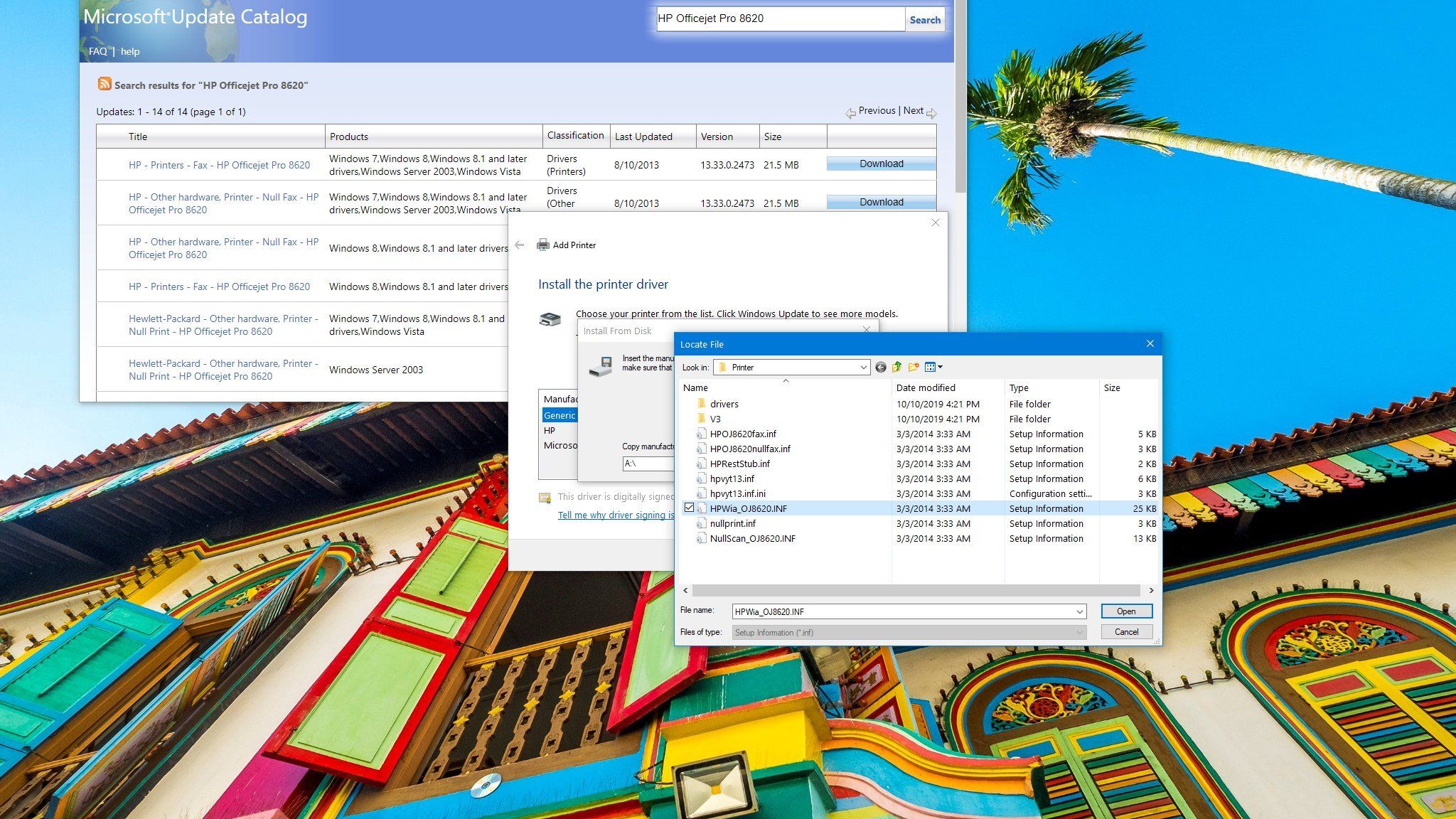
Older printers may not appear in automatic searches. The Add Printer Driver Wizard allows you to manually install driver files into the system store.
Access Driver Store Properties
Go to Settings > Devices > Printers & scanners. Scroll down to Related settings and click Printer server properties. Select the Drivers tab and click the Add button to launch the wizard.
Install from Windows Update Catalog
Click Next on the welcome screen and select your system architecture, usually x64. Click the Windows Update button to refresh the driver list. This process may take several minutes to download the latest catalog.
Select your manufacturer from the left column and your model from the right. Click Next and then Finish to install the driver files. You must still use the Add a printer function to associate the hardware with these newly installed files.
Verify Installation and Restore Functionality
Confirm that the reinstallation was successful by testing both basic and advanced features. This step ensures you are not running on a generic driver.
Test Basic and Advanced Features
Print a test page from Settings > Printers & scanners > Printer properties. Check specifically for color accuracy, duplex options, and tray selection capabilities. If these options are missing, you may still be using a generic driver.
Check Driver Version and Type
Open Device Manager, right-click your printer, and select Properties. Go to the Driver tab to verify the provider is the manufacturer and the date is recent. On Mac, ensure the Use dropdown shows the full driver name.
Prevent Future Driver Issues Proactively
Maintain your printer performance by following regular update habits. Proactive maintenance prevents most connectivity and quality issues before they start.
Update After OS Upgrades
Always reinstall printer driver software immediately after upgrading Windows or macOS. Major system changes often invalidate old drivers, leading to functionality loss.
Avoid Installation Discs
Never use the CD or DVD that came with your printer. These discs contain outdated software that will likely cause compatibility errors on modern systems. Always download the latest version online.
Monitor Windows 10 End-of-Life
Support for Windows 10 ends on October 14, 2025. After this date, no new security patches or driver updates will be available. Plan to upgrade to Windows 11 to maintain full printer support.
Frequently Asked Questions About Reinstalling Printer Drivers
Why should I reinstall my printer driver instead of just updating it?
Reinstalling removes corrupted files and registry entries that a simple update might miss. This clean slate approach resolves persistent errors and ensures all components are fresh.
Will reinstalling the driver delete my custom print presets?
Yes, driver reinstallation often resets settings to default. You will likely need to re-configure custom paper sizes, watermarks, and color profiles manually.
What if my printer is not listed on the manufacturer website?
If your model is very old, check the “Legacy” or “Support” sections of the site. If no driver exists, use the Windows Update method or the Add Printer Driver Wizard.
Can I use the installation disc that came with my printer?
No, discs contain outdated software that causes conflicts on modern operating systems. Always download the latest driver from the official website instead.
How do I know if I am using a generic driver?
Check the printer properties in Device Manager. If the provider is listed as Microsoft or the type says AirPrint, you are using a generic driver with limited features.
Key Takeaways for Reinstalling Printer Drivers Successfully
Reinstalling your printer driver resolves most connectivity, quality, and feature issues effectively. A clean removal of old files followed by a fresh install from official sources restores reliable performance. Always verify you are using the specific manufacturer driver to unlock full hardware capabilities.
Ensure you follow the correct method for your system architecture, especially on ARM-based devices. Regular updates after OS changes prevent future headaches and maintain optimal printing quality. Take action today to check your driver status and update if necessary.


