

Trying to print from your iPad but your printer won’t show up? You’re not alone. Many iPad users struggle with how to find printer on iPad when the device refuses to appear in the print menu. The solution depends largely on whether your printer supports AirPrint, Apple’s built-in wireless printing standard. This guide covers every method available, from native AirPrint setup to manufacturer apps and troubleshooting fixes. By the end, you’ll know exactly how to locate, connect, and print from your iPad successfully.
Confirm AirPrint Compatibility Before Anything Else
Your iPad can only detect printers that support AirPrint natively. If your printer lacks this feature, it simply won’t show up in the standard print options.
Check Apple’s Official AirPrint List
- Visit Apple’s AirPrint compatibility page.
- Search for your exact printer brand and model.
- If your model appears, it’s AirPrint-enabled and ready to connect.
Note: Printers like the Eason brand may not appear on this list. Without AirPrint support, the iPad’s native print menu cannot detect them.
What Happens If Your Printer Isn’t Compatible
You still have workable alternatives. Non-AirPrint printers require manufacturer apps, cloud printing services, or a computer as a bridge to function with your iPad.
Connect Both Devices to the Same Wi-Fi Network
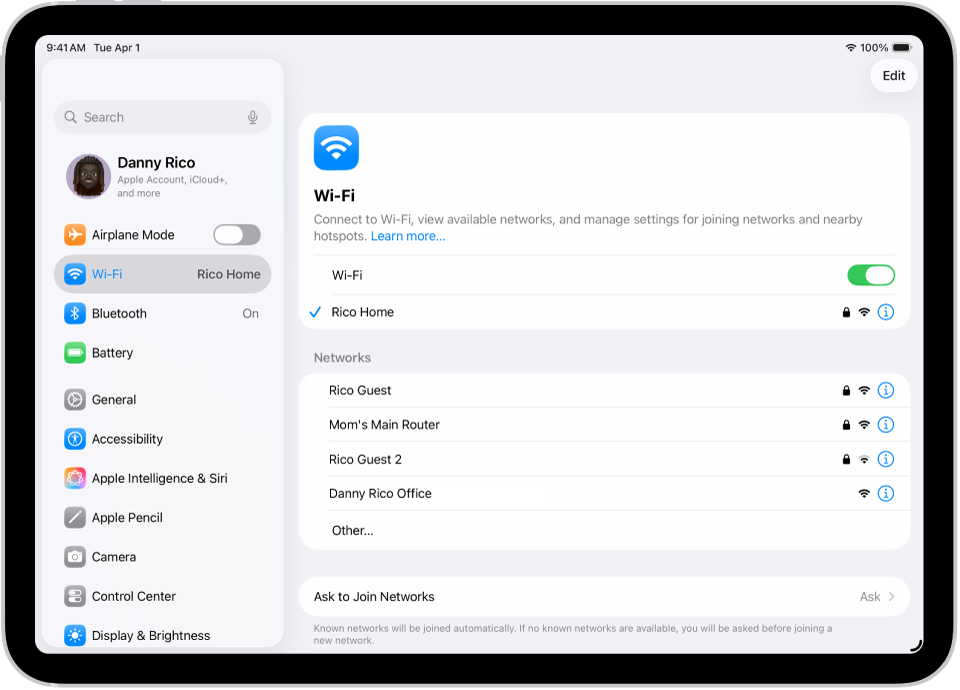
AirPrint discovery requires both your iPad and printer to share the same wireless network. Even a slight mismatch prevents detection.
Verify Your iPad’s Wi-Fi Connection
- Open Settings on your iPad.
- Tap Wi-Fi and confirm it’s toggled on.
- Check that your selected network matches the one your printer uses.
Pro Tip: Some older printers only support 2.4GHz networks. If your router broadcasts both 2.4GHz and 5GHz bands, ensure both devices connect to the same one.
Confirm Printer Network Status
- Restart your printer and wait 30 seconds.
- Print a test page from the printer’s control panel.
- Check the printer screen for Wi-Fi indicators or error messages.
How to Find Printer on iPad Through the Native Print Menu
Once compatibility and network are confirmed, locating your printer takes just a few taps.
Open the App and Access the Share Menu
- Launch the app you want to print from (Mail, Notes, Safari, etc.).
- Tap the Share button (square with an upward arrow).
- Scroll through the share options and select Print.
Select Your Printer
- The iPad automatically scans for AirPrint-compatible printers.
- Under Select Printer, tap your device when it appears.
- Adjust copies, page range, or color options as needed.
- Tap Print in the top-right corner.
Visual Cue: If the loading spinner spins endlessly under “Select Printer,” no compatible device was found. Proceed to troubleshooting.
Use Manufacturer Apps for Non-AirPrint Printers

When native AirPrint fails, manufacturer-designed apps fill the gap for most major printer brands.
Download the Correct App for Your Brand
| Printer Brand | Recommended App |
|---|---|
| HP | HP Smart |
| Canon | Canon PRINT |
| Epson | Epson iPrint |
| Brother | Brother iPrint&Scan |
| Samsung | Samsung Mobile Print |
Expert Note: Always download apps published by the printer manufacturer. Third-party “wireless printer” apps often lack proper support or bombard users with ads.
Set Up and Print Through the App
- Install the app and open it.
- Grant necessary permissions (Wi-Fi, local network, photos).
- Follow the on-screen setup wizard.
- Select your document or photo.
- Choose print settings and send the job.
Try a USB Connection as a Last Resort
USB printing works only in limited scenarios, but it can help users with older, non-wireless printers.
Gather the Required Adapters
- USB-C to USB adapter for iPad Pro models.
- Lightning to USB Camera Adapter for older iPads with Lightning ports.
- A standard USB-A to USB-B printer cable.
Connect and Test
- Plug the adapter into your iPad.
- Connect the USB cable from the adapter to the printer.
- Power on the printer.
- Open a document and attempt to print.
Warning: iPads do not support standard USB printing like computers. This method fails more often than it works unless both the printer and app explicitly support it.
Troubleshoot When Your Printer Won’t Show Up
Even with correct setup, printers sometimes vanish from detection. These fixes resolve most issues.
Restart Both Devices
- Power off your iPad and printer.
- Wait 30 seconds.
- Turn them back on and retry printing.
Why it works: A restart clears temporary communication errors between devices.
Forget and Rejoin the Wi-Fi Network
- Go to Settings > Wi-Fi.
- Tap the (i) icon beside your network.
- Select Forget This Network.
- Reconnect by re-entering the password.
Update Your Printer Firmware
- Visit the manufacturer’s website.
- Search for firmware updates using your exact model number.
- Install updates through a computer if required.
Example: Updating HP DeskJet 4200 series firmware often resolves known AirPrint bugs.
Verify Printer Readiness
Before printing, confirm that your printer is powered on, not in sleep mode, online, and loaded with paper and ink.
Print Using a Computer as a Bridge
If your printer connects to a Mac or PC, you can share it across your network for iPad access.
Share a Printer from Mac
- Open System Settings > Printers & Scanners.
- Select your printer from the list.
- Enable Share this printer on the network.
- On your iPad, reopen the print menu and look for the shared device.
Note: Both the Mac and iPad must connect to the same Wi-Fi network for sharing to work.
Use Cloud Services for Indirect Printing
When wireless options fail, cloud storage provides a reliable fallback.
- Upload your document to iCloud Drive, Google Drive, or Dropbox.
- Open the file on a computer with printer access.
- Print normally from that device.
This method works well for urgent print jobs when direct iPad printing isn’t possible.
Prevent Future Connection Problems
A few simple habits keep your iPad-to-printer connection stable over time.
Keep Software Current
- Update iPadOS through Settings > General > Software Update.
- Check for printer firmware updates annually.
Optimize Your Wi-Fi Setup
- Use 2.4GHz networks for older printers.
- Rename your 2.4GHz and 5GHz networks separately in router settings for easier management.
- Keep your iPad and printer within reasonable range of the router.
Frequently Asked Questions About Finding a Printer on iPad
Why is my printer not showing up on my iPad?
Your iPad can only detect AirPrint-compatible printers on the same Wi-Fi network. If your printer doesn’t support AirPrint or both devices are on different networks, it won’t appear in the print menu.
Can I print from iPad without AirPrint?
Yes. You can use manufacturer apps like HP Smart, Canon PRINT, or Epson iPrint. These apps communicate directly with printers even when AirPrint isn’t available.
Do all printers work with iPad?
No. Only AirPrint-enabled printers work with the iPad’s native print menu. Non-AirPrint printers require a manufacturer app, computer sharing, or a USB workaround.
How do I add a non-AirPrint printer to my iPad?
Download the printer manufacturer’s official app from the App Store. Install it, complete the setup, and use the app to send print jobs to your device.
Can I connect my iPad to a printer using USB?
Only if the printer and app explicitly support USB connectivity on iOS. You’ll need a USB-C or Lightning adapter. Most consumer printers do not support this method reliably.
What should I do if my HP 4200 series printer won’t connect?
Check whether your specific HP 4200 model supports AirPrint. If not, download the HP Smart app, which supports most modern HP printers including many in the 4200 series.
Final Takeaways for Connecting Your iPad to a Printer
Mastering how to find printer on iPad comes down to three essentials: AirPrint compatibility, shared Wi-Fi, and the right tools. Start by confirming your printer model on Apple’s compatibility list. If it’s supported, the native print menu handles everything in a few taps. For unsupported models, manufacturer apps like HP Smart or Canon PRINT offer reliable alternatives. Cloud services and computer sharing serve as dependable backups when direct methods fail.
Your next steps:
– Verify your printer’s AirPrint status today.
– Download the correct manufacturer app if needed.
– Test a simple print job to confirm everything works.
With the right setup, printing from your iPad becomes a quick, wireless, and frustration-free experience.


