

You have a brilliant idea for a custom toy or replacement part, but you need to know how to make a 3D model for printing to bring it to life. A digital design that looks perfect on your screen can fail instantly if it lacks proper wall thickness or contains hidden holes.
This guide walks you through selecting the right software, building watertight geometry, and fixing common mesh errors before you slice. You will learn specific techniques to ensure your first print succeeds without wasting time or material.
Choose the Right 3D Modeling Software for Your Skills
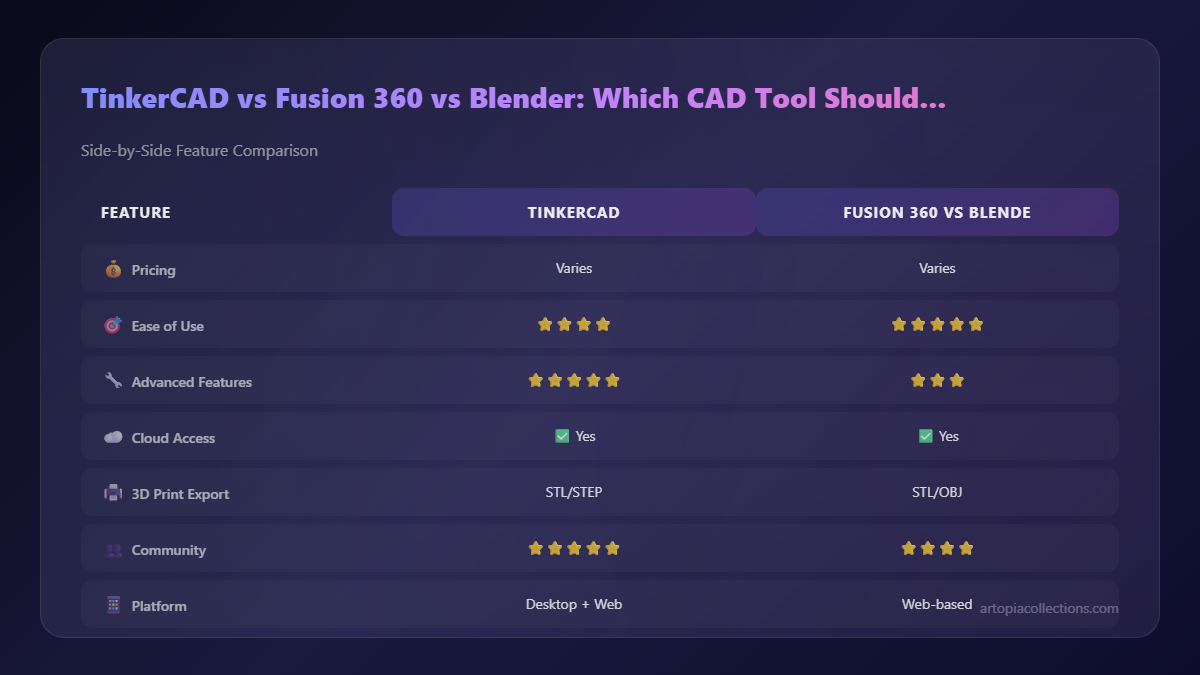
Your choice of software dictates how easily you can turn concepts into physical objects. The best tool depends on whether you need precise engineering measurements or organic artistic freedom.
Match Tools to Your Experience Level
Beginners should start with Tinkercad because it runs in a web browser and requires no installation. This platform uses simple drag-and-drop shapes like cubes and spheres that you can combine instantly.
Intermediate users often prefer Fusion 360 for mechanical parts or Blender for artistic sculptures. Fusion 360 excels at parametric design where changing one dimension updates the whole model automatically.
Advanced designers may use ZBrush for hyper-detailed creatures or Nomad Sculpt on tablets for mobile work. These tools mimic digital clay to let you shape models like a traditional sculptor.
Compare Top Modeling Tools Quickly
| Software | Best For | Price | Learning Curve |
|---|---|---|---|
| Tinkercad | Simple shapes and quick prints | Free | Very Low |
| Blender | Organic models and animation | Free | High |
| Fusion 360 | Engineering and assemblies | Free (hobby) | Medium |
| Nomad Sculpt | Mobile sculpting on tablets | $15 (iOS) | Low-Medium |
| SketchUp | Architectural designs | Free/Pro | Low |
Tinkercad is perfect for learning Boolean operations like cutting holes into solid objects. Blender gives you full control over every vertex for complex artistic work.
Start Modeling in Tinkercad Immediately
First-time users can create a printable file in minutes using this simple workflow.
- Open Tinkercad in your browser and create a new design project.
- Drag a cube or sphere onto the black grid workplane.
- Resize the shape using corner handles or type exact dimensions in the top menu.
- Add a second shape and set it to Hole to subtract material for eye sockets.
- Select both shapes and click Group to merge them into one object.
Use this method to build complex forms from simple parts like character bodies from spheres. Always group your final designs into a single object before exporting.
Build Models Using Proven Construction Methods
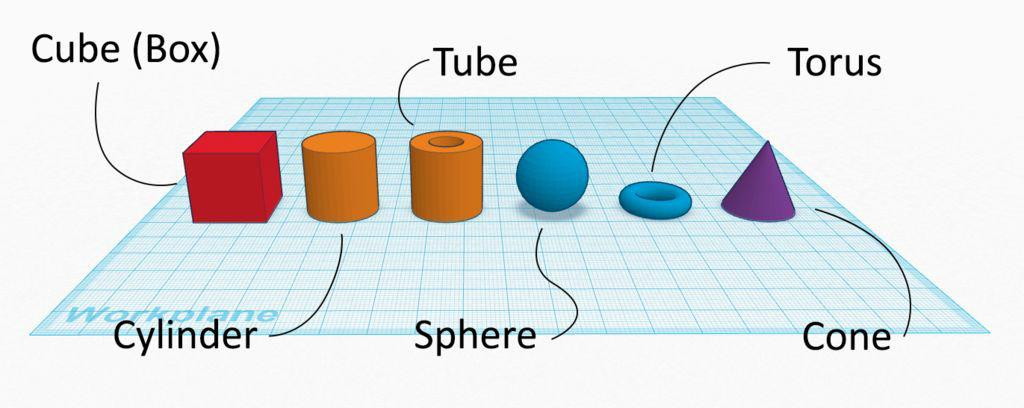
There is no single way to create a model, so your method must match your goal. You might need a functional part, a decorative figure, or a scanned object.
Combine Shapes in CAD Programs
This approach, called primitive construction, builds complex objects by adding and combining basic shapes.
Example: Design a Simple Figurine
1. Create a large sphere for the main body.
2. Add two smaller spheres, convert to Holes, and place them as eye sockets.
3. Insert tiny solid spheres inside the holes to serve as eyes.
4. Use cylinders for arms and legs, then duplicate and mirror for symmetry.
5. Add a cone for the nose and a half-cylinder for the mouth.
6. Group all elements into one printable mesh.
This method ensures watertight geometry which is critical for successful printing. Avoid leaving floating parts or ungrouped components in your scene.
Sculpt Organic Forms Digitally
For creatures, animals, or freeform art, sculpting mimics working with real clay.
In Blender:
* Press Tab to enter Edit Mode.
* Use E to extrude faces and Ctrl+B to bevel edges.
* Add detail with Sculpt Mode brushes like Grab and Smooth.
In Nomad Sculpt on iPad:
* Start with a default sphere base.
* Use the Pull brush to stretch features like ears.
* Switch to Smooth to refine rough surfaces.
* Add new parts via the “+” menu for horns or wings.
After sculpting, always check for mesh errors since a smooth screen look does not guarantee printability.
Design Parametric Parts Precisely
When precision matters for gears or interlocking pieces, use parametric modeling tools.
Steps:
1. Sketch a 2D profile like a circle for a wheel.
2. Use Extrude to give it depth.
3. Add constraints such as diameter equals 30mm.
4. Create a hole with a defined offset and size.
Now you can change any dimension later and the entire model updates automatically. This is invaluable for iterative design like refining a robot chassis.
Scan Real Objects as an Alternative
You can digitize existing objects if you cannot model them from scratch.
Use photogrammetry apps like Polycam or RealityCapture:
1. Take 20 to 50 photos of an object from all angles.
2. Upload to the app so it generates a 3D mesh.
3. Import the model into Meshmixer or Blender for repair.
Raw scans often have holes or noise that you must fix before printing. Fill holes and remove floating geometry to make the mesh watertight.
Ensure Your Model Is Print-Ready Before Exporting

A beautiful model is useless if it cannot print physically. Follow these technical rules to avoid failed prints and wasted filament.
Fix Mesh Errors Before Exporting
Your 3D model must be manifold, meaning it has a sealed surface with no holes.
Common issues include:
* Non-manifold edges where more than two faces meet.
* Holes in the mesh that break the print path.
* Inverted normals causing surfaces to face inward.
Fix them using Meshmixer by running “Analysis > Inspector” to auto-repair red dots. In Blender, use the 3D Print Toolbox add-on to detect and fix errors automatically.
Set Correct Wall Thickness and Clearances
Thin walls crack easily while tight parts may not fit together at all.
Minimum wall thickness should be 1.2 mm for PLA and 2 mm for larger TPU parts. Thinner walls may collapse during the printing process.
Clearance for moving parts requires 0.2–0.5 mm between parts that need to move. This accounts for slight expansion during printing.
Test with a clearance calibration cube to find your printer’s exact tolerance. Print a small model with slots and pins at different gaps to verify fit.
Use the Right Units and Scale
Always work in millimeters because most 3D printers and slicers use metric measurements. Mixing units causes scaling disasters.
In Blender:
* Go to Scene Properties > Units.
* Set unit system to Metric and scale to 1.0.
In Fusion 360:
* Dimensions are automatically metric unless changed manually.
* Double-check sketches before extruding.
Scale your model to real-world size before slicing since resizing in the slicer can distort proportions.
Export and Prepare for Slicing Correctly
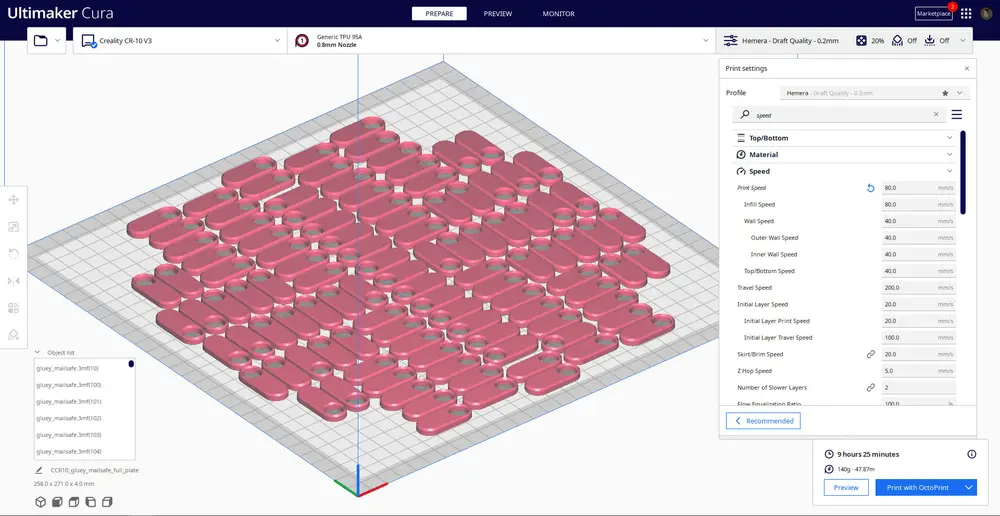
Once your model is complete and error-free, export it in a format your slicer can read.
Export as STL Standard Format
STL is the universal file type for 3D printing that converts your model into a mesh of triangles.
In Tinkercad:
* Click Export > STL.
* Download the file to your computer.
In Blender:
* Go to File > Export > STL.
* Check “Selection Only” if you have multiple objects.
In Fusion 360:
* Right-click the body in the browser.
* Select “Save as STL”.
Avoid OBJ or AMF unless you need color data since most FDM printers use single-color filament.
Import Into Slicing Software
Use Cura, PrusaSlicer, or Bambu Studio to convert your STL into G-code instructions.
Steps:
1. Open the slicer and import your STL file.
2. Position the model on the build plate.
3. Scale or rotate if needed for your build volume.
4. Enable support structures if overhangs exceed 45 degrees.
5. Set layer height, infill, and wall count.
Key settings include 0.1–0.3 mm layer height and 10–30% infill for light parts. Preview the layer view to spot potential issues before printing.
Optimize for Your Printer and Material Choice
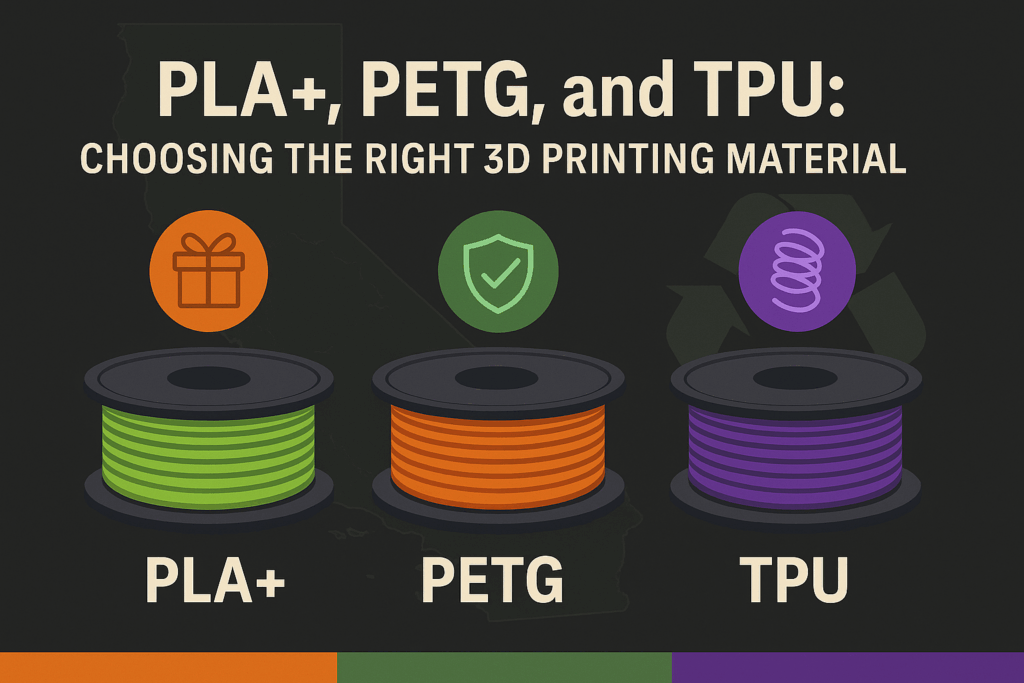
Not all models print the same way since your material and printer affect design decisions.
Select Filament Based on Use Case
| Material | Strengths | Best For |
|---|---|---|
| PLA | Easy to print, low warping | Decorations, prototypes |
| TPU | Flexible, shock-absorbing | Robot bumpers, phone cases |
| PETG | Durable, water-resistant | Functional parts, containers |
| Resin | High detail, smooth finish | Miniatures, jewelry |
For combat robots, use TPU for chassis to absorb impacts effectively. In Fusion 360, design thicker impact zones and test small sections first.
For figurines, resin (SLA) captures fine details like facial features perfectly. But you will need to clean and cure the print after printing.
Adjust Design for Printing Limits
Avoid these common pitfalls to ensure success:
* Overhangs > 45°: Add supports or redesign with chamfers.
* Bridges: Long horizontal spans may sag without support.
* Small details: Tiny spikes under 0.5 mm may not print well.
Use chamfers or ribs to strengthen joints in your design. A sharp 90° corner is a stress point so round it slightly.
Print, Test, and Refine Your Design
Even a perfect model may need adjustments before the final version. Always test before committing to a large print.
Run a Small Test Print First
Print at 25–50% scale to check fit and detail visibility. This helps you evaluate interlocking parts and confirm support placement.
If a joint is too tight, increase clearance by 0.1 mm and reprint. If a detail is fuzzy, adjust layer height or redesign the feature.
Analyze and Iterate Quickly
After the test print, analyze the results carefully:
* Too loose? Decrease gap size slightly.
* Parts won’t separate? Increase clearance to 0.5 mm.
* Warping? Improve bed adhesion with glue or heat.
* Layer shifting? Check printer belt tension.
Each test teaches you something new about your specific setup. Update your model and re-export the STL for the next attempt.
Finalize with Post-Processing
Once printed, refine the object for a professional look:
1. Remove supports with pliers or flush cutters.
2. Sand with 200–600 grit paper to smooth layers.
3. Prime with spray paint to reveal hidden flaws.
4. Paint using acrylics or airbrush for final details.
For Gengar-style figures, prime white, mask eyes, paint body purple, then add black details. This workflow turns your digital idea into a reliable reality.
Frequently Asked Questions About 3D Modeling
What is the best free software to make a 3D model for printing?
Tinkercad is the best free option for beginners because it runs in a browser and uses simple drag-and-drop shapes. Blender is the top free choice for advanced users needing organic sculpting tools.
How thick should walls be when I make a 3D model for printing?
You should aim for a minimum wall thickness of 1.2 mm for PLA filament to ensure structural integrity. Larger TPU parts may require 2 mm walls to prevent collapse during printing.
Why does my 3D model fail to slice or print?
Your model likely has mesh errors like holes, non-manifold edges, or inverted normals. Use repair tools in Meshmixer or Blender to make the mesh watertight before exporting.
What file format do I need to export for 3D printing?
STL is the universal standard format for 3D printing because it works with almost all slicers and printers. Export your model as an STL unless you specifically need color data.
How much clearance do moving parts need in a 3D model?
Leave a gap of 0.2 mm to 0.5 mm between parts that need to move relative to each other. This clearance accounts for material expansion and printer inaccuracies.
Key Takeaways for Making a 3D Model for Printing
Creating a successful print starts with choosing the right software for your skill level and project goals. Always ensure your mesh is watertight, set proper wall thickness, and include necessary clearances for moving parts.
Test your designs at a small scale before committing to a full print to save time and material. Iterate on your model based on test results to achieve the perfect fit and finish.
Start with simple shapes in Tinkercad if you are new, then move to Blender or Fusion 360 as your skills grow. Your next great invention is just a few clicks away.


