
You need to print a document immediately, but your computer cannot find the printer. This common issue often stems from a missed step in the initial network configuration or a simple driver conflict. Connecting to a wireless printer does not require technical expertise if you follow the correct sequence for your specific device model.
This guide explains exactly how to connect to a wireless printer using built-in screens or USB temporary setups. You will learn to add the device to Windows, troubleshoot offline status errors, and optimize settings for mobile access. Follow these steps to restore your printing capabilities quickly.
Configure Printer Wi-Fi Connection

Your printer must join your home Wi-Fi network before your computer can detect it. The method varies depending on whether your specific model features a built-in display screen.
Connect via Built-in Display
Printers with screens allow you to input network credentials directly on the control panel.
- Press the Settings button on the printer interface.
- Navigate to Network Settings or Network Connection.
- Select Wi-Fi Setup or Network Setup Wizard.
- Wait for the device to scan and list available wireless networks.
- Choose your home network name from the displayed list.
- Enter your Wi-Fi password carefully, noting capitalization and symbols.
- Confirm the entry and wait for the success message.
The printer will test the connection and display a confirmation once linked. It may offer to print a network configuration page containing your IP address.
Pro Tip: Print the network configuration page immediately. It contains your IP address and signal strength, which are vital for troubleshooting later.
Set Up Without a Screen
Models without displays require a temporary USB cable connection to transfer Wi-Fi credentials.
- Plug one end of a USB cable into your computer and the other into the printer.
- Install the printer software using the included CD or a download from the manufacturer.
- Run the setup wizard included in the software package.
- Follow the on-screen prompts to select Wireless Setup or Wi-Fi Connection.
- Allow the software to detect your network and transfer the settings to the printer.
- Disconnect the USB cable once the setup confirms success.
Your printer is now part of the network and ready for wireless discovery by any device.
Warning: Do not skip installing the full software suite. Drivers and utilities ensure scanning functions and mobile printing work correctly.
Add Printer to Windows Computer

Once the printer shares the same Wi-Fi network as your PC, you must add it to your system settings. Windows usually detects new devices automatically.
Use Automatic Detection
This method works for most modern printers with up-to-date drivers.
- Open the Start menu on your taskbar.
- Go to Settings > Devices > Printers & scanners.
- Click the Add a printer or scanner button.
- Wait 10 to 30 seconds while Windows searches the network.
- Click your printer name when it appears and select Add device.
Windows will download necessary drivers and confirm the installation. You should see a “Printer added successfully” message.
Manual Setup: Printer Not Found?
Use this method if automatic detection fails or if you need to specify an IP address.
- Click The printer that I want isn’t listed in the addition window.
- Select Add a printer using a TCP/IP address or hostname.
- Enter the printer’s IP address found on your configuration page.
- Click Next to let Windows detect the port.
- Install the driver by selecting the manufacturer and model from the list.
- Name the printer and choose whether to set it as default.
- Click Finish to complete the process.
Common mistake: Entering an incorrect IP address. Always verify the numbers on your network configuration page before proceeding.
Troubleshoot Connection Issues
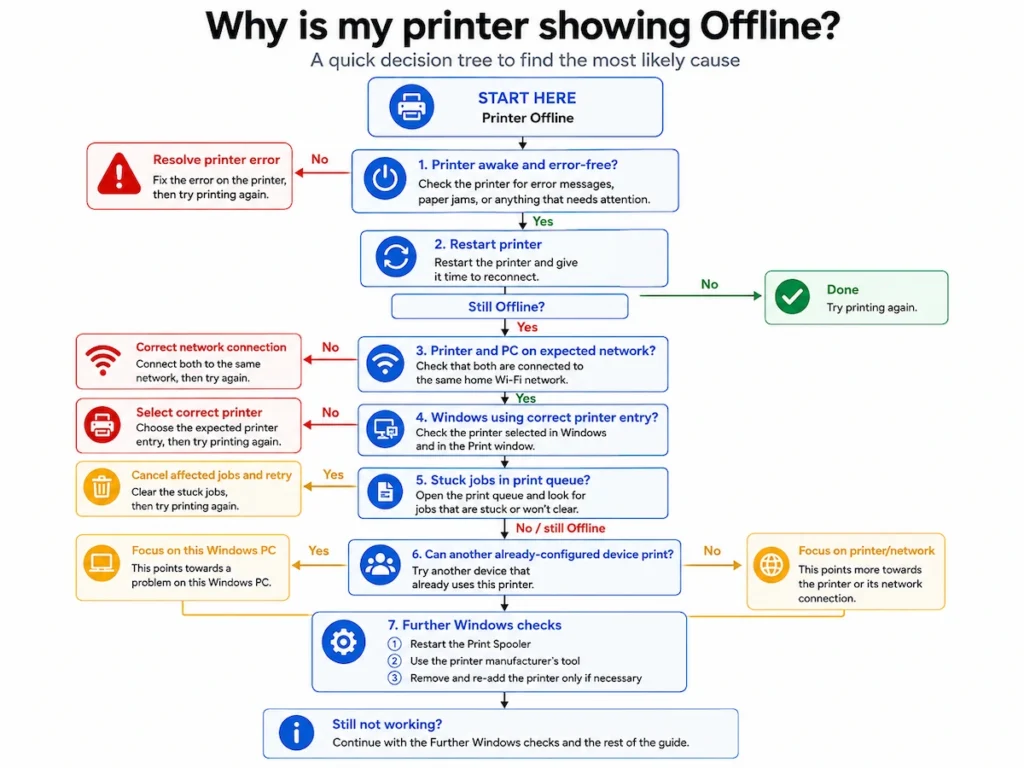
Wireless printers sometimes appear offline even after correct setup. These steps resolve the most frequent connectivity errors.
Printer Offline? Check These First
Basic power and network checks solve most connection failures immediately.
- Ensure the printer is powered on and not in sleep mode.
- Verify both devices are on the same Wi-Fi network name.
- Restart your router and printer to refresh the connection.
- Check that the Wi-Fi light on the printer is solid, not flashing.
A flashing light usually indicates a weak signal or incorrect password entry.
Fix “Driver Unavailable” Errors
Missing drivers prevent Windows from communicating with the hardware effectively.
- Go to Settings > Devices > Printers & scanners.
- Click the printer and select Remove device.
- Re-add the printer using the TCP/IP manual method.
- Select Generic / Text Only if prompted, then install the specific driver from the manufacturer website.
Downloading the full feature driver from the official site often resolves compatibility glitches better than Windows defaults.
Clear Print Queue Conflicts
Stuck jobs in the queue can block new documents from printing.
- Open Control Panel > Devices and Printers.
- Right-click your printer and choose See what’s printing.
- Click Printer in the menu bar and select Cancel All Documents.
- Restart the Print Spooler service via
services.mscif issues persist.
Try printing a test page after clearing the queue to verify functionality.
Optimize for Mobile and Remote Printing

Extend your setup beyond the computer to include smartphones and tablets.
Use Manufacturer Apps
Dedicated apps provide enhanced control over your wireless printer features.
- HP Smart for HP printers.
- Canon PRINT Inkjet/SELPHY for Canon devices.
- Epson Print & Scan for Epson models.
- Brother iPrint&Scan for Brother units.
These applications allow printing from cloud storage and monitoring ink levels remotely.
Enable Cloud Printing Options
While Google Cloud Print is discontinued, manufacturers offer their own remote solutions.
Services like HP ePrint or Epson Connect allow printing via email or specialized apps from anywhere. Set these up through the manufacturer’s website or companion app. Ensure you trust your network security before enabling remote access features.
Maintain Stable Wireless Connection
Prevent future disconnections by optimizing your network environment and printer settings.
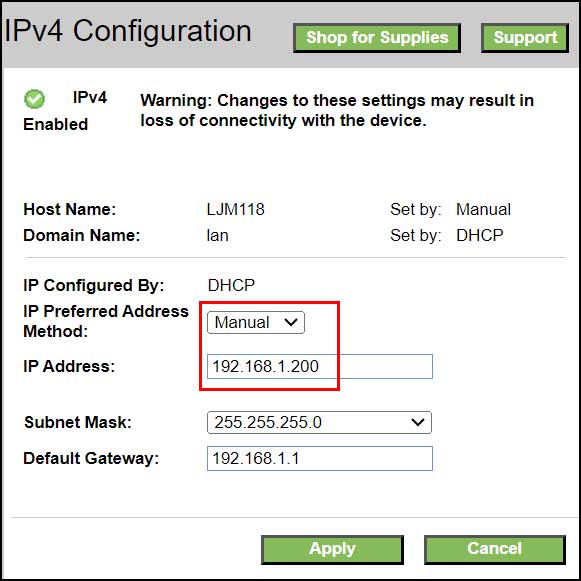
Assign a Static IP Address
Dynamic IP addresses can change after router reboots, breaking your computer connection.
- Access network settings on your printer display or web interface.
- Change IP assignment from DHCP to Manual or Static.
- Enter an IP address outside your router’s DHCP range.
- Input the correct Subnet Mask and Gateway details.
- Save changes to lock the address permanently.
This ensures your computer always finds the printer at the same digital address.
Update Firmware Regularly
Manufacturers release updates to fix bugs and improve wireless stability.
Check for updates via the printer Settings menu or the companion app. You can also visit the manufacturer support website for the latest files. Set a reminder to check for firmware updates every few months.
Reduce Network Interference
Physical obstacles and electronic devices can disrupt Wi-Fi signals.
- Keep the printer within 15 to 30 feet of the router.
- Avoid placing the printer near microwaves or cordless phones.
- Use the 2.4 GHz band for better range compatibility with printers.
Most printers perform better on 2.4 GHz networks due to their longer range through walls.
Key Takeaways for Connecting to a Wireless Printer

Successfully learning how to connect to a wireless printer requires ensuring both devices share the same network and have updated drivers. You must configure the printer Wi-Fi settings first, then add the device through your computer settings using automatic or manual methods. Regular maintenance like clearing print queues and updating firmware keeps the connection stable.
Run through the checklist of power status, network alignment, and driver installation if issues arise. With your printer now configured for wireless operation, you can print documents from any device on your home network. Start by printing a test page to confirm everything is working perfectly.
Frequently Asked Questions About Wireless Printer Setup
Why won’t my computer find my wireless printer?
Your computer and printer likely reside on different networks or the printer is in sleep mode. Ensure both devices connect to the exact same Wi-Fi name and restart both the router and printer to refresh the connection.
Do I need a USB cable to set up a wireless printer?
You only need a USB cable if your printer lacks a display screen for entering Wi-Fi passwords. Models with screens allow direct wireless setup, while those without require a temporary USB connection for initial configuration.
How do I find my printer IP address?
Print a network configuration page from your printer menu to see the current IP address. You can also find this information in the network settings section of the printer display or the connected device list on your router.
Can I print from my phone to a wireless printer?
Yes, you can print from smartphones using manufacturer apps like HP Smart or Canon PRINT. Ensure your phone connects to the same Wi-Fi network as the printer for these apps to detect the device automatically.
What should I do if the printer says “Driver Unavailable”?
Remove the printer from your device list and reinstall it using the manual TCP/IP method with the correct IP address. Download and install the latest full-feature driver directly from the manufacturer official website to resolve compatibility errors.


