Nothing disrupts your workflow like a faded printout or an alert flashing “Replace Toner.” If you own a Brother printer, the good news is that changing toner in a Brother printer is a quick, user-friendly process you can complete in just a few minutes. Whether you use a monochrome laser or a full-color MFC model, doing the job correctly protects your hardware and keeps your prints sharp.
In this guide, you’ll learn model-specific tips, avoid common mistakes like leaving the corona wire tab out of position, and discover why genuine Brother toner and proper handling make all the difference. Let’s get your printer back to peak performance.
Prepare Your Workspace and Cool the Printer
Before touching any components, set up your workspace and give the printer time to cool. A few simple prep steps prevent burns, toner spills, and damage to sensitive parts.
Power On and Let Internal Parts Cool
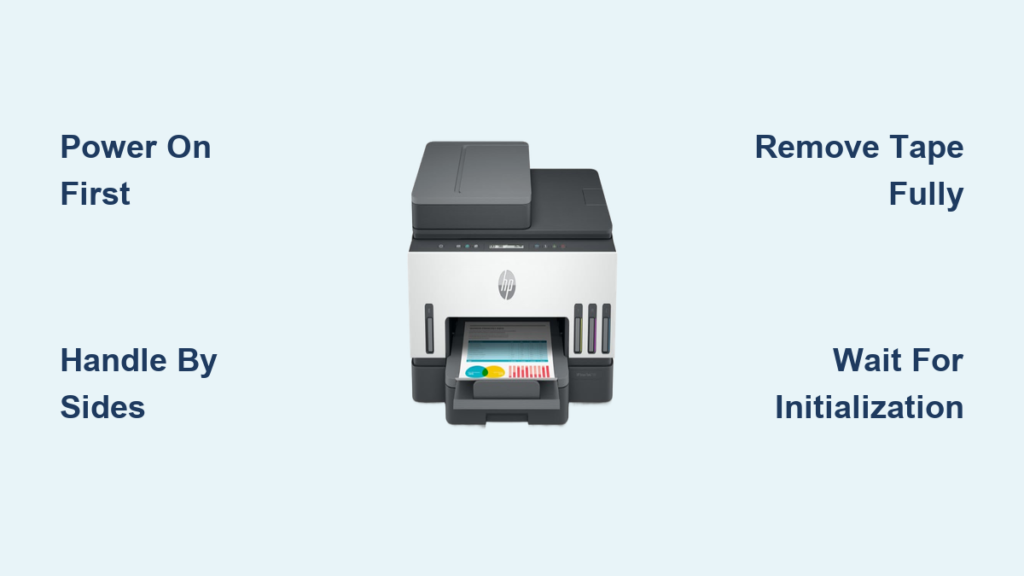
Keep the printer powered on before opening the cover. If the machine was recently printing, wait 10 minutes with the front cover open so the internal fan can cool down hot components. Brother explicitly warns that internal parts may be extremely hot after use, creating a burn risk.
Protect Your Surface and Avoid Static Damage
Place a sheet of disposable paper or cloth under your work area to catch accidental toner leaks. Also, avoid touching the electrodes inside the drum unit. Static electricity from your fingers can damage sensitive components. Stick to the provided handles and guides when handling parts.
Remove the Drum and Toner Assembly
Accessing the toner requires removing the drum unit with the toner cartridge still attached. The exact method depends on your model’s cover design.
Open the Front or Top Cover
- Front cover models (e.g., HL-L series): Pull the front cover down until it clicks open.
- Top cover models (e.g., MFC-L series): Lift the top cover until it locks in the open position.
Once open, remove the drum unit and toner cartridge assembly as one piece. For color printers, check the LCD display. It shows which color needs replacement, and you should only remove that specific drum and toner unit.
Place the Assembly on a Safe Surface
Set the removed unit on your prepared paper or cloth, drum side up. Keep it level and avoid shaking it. This prevents scratching and toner leakage.
Take Out the Used Toner Cartridge

Now that the assembly is out, you can separate the old toner cartridge from the drum unit.
Release the Green Lock Lever
Locate the green lock lever on the right side of the drum unit. Press it down firmly and pull the toner cartridge straight out. Keep the unit horizontal during removal to prevent toner from spilling.
Dispose of the Old Cartridge Properly
Place the used toner in the aluminum bag included with your new cartridge. This minimizes environmental impact and keeps your space clean. Recycle according to local regulations. Brother supports eco-friendly disposal and offers return programs in some regions.
If toner gets on your skin or clothing, wash it off immediately with cold water for the best results.
Unpack and Prepare the New Toner Cartridge
Installing the new toner correctly is crucial for print quality and cartridge longevity. Follow these steps in the right order.
Unpack Only When Ready
Wait to open the new toner until the moment of installation. Leaving it unpacked too long exposes the toner to air and light, which can shorten its lifespan. Once opened, hold the cartridge level with both hands and gently rock it side to side five or six times. This evenly distributes the toner powder inside and prevents patchy prints.
Remove the Protective Cover
After shaking, slide off the plastic or paper protective cover, usually a strip across the bottom or side of the cartridge. Do this after shaking, not before.
Pro Tip: In color printers, match the color label on the toner cartridge (cyan, magenta, yellow, or black) to the same-colored label inside the printer.
Install the New Toner Into the Drum Unit

With the new cartridge prepared, it’s time to attach it to the drum unit.
Insert Until It Clicks
Align the new cartridge with the drum unit and push it in firmly until you hear it click or lock into place. The green lock lever should rise automatically when properly seated. If it doesn’t lift, the cartridge isn’t fully inserted. Remove it, recheck alignment, and try again.
Verify Proper Seating
Make sure the toner cartridge is correctly oriented, or it may separate from the drum unit during printing. A solid click and a raised green lever confirm correct installation.
Clean the Corona Wire
A dirty corona wire causes vertical stripes or streaks on prints. Cleaning it during every toner change takes seconds and prevents frustrating print defects.
Slide the Cleaning Tab
Locate the green or blue cleaning tab on the drum unit (color varies by model). Gently slide it from side to side several times, right to left and back again. Use smooth, even motions without forcing it. For color printers, repeat this for all corona wires.
Return the Tab to the Home Position
This step is critical: slide the tab back to the home position (▲). The arrow on the tab must align with the arrow on the drum unit. If left out of position, your prints will show dark vertical lines.
Warning: Skipping this step is the most common cause of post-replacement print defects.
Reinstall the Assembly Into the Printer
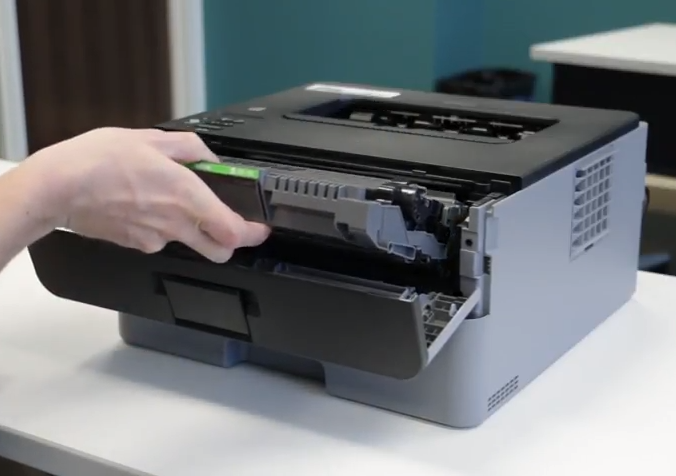
With the new toner secured and the corona wire cleaned, you’re ready to return the unit to the printer.
Slide the Unit Back In
Hold the drum and toner assembly by the handles and align it with the tracks inside the printer. Push it in gently but fully until it stops. For color models, ensure the color label matches the slot (yellow toner in the yellow station, and so on).
Close the Cover Securely
- Front cover models: Close the front cover until it latches.
- Top cover models: Lower the top cover completely.
A loose cover can trigger error messages or prevent printing, so make sure it’s fully closed.
Finalize and Verify the Installation
The job isn’t done until the printer recognizes the new toner and completes its internal cycle.
Wait for “Ready” Mode
After closing the cover, the printer may display “Please Wait” or cycle through internal checks. Do not turn off the printer or reopen the cover during this time. Wait until the screen shows “Ready”. This confirms the new toner is recognized and the machine is calibrated.
Run a Test Print
Print a test page to verify everything is working:
- No streaks or smudges
- Full color coverage (if applicable)
- Clear text and images
If issues appear, double-check the corona wire tab position and toner seating first.
Troubleshoot Common Toner Issues
Even with careful installation, problems can sometimes occur. Here’s how to fix them fast.
Vertical Stripes on Printouts
- Cause: Corona wire cleaning tab not in the home position.
- Fix: Open the cover, remove the drum unit, and realign the tab arrow with the ▲ mark.
Toner Cartridge Won’t Click Into Place
- Cause: Misalignment or protective cover still attached.
- Fix: Recheck that the cover is removed, then insert slowly with even pressure until you hear the click.
Print Quality Is Faint or Patchy
- Cause: Toner not distributed evenly inside the cartridge.
- Fix: Remove the cartridge and shake it again before reinserting. Also, consider switching to genuine Brother toner. Third-party cartridges may deliver inconsistent results.
Choose Genuine Supplies for Best Results
Brother does not block third-party toner through firmware updates. However, using genuine Brother toner ensures:
- Optimal print quality
- Reliable page yield
- No risk of leaks or drum damage
- Full warranty protection
While third-party options exist, they may lead to toner smears, poor adhesion, or drum unit damage over time.
Avoid Common Mistakes That Damage Your Printer
A few simple habits will keep your Brother printer running smoothly for years.
Always Cool the Machine First
Rushing to replace toner right after printing can result in burns from hot fuser components. Always wait 10 minutes if the printer was active.
Don’t Leave Toner Unpacked
Remove the new toner from packaging only when ready to install. Prolonged exposure to air and light degrades toner quality.
Never Touch Critical Components
Avoid touching:
- The drum surface (oils from skin cause print defects)
- The electrodes (risk of static damage)
- The corona wire (fragile and easily damaged)
Frequently Asked Questions About Changing Brother Toner
How long does it take to change toner in a Brother printer?
The entire process takes about 10 to 15 minutes, including the 10-minute cooling period if the printer was recently in use. The actual hands-on work is just a few minutes.
Do I need to turn off my Brother printer before changing the toner?
No. Brother recommends keeping the printer powered on when changing toner. Turning it off can interrupt the internal cooling cycle and may cause errors.
Where is the corona wire on a Brother printer?
The corona wire is located inside the drum unit. You access it after removing the drum and toner assembly from the printer. Look for the small green or blue cleaning tab on the side of the drum unit.
Why are there vertical stripes on my prints after changing toner?
Vertical stripes almost always mean the corona wire cleaning tab is not in the home position. Open the printer, remove the drum unit, and slide the tab back until the arrows align with the ▲ mark.
Can I use third-party toner in my Brother printer?
Yes. Brother firmware updates do not block third-party cartridges. However, genuine Brother toner delivers the most consistent print quality, full page yield, and warranty protection.
How do I know which color toner to replace on a Brother color printer?
Check the LCD display on your printer. It indicates which color toner is low or empty. Only remove and replace that specific color’s drum and toner assembly.
Key Takeaways for Changing Toner in Your Brother Printer
Replacing toner in your Brother printer is a simple, self-service task when done correctly. Always power on the printer, wait 10 minutes for cooling if needed, and work on a protected surface. Shake the new cartridge five or six times before installing, insert it until you hear a click, and always return the corona wire tab to the home position (▲) before closing the cover. For best results, use genuine Brother supplies and follow the model’s specific cover-opening instructions.
Bookmark this guide for your next toner change, and visit Brother’s official support page for model-specific videos and replacement cartridges. With these steps, you’ll enjoy crisp, reliable prints every time.