

Running low on ink mid-project is frustrating. Many Epson printer owners deal with this exact issue, especially when an unexpected low-ink alert halts a print job. The good news: refilling an Epson EcoTank printer is designed to be clean, simple, and user-friendly.
This guide shows you exactly how to put ink in Epson printer models with refillable tanks. You will learn how to match ink colors, avoid common refilling mistakes, and keep your printer running smoothly. By the end, you will be able to refill your ink tanks confidently and without mess.
Open the Ink Tank Cover
Start by turning on your Epson printer and waiting for it to reach an idle state. The ink tank compartment is usually located on the front of the printer, but the exact position depends on your model.
Once the printer is ready:
– Lift the ink tank cover gently
– Allow the print head to move automatically to the refill position
– Avoid forcing the cover or moving the print head manually
After opening, you will see several color-coded ink tanks. Each one is labeled clearly to indicate which color it holds.
Match the Ink Bottle to the Correct Tank

Why color matching matters:
Pouring the wrong ink into a tank can cause serious print quality problems. Always verify the colors before refilling.
Each ink tank has a color label that matches the ink bottle cap. Common colors include:
– Black
– Cyan
– Magenta
– Yellow
Open only the cap of the tank you need to refill. Leave the others sealed to prevent dust or accidental spills.
Pro tip: If multiple tanks are low, refill one at a time. This reduces the risk of cross-contamination or misplaced caps.
Remove the Ink Bottle Cap Safely
Hold the ink bottle upright at all times. Slowly twist the cap counterclockwise to remove it.
What to avoid:
– Squeezing the bottle
– Shaking the bottle
– Touching the top of the bottle after removing the cap
The bottle tip is designed to fit only into its matching tank. This keyed design prevents incorrect color placement, so you do not need to force anything.
Safety reminder: Wear disposable gloves to keep your hands clean. If ink contacts your skin, wash it off immediately with soap and water.
Insert the Bottle Into the Tank Port
Align the top of the bottle with the slot in front of the filling port. The shape ensures a perfect fit for the correct color.
Then:
– Slowly stand the bottle upright
– Let gravity pull the ink into the tank
– Do not squeeze the bottle
The ink will flow smoothly and stop automatically when it reaches the upper line. This process usually takes 1–2 minutes per tank.
Visual cue: Watch the side of the tank as ink rises. If flow stops early, lift the bottle and reinsert it to restart the process.
Avoid Common Refilling Mistakes
Even experienced users can make small errors during refilling. Watch out for these frequent issues:
- Forcing the bottle into the slot
- Overfilling past the upper line
- Leaving tank caps open after refilling
- Using non-genuine ink, which may damage print heads
If ink spills on the printer, wipe it immediately with a damp, lint-free cloth. Dried ink can cause permanent staining.
Seal the Tank and Store Leftover Ink
When the tank is full, remove the bottle and close the tank cap tightly. Listen for a light click to confirm a proper seal.
For leftover ink:
– Replace and tighten the bottle cap
– Store the bottle upright
– Keep it in a cool, dry place away from sunlight
Note: Genuine Epson ink can last up to two years when sealed and stored correctly. Never transfer ink to another container, as this increases the risk of contamination.
Close the Cover and Let the Printer Reset
After refilling all needed tanks, close the ink tank cover completely. The printer will begin priming the ink system, which takes about 1–2 minutes.
This process is normal and helps the printer recognize the new ink levels. Avoid opening the cover or printing during this time.
Verify Ink Levels on Screen or App
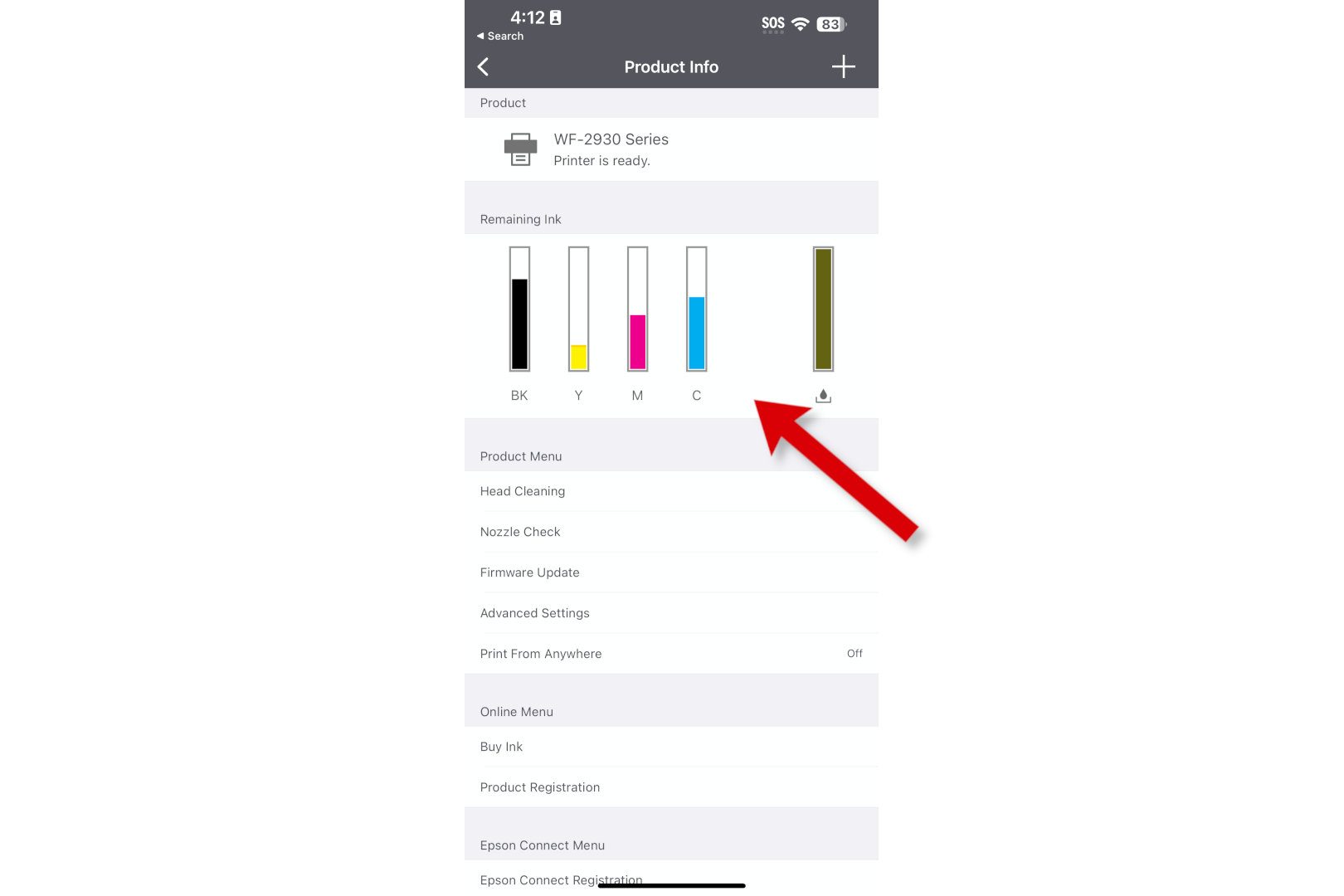
Once the printer resets, check the ink levels to confirm the refill was successful.
On models with a display:
– Look for the ink level confirmation screen
– Make sure each refilled tank shows “Full” or “High”
On connected devices:
1. Open the Epson Smart Panel app or Epson Status Monitor
2. Select your printer
3. View the ink level chart
Troubleshooting tip: If a tank still shows empty, power cycle the printer. Turn it off, wait 10 seconds, then turn it back on. This often refreshes the sensor readings.
Keep Your Hands and Workspace Clean
Ink stains are difficult to remove once they dry. A few simple precautions go a long way:
- Wear disposable gloves during refilling
- Place a paper towel or tray under the printer
- Keep ink bottles out of reach of children and pets
If ink contacts your eyes, flush them immediately with water. If ingested, spit it out and seek medical attention right away. Always follow the safety instructions in your printer manual.
Refill Frequency and Ink-Saving Tips
How often you refill depends on your printing habits. Light users may refill every few months, while heavy users may need to refill more often.
To maximize ink life:
– Use “Draft” or “Economy” mode for everyday printing
– Avoid unnecessary borderless photo prints
– Run nozzle checks only when print quality drops
Epson EcoTank printers are designed to print thousands of pages per ink set, making refills both rare and affordable.
Frequently Asked Questions About Refilling Epson Printers
Can I use non-Epson ink in my Epson printer?
It is not recommended. Third-party inks may clog the print heads, reduce print quality, or void your warranty. Genuine Epson ink is specifically formulated for your printer.
How long does it take to refill Epson ink tanks?
Refilling a single tank usually takes 1–2 minutes. Refilling all tanks and closing the cover adds another minute or two for the printer to reset.
What happens if I spill ink on my Epson printer?
Wipe it immediately with a damp, lint-free cloth. If ink dries on the surface, it may stain permanently. Always work over a paper towel for extra protection.
Do I need to turn off my printer before refilling?
No. In fact, Epson recommends keeping the printer powered on so the print head moves to the correct refill position automatically.
How do I know when my Epson printer needs more ink?
Most Epson printers display a low-ink warning on the screen or through the Epson Smart Panel app. You can also check ink levels manually at any time.
Can I store leftover ink for future use?
Yes. Seal the bottle tightly and store it upright in a cool, dry place. Properly stored Epson ink can remain usable for up to two years.
Key Takeaways for Refilling Your Epson Printer
Refilling your Epson printer is straightforward when you follow the right steps. Always match ink colors carefully, insert the bottle gently, and let the ink flow naturally to the upper line. Avoid forcing caps, overfilling tanks, or using third-party ink.
For the best results, use genuine Epson ink and keep your workspace clean. Bookmark this guide so you can return to it whenever your printer runs low. With the right technique, you will enjoy reliable, high-quality prints for years to come.


