
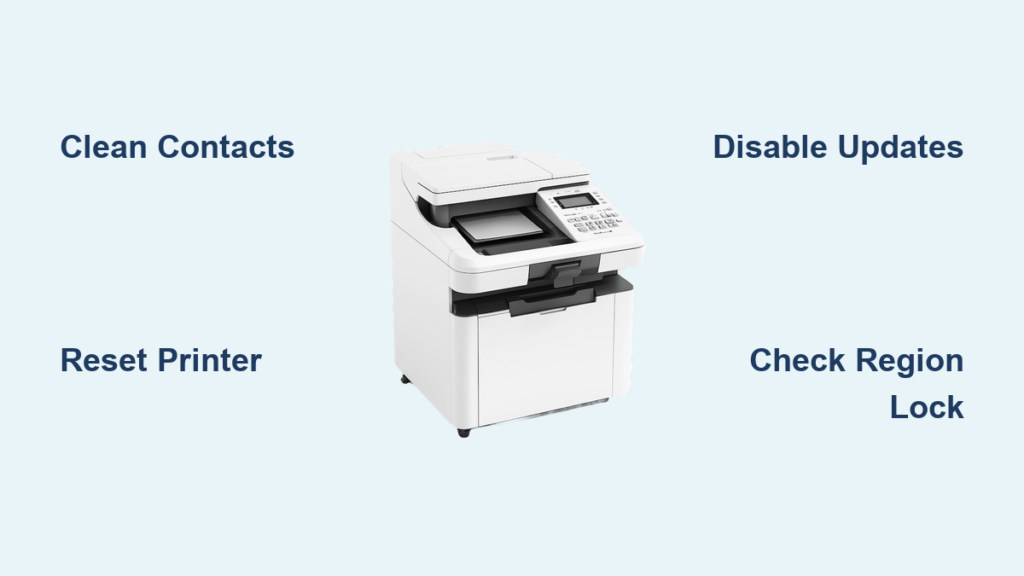
You installed a fresh ink cartridge only to see your HP printer flash “Incompatible” or “Counterfeit Detected.” This frustrating error locks your device and stops all printing tasks immediately.
This guide explains how to bypass HP printer cartridge error messages using proven resets, cleaning methods, and firmware tweaks. You will learn to fix region locks and restore functionality without buying new ink.
Perform a Hard Power Reset to Clear Glitches

Temporary memory corruption often causes false cartridge detection errors. A hard power reset clears this data and forces the printer to re-evaluate the installed ink.
Execute the Full Power Cycle
- Turn off the printer using the main power button.
- Unplug the power cord directly from the wall outlet.
- Wait at least 60 seconds to let internal capacitors discharge fully.
- Plug the power cord back in and turn the printer on.
This simple step resolves approximately 20% of errors caused by firmware hiccups.
Clear Offline Mode in Windows
If your computer thinks the printer is offline, it cannot verify cartridge status correctly.
- Open Control Panel and select Devices and Printers.
- Right-click your HP printer icon and choose See what’s printing.
- Click the Printer menu at the top left of the window.
- Ensure Use Printer Offline is unchecked.
Inspect and Reseat Ink Cartridges Properly
Improper installation is a leading cause of “cartridge missing” alerts. The printer may fail to read the chip if the unit is loose or blocked by packaging.
Remove and Reinstall Cartridges
- Open the cartridge access door and wait for the carriage to center.
- Press down gently on the cartridge to release it, then lift it out.
- Check for any remaining orange or blue protective tape and remove it.
- Reinsert the cartridge firmly until you hear a distinct click.
- Close the door and wait for the printer to recognize the ink.
Many users resolve the issue simply by reseating the cartridge to ensure a tight fit.
Clean Electrical Contacts for Better Connection
Dust, dried ink, or oxidation on the gold contacts disrupts communication. Cleaning these points resolves up to 50% of missing cartridge errors.
Gather Required Supplies
- Lint-free microfiber cloth
- Distilled water (do not use tap water or alcohol)
Wipe Contacts on Cartridge and Printer
- Power off and unplug the printer for safety.
- Remove all ink cartridges from the carriage.
- Gently wipe the gold electrical contacts on each cartridge with a dry cloth.
- Dampen the cloth slightly with distilled water for stubborn residue.
- Wipe the corresponding contact points inside the printer carriage carefully.
- Let all parts air dry completely for 5 to 10 minutes.
- Reinstall cartridges and power on the device.
Pro Tip: Avoid touching the copper contacts with your fingers, as skin oils can cause future connectivity issues.
Update or Downgrade Firmware Carefully
Firmware updates can fix bugs but often block third-party ink. You must manage these updates based on your ink type.
Update Firmware for Genuine HP Ink
If you use official HP cartridges, updating may resolve compatibility bugs.
- Navigate to Settings > Tools > Printer Update on the printer screen.
- Select Check for Updates and install any available versions.
- Alternatively, download the updater from the HP Support website.
Warning: This process may block non-HP cartridges. Only proceed if using genuine ink.
Disable Automatic Updates for Third-Party Ink
Prevent future lockouts by stopping forced updates that target compatible ink.
- Go to Settings > Web Services > Updates on the control panel.
- Disable Automatic Firmware Updates.
- Manually check for updates only after verifying community feedback.
This is a critical long-term strategy for users relying on remanufactured or refilled cartridges.
Reset Printer to Factory Defaults

A factory reset clears stored cartridge data and resets internal error flags that may be causing the block.
Perform a Soft Reset via Menu
- Go to Settings > Printer Maintenance > Restore Defaults.
- Confirm the action when prompted.
- Reconnect to your Wi-Fi network if necessary.
This often clears persistent “incompatible” messages after cartridge changes.
Use Hard Reset Button Combinations
Some models require a specific button sequence during startup.
- HP DeskJet 2600/4100 series: Hold Cancel + Wireless for 5 seconds while powering on.
- HP Envy series: Hold Power + Resume until lights flash.
Consult your specific model manual for exact button combinations.
Test with a Known Good Cartridge
Isolate whether the issue lies with the specific cartridge or the printer hardware itself.
Swap in a Working Cartridge
- Install a genuine HP cartridge of the correct model number.
- Power cycle the printer completely.
- Observe if the error message disappears.
If the error vanishes, your original cartridge is likely region-locked or damaged. If the error persists, the printer carriage or firmware is the culprit.
Bypass Region Lock Errors Effectively
HP restricts cartridges by geographic region. Buying ink abroad or moving countries often triggers immediate incompatibility errors.
Confirm Region Mismatch
Check the suffix on your printer model and the region code on the cartridge box. If they differ, such as a US printer with European ink, you have a region lock.
Contact HP Support for Region Reset
- Call or chat with HP Customer Support.
- Provide your printer serial number and proof of purchase.
- Explain your need for a region change due to relocation.
- Request a one-time region unlock code.
HP typically allows only one region change per printer, so use this option wisely.
Fix Errors After Firmware Updates

Automatic updates frequently break third-party ink functionality overnight. You need immediate workarounds to restore printing.
Immediate Workarounds
- Remove and reinsert the cartridge to force a re-authentication attempt.
- Try a different cartridge slot temporarily to trick the sensor.
- Power cycle the printer multiple times during the boot sequence.
Long-Term Strategy
- Disable auto-updates permanently in the settings menu.
- Use HP+ opt-out models which have fewer restrictions.
- Source cartridges labeled “Firmware Update Protected” or “Smart Chip Resettable.“
Some manufacturers now offer chips that mimic genuine HP authentication even after updates.
Prevent Future Cartridge Errors
Proactive maintenance reduces the likelihood of recurring detection issues and extends cartridge life.
Store Cartridges Properly
- Keep unused cartridges sealed in a cool, dry place.
- Avoid humidity exposure which degrades electrical contacts.
Clean Contacts Monthly
- Wipe cartridge and printer contacts with a dry lint-free cloth every 30 days.
- This prevents oxidation buildup that causes intermittent errors.
Verify Compatibility Before Buying
- Match the cartridge number exactly to your printer model.
- Check recent user reviews for firmware compatibility before purchasing third-party ink.
Run Weekly Maintenance
- Print a test page or nozzle check weekly.
- This prevents ink drying and keeps contacts active and clean.
Frequently Asked Questions About HP Cartridge Errors
Is my HP printer broken if it shows a cartridge error?
No, this is rarely permanent hardware failure. It is usually a software glitch, dirty contacts, or a compatibility restriction that cleaning or resetting can fix.
Must I buy new HP cartridges to fix the error?
Not necessarily. Cleaning contacts, reseating the unit, or resetting the printer often resolves the issue without replacement. Replacement is only needed if the chip is damaged.
Will updating firmware definitely fix the compatibility error?
It depends on the cause. Updates fix bugs in old firmware but often block third-party ink. Only update if you use genuine HP cartridges.
Can I ignore the error and continue printing?
Generally, no. HP printers halt all operations when a cartridge error is detected to prevent damage. You must clear the error to resume printing.
What if I moved countries and my ink does not work?
This is a region-lock issue. Contact HP Support with proof of residence to request a one-time region reset for your printer.
Key Takeaways for Bypassing HP Printer Cartridge Errors
Most HP printer cartridge errors stem from dirty contacts, region locks, or firmware restrictions rather than broken hardware. You can often bypass these issues by cleaning electrical contacts, performing a hard power reset, or disabling automatic updates.
Take action by checking your cartridge seating and cleaning the gold contacts first. If those steps fail, manage your firmware settings or contact support for a region reset to restore full printing functionality.




