

Is your printer frozen, displaying error codes, or refusing to connect to Wi-Fi? A simple printer reset often solves these glitches in minutes without deleting your settings. Whether you face a “cartridge not recognized” alert or an offline status, restarting the device correctly is the fastest solution.
This guide details exactly how to reset a printer safely using universal soft resets and factory methods. You will learn step-by-step procedures for HP, Canon, Epson, and Brother models while avoiding common pitfalls that cause data loss.
Perform a Safe Soft Reset on Any Printer

A soft reset is the safest first step for most printer issues. It clears temporary memory errors without wiping your network configurations or custom profiles.
Unplug Power and Wait 60 Seconds
- Ensure the printer is turned on before starting.
- Unplug the power cable directly from the wall or unit. Do not just press the power button.
- Wait 60 seconds to let internal capacitors fully discharge.
- Plug the power back in and wait for the startup screen to appear.
This process clears frozen displays and communication stalls effectively.
Reconnect Cables and Print Test Page
After the power cycle completes:
– Print a test page or status report from the menu.
– Reconnect USB or Ethernet cables if you use wired connections.
– Check if the original issue persists.
Pro Tip: If the device remains unresponsive, hold the power button for 15 seconds before unplugging to force a full shutdown.
Execute a 3-Minute Quick Reset Method

Use this streamlined method when you need fast results for connectivity or recognition issues.
Disconnect All Cables and Power
- Turn on the printer.
- Remove all USB and Ethernet cables. Wi-Fi models do not need cable disconnection.
- Unplug the power cord for 60 to 90 seconds.
- Reconnect power and allow the printer to boot completely.
Reinsert Cartridges Firmly
- Open the toner or ink cartridge compartment carefully.
- Remove each cartridge and reinsert it firmly until you hear a click.
- Wipe contact points with a dry, lint-free cloth if they look dirty.
Reset Wi-Fi Network Settings
If connectivity is your main problem:
– Navigate to Menu → Network → Reset Network Settings.
– Reconnect to your wireless network using WPS or manual entry.
Finish by printing a test page. If it prints successfully, reconnect any removed cables.
Use Factory Reset as a Last Resort
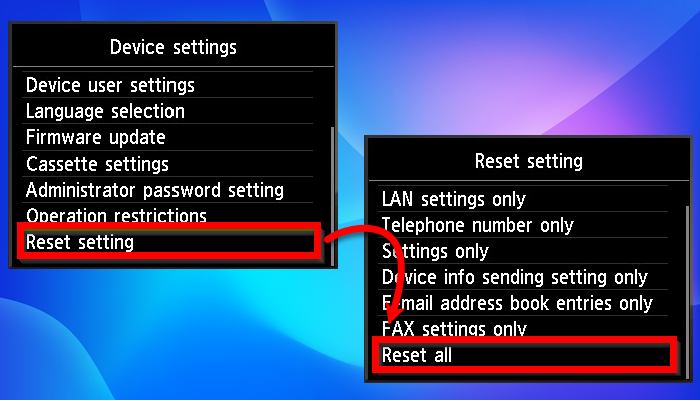
Only perform a factory reset if a soft reset fails and the printer remains unresponsive.
Access System Maintenance Menu
Steps vary by brand but generally follow this path:
1. Press Menu on the printer display.
2. Navigate to System, Maintenance, or Tools.
3. Select Restore Factory Settings, Reset All Settings, or Initialize All.
Warning: This erases Wi-Fi passwords, saved accounts, fax settings, and custom profiles permanently.
Confirm Reset and Reboot Device
- Confirm the reset action when the prompt appears.
- The printer will reboot automatically to apply changes.
- After restart, you must reconfigure network settings and reinstall drivers if needed.
Expert Note: Never perform a factory reset during a firmware update or printhead cleaning cycle.
Fix Cartridge Not Recognized Errors
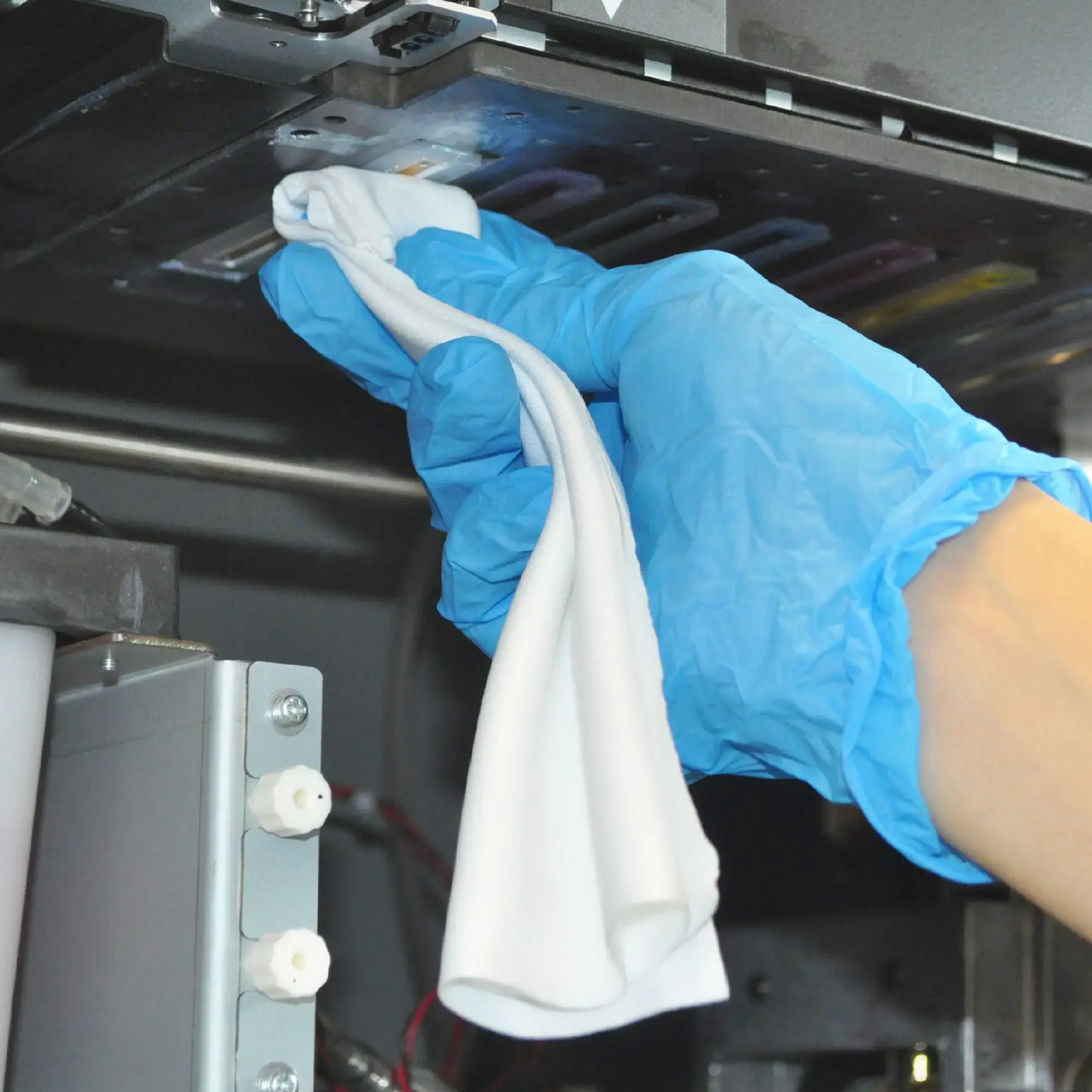
This error often triggers immediately after replacing ink or toner cartridges.
Clean Cartridge Contact Points
- Remove the suspected cartridge from the slot.
- Use a dry, lint-free cloth to wipe the chip and metal contacts gently.
- Avoid touching the chip with fingers as oil interferes with detection.
Reinstall Cartridge Until It Clicks
- Reinsert the cartridge until it clicks into place securely.
- Close the cover fully since some units won’t recognize cartridges if open.
Perform Soft Reset After Reinstallation
After reinserting the cartridge:
– Turn off the printer completely.
– Unplug for 60 seconds then restart.
– Test printing to verify recognition.
HP Users: If you see “Dynamic Security Error,” ensure you are using compatible cartridges. HP+ printers may block third-party ink.
Resolve Offline Status and Wi-Fi Drops
If your computer shows the printer as “Offline,” a network reset often helps.
Restart Router and Printer Together
- Power down your router and printer simultaneously.
- Wait 2 minutes for all systems to clear.
- Turn on the router first and wait for a full connection.
- Power on the printer last.
Reconfigure Wireless Setup
- On the printer: Go to Menu → Network → Wireless Setup Wizard.
- Follow prompts to reconnect to your specific network name.
Pro Tip: Assign a static IP address to your printer in router settings to prevent future dropouts.
Clear Paper Jam and Error 13.x Codes
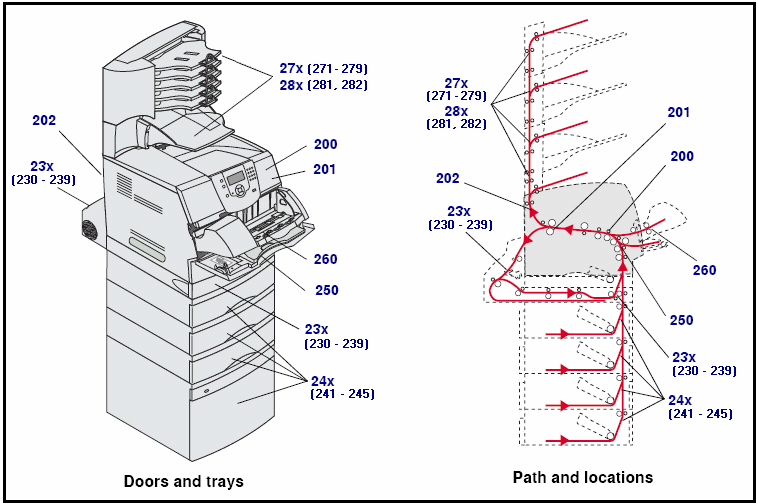
Sensors can trigger false jam errors even without visible paper inside.
Check All Paper Path Areas
- Open input and output trays fully.
- Inspect the back panel and rollers if accessible.
- Gently pull out any stuck paper without tearing it.
Clear Error Message Display
- Close all trays and covers securely.
- Press Cancel or Resume on the control panel.
- If the error remains, perform a soft reset.
Visual Cue: Look for flashing lights or specific error codes on the display. Note them for troubleshooting.
Reset HP Printer Models Specifically

HP devices often require specific button combinations for hard resets.
Soft Reset for All HP Models
- Turn on the printer.
- Unplug power for 60 seconds.
- Plug back in and wait for startup.
Factory Reset for DeskJet and LaserJet
- Press Setup (wrench icon) on the screen.
- Go to Tools → Restore Defaults.
- Confirm with Yes when prompted.
Note: HP+ printers may require re-enrollment after a factory reset.
Reset Canon Printer Devices
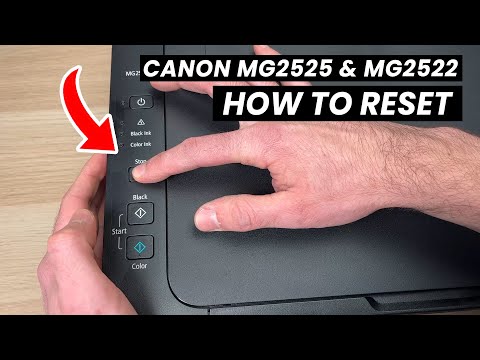
Canon printers use different button sequences for initialization.
Soft Reset Procedure
Same as universal method. Unplug for 60 seconds then restart.
Hard Reset for PIXMA and MAXIFY
- Hold Stop/Reset button for 5 seconds.
- Press Menu → Device Settings → Reset All.
- Confirm the action.
Reset Epson Printer Units

Epson menus vary slightly but usually reside in the setup section.
- Press and hold Home button to access main menu.
- Navigate to Setup → Restore Default Settings.
- Choose All Settings from the list.
- Confirm selection.
Epson Tip: After reset, run a Nozzle Check to ensure print heads are aligned correctly.
Reset Brother Printer Machines

Brother devices often use a dedicated initial setup menu.
- Press Menu → Initial Setup → Reset.
- Choose All Settings or Network Reset.
- Confirm with OK.
Brother Note: Some models require entering a PIN. The default is often 00000.
Avoid Resetting During Critical Processes
Do not reset your printer during specific internal operations to prevent damage.
During Firmware Updates
Interrupting an update can brick the device permanently. Wait until the progress bar completes and the printer restarts on its own.
While Cleaning Printheads
Printers auto-clean nozzles when idle. If the “Cleaning” light is on, wait 2 to 5 minutes before powering down.
Right After Inserting Cartridges
Some printers take up to a minute to recognize new ink. Forcing a reset too soon may prevent initialization.
Best Practice: Let the printer sit for 60 seconds after inserting cartridges before turning it on or resetting.
Prevent Future Printer Issues
Maintain your device with these simple habits to reduce reset frequency.
Regular Power Cycles
Even if working fine, unplug your printer once a week for 60 seconds. This clears memory and prevents software lockups.
Use Quality Cartridges
Low-quality or refilled cartridges often trigger “not recognized” errors. Stick with OEM or reputable compatible brands.
Update Firmware Monthly
Check your manufacturer’s website or printer menu for updates. Updated firmware improves stability and security significantly.
Keep Exterior Clean
- Wipe exterior vents and control panels with a dry cloth.
- Use compressed air to remove dust from paper trays.
- Run a print head cleaning cycle every few weeks if using inkjet.
Final Checklist for Successful Printer Reset
✅ Start with a soft reset (unplug 60+ seconds)
✅ Remove and reseat cartridges if recognition fails
✅ Disconnect cables during reset for cleaner reboot
✅ Use factory reset only if necessary
✅ Never reset during updates or cleaning
✅ Reconfigure Wi-Fi and print test page afterward
A proper printer reset is one of the most effective troubleshooting steps you can take. Whether fixing a frozen screen, reconnecting Wi-Fi, or resolving cartridge errors, start with a soft reset and work up only if needed. With these steps, you will save time and keep your printer running like new.
Frequently Asked Questions About Printer Resets
When should I reset my printer?
You should reset your printer if error messages appear, the device has frozen, or no Wi-Fi connection can be established. Always start with a soft reset before trying advanced options.
What is the difference between a soft reset and a factory reset?
A soft reset restarts the device and clears temporary errors while keeping your data. A factory reset returns the printer to original delivery state and deletes network data and user profiles.
Can a reset damage my printer?
Normally a reset will not damage your printer. However, do not perform it during firmware updates or cleaning processes as this can corrupt system files.
Why does my printer say cartridge not recognized after reset?
This often happens if contacts are dirty or the cartridge is not seated firmly. Clean the chip with a dry cloth and reinsert until it clicks, then soft reset again.
Will resetting my printer delete my Wi-Fi settings?
A soft reset will keep your Wi-Fi settings intact. A factory reset will erase all network data, requiring you to reconnect to your wireless network manually.
Key Takeaways for How to Reset Printer Issues
Resetting your printer solves most common errors like frozen screens and offline status. Always begin with a soft reset by unplugging the power for 60 seconds to clear temporary glitches safely.
Reserve factory resets for persistent issues since they erase your saved network and custom settings. Avoid resetting during firmware updates or cleaning cycles to prevent permanent device damage.
Take action now by performing a soft reset on your struggling printer. If problems persist after following these steps, consult your specific model error code directory for deeper diagnostics.


