

Unboxing your Canon MX340 and getting it connected to Wi-Fi can feel overwhelming, especially if you’re not tech-savvy. The Canon MX340 wireless setup process is straightforward when you follow the right sequence of steps, but skipping important details often leads to frustrating connection errors and failed driver installations.
This guide walks you through the complete setup process, from preparing your printer and network to installing drivers on Windows and Mac systems. You’ll also find targeted troubleshooting solutions for common issues like the printer not appearing on your network or showing as offline. By the end, you’ll have your MX340 printing wirelessly without needing professional help.
Prepare Your Printer and Network
A successful wireless setup starts with proper preparation. Taking a few minutes to verify your hardware and network settings prevents most common failures before they happen.
Power Up the MX340 Correctly
Connect the Canon MX340 to a power outlet and press the Power button located on the top panel. Give the printer time to initialize, which can take up to two minutes. Watch for the Alarm lamp; if it flashes red, check for paper jams or low ink levels before continuing.
Position your printer within 10 feet of your router to ensure a strong signal. Large obstacles like walls, metal objects, or appliances such as microwaves can interfere with the wireless connection.
Gather Required Network Information
Before starting setup, collect these details:
- Your Wi-Fi network name (SSID)
- Password or security key
- Security type (WPA, WPA2, or WEP)
If you don’t know your network credentials, check the label on your router or access its admin page through a web browser. Most home networks use WPA2-Personal, which the MX340 fully supports.
Write this information down. You’ll need to enter it manually using the printer’s buttons and display panel since the MX340 doesn’t have a touchscreen.
Connect MX340 to Wi-Fi Network
The Canon MX340 relies on button-based configuration for wireless setup. Follow these steps carefully to avoid common configuration errors.
Start Wireless Setup Mode
Press and hold the Wireless button (the signal icon) for 3 seconds. The Wi-Fi lamp will blink blue, indicating the printer is in setup mode.
Within 2 minutes, press the WPS button on your wireless router. The printer will connect automatically using WPS (Wi-Fi Protected Setup). Once successful, the Wi-Fi lamp stays solid blue.
Pro Tip: WPS must be enabled on your router for this method to work. If the lamp blinks for more than 5 minutes, cancel and retry. Some routers temporarily disable WPS after failed attempts.
Manual Connection Without WPS
If your router doesn’t support WPS or the automatic method fails, use manual setup through the printer’s control panel.
- Press and hold the Wireless button until the Alarm lamp flashes once.
- Press the Color Start button.
- Press the Wireless button twice. The Wi-Fi lamp blinks rapidly.
- Wait 10 seconds for the printer to search for available networks.
Use the Black and Color Start buttons to scroll through detected networks. When your network name appears, press the OK button to select it. Enter your password using the same buttons to navigate through letters and numbers, confirming each character with OK.
This process takes time, so allow 5 to 10 minutes for network entry and connection.
Install Drivers on Windows Computer
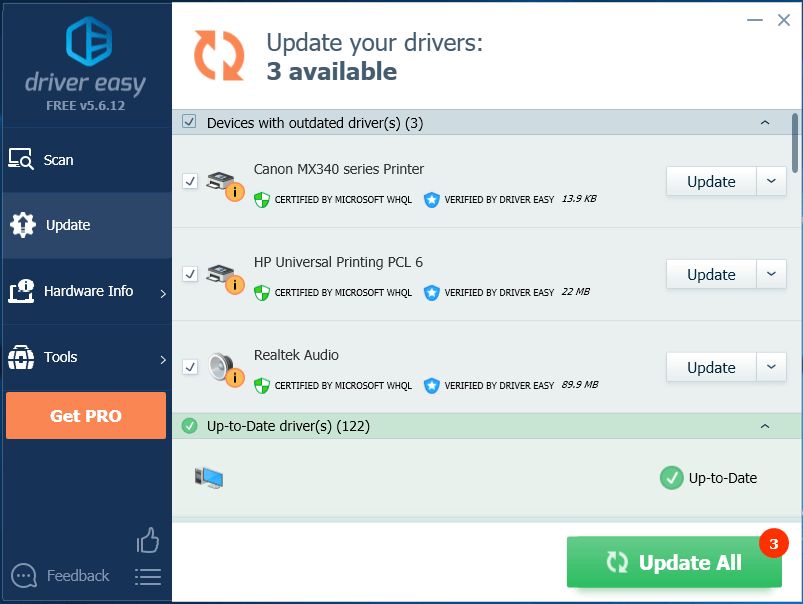
Once your printer connects to Wi-Fi, install the correct drivers so your computer can communicate with it effectively.
Download Correct MX340 Driver
Visit the official Canon support website and search for “MX340 driver.” Select your operating system, such as Windows 10 or 11 64-bit. Download the full driver and software package rather than just a basic driver.
Avoid third-party download sites. They may offer outdated or compromised files that can harm your computer. Only use Canon’s official site for security and compatibility.
Save the downloaded file to your desktop, then double-click to extract and begin installation.
Run Wireless Installation Wizard
Launch the installer and choose Wireless Connection when prompted. The wizard will search for available printers on your network.
If the MX340 appears in the list, select it and click Next. If it doesn’t appear, verify the printer is powered on and the Wi-Fi lamp shows a solid blue light.
The installer sends configuration data to your printer. Do not turn off the printer during this phase, as it may take 2 to 3 minutes to complete.
Once finished, the wizard confirms successful installation. Print a test page to verify communication between your computer and printer.
Install Software on Mac System

Mac users follow a slightly different process due to system permissions and driver handling requirements.
Check macOS Compatibility
The Canon MX340 supports macOS versions from 10.6.8 (Snow Leopard) up to 10.15 (Catalina). It does not officially support macOS Big Sur (11.0) or later versions.
If you’re running macOS Mojave (10.14) or earlier, you can proceed with installation. For newer systems, consider using a USB connection or upgrading to a supported Canon model.
Download Mac Driver from Canon
Navigate to Canon’s support page, select Mac OS, and download the MX340 CUPS Printer Driver and Scanner Driver if needed.
Open the downloaded .dmg file and double-click the installer package. Follow the prompts and enter your administrator password when requested.
During installation, choose IP Connection and select your MX340 from the detected devices list. The installer locates it via your Wi-Fi network.
After completion, go to System Settings > Printers & Scanners. Your MX340 should appear in the list. Set it as your default printer if desired.
Troubleshoot Common Setup Failures

Even with careful steps, issues can arise. Use these targeted fixes to resolve the most frequent problems.
Printer Won’t Connect to Wi-Fi
If the Wi-Fi lamp blinks continuously, the connection attempt failed.
- Restart both the printer and router.
- Re-enter your password carefully, as case sensitivity matters.
- Ensure your router broadcasts on the 2.4 GHz band. The MX340 does not support 5 GHz networks.
If using manual setup, reduce interference by turning off nearby Bluetooth devices or moving the printer closer to the router.
Driver Installation Stalls or Fails
On Windows, temporarily disable antivirus software. Some programs block driver installation processes.
Also, uninstall any old Canon software before installing new drivers. Use the Canon IJ Uninstall Tool from the support site for a clean removal.
On Mac, check Security & Privacy settings. If you see a message saying “Blocked,” click Allow to proceed with installation.
Printer Shows Offline in Computer
Even when connected, Windows may display the MX340 as offline.
Go to Control Panel > Devices and Printers, right-click the MX340, and select See what’s printing. Click Printer then choose Use Printer Online.
Also, set the printer as your default device and clear any pending print jobs that might be stuck.
Print Your First Wireless Document
With setup complete, test the connection using a real print job.
Send a Test Page from Computer
On Windows:
Go to Control Panel > Devices and Printers, right-click the MX340, and choose Printer properties. Click Print Test Page.
On Mac:
Open System Settings > Printers & Scanners, select the MX340, and click Options & Supplies then Print Test Page.
The test page confirms ink levels, alignment, and network communication all working properly.
Print from Mobile Device (Optional)
The MX340 doesn’t support AirPrint or the Canon PRINT app directly. For mobile printing, you can use a USB cable or shared network printing through a connected computer.
If you need true mobile printing, consider upgrading to a newer Canon model like the TR series for better compatibility.
Maintain Stable Wireless Connection
A one-time setup isn’t enough. Keep your MX340 running smoothly with simple ongoing maintenance.
Update Printer Firmware
Canon occasionally releases firmware updates for the MX340. Check the support site under “Firmware” for your specific model. Updates can improve stability and fix known bugs.
Download the file, unzip it, and follow the provided instructions to install via USB connection or SD card if supported.
Reconnect After Router Changes
If you reset your router or change your Wi-Fi password, you’ll need to reconnect the MX340 manually.
Use the same manual setup process outlined earlier in this guide. You cannot update Wi-Fi settings remotely, so the printer must be reconfigured using its physical buttons.
When naming your network, avoid special characters and spaces. Stick to letters, numbers, and hyphens for best compatibility.
Frequently Asked Questions About Canon MX340 Wireless Setup
Why won’t my Canon MX340 connect to my Wi-Fi network?
The most common causes are incorrect passwords, using a 5 GHz network instead of 2.4 GHz, or interference from other devices. Double-check your password for case sensitivity, ensure your router broadcasts on 2.4 GHz, and move the printer closer to the router. Restart both devices before trying again.
Can I set up the Canon MX340 without a WPS button on my router?
Yes, you can use the manual setup method. Press and hold the Wireless button until the Alarm lamp flashes once, then press the Color Start button. Follow the on-printer prompts to search for networks and enter your password manually using the printer’s buttons.
Does the Canon MX340 work with Windows 11?
Yes, the MX340 works with Windows 11, but you’ll need to download the appropriate driver from Canon’s official website. Search for the MX340 driver compatible with your specific Windows 11 version, whether 32-bit or 64-bit.
Why does my Canon MX340 show as offline on my computer?
This often happens when the printer loses its connection or Windows marks it as offline. Go to Control Panel > Devices and Printers, right-click the MX340, and select See what’s printing. Click Printer and choose Use Printer Online. Also verify the Wi-Fi lamp on the printer shows a solid blue light.
Can I print from my iPhone or Android phone with the Canon MX340?
The MX340 doesn’t support AirPrint or the Canon PRINT app directly. For mobile printing, you can use a USB connection or share the printer through a connected computer on your network. Some third-party apps may work, but compatibility isn’t guaranteed.
How do I reconnect my Canon MX340 after changing my Wi-Fi password?
You must reconfigure the printer manually using its buttons. Press and hold the Wireless button for 3 seconds to enter setup mode, then follow the manual connection steps to select your new network and enter the updated password.
Key Takeaways for Successful Canon MX340 Wireless Setup
Setting up your Canon MX340 wireless printer requires attention to preparation, correct network configuration, and proper driver installation. Start by positioning the printer near your router and gathering your network credentials. Use WPS for quick connection or manual setup for more control, then install the correct drivers from Canon’s official website for your operating system.
When problems occur, check the basics first: verify your password, confirm you’re on a 2.4 GHz network, and restart both printer and router. Keep your firmware updated and be prepared to reconfigure the printer if you change your network settings.
With these steps completed, your Canon MX340 should deliver reliable wireless printing for years to come. If issues persist, consult Canon’s official support resources for model-specific troubleshooting assistance.


