

You’ve just unboxed your new printer, and now you’re staring at cables, cartridges, and a blinking control panel. Setting up a new device can feel overwhelming, but learning how to set up HP Envy 4500 printer correctly takes less than 30 minutes when you follow the right sequence.
This guide covers every method available: wireless setup, USB connection, and mobile configuration through the HP Smart app. By the end, you’ll have a fully functional printer ready to handle documents, photos, and scans from any device in your home or office.
Unbox and Prepare Your HP Envy 4500

Proper preparation prevents paper jams, sensor errors, and cartridge recognition issues later. Taking five minutes here saves hours of troubleshooting down the road.
Remove All Internal Packaging
Open the front access door to expose the ink cartridge area. The carriage will slide to the center automatically. Remove every piece of tape, plastic wrap, and foam inserts you find inside, including strips around the scanner lid and printer base.
Skipping this step is the number one cause of first-time setup failures. Residual packaging can block rollers, damage sensors, or prevent the carriage from moving freely.
Install HP 61 Ink Cartridges
Your printer uses HP 61 or HP 61XL cartridges in black and tri-color. Unwrap each cartridge and pull off the orange protective tape from the copper contacts.
Open the cartridge access door, then press down lightly on each cartridge to release it from its slot. Slide the black cartridge into the right slot and the tri-color cartridge into the left slot. Push until you hear a click, then close the door.
Load Paper into the Input Tray
Pull out the paper tray located at the bottom of the printer. Slide the width guides outward, then load a stack of plain white paper (up to 150 sheets). Align the stack neatly against the guides to prevent skewed prints.
Push the tray back into the printer until it clicks into place. Avoid overloading the tray or using wrinkled paper, as both cause frequent paper feed errors.
Power On and Configure Initial Settings
Press the power button on the right side of the printer. Wait 30 to 60 seconds for the startup sequence to complete and the control panel to become responsive.
Select Language and Region
Use the arrow buttons on the control panel to navigate the setup menu. Select your preferred language, then choose your country or region. Press OK to confirm each selection.
These settings affect date formats, measurement units, and HP support contact information. Choose carefully because changing them later requires navigating through multiple menu layers.
Connect Your Printer to Wi-Fi

The HP Envy 4500 supports three wireless setup methods. Choose the one that matches your router capabilities and technical comfort level.
Use HP Auto Wireless Connect
On first power-up, your printer may automatically detect nearby networks. When prompted on the control panel, press Yes to enable HP Auto Wireless Connect.
This method creates a temporary direct connection between your printer and computer, transferring your network credentials automatically. Make sure your computer is connected to the same Wi-Fi network you want your printer to use.
Set Up Wi-Fi Using WPS Push Button
If your router has a WPS button (usually marked with two curved arrows), this is the fastest method:
- Press and hold the Wireless button on your printer until the wireless light starts blinking
- Within two minutes, press the WPS button on your router
- Wait for the wireless light to become solid, indicating a successful connection
Enter Wi-Fi Credentials Manually
When WPS isn’t available, use the Wireless Setup Wizard:
- Press the Wireless button on the printer
- Press the Setup button (wrench icon)
- Select Network Setup, then Wireless Setup Wizard
- Choose your network name (SSID) from the displayed list
- Use the on-screen keypad to enter your Wi-Fi password
- Press OK to save and connect
Incorrect passwords cause 70% of wireless setup failures. Double-check capitalization, numbers, and special characters before confirming.
Note: The HP Envy 4500 only supports 2.4 GHz networks. If your router broadcasts on 5 GHz only, you’ll need to enable the 2.4 GHz band or use a USB connection instead.
Install HP Software and Drivers
Without proper drivers, your computer cannot communicate with the printer. Download the full feature driver package for complete functionality.
Download Drivers from HP’s Website
Visit support.hp.com and search for “HP Envy 4500.” Select your operating system (Windows 10/11 or macOS), then download the Full Feature Driver package. Avoid the basic driver, which lacks scanning and utility features.
Run the Installer on Windows
Open the downloaded file (typically named HP_Easy_Start.exe) and follow these steps:
- Accept the license agreement
- Choose Wireless as your connection type
- Allow the installer to detect your printer on the network
- Complete the setup wizard
- Print a test page to verify the connection
The installer may prompt you to update firmware during this process. Allow these updates because they fix known bugs and improve connection stability.
Install Software on Mac
Open the downloaded .dmg file and launch HP Easy Start. Follow the guided prompts to connect your printer and install required components.
When prompted, enable AirPrint support for seamless printing from iOS devices. You can also integrate the HP Smart app during this step for mobile printing capabilities.
Set Up Mobile Printing with HP Smart App
The HP Smart app replaces older HP mobile tools and provides full control from your smartphone or tablet.
Download and Install the App
Install HP Smart from the Apple App Store (iOS) or Google Play Store (Android). Open the app after installation completes.
Add Your Printer to the App
- Tap the + or Add Printer button
- Enable Bluetooth and location services when prompted
- The app will automatically detect your HP Envy 4500 if it’s connected to Wi-Fi
- Sign in with your HP account or create a new one
- Complete the pairing process
Print and Scan from Your Phone
Once connected, you can print documents, photos, and web pages directly from your mobile device. Use the scan feature to digitize receipts, notes, and multi-page documents.
iOS users can print via AirPrint without opening the app. Android users can use Mopria Print Service for direct printing from compatible apps.
Troubleshoot Common Setup Problems
Even with careful preparation, issues occasionally arise. Here are solutions to the most frequent problems.
Printer Won’t Connect to Wi-Fi
Start by restarting both your printer and router. Unplug the router for 30 seconds, then reconnect. Move your printer closer to the router temporarily to rule out range issues.
Verify your network broadcasts on 2.4 GHz, as the HP Envy 4500 cannot connect to 5 GHz networks. Re-run the Wireless Setup Wizard from the printer’s control panel to attempt reconnection.
Computer Cannot Detect the Printer
Confirm both devices are connected to the same network. Temporarily disable firewall and antivirus software during installation, as these programs sometimes block new device connections.
If detection still fails, connect via USB cable as a test. In Windows, navigate to Settings > Devices > Printers & Scanners and click Add a printer to manually search for your device.
HP Smart App Cannot Find Printer
Ensure Bluetooth is enabled on your smartphone, as the app uses it for initial device discovery. Android users must also enable location services for network scanning to work properly.
Restart your printer and reopen the app if detection fails. The app may need a fresh scan to identify devices on your network.
Alternative: USB Direct Connection Setup
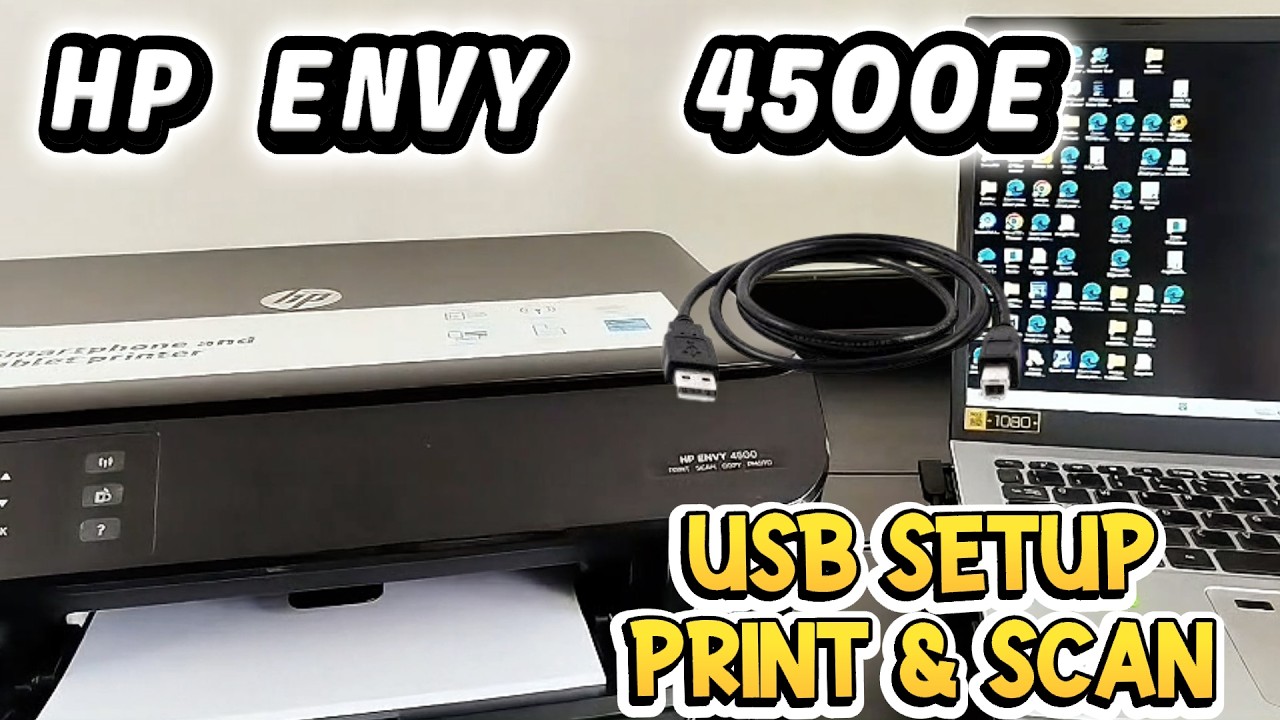
When wireless setup fails or your network doesn’t support 2.4 GHz, a USB connection provides a reliable alternative.
Connect and Install via USB Cable
Plug the USB cable into the printer’s USB port and your computer’s USB port. Power on the printer, then run the HP installer on your computer.
Select USB when prompted for connection type, then follow the installation steps. Test the connection by printing a document from any application.
USB mode disables wireless functionality while connected. Switch back to wireless through the Network Settings menu when you’re ready to disconnect the cable.
Maintain Your Printer After Setup
Regular maintenance keeps your HP Envy 4500 performing reliably for years.
Run Print Head Alignment
After initial setup, align the print heads to ensure sharp text and accurate colors. Press the Setup button, select Tools, then choose Align Print Cartridges. Follow the on-screen prompts to complete the alignment.
Clean Carriage Contacts
If print quality degrades over time, clean the copper contacts inside the carriage. Turn off the printer and open the access door. Dampen a lint-free cloth with distilled water and gently wipe the contacts. Let everything dry completely before closing the door.
Update Firmware Regularly
Outdated firmware causes connectivity issues and printing errors. Check for updates through the HP Smart app, during driver installation, or by printing a Wireless Report from the printer’s control panel.
Verify Setup with a Test Print
Before regular use, confirm everything works correctly by printing a test page and a network configuration report.
Print a Network Configuration Page
Press and hold the Wireless and Cancel buttons simultaneously for three seconds. The printer produces a report showing your IP address, network name, connection status, and firmware version. Save this page for future troubleshooting reference.
Perform a Test Print
Open any document on your computer and press Ctrl+P (Windows) or Cmd+P (Mac). Select HP Envy 4500 as your printer and click Print. Also test a color document or photo to verify color accuracy and alignment.
Frequently Asked Questions About HP Envy 4500 Setup
How long does it take to set up the HP Envy 4500?
The complete setup process takes 20 to 30 minutes from unboxing to first print. Most of this time involves downloading and installing software, not the actual configuration steps.
Can I set up the HP Envy 4500 without a computer?
Yes. Use the HP Smart app on your smartphone or tablet to complete wireless setup without a computer. The app guides you through connecting to Wi-Fi and installing necessary drivers automatically.
Why won’t my HP Envy 4500 find my Wi-Fi network?
The HP Envy 4500 only supports 2.4 GHz networks. If your router broadcasts only on 5 GHz, enable the 2.4 GHz band in your router settings. Also ensure your network name (SSID) is visible, not hidden.
Do I need to install both cartridges to use the printer?
Yes. The HP Envy 4500 requires both the black and tri-color cartridges to function. The printer will not operate with only one cartridge installed, even for black-and-white printing.
How do I switch from USB to wireless after initial setup?
Access the printer’s control panel, press Setup, then select Network Setup > Wireless Setup Wizard. Follow the prompts to connect to your Wi-Fi network, then remove the USB cable.
What should I do if my printer keeps going offline?
Restart your printer, router, and computer. Update the printer firmware through the HP Smart app. If the problem persists, remove the printer from your devices list and re-add it through the HP installer.
Final Thoughts on Setting Up Your HP Envy 4500
You now have a complete roadmap for how to set up HP Envy 4500 printer using any method that fits your needs. Wireless setup through WPS offers the fastest connection, while the HP Smart app provides the best mobile experience.
Keep the HP Smart app installed for remote printing and easy maintenance. Run print head alignment monthly and check for firmware updates quarterly to prevent common issues. If problems persist after setup, reset the network settings through Setup > Network > Restore Network Settings and start fresh with the wireless setup wizard.
Your HP Envy 4500 is now ready to handle years of reliable printing, scanning, and copying for your home or small office.


