

Your computer might feel sluggish or fail to recognize new devices because leftover HP software is running in the background. Learning how to uninstall HP printer software completely removes these hidden files and stops driver conflicts.
This guide walks you through every step to delete printers, drivers, and services on Windows and Mac systems. You will discover how to clean registry keys, reset the print spooler, and prevent future installation clutter effectively.
Remove Printer Device from Windows Settings
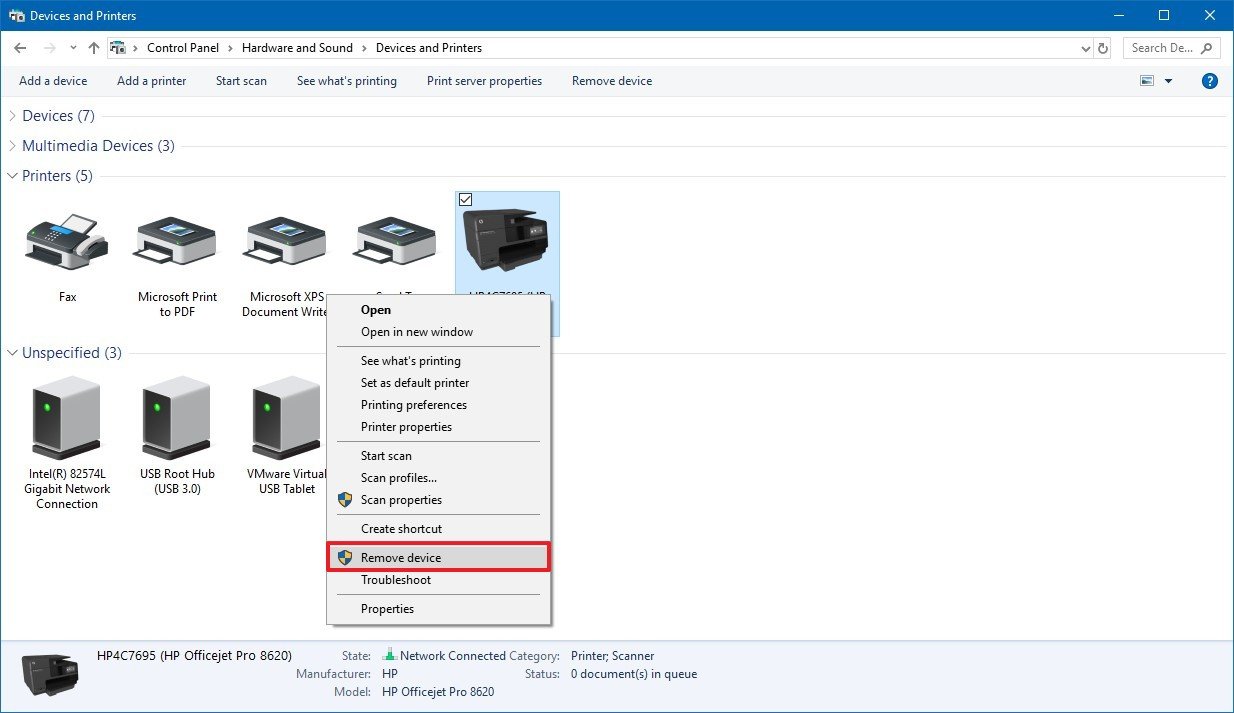
You must remove the physical printer entry before deleting any software applications. This action stops active print jobs and disconnects the hardware link to your operating system.
Delete Printer via Devices and Printers
Start by accessing the legacy control panel to ensure all device instances are gone. Some models create multiple entries like Fax or Network versions that need individual removal.
- Press
Windows + R, typecontrol printers, and hit Enter. - Right-click your specific HP printer model and select Remove device.
- Choose Remove device and driver if the option appears on your screen.
- Repeat this process for any duplicate entries sharing the same name.
Note: Check carefully for entries labeled with “Fax” or “Scan” as these count as separate devices.
Stop HP Services Before Uninstall
Active background services can block the uninstallation process entirely. You need to stop these manually to ensure a clean removal of all components.
- Press
Windows + R, typeservices.msc, and press Enter. - Locate services named HP Support Solutions Framework, HP Print Spooler, or HP Network Scan.
- Right-click each service and select Stop immediately.
- Change their Startup type to Disabled temporarily to prevent restart.
Stopping these ensures no active processes interfere during the main uninstall procedure.
Uninstall HP Software in Control Panel
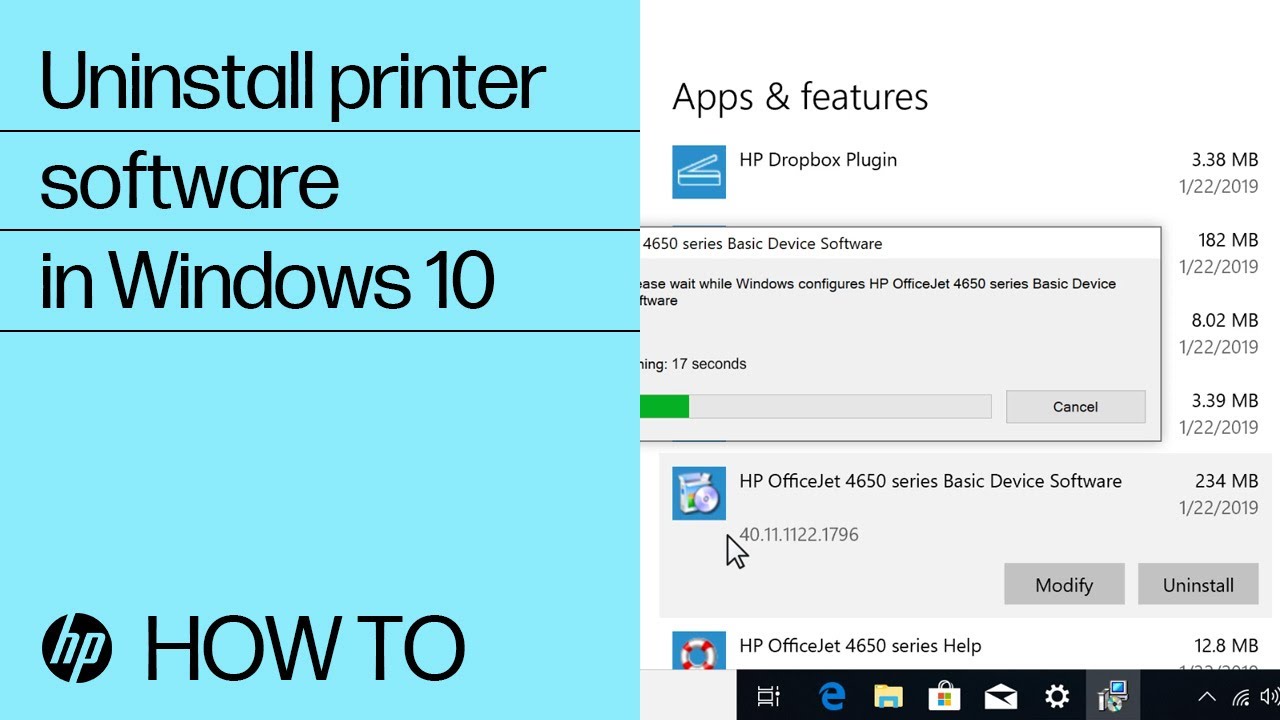
HP installs utility suites that run automatically at startup. These programs must be uninstalled separately through the standard Windows interface.
Access Programs and Features
Navigate to your main program list to find all HP related applications. Look for any entry containing “HP”, “Hewlett-Packard”, or your specific model number.
- Open
Control Panel > Programs > Programs and Features. - Scroll through the list to locate HP Smart, HP Print and Scan Doctor, or HP Easy Start.
- Select each program and click Uninstall to begin removal.
- Start with full suite installers like “HP Full Feature Software” first.
Pro Tip: Sort your list by Install Date to quickly identify recently added HP software linked to your printer.
Use Built-in HP Uninstaller Tool
Some HP installations include a dedicated removal tool hidden in the program files. This utility often deletes files missed by standard Windows uninstallers.
- Navigate to
C:\Program Files\HP\{your printer model}\Uninstall. - Run
uninstall.exeorcleanup.exeif present in the folder. - Follow all on-screen prompts to remove every component.
This tool is highly effective at clearing deep-seated configuration files.
Clean Remaining Files and Registry
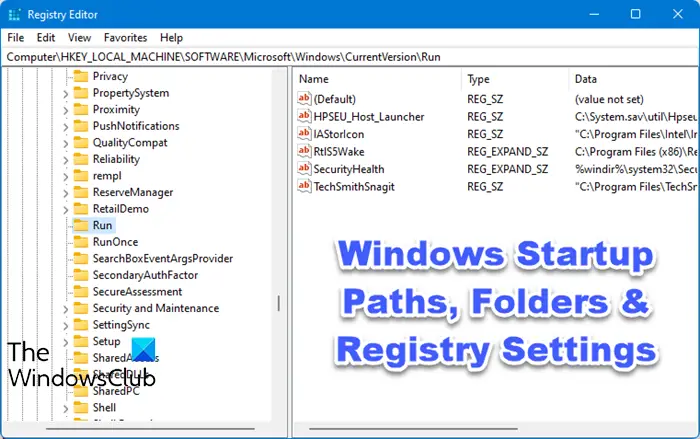
Leftover folders and registry keys often remain even after a successful uninstall. These fragments take up space and may cause issues with future printer installations.
Delete Leftover Folders
Manually check specific directories for remaining HP data. Delete these folders if they exist on your system drive.
C:\Program Files\HP\C:\Program Files (x86)\HP\C:\ProgramData\HP\C:\Users\Public\Documents\HP\C:\Users\%Username%\AppData\Local\HP\C:\Windows\System32\spool\PRINTERS\(clear print job cache)
Warning: Do not delete
C:\Windows\System32\files unless they are clearly marked as HP-related.
Remove HP Printer Registry Keys
Editing the registry removes deep configuration settings. You must backup your registry before making any changes to avoid system damage.
- Press
Windows + R, typeregedit, and press Enter. - Backup the registry by selecting File > Export.
- Navigate to and delete HP keys under
HKEY_CURRENT_USER\Software\HP. - Delete keys under
HKEY_LOCAL_MACHINE\SOFTWARE\HPandWOW6432Node\HP. - Remove your specific printer folder under
HKEY_LOCAL_MACHINE\SYSTEM\CurrentControlSet\Control\Print\Printers\.
⚠️ Caution: Editing the registry incorrectly can damage Windows. Only delete keys clearly linked to your HP printer.
Reset Print Spooler Service
The print spooler manages all print jobs and can hold onto old printer data. Resetting this service clears stuck jobs and cached printer information.
Stop and Clear Spooler Queue
Use the command prompt to flush the spooler completely. This ensures no ghost print tasks remain in the system memory.
- Open Command Prompt as Administrator.
- Run the command
net stop spoolerto halt the service. - Type
del /Q /F %systemroot%\System32\spool\PRINTERS\*to delete jobs. - Run
net start spoolerto restart the service fresh.
This sequence stops the spooler, deletes pending jobs, and restarts the service cleanly.
Reboot System After Cleanup
Always restart your computer after performing a full uninstall. This step ensures all HP processes terminate and memory caches clear completely.
- Ensures all HP processes are terminated
- Clears memory caches
- Prevents conflicts when installing new printers
After reboot, verify no HP printer reappears under Devices and Printers.
Uninstall HP Printer on Mac
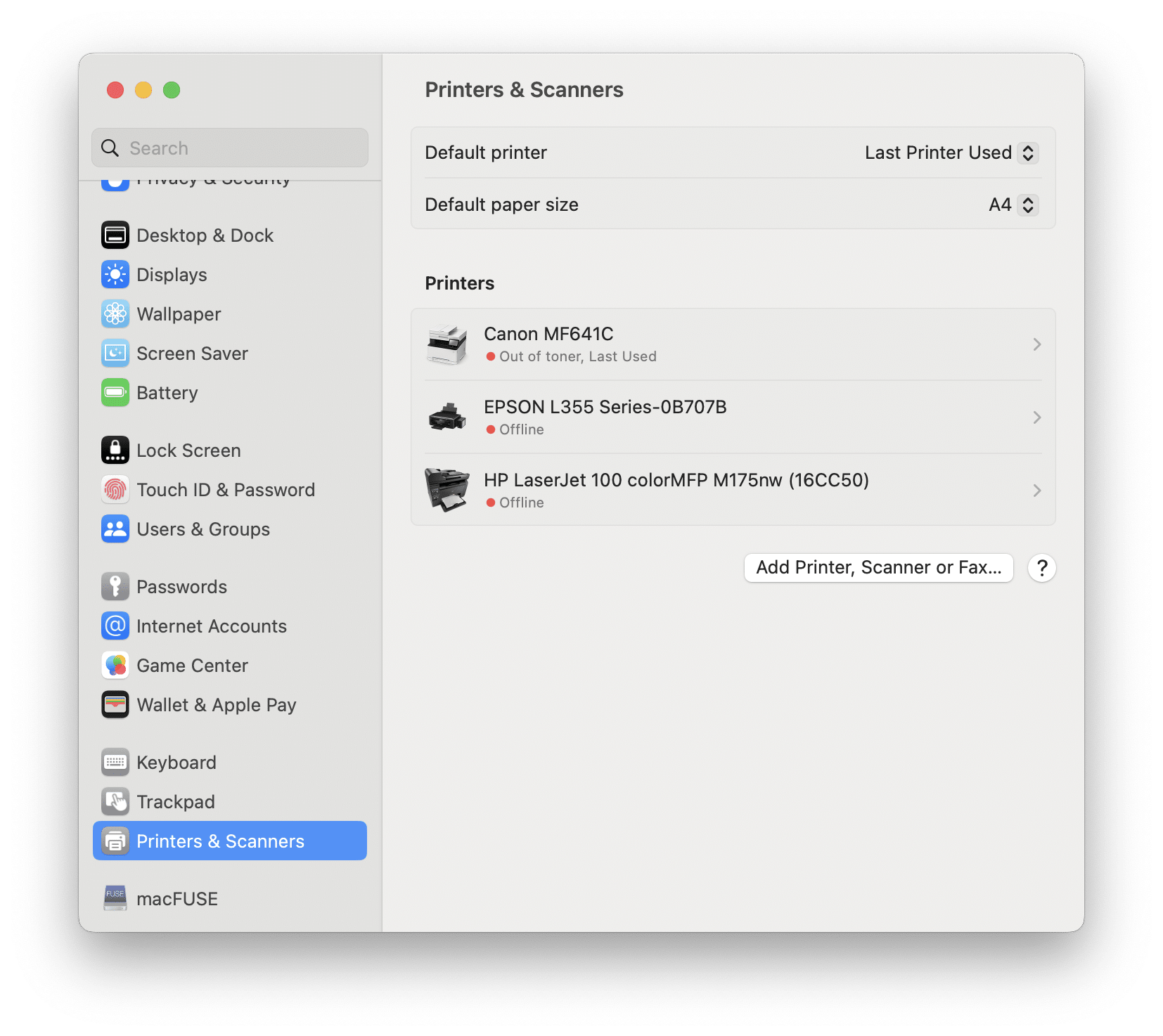
Mac users must remove printers, drivers, and helper apps separately. The process differs significantly from Windows removal steps.
Remove Printer from System Settings
Disconnect the device from your Mac settings first. This action removes the queue but does not delete the underlying software drivers.
- Go to Apple Menu > System Settings or System Preferences.
- Click Printers and Scanners to view connected devices.
- Select your HP printer from the list on the right.
- Click the – (minus) button to remove it.
This disconnects the device but does not delete software files.
Delete HP Drivers and Apps
Manually remove leftover files from your application and library folders. You may need to use Finder to access hidden system directories.
- Open Finder and go to
/Applicationsto delete HP Smart or HP Easy Start. - Navigate to
/Library/Printers/HPand move the entire folder to Trash. - Check
/Library/Application Support/HPand delete if present. - Remove files starting with
com.hp.*from~/Library/Preferences/. - Delete HP cache folders found in
~/Library/Caches/.
Note: Folders like
Librarymay be hidden. PressCmd + Shift + Gand paste the path to access them.
Clear Launch Agents and Daemons
HP often installs background launchers that persist after deletion. You should remove these files to stop automatic startup attempts.
Delete these files if they exist:
* /Library/LaunchAgents/com.hp.*
* /Library/LaunchDaemons/com.hp.*
After deletion, restart your Mac to complete the cleanup process.
Prevent Future Installation Clutter
Avoid bloated HP software when setting up new printers in the future. Choosing the right installation method saves time and system resources.
Use Basic Printer Driver Mode
Skip full HP software suites during your next setup. This approach gives you full printing function with minimal background load.
- Choose Manual Install or Driver Only during setup.
- Download the “Basic Driver” or “PCL/PS” version from the HP support site.
- Install without adding HP Smart or auto-update tools.
This method prevents unnecessary background services from loading.
Block HP Auto-Install Pop-ups
Stop HP from reinstalling silently or updating without permission. You can disable these features in your system settings.
- Disable HP Auto-Start in Task Manager under Startup on Windows.
- Turn off HP Update in System Preferences under Updates on Mac.
- Use Windows Group Policy to block HP executables from running at login.
These steps prevent unwanted software from returning to your system.
Troubleshoot Stubborn HP Printer Installations
Sometimes HP software resists removal due to locked files or corruption. Try these advanced fixes if standard methods fail.
Run HP Print and Scan Doctor
This official tool can help even when you are trying to uninstall. It includes a deep cleanup mode for corrupted components.
- Download HP Print and Scan Doctor from the official HP site.
- Run the tool and select Printer then Fix Printing.
- Choose the Uninstall and Reinstall option for deep cleanup.
It often removes corrupted or locked components that standard tools miss.
Use Third-Party Uninstaller Tools
Specialized tools like Revo Uninstaller scan for leftovers effectively. These programs find registry and file traces that Windows misses.
- Install Revo Uninstaller or Geek Uninstaller.
- Select the HP program and click Uninstall.
- Choose Advanced Scan after standard removal finishes.
- Delete all detected remnants shown in the scan results.
These tools catch what Windows misses during standard removal.
Safe Mode Uninstall for Locked Files
Boot into Safe Mode if files remain in use by other processes. This mode loads fewer background programs and allows file deletion.
- Hold
Shiftwhile clicking Restart on Windows to enter recovery. - Select Troubleshoot > Advanced Options > Startup Settings.
- Run the uninstaller again while in Safe Mode.
- Manually delete HP folders while the system is in this state.
Fewer background processes mean better access to locked files.
Frequently Asked Questions About How to Uninstall HP Printer
Can I uninstall HP printer software without restarting?
You can remove the main program without restarting, but leftover services may still run. A restart is required to clear the print spooler and registry changes fully.
What happens if I do not remove HP registry keys?
Leftover registry keys can cause conflicts when installing new printers or updating Windows. They may also slow down your system by keeping old configurations active.
Is HP Smart necessary for my printer to work?
No, HP Smart is optional for basic printing and scanning functions. You can use the built-in Windows or Mac drivers for most standard tasks.
How do I stop HP from reinstalling automatically?
Disable HP auto-start entries in your Task Manager startup tab. You should also uncheck any automatic update options during future software installations.
Will removing the printer delete my scanned documents?
No, removing the printer software does not delete your personal files or scanned documents. Your saved files remain safe in your Documents or Pictures folders.
Key Takeaways for How to Uninstall HP Printer
Successfully learning how to uninstall HP printer software requires more than just removing the device icon. You must stop background services, delete hidden folders, and clean registry keys to prevent future conflicts.
Always reset the print spooler and reboot your system to ensure all changes take effect. Following these steps guarantees a clean system ready for new hardware without legacy baggage.


