

You are ready to print an urgent report, but your screen flashes the dreaded “Printer Offline” message. This status halts your work because your computer cannot communicate with the hardware.
You will learn exactly why does a printer go offline and how to fix connection, driver, or queue issues fast. This guide covers every step to restore your printing capabilities immediately.
Verify Your Network and Physical Connections
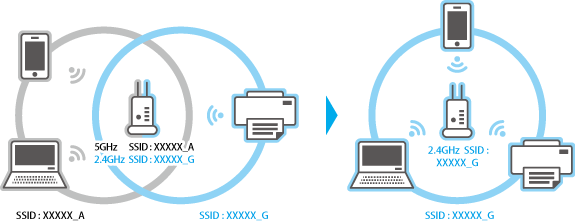
Connectivity problems are the leading cause of offline status messages. Your devices must share the exact same network path to exchange data successfully.
Confirm Matching Wi-Fi Networks
Your printer and computer must connect to the identical Wi-Fi network name. A common error involves one device using a 2.4GHz band while the other uses 5GHz or a guest network.
* Check the printer display to see its current Wi-Fi network.
* Verify your computer or phone network settings.
* Reconnect the printer if the names do not match exactly.
Pro Tip: Dual-band routers sometimes hide separate networks. Ensure your printer is not isolated on a guest subnet.
Inspect USB and Ethernet Cables
Loose or damaged wires break the handshake protocol between devices.
* USB printers: Push cables firmly into ports or try a different cable entirely.
* Ethernet printers: Look for blinking lights on the port to confirm activity.
* Replace any frayed or bent connectors immediately.
Test Wireless Signal Strength
Weak signals cause intermittent drops that trigger offline errors.
* Move the printer closer to your wireless router.
* Restart your router to refresh IP address assignments.
* Avoid placing the printer near microwaves or cordless phones.
Power Cycle Your Printer and Computer
Temporary glitches in memory or network cards often require a hard reset to clear. This simple step resolves many communication breakdowns.
Perform a Hard Printer Reset
You must fully drain power from the device to reset internal components effectively.
1. Turn off the printer using the main power button.
2. Unplug the power cord from the wall outlet completely.
3. Wait at least 60 seconds for capacitors to discharge.
4. Plug the unit back in and turn it on.
Warning: Skipping the wait time prevents the internal network card from resetting properly.
Restart Your Computing Device
Your computer may hold cached status errors that block new connections.
* Reboot your Windows PC or Mac to refresh network drivers.
* Clear any stuck system processes related to printing.
* Check if the status changes to “Ready” after rebooting.
Update or Reinstall Printer Drivers
Corrupt or outdated drivers prevent your operating system from recognizing hardware status. This is a primary reason why does a printer go offline unexpectedly.
Check Driver Status in Device Manager
Identify if your system sees the printer but cannot communicate with it.
* Windows: Press Windows + X and select Device Manager. Look for yellow warning icons under Print queues.
* macOS: Go to System Settings > Printers & Scanners. A red dot indicates a driver failure.
Reinstall Manufacturer Drivers
Generic drivers from Windows Update often lack full functionality.
1. Uninstall the current printer from your system settings.
2. Visit the official support site for your brand (HP, Canon, Epson).
3. Enter your exact product number and serial number.
4. Download the driver matching your specific OS version.
5. Install the file and restart your computer.
Critical: Always use both product and serial numbers to ensure driver compatibility.
Use Diagnostic Applications
Manufacturers offer free tools like the HP Smart App to automate repairs. These apps detect connection drops and fix driver mismatches automatically across Windows, macOS, iOS, and Android.
Clear Stuck Print Queue Jobs
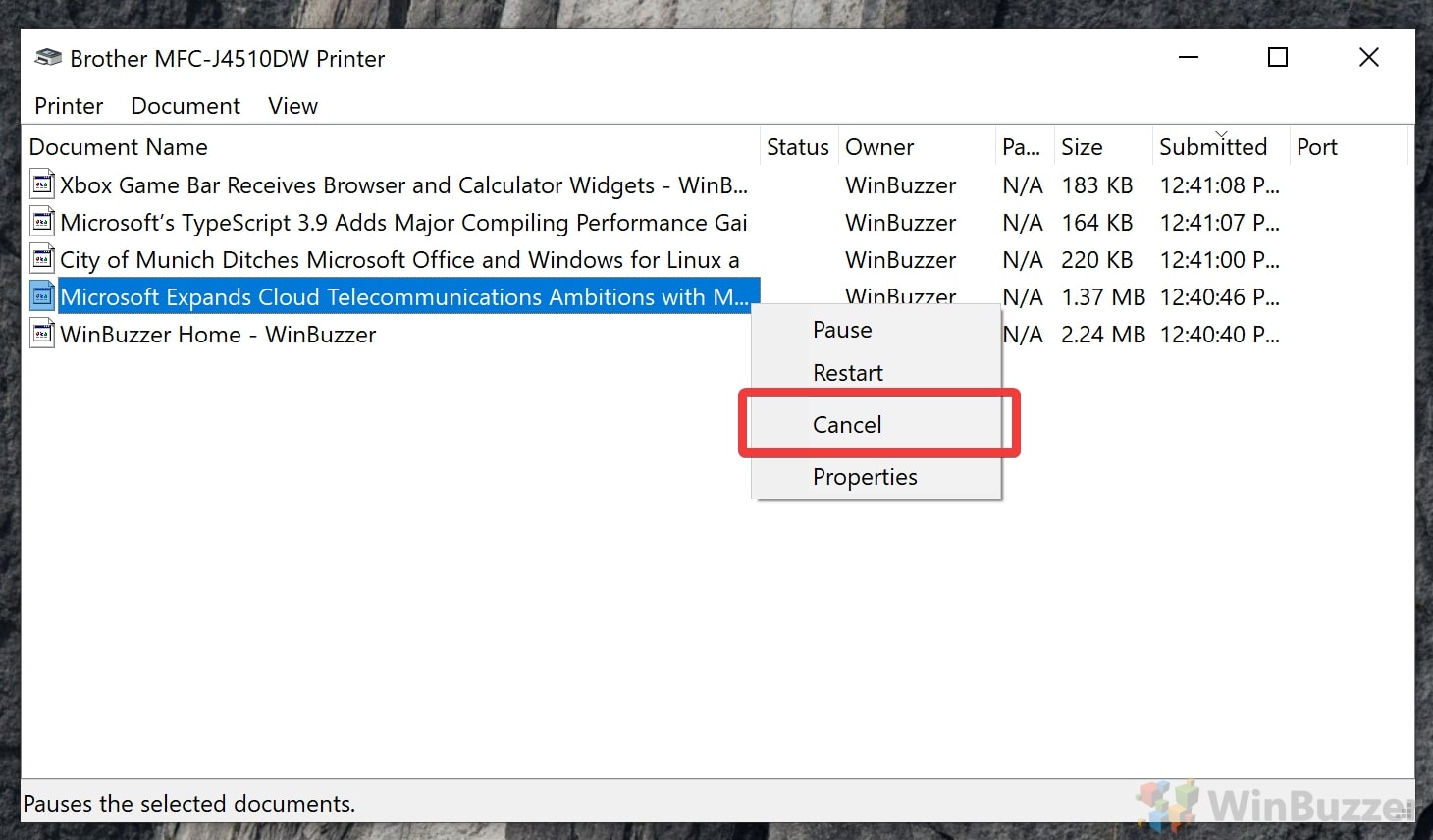
A single corrupted document can block the entire queue and force an offline status. The system waits indefinitely for the error to resolve.
Cancel Pending Documents
Remove all waiting jobs to clear the communication path.
1. Open Control Panel > Devices and Printers on Windows.
2. Double-click your printer icon to view the queue.
3. Right-click any document and select Cancel.
Restart the Print Spooler Service
If jobs refuse to delete, restart the background service managing them.
* Press Windows + R, type services.msc, and hit Enter.
* Locate Print Spooler in the list.
* Right-click and select Restart.
* Try printing a simple test page immediately.
Expert Note: Start with small text files before sending large graphics to test stability.
Inspect Hardware Sensors and Consumables
Physical constraints like paper jams or low ink can halt operations and trigger offline alerts. The printer disables network functions to prevent damage.
Remove Paper Jams Completely
Even tiny torn fragments can stop the printer from communicating.
* Turn off the device before opening covers.
* Gently pull out any visible paper or debris.
* Close all trays firmly until they click into place.
Check Ink and Toner Levels
Critically low levels may cause firmware to pause operations.
* View levels on the printer display or software interface.
* Replace empty cartridges immediately.
* Reseat new cartridges if the printer fails to recognize them.
Adjust Firewall and Antivirus Settings
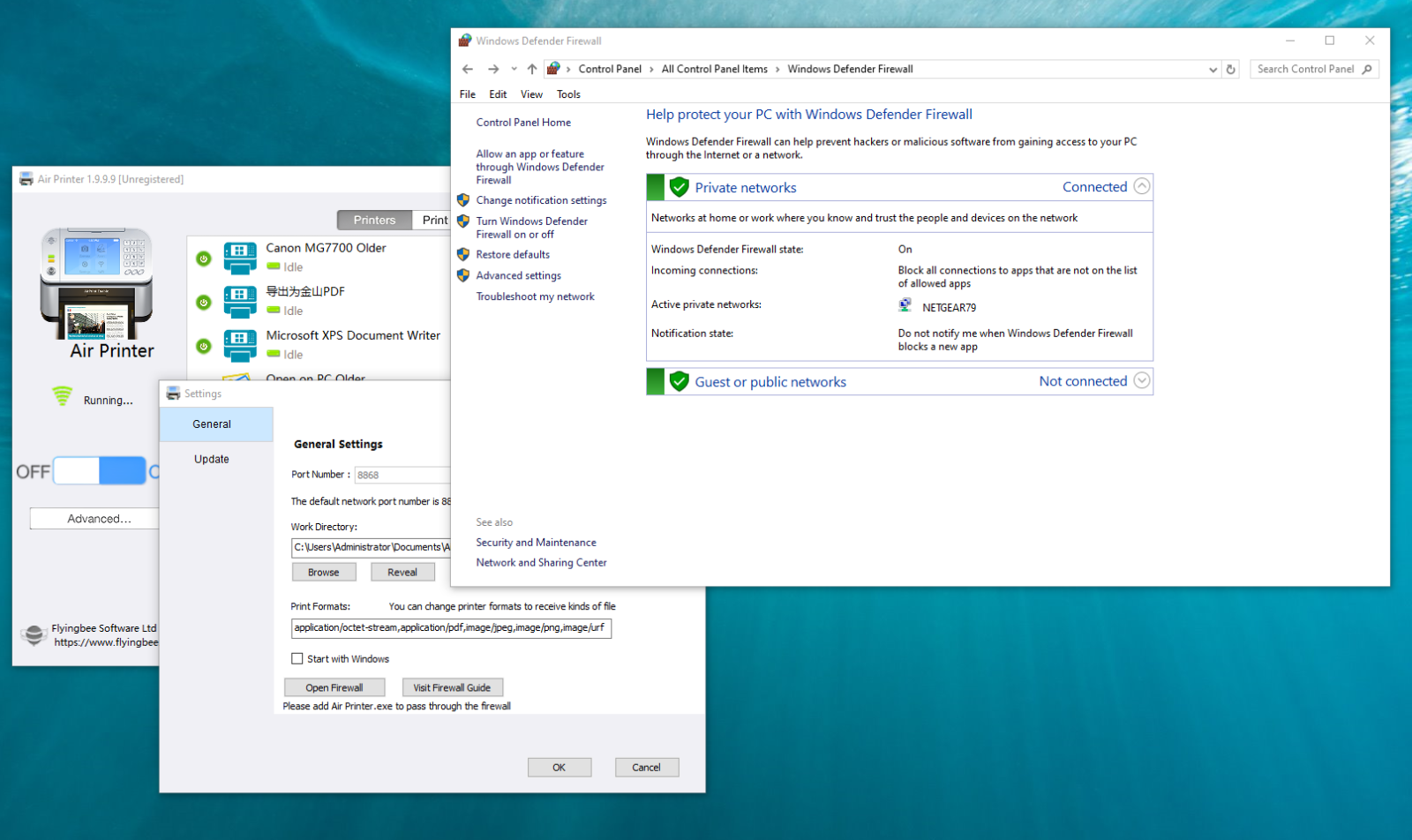
Security software sometimes mistakes printer traffic for a threat. Strict rules can block the ports required for communication.
Test by Disabling Firewall Temporarily
Determine if security software is the culprit behind the issue.
1. Turn off your firewall or antivirus briefly.
2. Attempt to print a document.
3. Re-enable security immediately after testing.
Create Printer Exceptions
Allow your printer through security walls without compromising safety.
* Windows Defender: Add printer executables to Exclusions in Virus & Threat Protection.
* Third-party apps: Locate Network Protection settings and allow your printer app.
* Ensure ports like TCP 9100 and Port 631 are open.
Prevent Future Offline Statuses
Proactive maintenance reduces the likelihood of recurring connection failures. Keep your system updated to avoid compatibility issues.
Update Firmware Regularly
Manufacturers release updates to fix bugs affecting connectivity.
* Use built-in update tools on your printer display.
* Check for updates quarterly via manufacturer apps.
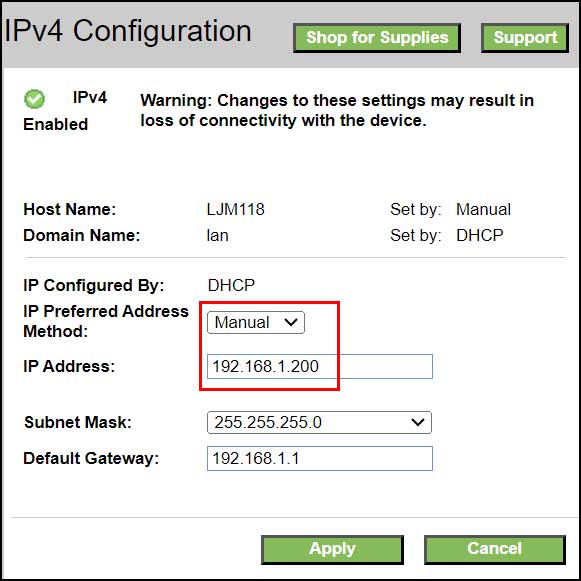
Assign a Static IP Address
Dynamic IP changes can disconnect your printer from the network.
* Access your router settings to assign a static IP.
* This ensures your computer always finds the printer at the same address.
Utilize Wi-Fi Direct
Bypass router issues by connecting directly to the printer.
* Enable Wi-Fi Direct on your printer settings.
* Connect your device directly to the printer signal.
* This method works like Bluetooth but offers faster speeds.
When to Contact Professional Support
If all troubleshooting steps fail, professional intervention may be necessary. Complex hardware faults require specialized diagnostics.
Use Virtual Assistant Tools
Automated guides on support sites can walk you through OS-specific fixes. These tools analyze connectivity, battery health, and cartridge status remotely.
Access Account-Based Support
Register your device to access advanced support features.
* Personal Accounts: Save device preferences and access guides.
* Business Accounts: Manage warranties and submit support cases.
* Select your region (Americas, EMEA, APAC) for localized help.
Frequently Asked Questions About Printer Offline Issues
Why does my printer say offline when it is on?
This usually means your computer cannot communicate with the printer due to network mismatches or stuck queues. Check that both devices are on the same Wi-Fi network and clear any pending print jobs.
How do I force my printer to go online?
Restart the Print Spooler service on Windows or reboot both the printer and computer. Ensure the “Use Printer Offline” option is unchecked in your printer queue settings.
Can low ink cause a printer to go offline?
Yes, critically low ink or toner levels can trigger firmware to pause operations and report an offline status. Replace the cartridge to restore functionality.
Does a paper jam make a printer appear offline?
Many models disconnect from the network or report offline when a jam is detected. Clear all paper fragments and close covers securely to reset the sensors.
Why does my printer keep going offline after fixing it?
Recurring issues often stem from dynamic IP changes or outdated drivers. Assign a static IP address and reinstall the latest manufacturer drivers to prevent this.
What ports need to be open for printer communication?
Firewalls must allow traffic on TCP port 9100 and Port 631 for standard printing protocols. Check your antivirus settings if you suspect blocking.
Key Takeaways for Fixing Printer Offline Errors
Understanding why does a printer go offline helps you resolve the issue quickly. Most problems stem from network mismatches, stuck print queues, or outdated drivers rather than hardware failure.
Follow a logical path by checking connections, resetting devices, and updating software. Use manufacturer diagnostic tools for faster results and keep firmware current to prevent future disruptions.
Start by verifying your Wi-Fi network alignment today. If simple resets do not work, proceed to driver reinstallation and firewall adjustments to restore full printing capability.




