
You’ve spent hours perfecting your sticker design or storefront banner, only to face the final hurdle: printing it right. Knowing how to use a vinyl printer correctly separates crisp, vibrant results from wasted media and damaged equipment. Whether you’re working with a Roland TrueVIS SG 540 in a commercial studio or a Cricut Print Then Cut system at your kitchen table, the principles of preparation, precision, and patience apply equally.
This guide covers both professional and consumer workflows in detail. You’ll learn how to prepare files, load materials safely, configure quality settings, and finish your project without costly mistakes. By the end, you’ll have the confidence to produce durable, professional-grade decals on either system.
Professional Vinyl Printing With the Roland TrueVIS SG 540
Confirm Media With Staff Before Anything Else
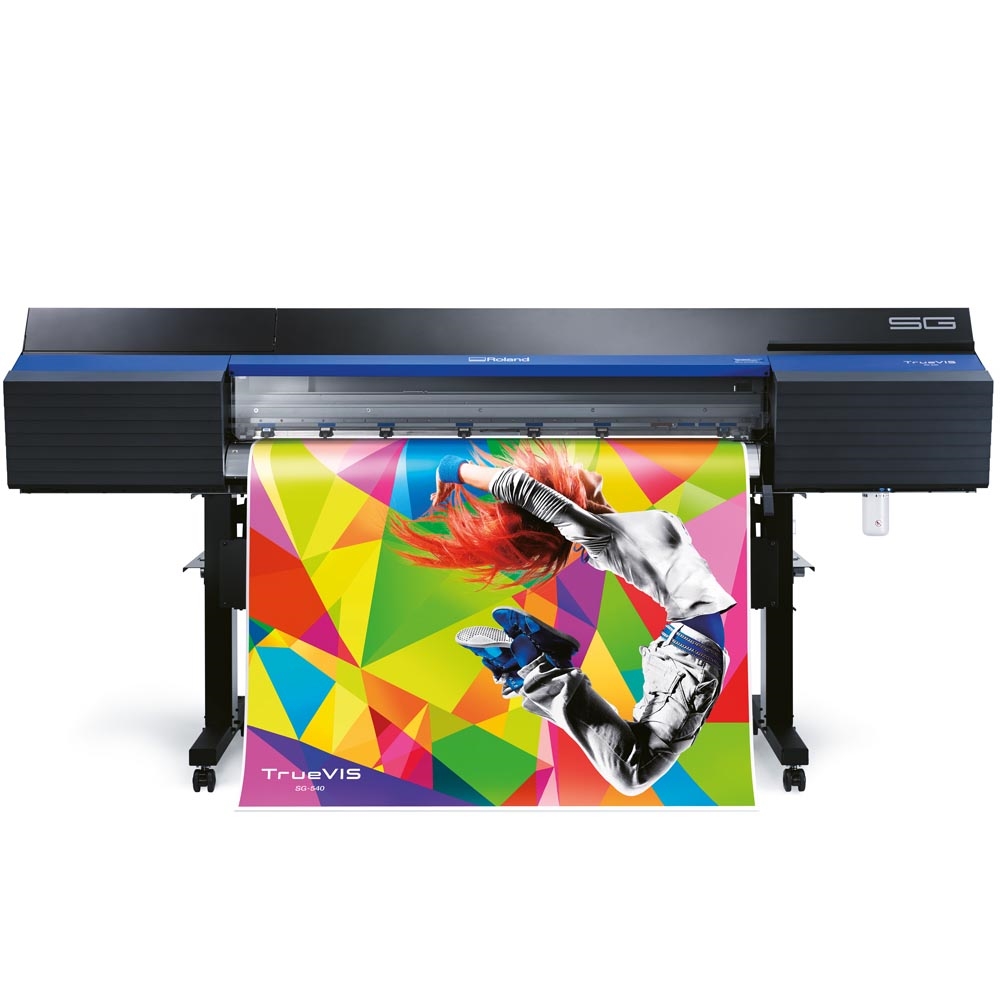
Never attempt to load the vinyl roll yourself. The Roland TrueVIS SG 540 uses heavy rolls that require trained handling to prevent injury or machine damage. At facilities like SPARC Place, staff members handle all roll mounting and calibration.
Before starting, confirm your desired media type with a technician. The machine supports six printable materials: lightweight banner vinyl, wall cling, sticker vinyl, window cling, perforated window cling, and poster paper. Rolls come in 54-inch or 30-inch widths, with a 1-inch margin on each end, meaning maximum printable widths are 52 inches and 28 inches respectively.
Transfer Your Design via Flash Drive
Save your artwork as a PDF (preferred) or EPS file before transferring. Avoid JPEG or PNG formats, as they lack vector precision and degrade when enlarged. Plug your flash drive into the computer on the right side of the printer, which runs VersaWorks, Roland’s print management software.
If VersaWorks isn’t already open, notify staff immediately. Once running, locate your flash drive in the folder at the bottom of the screen.
Add Jobs to the Print Queue and Nest Designs

Drag your file into the print queue. You can add multiple files at once, which is especially useful for batch printing stickers or labels. After uploading, select all jobs and click the Nest button. Nesting arranges multiple images efficiently across the roll width, minimizing waste.
This step is critical for cost-effective production. Nesting works automatically based on available width (52 inches for 54-inch rolls, 28 inches for 30-inch rolls), so small or irregularly shaped designs pack tightly together.
Configure Media and Quality Settings
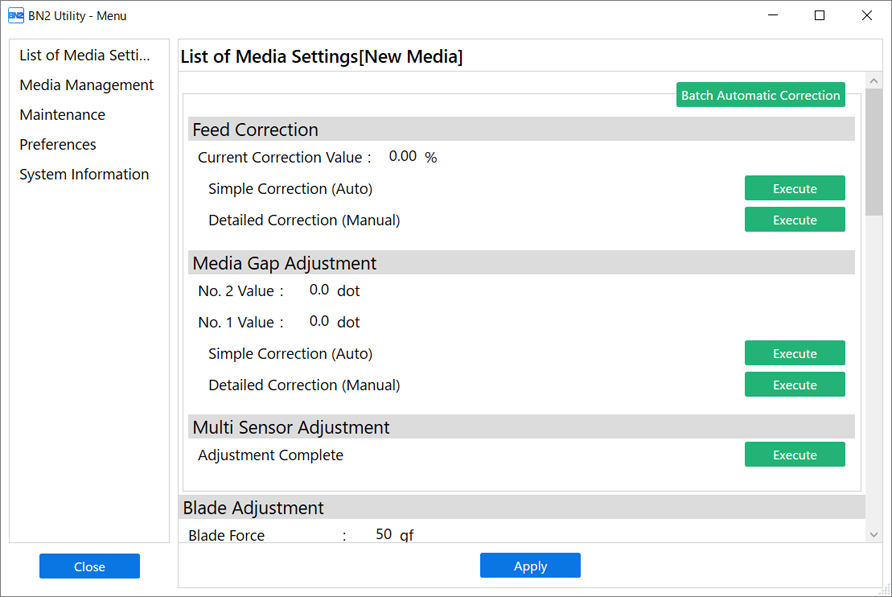
Click the Media Settings icon (first in the toolbar). Use Get Media Width to auto-detect the roll size automatically. Adjust the copy count with the up/down arrows, applying changes per job when nesting. Use orientation controls to rotate your design for better layout or roll alignment.
Next, open Quality Settings (second icon). Select the exact media type from the dropdown, such as “Sticker Vinyl” or “Window Cling.” This ensures proper ink adhesion and drying. Set Halftone to Dither for smooth color gradients and photo-realistic results. Skipping this setting often causes banding or grainy output.
Important timing note: the displayed print time reflects ink laydown only. Add extra time for RIP processing, drying, and cutting, which can extend total job time to 3–5x longer than shown. A 3-minute print may take 10–15 minutes from start to finish.
Set Cut Lines Within Machine Limitations
Use the Scissor icon to define cut paths. For custom sticker shapes, draw cut lines around your design. You’ll see marching red ants indicating active cut boundaries. For simple rectangular cuts, enable Cut Image Boundaries to auto-generate edge trims.
Critical limitation: the machine can only cut up to 2 feet at a time. For longer designs, split your artwork into 24-inch segments. Complex or oversized jobs require staff consultation, as the printer cannot handle full-length cuts on its own.
Start the Print Only After Staff Verification
Do not press Start without staff approval. A technician will confirm media and quality settings, ensure print guards are secured, and check for obstructions. Only after this verification should you begin the job.
Monitor the Print Safely From Start to Finish
Stay in the room for the entire print cycle. This is required by policy and ensures you can respond to any issues. Never lean on the machine, open the door (which triggers an automatic stop), or shake or jostle the material during printing.
For prints longer than 2 feet, gently roll the output into itself as it exits. The ink is dry upon exit, so smearing isn’t a concern. However, any movement during printing can misalign layers or cause a head strike, a costly mechanical failure.
Alert Staff for Final Cutting
When printing completes, notify a staff member. They will safely cut the print from the roll using built-in blades. Never attempt this yourself, as it prevents injury and protects the machine’s precision components.
Consumer Printing With the Cricut Print Then Cut System
Design Your Project in Cricut Design Space
Start by customizing your image, text, or photo in Design Space. Use high-contrast colors for visibility, especially on metallic vinyl. Light shades disappear on gold or silver surfaces, so opt for bold, deep tones like navy, crimson, or black to make designs pop.
Once satisfied, click Make It to proceed. Design Space automatically adds registration marks (black squares) that the Cricut machine reads to align cuts precisely.
Print Only With an Inkjet Printer
Use inkjet printers only. Laser printers apply heat to fuse toner, which melts the vinyl coating and can damage both material and machine. Cricut Printable Vinyl is designed specifically for cold inkjet processes.
Load the sheet with the printable side up. This side is blank, while the back has grid lines and the Cricut logo. For Clear Printable Sticker Paper, print on the shiny side; the frosted side is the liner.
If unsure about orientation, run a test print on regular paper first to confirm which direction to load the sheet.
Optimize Print Quality for Best Results
Set your printer to “Best Quality,” “High Quality,” or “Photo Paper” mode. These settings increase ink density and slow printing speed, reducing streaks and improving color vibrancy.
However, if smudging occurs, reduce quality to “Good,” as your printer may be over-saturating the vinyl. Use the bypass tray to feed single sheets, or remove all paper from the main tray to prevent misfeeds.
Older Cricut materials are thicker and may require manual feed tray use and adjusted thickness settings.
Let Ink Dry Completely Before Cutting
After printing, allow ink to dry fully before cutting. Drying time varies by printer, ink load, and ambient humidity, typically 2–5 minutes. Cutting too soon causes smearing and clogs the blade.
Never rush this step. Wet ink compromises edge sharpness and can stain the cutting mat.
Load the Mat Liner-Side Down
Place the printed vinyl liner-side down on a Cricut Light Grip mat. The printed design should face up. Smooth out air bubbles with a scraper tool to ensure even adhesion.
Align the sheet so its orientation matches the preview in Design Space. Load the mat into your machine, arrow first, unless using a Cricut Joy model.
Select the Correct Material Setting
In Design Space, choose Browse All Materials and pick the exact match, such as “Printable Vinyl” or “Metallic Printable Vinyl.”
For Cricut Explore Air 2 and older models, turn the Smart Set dial to “Custom” before selecting your material. These machines only support non-reflective white vinyl, so gold, silver, and other metallics won’t cut accurately.
Cricut Joy cannot perform Print Then Cut at all. For a full compatibility overview, see the table below.
Cut and Unload Safely
Click Go to start cutting. The machine reads the registration marks and follows your design’s outline with the Fine-Point Blade. When complete, select Unload in the software or press the eject button.
Inspect the cut: edges should be clean, with no uncut bridges. If lines are shallow, increase pressure in settings and recut.
Apply Stickers Without Transfer Tape
Peel the sticker by hand from the liner. Do not use transfer tape, as this removes the printable coating and ruins the design. The adhesive is permanent, so placement matters.
Before applying, ensure the surface is clean and dry. Wipe with isopropyl alcohol for best adhesion. Press firmly with a squeegee or credit card to eliminate bubbles.
Know Your Material Versions
Check the liner to identify which version you’re using. New material has green printing with the current Cricut logo. Old white vinyl shows gray printing with the old logo (antennas visible). Old Clear Printable Sticker Paper has no printing on the liner.
Older versions are thicker and may require manual feed adjustments. Always verify which version you have before loading.
| Material | Printable Side | Liner Side |
|---|---|---|
| Standard Vinyl | Blank | Grid + Cricut logo |
| Clear Sticker Paper | Shiny | Frosted |
Avoid Common Mistakes That Ruin Prints
Never use laser printers. The heat warps vinyl and risks internal damage. Stick to inkjet only.
Skip transfer tape. It pulls off the ink layer on printable vinyl. Hand-peel only.
Don’t overload the printer tray. Print one sheet at a time. Remove standard paper from the tray and use the bypass feeder to prevent jams, especially with thicker older materials.
Prevent smudging by reducing print quality to “Good” if colors smear. Allow longer drying time and avoid touching the printed surface.
Mind machine compatibility. Use the guide below to match your Cricut model with the right vinyl type.
| Machine | White Vinyl | Metallic | Notes |
|---|---|---|---|
| Explore Air 2 and older | Yes | No | White only |
| Maker, Explore 3+, Venture | Yes | Yes | All colors |
| Joy Xtra, Joy 2 | Yes | Yes | Sheet size limited |
| Joy | No | No | No Print Then Cut |
Maximize Print Quality
Use high-resolution images whenever possible. Low-resolution files appear pixelated when enlarged. Upload 300 DPI or higher images for sharp results.
Choose bold colors for metallic vinyl. Light colors fade into gold or silver backgrounds. Use saturated hues for strong visual contrast.
Nest designs for efficiency. In professional systems, nesting reduces material waste. In consumer workflows, arrange multiple small designs on one sheet to maximize use.
Frequently Asked Questions About Vinyl Printing
Can I use transfer tape with Cricut Printable Vinyl?
No. Transfer tape can remove the printable coating on top of the vinyl. Always hand-peel stickers from the liner and apply directly to a clean, dry surface.
Should I use an inkjet or laser printer?
Use an inkjet printer only. Laser printers use heat to fuse toner, which damages vinyl materials and can harm your printer. Cold inkjet processes are required for Cricut Printable Vinyl.
How do I know which side of the vinyl to print on?
The printable side is blank, while the liner has grid lines and the Cricut logo. For Clear Printable Sticker Paper, print on the shiny side; the frosted side is the liner. Run a test print on regular paper if you’re unsure.
What colors work best on metallic vinyl?
Light colors disappear into metallic surfaces. Use bright, bold colors in deeper palettes, such as navy, crimson, or black, to make your stickers stand out.
What printer settings produce the best results?
Set your printer to “High Quality,” “Best Quality,” or “Photo Paper” mode for brightest, crispest images. If smudging occurs, reduce quality to “Good,” as your printer may be applying too much ink.
How long does a professional print job take?
The displayed print time shows ink laydown only. A 3-minute print may take 10–15 minutes total when factoring in RIP processing, drying, and cutting. Plan accordingly.
Key Takeaways for Successful Vinyl Printing
Mastering how to use a vinyl printer comes down to three core principles. First, prepare your files correctly by using PDF or EPS formats for professional systems and high-resolution images for consumer setups. Second, respect equipment limits by never self-loading professional rolls, never using laser printers, and never skipping ink drying time. Third, configure quality settings properly by selecting the right media type, using high-quality print modes, and adjusting halftone or smudging issues as needed.
Whether you’re producing banners on a Roland or stickers at home with a Cricut, follow these guidelines for vibrant, durable results. Next step: gather your materials, verify your machine compatibility, and run a test print before committing to your final design.


