A flashing “Toner Low” alert on your Brother printer usually means it’s time to swap the cartridge. Whether you own an HL-L2460DW, MFC-L2710DW, or another laser model, the replacement process is straightforward and takes only a few minutes. No special tools or technical expertise required.
This guide walks you through every step of how to put a cartridge in a Brother printer, from prepping your workspace to running a test print. You’ll also find model-specific tips, cleaning instructions, and quick fixes for common installation issues.
Power On and Prep Your Workspace
Confirm the Power State
For most Brother models, including the MFC-L2710DW, keep the printer powered on during replacement. The internal fan helps cool components, and the machine stays ready for installation. The HL-L2460DW is the exception, since you can swap cartridges whether it’s on or off. Always check your model’s guide if you’re unsure.
Let the Printer Cool for 10 Minutes
If your printer was recently in use, internal parts can get extremely hot. Open the front cover and leave the machine powered on for 10 minutes before touching anything inside. This cooling period prevents burns and applies to models like the MFC-L2760DW as well.
Set Up a Clean Surface
Place a sheet of scrap paper or cloth on a flat, stable surface. This catches any loose toner and protects your workspace. Avoid carpeted or dusty areas, since debris can contaminate the drum surface and cause print defects.
Open the Front Access Door

Find the Side Gaps
Locate the small gaps on both sides of the front panel. These are finger grips designed for opening the cover. Models like the HL-L2460DW, HL-L2465DW, and MFC-L2710DW all use this design. Avoid prying or forcing the door open.
Open the Cover Properly
Pull the front door outward using the side gaps on the HL-L2460DW and MFC-L2710DW. Flip the panel downward on the HL-L2465DW. On the MFC-L2710DW, you’ll see a toner drawer with a green handle once the door opens. Pull it out gently to access the cartridge.
Remove the Old Toner Cartridge
Press the Release Lever
On the HL-L2460DW and MFC-L2710DW, press the lever on the left side. The cartridge will pop out slightly so you can pull it free. Set the old cartridge on your protected surface for later recycling.
Release the Green Lock Lever
For models with a separate drum unit, like the HL-L2465DW or MFC-L2760DW, locate the green lock lever on the drum. Press it down to release the toner, then slide the cartridge out. Avoid touching the drum’s roller surface, since skin oil can cause streaks or ghosting on prints.
Unpack the New Toner Cartridge
Remove All Orange Protective Covers
Take the new cartridge out of its packaging and strip off every orange cover:
– The HL-L2465DW has two covers, one on the toner and one on the drum’s side.
– Most other models have a single orange guard over the toner outlet.
These covers prevent toner leaks during shipping and must come off before installation. Discard them with regular plastic recycling.
Shake the Cartridge Gently
Hold the cartridge level with both hands and shake it side to side five or six times. This distributes toner powder evenly inside and helps prevent light or patchy prints on the first few pages.
Install the New Cartridge
Align It the Right Way
Orientation matters for proper seating:
– HL-L2460DW: Insert with the drum side facing up.
– HL-L2465DW and MFC-L2710DW: Keep the “Brother” logo facing you.
– MFC-L2710DW drawer models: Slide the cartridge in with the logo facing forward.
Misalignment can prevent the cartridge from locking in or may damage internal components.
Push Until You Hear a Click
Slide the cartridge into the drum unit or drawer gently but firmly. Push until you hear a distinct click. On models with a green lock lever, it should lift automatically when the cartridge seats correctly. This is your visual confirmation that the toner is locked in.
Clean the Corona Wire

Slide the Green Tab
Find the green tab or handle on the drum unit. Slide it back and forth several times to clean the corona wire, which transfers the image during printing. Use these guidelines based on your model:
– MFC-L2710DW: Slide the slider right to left three times.
– HL-L2465DW: Use the top slider 10 to 20 times if you’re seeing print quality issues.
– Generic models: Move the tab side to side several times.
Return the Tab to the Home Position
After cleaning, slide the tab back to the home position marked with the ▲ symbol. For the MFC-L2710DW, make sure the slider clicks into the left position. Skipping this step often leads to vertical stripes on printed pages.
Reinstall the Drum and Close the Cover
Slide the Drum Unit Back In
If you removed the drum unit, hold it by the handle and slide it into the printer until it clicks. For the MFC-L2710DW, push the drawer in fully and lock the green handle toward the printer. Partial insertion can cause paper jams or error messages.
Close the Front Cover Firmly
Shut the access door with a firm, even press. The printer will automatically detect the new cartridge. Don’t open the cover or power off the machine until the LCD shows “Ready” and clears any “Please Wait” message. This lets the printer finish its internal initialization.
Verify Installation and Run a Test Print
Double-Check Everything
Before printing, confirm these points:
– The toner clicked into place
– The drum unit sits fully inserted
– The green lock lever is up (if applicable)
– The front cover closed securely
These checks prevent errors like “Toner Not Installed” or “Drum Error.”
Print a Test Page
Run a test print to verify quality. Most Brother printers have a built-in option:
1. Press the Go or Settings button.
2. Navigate to Print Reports > Print Test Page.
Look for even toner coverage with no streaks, smudges, or ghosting.
Troubleshoot Common Issues
Ghosting or Streaks on Prints
Faint repeated images or black streaks usually mean the drum needs cleaning. On the MFC-L2710DW, slide the left-side slider right to left three times. On the HL-L2465DW, use the green slider 10 to 20 times. Also confirm the corona wire tab returned to the ▲ position.
Toner Not Recognized
If the printer doesn’t detect the new cartridge, check the following:
– All orange covers were fully removed
– The cartridge clicked into place
– The printer was powered on during installation
– You’re using a genuine Brother cartridge
Vertical Stripes on Pages
This almost always means the green cleaning tab wasn’t reset. Open the cover, slide the tab back to the ▲ mark, and close the door. Print another test page to confirm the fix.
Choose the Right Replacement Cartridge
Compatible Models by Printer
| Printer Model | Compatible Cartridge |
|---|---|
| Brother HL-L2460DW | TN830, TN830XL (high-capacity), TN830V, TN830R |
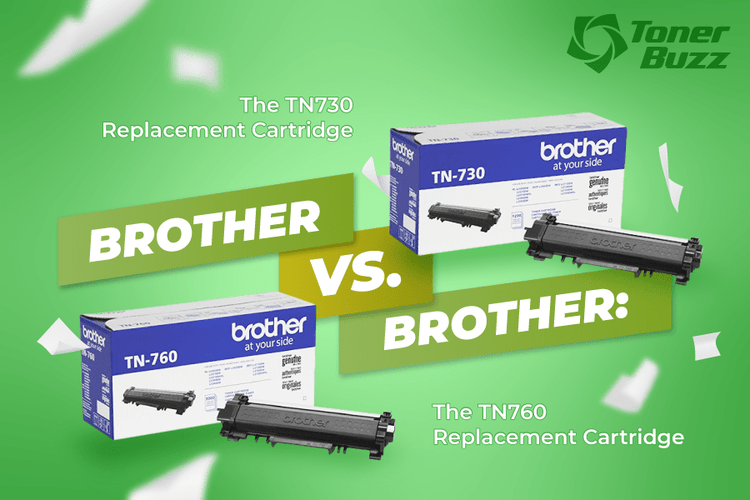
| Brother MFC-L2710DW | TN730 or TN760 |
| Brother MFC-L2760DW | TN760 (genuine recommended) |
| Brother HL-L2465DW | TN830 series (built-in drum) |
The HL-L2460DW uses cartridges with built-in drum units, so you replace both together. Other models may have separate drum and toner components that last for different lifespans.
Stick with Genuine Brother Supplies
Brother recommends genuine TN730 or TN760 cartridges for the MFC-L2710DW and MFC-L2760DW. Third-party cartridges might fit, but they can cause poor print quality, toner leaks, or even damage. Genuine supplies also protect your warranty.
Recycle and Store Cartridges Properly
Dispose of Used Cartridges Responsibly
Don’t toss used toner in regular trash. Recycle it through these channels:
– Brother’s official recycling program
– Office supply stores like Staples or Office Depot
– Manufacturer mail-back programs
The orange plastic covers are recyclable too. Toss them with clean plastic waste.
Store Spare Cartridges Correctly
Keep unused cartridges in a cool, dry place away from sunlight and moisture. Leave them sealed in their packaging until you’re ready to use them. Avoid storing them in cars or garages where temperatures swing dramatically.
Frequently Asked Questions About Putting a Cartridge in a Brother Printer
Do I need to turn off my Brother printer before changing the cartridge?
For most Brother laser printers, keep the machine powered on during replacement. The HL-L2460DW allows you to replace the cartridge whether it’s on or off. Always follow your model’s specific guidance.
How long should I wait after printing before changing the cartridge?
Let the printer cool for at least 10 minutes after recent use. Internal components can be extremely hot right after a print job. Open the front cover and leave the machine powered on so the fan can do its work.
What happens if I forget to remove the orange cover?
The printer won’t print properly if the orange protective cover stays on. Toner can’t flow through the outlet, resulting in blank or faded pages. Remove every orange cover before installation.
Why does my printer show “Toner Not Installed” after I replaced the cartridge?
This error usually means the cartridge isn’t fully seated. Open the cover, remove the cartridge, and reinstall it. Push firmly until you hear a click or see the green lock lever lift. Also confirm all orange covers came off.
Can I use third-party cartridges in my Brother printer?
Compatible cartridges may physically fit, but Brother recommends genuine supplies for the best results. Third-party options can cause streaks, leaks, or damage that may void your warranty.
How do I know which cartridge my Brother printer needs?
Check your printer model number, usually found on the front or top of the machine. Match it to the compatible cartridge list in your user manual. Common Brother toner cartridges include the TN730, TN760, and TN830 series.
Key Takeaways for Installing a Brother Printer Cartridge
Replacing a Brother toner cartridge is a quick task you can finish in just a few minutes. The most important steps are letting the printer cool for 10 minutes, removing all orange protective covers, and pushing the new cartridge in until it clicks. Cleaning the corona wire and returning the green tab to the ▲ position prevents most print quality issues afterward.
Your next step is to check your current cartridge model against the compatible list above. Once you have the right replacement on hand, follow the steps in this guide for a smooth installation. With genuine supplies and proper handling, your Brother printer will deliver sharp, reliable prints for thousands of pages to come.