

You just unboxed a new device but feel stuck wondering exactly how to use a printer for your daily tasks. Whether you need school assignments or office reports, proper setup prevents frustrating errors and saves valuable time.
This guide walks you through hardware installation, wireless connections, and mobile printing on any platform. You will learn to scan documents, troubleshoot jams, and maintain peak performance for years of reliable service.
Select the Correct Printer Type for Your Needs

Choosing the right hardware sets the foundation for efficient printing and cost management. Your specific workload determines whether an inkjet, laser, or multifunction model suits you best.
Match Technology to Your Workflow
Inkjet printers deliver vibrant color and excel at high-quality photo prints for home users. Laser models offer fast speeds and smudge-resistant text ideal for high-volume office documents. All-in-one units combine printing with scanning and copying to save space.
Evaluate Long-Term Supply Costs
Inkjet systems use liquid cartridges that deplete faster but have lower upfront purchase prices. Laser printers utilize toner powder which lasts longer but costs more initially. Always check replacement cartridge prices before buying any new machine.
Install Hardware Components and Load Supplies
Proper physical assembly ensures your device operates reliably from the very first day. Follow these steps to install ink or toner and load paper correctly.
Install Ink or Toner Cartridges

- Power on the unit and open the cartridge access door completely.
- Remove new cartridges from packaging and peel off all protective tape.
- Match each cartridge to its color-coded slot inside the compartment.
- Insert gently until it clicks into place and close the door securely.
Warning: Never touch the copper contacts or nozzles as oils can cause clogs.
Load Paper Into the Tray Correctly
- Pull out the main paper tray and adjust the side guides fully.
- Place a stack of standard letter or A4 paper into the slot.
- Slide the guides snugly against the edges without bending the sheets.
- Use the rear manual feed for thick cardstock or special envelopes.
Tip: Select the matching paper type in your software settings to avoid jams.
Connect Your Printer to Devices Wirelessly
A stable network connection enables seamless printing from computers and smartphones. You can use USB for direct links or Wi-Fi for shared access across your home.
Establish a Wi-Fi Network Connection
- Navigate to Network or Wireless Setup on the control panel.
- Select your home Wi-Fi network name from the available list.
- Enter your password using the on-screen keyboard carefully.
- Wait for the confirmation light to indicate a successful connection.
Pro Tip: Ensure your router uses WPA2 security for the best compatibility.
Enable Mobile Printing Capabilities
Android users should install the specific print service plugin for their brand. iPhone and iPad owners can use AirPrint without installing extra drivers. Both methods require the mobile device and printer to share the same network.
Install Drivers and Printer Software
Your computer needs specific drivers to communicate effectively with the hardware. Skipping this step often results in missing features or total connection failure.
Download Latest Driver Packages
- Visit the official manufacturer website for your specific model.
- Enter your printer model number in the search field.
- Download the Full Feature Software for your operating system.
- Avoid using the included CD as it often contains outdated files.
Run the Installation Wizard
- Open the downloaded file and launch the installer application.
- Follow the prompts and select Wireless or USB connection type.
- Allow the setup tool to detect and configure the device automatically.
- Verify installation by checking Printers & Scanners in system settings.
Print Documents From Windows Computers
Windows offers robust tools for managing print jobs and customizing output settings. Use these steps to print documents from Word, PDFs, or web browsers.
Start a Print Job on Windows
- Open your file and press Ctrl+P or go to File > Print.
- Select your specific printer from the dropdown menu list.
- Click Printer Properties to adjust quality and paper settings.
- Click Print to send the job to the queue immediately.
Customize Print Settings Effectively
- Page Range: Choose to print all pages or specific numbers like 1 through 5.
- Color Options: Select Color for images or Black & White for text.
- Quality Level: Pick Draft for speed or Best for high-resolution photos.
- Orientation: Switch between Portrait for vertical or Landscape for horizontal.
Print Files From Mac Computers
macOS provides a streamlined printing experience with built-in AirPrint support. This eliminates the need for complex driver installations on Apple devices.
Initiate Printing on macOS
- Open the document and press Cmd+P or select File > Print.
- Choose your printer from the Printer dropdown menu.
- Adjust the number of copies and pages in the preview pane.
- Click Print in the bottom right corner to start.
Troubleshoot Missing Printers on Mac
If your device does not appear, ensure both units are on the same Wi-Fi. Click the + symbol under printers to add it manually via IP address. You may need to reset the printing system in system settings.
Print From Android Devices Easily
Android phones allow flexible printing options via Wi-Fi or direct USB cables. This convenience lets you print photos and documents directly from your pocket.
Print Over Wi-Fi Network
- Confirm your phone and printer share the same wireless network.
- Open the file in Chrome, Files, or your preferred document app.
- Tap the three-dot menu and select Print from the options.
- Choose your printer and tap Print to finish the job.
Use OTG Cable for Direct Connection
- Connect your Android phone to the printer using an OTG cable.
- Install the required print service plugin if prompted by the system.
- Tap OK on the notification pop-up to enable the connection.
- Open your file, select Print, and choose the connected device.
Print From iPhone and iPad Using AirPrint
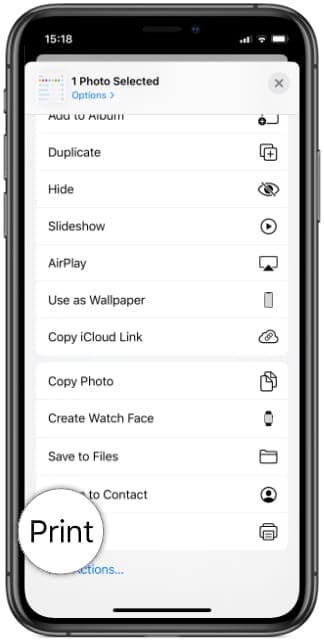
Apple devices use AirPrint technology for secure and simple wireless printing. No extra apps are needed if your printer supports this built-in feature.
Start an AirPrint Job
- Open the photo or document in Photos, Safari, or Pages.
- Tap the Share icon featuring a square with an upward arrow.
- Scroll down and tap Print from the share sheet options.
- Select your AirPrint-enabled printer from the top list.
Adjust Print Options on iOS
- Tap the arrow next to the printer name to reveal more settings.
- Change the number of copies or select black and white mode.
- Adjust paper size if your printer supports multiple tray options.
- Tap Print in the top right corner to execute the command.
Scan Documents and Photos Digitally
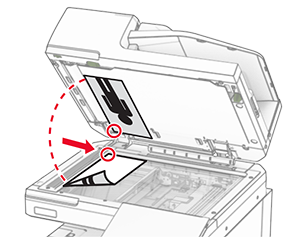
Multifunction printers allow you to convert physical papers into digital files. This process is essential for archoring records or emailing hard copies.
Prepare and Load Documents
Place single pages face down on the scanner glass aligned with the corner guide. Use the Automatic Document Feeder for multiple pages by loading them face up. Ensure the lid is closed tightly to prevent light leaks during scanning.
Scan Using Computer Software
- Open the scanning application provided by your manufacturer.
- Select the scan type such as Document, Photo, or searchable PDF.
- Choose your resolution and color settings before clicking Scan.
- Save the final file to your desired folder on the hard drive.
Make Copies Without a Computer
You can reproduce documents quickly using only the printer control panel. This function works independently of any connected computer or network.
Copy a Single Page快速
- Place the original on the glass face down or in the feeder face up.
- Press the Copy button on the main control panel interface.
- Use the screen to select the number of copies and color mode.
- Press Start to begin the copying process immediately.
Copy Multiple Pages Efficiently
Load all pages into the Automatic Document Feeder tray face up. Select Multi-Page Copy on the touchscreen to scan each sheet automatically. Flip the stack manually if you need double-sided copies from single-sided originals.
Maintain Your Printer for Longevity
Routine maintenance prevents breakdowns and keeps your print quality consistently high. Simple habits can extend the life of your device significantly.
Clean Print Heads Regularly
Clogged nozzles cause streaks or blank lines on your printed pages. Run the Clean Print Cartridges utility in your printer software monthly. Print a nozzle check pattern to verify the cleaning was successful.
Note: Avoid excessive cleaning cycles as they waste a large amount of ink.
Prevent Paper Jams and Errors
- Store paper in a cool dry place to prevent moisture absorption.
- Do not overfill the paper tray beyond the maximum fill line.
- Adjust paper guides snugly to keep sheets aligned properly.
- Print a test page occasionally to keep ink flowing smoothly.
Troubleshoot Common Printer Problems

Quick fixes can resolve most frequent issues without calling technical support. Check these common solutions if your device stops working.
Fix Offline Status Messages
- Go to Settings > Printers & Scanners on your computer.
- Click your printer and open the Print Queue window.
- Uncheck Use Printer Offline if it is currently selected.
- Restart the printer and try printing a test page again.
Clear Stuck Print Jobs
- Press Win + R, type
services.msc, and press Enter. - Locate Print Spooler in the list and right-click to restart it.
- Delete any stuck documents in the print queue window.
- Try sending your document again to see if it prints.
Resolve Poor Print Quality
Replace low ink or toner cartridges if text appears faded or blurry. Clean the print heads if you see streaks or missing colors on pages. Ensure you are using the correct paper type setting for your media.
Frequently Asked Questions About Printer Usage
How do I connect my printer to Wi-Fi without a computer?
Most modern printers have a touchscreen menu where you can select your network name. Navigate to wireless settings, enter your password directly on the panel, and wait for the confirmation light.
Why does my printer say it is offline when it is on?
This usually indicates a communication breakdown between the computer and device. Check that both are on the same network and ensure the “Use Printer Offline” option is unchecked in settings.
Can I print from my phone without Wi-Fi?
Yes, you can use a USB On-The-Go cable to connect Android phones directly to compatible printers. Some models also support Bluetooth printing if both devices have the feature enabled.
How often should I clean my inkjet printer heads?
You should run a cleaning cycle only when you notice streaks or missing colors on prints. Cleaning too frequently wastes ink, so limit this to once a month or when quality drops.
What causes paper jams most frequently?
Paper jams often result from overfilled trays, wrinkled paper, or loose paper guides. Ensure your paper is dry and the guides fit snugly against the stack to prevent feeding errors.
Key Takeaways for Using Your Printer Effectively
Mastering how to use a printer involves proper setup, regular maintenance, and smart troubleshooting habits. By selecting the right hardware, keeping drivers updated, and cleaning components occasionally, you ensure consistent high-quality results.
Start by verifying your physical connections and testing a single page before large jobs. Bookmark this guide to quickly resolve future issues and keep your printing workflow running smoothly.


