

Is your printer ignoring commands, stuck on “offline,” or missing features after a recent Windows update? These issues often stem from an outdated or corrupted printer driver that fails to translate data correctly between your computer and hardware. Updating your printer driver resolves communication errors, restores missing functions, and ensures compatibility with the latest security patches.
This guide details six proven methods to update your printer driver on Windows systems for brands like HP and Dell. You will learn how to use Windows Update, download official files, force updates via Device Manager, and troubleshoot complex ARM or enterprise scenarios. Follow these steps to keep your printing setup reliable and efficient.
Use Windows Update to Install Certified Drivers
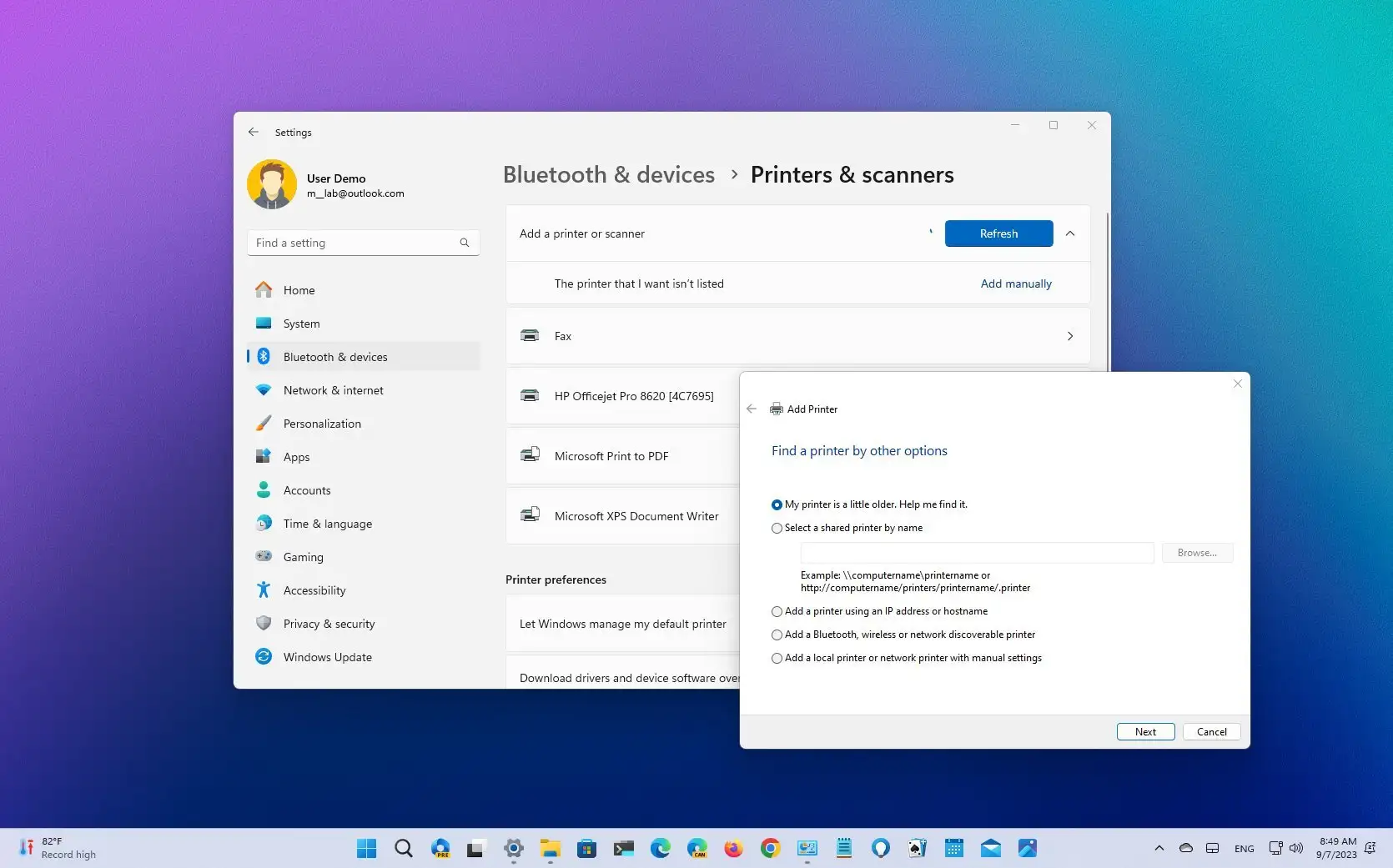
Windows Update serves as the safest starting point because it delivers Microsoft-certified drivers automatically. This method prevents compatibility issues and requires minimal user intervention for most standard printers.
Check for Optional Driver Updates
- Open Settings by pressing Win + I and select Windows Update.
- Click Check for updates to scan for new software.
- Select View optional updates if the link appears below the main button.
- Navigate to the Driver updates tab to see available hardware fixes.
- Check the box next to your printer model and click Download and install.
- Restart your PC if the system prompts you to finalize the installation.
Pro Tip: Run this check monthly even if your printer works fine. Microsoft regularly adds improved driver versions that enhance stability.
Why Windows Update Might Miss Your Driver
Not every driver appears in this catalog, especially for niche models or feature-rich devices. The latest version may not be in Microsoft’s database yet, or your specific model might require a direct download. If your printer is absent from the list, proceed to the manufacturer website method.
Download Latest Drivers from Manufacturer Websites
Manufacturer websites host the most current drivers with full feature sets and performance improvements. This approach ensures you get fixes that have not yet reached general distribution channels.
Identify Your Exact Printer Model
Locate the label on your printer, usually found on the back, bottom, or inside the toner door. Write down the exact model number, such as HP LaserJet Pro MFP M428fdw, and note your Windows version from Settings. Having this information ready speeds up the search process significantly.
Install the Full Feature Software
- Visit the official support page for your brand, such as support.hp.com or dell.com/support.
- Enter your printer model number or Service Tag into the search bar.
- Select your specific operating system version from the dropdown menu.
- Choose the Full Feature Software and Drivers option for complete functionality.
- Download the executable file and save it to your Downloads folder.
- Right-click the file and select Run as Administrator to begin installation.
- Follow the on-screen prompts without connecting the USB cable until instructed.
- Restart your computer after the installation completes to apply changes.
Warning: Avoid third-party driver aggregation sites. They often bundle malware or provide incorrect files that damage your system.
Force Updates Using Device Manager
Device Manager provides direct control over hardware drivers when automatic tools fail to detect updates. You can use it to search online databases or manually point Windows to a downloaded file.
Run Automatic Search in Device Manager
- Right-click the Start button and select Device Manager from the menu.
- Expand the Printers category to reveal your installed devices.
- Right-click your specific printer and choose Update driver.
- Select Search automatically for updated driver software to let Windows look.
- Click Search for updated drivers on Windows Update if the initial search finds nothing.
Manually Install Driver Files
Use this method if you downloaded a driver that Windows does not automatically recognize. Extract the downloaded file to a known folder location on your hard drive. In Device Manager, select Browse my computer for drivers instead of automatic search. Navigate to the folder containing the extracted files and click Next. Windows installs the driver if it detects a newer version than the current one.
Note: If a message states the best drivers are already installed, the file may be incompatible or identical to what you have.
Reinstall Printer to Force Fresh Driver Installation
A complete removal and re-addition of the printer forces Windows to discard corrupted files and fetch a clean driver copy. This method effectively resolves stubborn errors where updates fail to apply.
Remove and Reset Your Printer
- Go to Settings > Bluetooth & devices > Printers & scanners.
- Click on your printer name and select Remove device to delete it.
- Restart your computer completely to clear any cached driver data.
- Return to Printers & scanners and click Add device after rebooting.
- Wait for Windows to detect the hardware and install a fresh driver automatically.
Best For: Printers that remain unresponsive, show offline status, or display error codes after standard updates.
Handle Brand-Specific Update Procedures
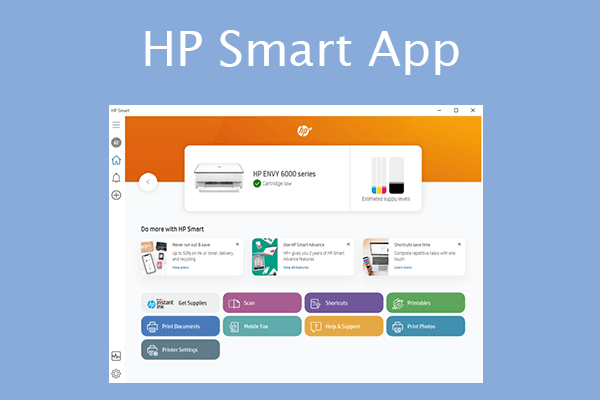
Major manufacturers like HP and Dell have unique tools and removal requirements. Following their specific workflows prevents conflicts and ensures all components function correctly.
HP Printer Updates and Tools
HP bundles drivers with the HP Printer Assistant for models built after 2010. This tool manages maintenance tasks and supply levels directly from your desktop. Use the HP Smart app for mobile printing and cloud features, though it requires an HP account. Always download the Full Feature Driver from the HP support site to get both the driver and the assistant software in one package.
Dell Printer Clean Uninstall Process
Dell recommends removing all traces of old drivers before installing new ones to prevent communication conflicts. Run the Windows Printer Troubleshooter first, then open appwiz.cpl to uninstall all Dell printer entries. Restart your computer, then go to Control Panel > Devices and Printers. Select Print server properties, click the Drivers tab, and remove the driver package entirely. Restart again before downloading the new driver from the Dell support site.
Critical: Never skip the driver package removal step. Leftover files cause significant conflicts during new installations.
Fix Advanced Driver Issues on Modern Systems
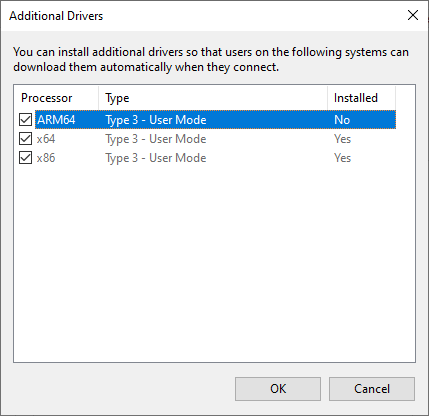
Complex environments involving ARM processors, enterprise cloud printing, or legacy hardware require specialized steps. These scenarios often bypass standard update mechanisms.
Update Drivers on ARM-Based PCs
ARM devices like Copilot+ PCs need native ARM64 drivers to function. Go to Settings > Bluetooth & devices > Printers & scanners and click Add device. Let Windows auto-install the built-in ARM-compatible driver. Do not use manual executable installers unless the manufacturer explicitly confirms ARM64 support for your model.
Roll Back to Previous Driver Version
If a recent update causes instability, you can revert to the previous version quickly. Open Device Manager, right-click your printer, and select Properties. Go to the Driver tab and click Roll Back Driver. Select a reason for the rollback and confirm. This option remains grayed out if no previous version is stored on your system.
Use Compatibility Mode for Legacy Printers
Older printers may lack drivers for Windows 10 or 11. Download the driver designed for Windows 7 or 8. Right-click the installer, select Properties, and go to the Compatibility tab. Check Run this program in compatibility mode for and select the older OS version. Run the file as Administrator to attempt installation, though some features may not work.
Apply Enterprise and Cloud Printing Updates

Business environments using Microsoft Universal Print require different update procedures based on the change type. Major driver changes involve creating new printer shares, while minor updates only need a service restart.
Major Driver Change Procedure
Install the new driver and add a new printer pointing to the same port. Register this new printer with the Universal Print Connector and share it via the Azure Portal. Test the new share on a client machine, then replace the old printer share in your tenant. This ensures a smooth transition without downtime for users.
Minor Driver Update Procedure
Install the new driver patch, then go to Printer Properties > Advanced tab. Change the active driver to the new version and click Apply. Open Task Manager, find the Print Connector service, and restart it to reload capabilities. Note that clients on Windows version 1903 or older must reinstall the printer to see new features.
Maintain Drivers and Prevent Future Issues
Proactive maintenance keeps your printer running smoothly and prevents future connectivity headaches. Regular checks ensure your system remains secure and efficient.
Update Printer Firmware Regularly
Drivers run on your PC, but firmware runs on the printer itself. Visit the manufacturer support site every six months to check for firmware updates. Download the updater, run it as Administrator, and keep the printer powered on during the process. This step fixes hardware-level bugs that drivers cannot address.
Avoid Common Installation Mistakes
Steer clear of plugging in USB cables before the installer prompts you. This causes Windows to install generic drivers that lack full functionality. Always perform a clean uninstall of old drivers to avoid registry conflicts. Never use installation discs shipped with the printer, as they contain outdated software versions.
Recognize Driver Failure Symptoms
| Symptom | Likely Fix |
|---|---|
| Printer not detected | Reinstall driver from manufacturer website |
| Print jobs stuck in queue | Clear spooler and reinstall driver |
| Driver unavailable message | Check ARM vs x64 compatibility |
| Missing features after update | Update firmware and restart Print Connector |
| Installation fails repeatedly | Run as admin and perform clean uninstall |
Best Practice: Only download drivers from official manufacturer websites or Windows Update to guarantee safety and warranty protection.
Frequently Asked Questions About Printer Drivers
How often should I update my printer driver?
You should check for updates monthly or whenever you experience printing errors. Manufacturers release updates to fix bugs, improve speed, and patch security vulnerabilities. Regular updates ensure compatibility with new Windows versions and applications.
Can I update my printer driver without an internet connection?
No, you need an internet connection to download the latest driver files from the manufacturer or Windows Update. If your printer has a USB port, you can download the driver on another computer, transfer it via USB drive, and install it manually.
What happens if I install the wrong printer driver?
Installing the wrong driver may cause the printer to malfunction, produce garbled text, or stop responding entirely. It can also lead to system instability. If this occurs, use Device Manager to roll back the driver or uninstall the device completely before reinstalling the correct version.
Why is the Roll Back Driver option grayed out?
The Roll Back Driver option is grayed out if Windows has no record of a previous driver version. This happens if you never updated the driver before or if the system cleaned out old files. In this case, you must manually download and install the previous version from the manufacturer.
Do I need to uninstall the old driver before updating?
For most standard updates, you do not need to uninstall the old driver. However, for Dell printers or when troubleshooting persistent errors, a clean uninstall of all driver packages is highly recommended to prevent conflicts.
Key Takeaways for Updating Your Printer Driver
Updating your printer driver is essential for fixing errors, boosting performance, and ensuring security. Start with Windows Update for a quick fix, then move to the manufacturer website for the latest features. If issues persist, use Device Manager or perform a clean reinstall to force a fresh start.
Remember to update your printer firmware regularly and avoid common mistakes like early USB connection. By following these steps, you ensure your printer remains reliable and fully compatible with your operating system. Take action today by checking your current driver version and applying any available updates.


