
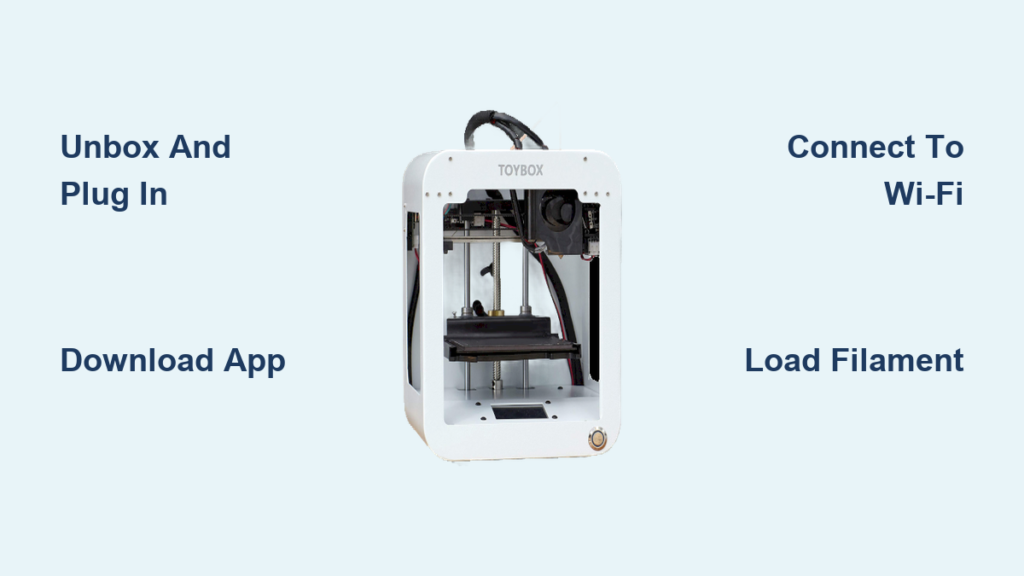
Imagine unboxing a 3D printer and holding your first finished toy in under five minutes. No tools, no calibration, no experience required. The Toybox 3D Printer makes that possible. Designed for kids, families, and curious beginners, this compact device removes every technical barrier that usually scares people away from 3D printing. With automatic heating, one-touch Wi-Fi pairing, and a flexible print bed, creating real objects feels as simple as tapping a button on your phone.
This guide walks you through every step of using the Toybox 3D Printer. You will learn how to power it on, install the app, connect to Wi-Fi, load filament, start your first print, and remove the finished model. By the end, you will feel confident printing toys, customizing designs, and troubleshooting common issues.
Unbox and Power On Your Toybox 3D Printer
The Toybox arrives fully assembled and ready to go. Forget about screwdrivers, instruction manuals thicker than a novel, or complicated setup rituals.
Plug In and Activate the Screen
Connect the printer to any standard wall outlet. The LCD screen lights up automatically and displays the “Welcome Page” with on-screen instructions. Status buttons on the front begin blinking to signal system readiness. There are no power switches or extra cables to worry about.
Skip Tools and Calibration
Toybox ships pre-calibrated from the factory. The extruder, print bed, and filament path are already optimized. You simply follow the prompts on screen. This instant setup is what makes the Toybox ideal for first-time users and children.
Download the Toybox App and Create Your Account
Every Toybox printer is controlled through the mobile app. This is where you browse models, start prints, and manage your device remotely.
Install the Mobile App
Search for “Toybox” in the Apple App Store or Google Play Store. Download and install the free app on your smartphone. Make sure your phone is connected to Wi-Fi before opening the app.
Register a New Account
Open the app and tap “Create Account.” Choose a username (such as “ToyboxS”) and set a secure password. Once registered, tap “Set Up My Toybox” to begin linking your printer. Your account keeps your prints, designs, and settings safe.
Connect Your Toybox 3D Printer to Wi-Fi
Wi-Fi connectivity lets you control the printer wirelessly and access the built-in model catalog without a computer.
Select Your Home Network
On the printer’s LCD screen, navigate to Settings and select Connect to Wi-Fi. A list of nearby networks appears. Choose your home Wi-Fi network. The Toybox supports standard 2.4 GHz networks used by most home routers.
Enter the Wi-Fi Password
Use the on-screen keyboard to type your network password. Double-check each character because typos are the most common cause of connection failures. Once entered, the printer attempts to connect automatically.
Confirm the Connection
The status buttons on the front blink during the connection process. When they stop blinking and remain solid, your printer is online. The printer remembers this network and reconnects on its own next time.
Pair Your Printer to the Toybox App
After Wi-Fi connects, you must pair the printer to your account. This step ensures only you can control your device.
Enter the Six-Letter Pairing Code
The printer’s LCD screen displays a unique six-letter code (for example, “AB12CD”). Open the Toybox app and enter this code when prompted. This pairing process keeps your printer secure and exclusive to your account.
Verify Pairing Success
The app confirms “Your Toybox is ready!” once pairing completes. Your printer now appears in the app dashboard, and you can start printing from anywhere in your home.
Load Filament for Your First Print
The Toybox uses child-safe PLA filament that comes pre-spooled. Loading takes less than a minute and requires no tools.
Attach the Filament Spool
Place the filament spool onto the holder located at the back of the printer. The spool fits securely and rotates freely. Make sure the filament unwinds in the correct direction.
Feed Filament into the Extruder
Guide the end of the filament into the extruder opening. Push gently until you feel slight resistance. The printer’s automatic feeding system pulls the filament through the rest of the way. Continue feeding until filament emerges from the nozzle tip.
Confirm Proper Loading
Seeing filament appear at the nozzle confirms successful loading. If the filament does not feed smoothly, check for tangles in the spool or kinks in the strand. Apply steady, light pressure rather than forcing it.
Start Your First 3D Print
With setup complete, you are ready to create something fun. The built-in catalog offers dozens of ready-to-print models optimized for Toybox.
Browse the Model Catalog
Open the app and tap the “Catalog” section. Browse categories like animals, toys, and accessories. Every model is pre-sized and pre-sliced, so there is no technical preparation required.
Select the Bunny Ring Model
Tap the “Bunny Ring” model. This popular starter print is perfect for beginners. Then tap Print to send the command to your printer.
Watch Automatic Heating Begin
The nozzle heats up automatically with no manual preheating required. Within seconds, the first layer appears on the print bed. The entire process runs quietly and is mesmerizing to watch, especially for kids.
Remove Your Finished Print

Once printing finishes, removing the model is quick and tool-free.
Wait for the Print to Complete
The app and printer screen both show “Print Complete.” Allow the nozzle to cool for one to two minutes before handling the bed.
Bend the Flexible Print Bed
Gently bend the print bed upward from underneath. This flexing motion loosens the model’s grip on the surface without damaging the print.
Peel Off the Finished Toy
Use your fingers to peel the model away, starting at one corner. The Bunny Ring lifts off cleanly with no scraping or tools needed. Your finished toy is ready to play with immediately.
Customize Designs and Share with the Community
Beyond the built-in catalog, the Toybox ecosystem supports creativity and collaboration.
Customize Existing Models
Some catalog models include personalization options. You can change colors, adjust sizes, or add names before printing. Customized keychains and name tags make great personalized gifts.
Upload Your Own Designs
Advanced users can create models in external 3D design software like Tinkercad. Upload STL files directly through the app. Toybox automatically scales and prepares your design for printing.
Share with Other Toybox Users
Post your creations to the Toybox community feed. Browse, like, and download designs made by other users. This social feature keeps families and hobbyists inspired and engaged.
Troubleshoot Common Toybox 3D Printer Issues

Even with its simple design, occasional hiccups can happen. Here is how to solve the most common problems quickly.
Screen Not Turning On
Check the power outlet and confirm the cable is fully inserted into the back of the printer. Try a different wall outlet or power strip if needed.
Wi-Fi Connection Fails
Confirm you are using a 2.4 GHz network since Toybox does not support 5 GHz. Restart your router and re-enter the password carefully. Typos are the top cause of failed connections.
Filament Not Feeding
Inspect the spool for tangles and cut off any melted or deformed filament ends before reinserting. Push gently and let the extruder pull the strand through. If a clog forms, run the “Clear Nozzle” tool in the app.
Print Not Sticking to the Bed
Wipe the print surface with a dry cloth to remove dust or oil. Avoid touching the bed with bare hands. If problems continue, run a “Bed Calibration” from the app, though this is rarely needed.
Maintain Your Toybox 3D Printer for Long-Term Use
A few simple habits keep your printer running smoothly for years.
Clean the Nozzle Regularly
Run the “Clean Nozzle” cycle in the app after every few prints. This pushes out old filament and prevents clogs, especially when switching colors.
Store Filament Properly
Keep unused spools in a dry, cool location. Moisture weakens PLA and causes poor print quality. Seal spools in a ziplock bag when storing them for more than a few days.
Keep the App Updated
The printer itself does not require firmware updates, but the app receives regular improvements. Enable auto-updates on your phone to access new models, features, and tools.
Follow Essential Safety Practices
The Toybox is designed with safety in mind, but a few precautions protect both users and the device.
Keep the Printer Away from Water
Never place the printer near sinks, bathtubs, or humid areas. Water damage is not covered under warranty.
Supervise Young Children
Small parts and warm surfaces exist during operation. Always supervise kids during printing and removal. Let the nozzle cool completely before allowing children to handle the printer.
Use Only Approved Filament
Third-party filaments may not fit properly or could damage the extruder. Stick with official Toybox PLA spools for the best results and safest operation.
Frequently Asked Questions About the Toybox 3D Printer
How long does it take to set up the Toybox 3D Printer?
The complete setup process takes five minutes or less. There is no assembly, calibration, or tool requirement. Simply plug in the printer, download the app, connect to Wi-Fi, and load filament.
Can kids use the Toybox 3D Printer without supervision?
The Toybox is designed for children, but adult supervision is recommended during printing and removal. The nozzle gets warm during operation, so always let it cool before allowing kids to handle the bed or finished prints.
Does the Toybox 3D Printer work without Wi-Fi?
Wi-Fi is required for the initial setup and for using the mobile app. Once connected, the printer remembers your network and reconnects automatically. You cannot control the printer or access the model catalog without a Wi-Fi connection.
What filament should I use with the Toybox 3D Printer?
Use official Toybox PLA filament for the best results. Third-party filaments may not fit the spool holder or extruder properly. Approved filaments are designed to be child-safe and optimized for Toybox printers.
How do I remove a finished print from the bed?
Wait for the nozzle to cool, then gently bend the flexible print bed upward. This loosens the model’s adhesion. Peel the print off slowly starting from one corner. No tools or scraping are needed.
Can I print my own 3D designs on the Toybox?
Yes. Design a model in software like Tinkercad, save it as an STL file, and upload it through the Toybox app. The app automatically scales and prepares your design for printing.
Final Thoughts on Using the Toybox 3D Printer
The Toybox 3D Printer proves that 3D printing does not have to be complicated. From unboxing to your first finished toy in under five minutes, the experience is designed for pure creativity without technical frustration. The key takeaways are simple: setup requires no tools or calibration, the mobile app controls everything wirelessly, and the flexible print bed makes removal effortless. Your next step is to plug in your Toybox, download the app, and print the Bunny Ring. Once you see that first model come off the bed, you will understand why this little printer is changing how families experience 3D printing.


