
You just unboxed a tiny gadget that prints without ink, and now you’re wondering how to make it actually work. Mini printers look almost too simple to be real, yet they can churn out stickers, labels, and notes straight from your phone in seconds. Unlike traditional printers, they use heat-sensitive paper, connect via Bluetooth, and rely entirely on a smartphone app. In this guide on how to use a mini printer, you’ll learn everything from charging and pairing to printing your first design.
Perfect for kids, crafters, students, and anyone who loves quick, mess-free printing, these pocket-sized devices are fun and surprisingly capable. We’ll walk through charging, app setup, paper loading, design tips, and common troubleshooting so you can start printing within minutes.
Charge the Battery Before First Use
Connect with the Included Cable
Your mini printer ships with a Type-C cable that works with most modern phone chargers. Plug it into any USB power source and watch the LED indicator glow blue. Once the light turns green, your printer is fully charged, which usually takes about 60 minutes.
Pro Tip: Always charge fully before your first session. A half-charged battery can cut printing sessions short without warning.
Power On the Device
Press and hold the power button for 3 seconds. The LED will blink, signaling that the printer is on and ready to pair. Some models, like the Phomemo T02, have a small display that lights up to confirm power.
Visual Cues to Remember:
– Blinking light means pairing mode is active
– Solid light means powered on but not searching for a device
Download the Correct Companion App
Identify Your App
Mini printers don’t have onboard screens or buttons for design work. Everything happens through a phone app. The right app depends on your model:
- Generic mini thermal printers use the Fun Print app
- Phomemo T02 uses the Phomemo app
Search directly in the App Store (iOS) or Google Play (Android) to avoid fake or third-party apps.
Search Tip: Type the exact brand name plus “printer” for the safest results.
Install and Grant Permissions
Once installed, open the app. You’ll see options like “My Devices,” “Edit Label,” or “Start Connecting.” When prompted, allow Bluetooth access, since the app cannot function without it.
Bluetooth Must Be On: Enable Bluetooth in your phone settings before opening the app for the first time.
Pair Your Mini Printer via Bluetooth
Begin the Connection
Open the app and tap “Start Connecting” (Phomemo) or go to “My Devices” > “Add Printer” (Fun Print). The app scans for nearby devices. Within a few seconds, your printer’s name should appear, often labeled “Phomemo T02” or “BT Printer.”
Confirm the Pairing
Tap the device name to pair. Most mini printers connect instantly. A confirmation message or checkmark confirms a successful link.
If Pairing Fails, Try These Steps:
– Restart the printer
– Close and reopen the app
– Toggle Bluetooth off and on
– Move closer to the printer (within 10 feet works best)
Load Thermal Paper the Right Way
Open the Paper Compartment
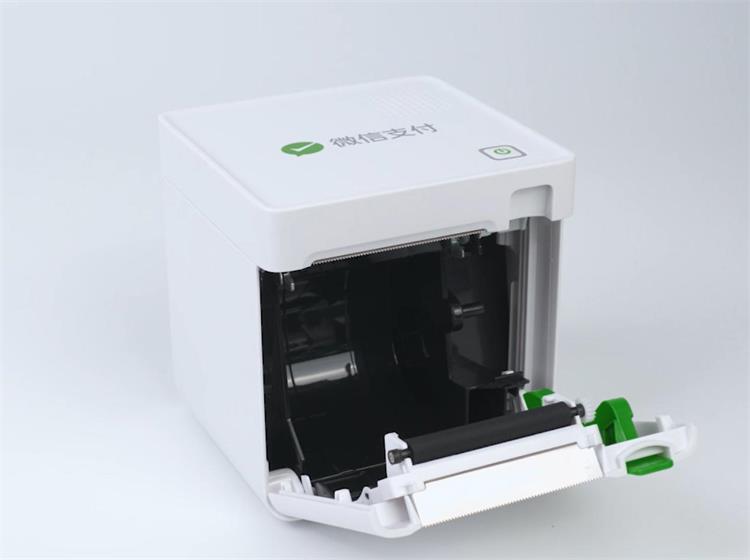
Locate the latch or seam on the back or bottom of the printer. Gently pry it open to reveal a small spool area and a shiny metal print head.
Critical Warning: Never touch the print head with your fingers. Skin oils cause smudges and long-term damage.
Insert the Paper Roll
Take a thermal paper roll and unroll a few inches. Feed the end through the slot, making sure the paper unwinds from the bottom of the roll.
For adhesive sticker rolls, orient the sticky side outward so labels peel easily after printing.
Correct Orientation Check: If your print comes out blank or upside down, the paper is backward. Flip the roll and reload.
Close and Test
Snap the case shut. Press the power button once or send a test print from the app. The printer should automatically advance a small length of paper.
Tearing Tip: Use the built-in plastic teeth on the printer’s edge for clean, satisfying tears. Kids especially love this feature.
Design and Print Your First Label

Choose a Template
Open the app and browse built-in templates, including to-do lists, birthday cards, labels, QR codes, and plain notes. Customize the text, font, and size. Remember, previews may show color, but prints are always black and white.
Create a Custom Design
Tap “Edit Label” (Phomemo) or “Create New” (Fun Print) to design from scratch. You can add text, insert icons or QR codes, and import images from your phone gallery.
Design Tips:
– Keep images simple for best results
– Use bold fonts for readability
– Generate QR codes for Wi-Fi passwords, links, or contact info
Preview and Print
Tap “Preview” to see the final look. Adjust anything that feels off, then tap “Print.” The printer activates and feeds the paper within 1 to 3 seconds.
Adjust Print Quality Settings
Use the Darkness Slider
If output looks faint, boost the contrast in the app:
– Open Print Settings
– Find “Darkness” or “Print Density”
– Choose 75% or 100% for bold prints
– Use “Medium Dark” for balanced output
Best for Sticker Labels: 100% darkness ensures text stands out clearly on adhesive paper.
Diagnose Faint or Blank Prints
Common culprits include:
– Paper inserted backward: Flip and reload
– Low battery: Charge fully before retrying
– Dirty print head: Clean gently with a dry cotton swab
– Empty roll: Replace with fresh paper
Quick Test: Print the word “TEST” to verify everything works before designing something longer.
Replace Paper Rolls When Empty
Remove the Spent Roll
When prints start showing blank lines or the feed stops:
1. Power off the printer
2. Open the paper compartment
3. Lift out the empty spool
Load a Fresh Roll
Follow the same loading steps:
– Feed paper from the bottom of the roll
– Make sure it passes under the print head
– Pull a small length through the exit slot
Pro Tip: Keep backup rolls nearby, especially adhesive ones, so you never run out mid-project.
Maintain Your Printer for Long-Term Use
Power Off After Every Session
Mini printers do not have auto power-off. Leaving them on drains the battery quickly. Make it a habit to hold the power button for 3 seconds after each use.
Battery Insight: A full charge supports multiple sessions, but only when the printer is powered down between uses.
Store Prints Away from Heat and Light
Thermal paper fades when exposed to:
– Direct sunlight
– High temperatures
– Moisture
Preservation Tip: Keep prints in a notebook, drawer, or dark folder for longer-lasting results.
Clean the Print Head Safely
- Never touch it with bare fingers
- Wipe gently with a dry cotton swab every few weeks
- Remove any protective film before first use
Critical Warning: Do not use alcohol, water, or cleaning sprays. Liquids damage the heating element permanently.
Troubleshoot Common Mini Printer Problems
Blank or Upside-Down Prints
Cause: Paper inserted backward.
Fix:
1. Open the case
2. Flip the roll so paper feeds from the bottom
3. Reinsert and print again
Printer Won’t Connect
Quick Checklist:
– Is Bluetooth enabled?
– Is the printer powered on and blinking?
– Is the app open and searching?
– Are you within range?
Reset Steps:
1. Turn the printer off
2. Close the app completely
3. Restart your phone’s Bluetooth
4. Reopen the app and retry pairing
Paper Jams
Cause: Misaligned or over-tightened sticker rolls.
Fix:
1. Power off the printer
2. Open the case
3. Gently pull out jammed paper
4. Reload the roll so it spins freely
5. Let the motor feed the paper naturally on the next print
Fading Prints
Solutions:
– Increase the darkness setting in the app
– Switch to fresh paper rolls
– Avoid exposing finished prints to heat or sunlight
Get Creative with Practical Uses
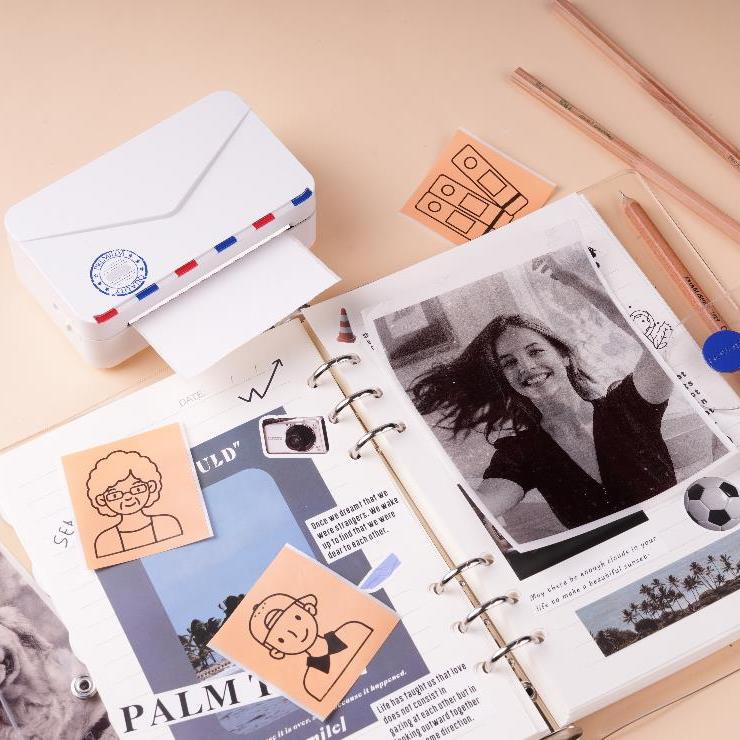
Make Custom Labels
Perfect for organizing:
– School supplies
– Toy bins
– Water bottles
– Lunchboxes
Let kids design their own labels to boost independence and ownership.
Print QR Codes
Create scannable codes for:
– Wi-Fi passwords
– YouTube playlists
– Homework links
– Family contact info
Stick them on a fridge or notebook for instant access.
Design Fun Notes and Cards
Turn simple messages into creative gifts:
– “Happy Birthday!” with emojis
– Encouragement notes for friends
– Funny reminders for siblings
Use the included markers to add hand-drawn doodles after printing.
Support Learning Activities
Great for classrooms and homeschool projects:
– Label science fair projects
– Print spelling word lists
– Create flashcards
– Make name tags for group activities
Teacher Tip: Use mini printers for classroom rewards or quick visual aids.
Stock Up on Supplies for Continued Use
Buy Extra Paper Rolls
The included rolls run out faster than you’d expect. Stock up with:
– Third-party 58mm thermal rolls (look for 56-58mm sizing)
– Adhesive sticker rolls for label-making
– Color-printed thermal paper for creative flair
Cost-Saving Tip: Generic rolls are usually cheaper than branded packs and work just as well.
Decorate with the Included Markers
The bundled colored markers let you personalize any print. Draw borders, highlight text, or sketch quick doodles.
Caution Note: One reviewer reported a marker leaking during unboxing. Check each marker and store them horizontally to prevent mishaps.
Understand the Honest Limitations
Black and White Output Only
No color printing exists, even on colorful paper. Designs appear monochrome regardless of the roll’s base color.
Low Resolution
Not suitable for:
– Tiny text
– Detailed web pages
– High-resolution photographs
Best for simple graphics, bold icons, and short messages.
Not an Office Replacement
This is a fun gadget, not a productivity tool. Skip it for:
– Multi-page documents
– A4 paper printing
– Professional reports
Best Use Summary: Mini printers excel at quick, creative, on-the-go printing for fun, not for formal tasks.
Frequently Asked Questions About Mini Printers
Do mini printers need ink or cartridges?
No. Mini thermal printers use heat to activate special thermal paper. There are no ink cartridges to replace, which means no mess and no ongoing ink costs.
What app do I need for a mini printer?
It depends on your model. Generic mini printers typically use the Fun Print app, while the Phomemo T02 uses the Phomemo app. Both are free on iOS and Android.
How long does the battery last?
A full charge supports multiple printing sessions. However, since there is no auto power-off feature, manually turning off the printer after each use extends battery life significantly.
Can mini printers print color?
No. All output is black and white. You can use color-printed thermal paper for visual variety, but the actual print will always be monochrome.
Why is my print blank or upside down?
The paper is likely inserted backward. Open the compartment and flip the roll so paper feeds from the bottom, then try printing again.
What kind of paper should I buy?
Standard 58mm thermal paper works for most models. Look for rolls measuring between 56mm and 58mm. Adhesive-backed rolls are great for label projects.
Key Takeaways for Using Your Mini Printer
Learning how to use a mini printer is simple once you understand the basics: charge fully, download the right app, pair via Bluetooth, and load paper with the correct orientation. From there, you can design labels, print QR codes, and create fun notes in seconds. Remember to power off after each session, store prints away from sunlight, and keep extra paper rolls on hand.
Your next step is straightforward: unbox your printer, charge it for an hour, download the app, and print your first design today. Whether you’re labeling school supplies or making birthday cards, this little device delivers big creativity in a pocket-sized package.


