

Your printer refuses to connect just as you need to print an urgent document. You try installing it on a new laptop, but the device simply will not appear in your list. This frustrating scenario often stems from a missing or changed printer IP address that acts as the digital identifier for your machine.
This guide provides reliable methods to locate that specific number using your printer panel, Windows settings, Mac utilities, or router admin page. You will learn step-by-step techniques to find the address quickly and prevent future connection drops by configuring a static IP.
Print a Network Configuration Page Directly from Printer

Printing a network configuration page is the fastest way to get your printer IP address without needing a computer. This physical report lists the current IPv4 address, MAC address, and signal strength details. It is the most reliable method for printers that lack a digital display screen.
Steps to Generate the Report
- Press the Home or Menu button on your printer control panel.
- Navigate to Reports, Tools, or Settings using the arrow keys.
- Select Network Configuration, Print Network Info, or Wireless Settings Report.
- Tap Print or OK to generate the page.
Interpreting the Printed Data
Look for the section labeled IPv4 Address on the sheet. This four-part number (like 192.168.1.50) is what you need. You will also see the MAC Address, which is a 12-digit code used for identification. Keep this page taped inside the printer lid for quick reference during future troubleshooting.
View IP Address Using Printer Control Panel Menus
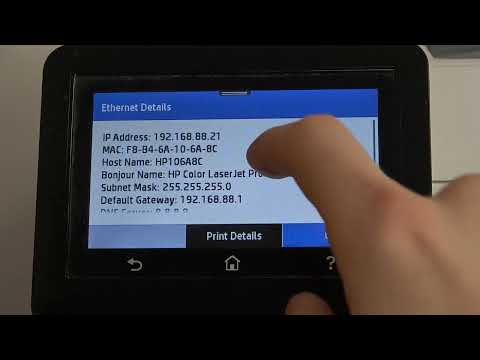
Modern printers with LCD screens allow you to view the IP address directly on the device. You can access this information through the settings menu without wasting any paper. This method is ideal for quick checks when you are standing near the machine.
Brand-Specific Navigation Paths
Different manufacturers hide these settings in unique locations. Follow the path that matches your brand:
* HP: Go to Settings → Network → Wireless Settings → View Wireless Details.
* Canon: Select Setup → Device Settings → LAN Settings → Confirm IP Address.
* Brother: Press Menu → Network → TCP/IP → IP Address.
Identifying Valid Connection Status
Scan the screen for fields labeled IP Address, IPv4, or TCP/IP. Be careful if the number starts with 169.254. This specific range indicates the printer failed to get an address from your router. You must restart both the router and printer to fix this APIPA error.
Locate Printer IP Address in Windows Control Panel
If your printer is already installed on a Windows computer, the operating system stores the IP address in the port settings. You can access this data through the classic Control Panel interface. This method works on Windows 7, 8, 10, and 11 systems.
Accessing Printer Properties
- Press
Windows + Ron your keyboard to open the Run dialog. - Type
control printersand hit Enter to open the devices window. - Right-click your specific printer icon and select Properties.
- Click the Ports tab at the top of the window.
Finding the Correct Port Number
Look for the checked box in the list of ports. The port name often starts with IP_ followed by the numbers you need. If you do not see a Ports tab, check the Web Services tab instead. Some HP models display the IP address directly in that section.
Extract Printer IP Using Windows PowerShell
Advanced users can retrieve the printer IP address instantly using command-line tools. PowerShell offers a direct way to query the system without navigating multiple menus. This technique is efficient for IT administrators managing multiple devices.
Running the Get-Printer Command
Open PowerShell and type the following command to list all printers and their ports:
get-printer | select name, portname
The output will show the printer name alongside its port, such as IP_192.168.1.35. This gives you the address immediately if the port naming convention is standard.
Retrieving Data from System Registry
If the port name is truncated, you can extract the full hostname from the Windows Registry. Use this command sequence to pull the exact IP:
$port = (get-printer "Printer Name").portname
$key = "HKLM:SYSTEM\CurrentControlSet\Control\Print\Monitors\Standard TCP/IP Port\Ports\$port"
(Get-ItemProperty $key).HostName
This script targets the specific storage location where Windows keeps the true IP address.
Find Printer IP Address on macOS Systems
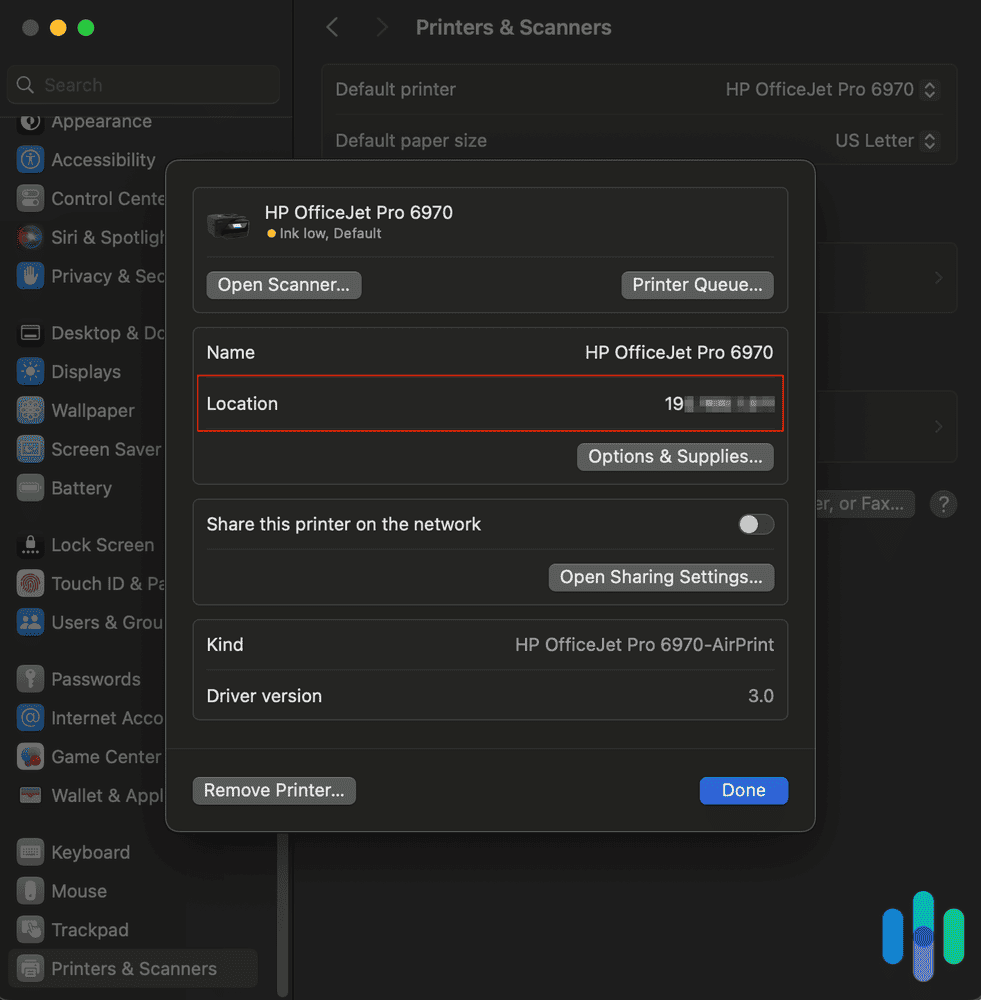
Mac users can locate their printer IP address through System Settings or the underlying CUPS system. Apple provides a graphical interface that simplifies this process for most home and office users. These steps ensure you find the correct network path for your device.
Checking System Preferences
- Click the Apple Menu and select System Settings or System Preferences.
- Choose Printers & Scanners from the sidebar.
- Select your printer from the list on the right.
- Click Options & Supplies and look at the General tab.
The IP address often appears in the Location or Address field. If it is not visible there, try clicking Open Print Queue and then selecting Printer Properties.
Using the CUPS Web Interface
You can access the Common Unix Printing System backend for detailed information. Open Terminal and type cupsctl WebInterface=yes to enable the feature. Then open your browser and go to http://localhost:631/printers. Your printer listed there will show the full connection URL containing the IP.
Discover Printer IP Via Router Admin Panel
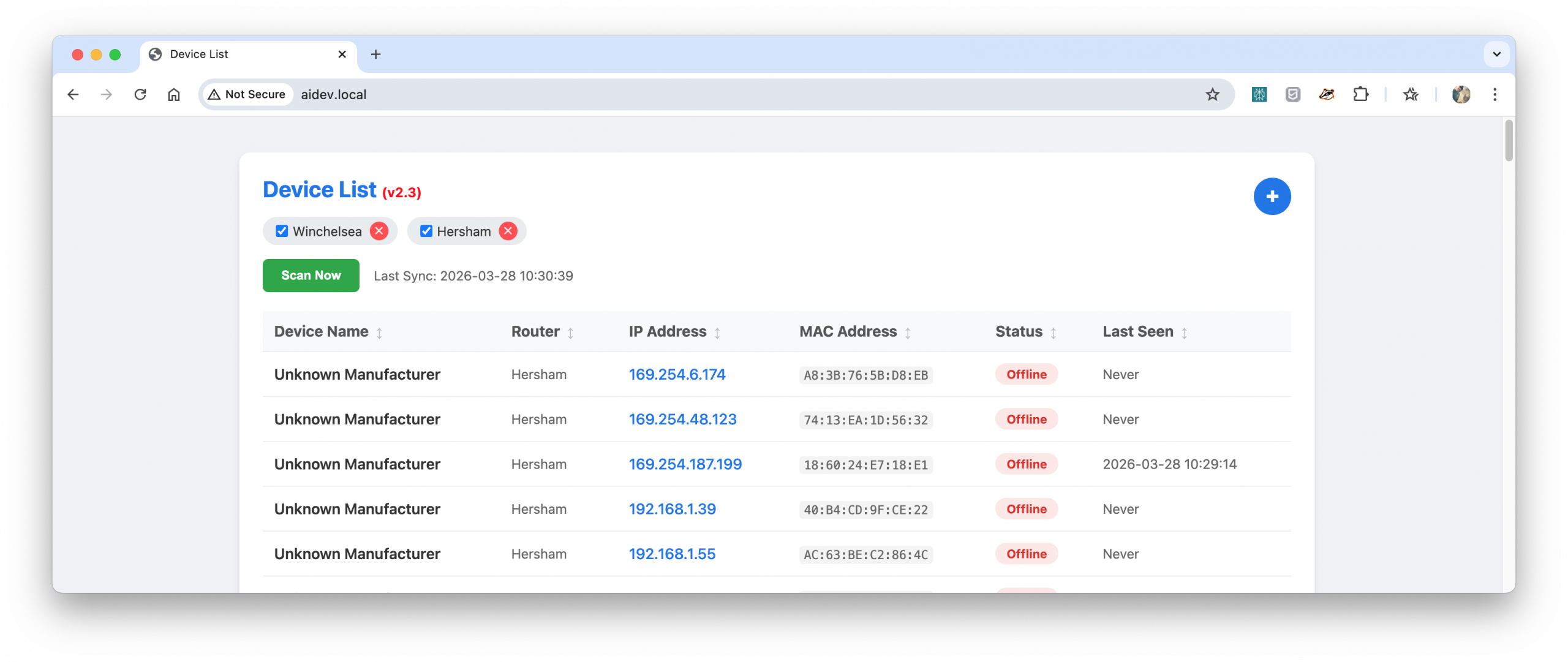
Your router acts as the traffic cop for your network and knows every connected device. Accessing the router admin panel is an excellent fallback method if the printer is offline or unresponsive. This approach works regardless of the computer operating system you are using.
Logging Into the Router Interface
- Connect your computer to the same Wi-Fi network as the printer.
- Open a web browser and enter your router IP (commonly
192.168.1.1). - Log in with your administrator credentials found on the router label.
- Navigate to Connected Devices, DHCP Clients, or Attached Devices.
Identifying the Printer in the List
Search the device list for your printer name, such as “Brother-HL-L2340DW” or “HP-LaserJet”. The assigned IP address will be displayed next to the device name. Many modern routers also offer mobile apps that display this client list without requiring a web browser login.
Configure Static IP to Prevent Connection Loss
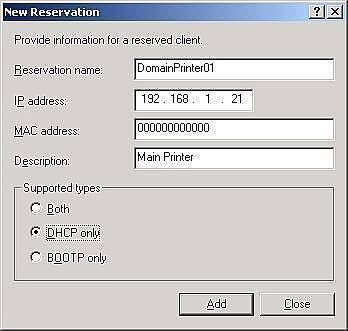
Dynamic IP addresses assigned by DHCP can change when the lease expires, causing your printer to go offline. Setting a static IP ensures your printer keeps the same address forever. This configuration prevents the need to find printer IP address details repeatedly after power outages.
Understanding Dynamic IP Risks
Most routers assign temporary addresses that last 24 to 48 hours. When the lease renews, the router might assign a new number to your printer. Computers looking for the old number will fail to connect, resulting in “Printer Offline” errors. Offices report significantly fewer issues after switching to static assignments.
Setting Up DHCP Reservation
The best method is to use DHCP Reservation in your router settings.
1. Access your router admin panel and find DHCP Reservation.
2. Select your printer by its MAC address.
3. Assign a permanent IP like 192.168.1.50.
4. Save the settings and restart the printer.
This ensures the router always gives your printer the same address without manual configuration on the device itself.
Troubleshoot Missing or Invalid IP Addresses
Sometimes your search results show no IP or an invalid one. This usually means the printer is not communicating properly with the network. Understanding these common failure points helps you resolve connectivity issues faster.
Resolving APIPA Address Errors
If you see an address starting with 169.254, the printer has self-assigned an invalid address. This happens when it cannot reach the DHCP server. Restart your router and printer to re-establish the handshake. Ensure the printer is not in Airplane mode or too far from the Wi-Fi source.
Fixing WSD Port Issues
Windows sometimes uses Web Services on Devices (WSD) instead of standard TCP/IP. This hides the IP address from standard tools. To fix this, remove the printer and re-add it using Add Printer → TCP/IP Device. Enter the IP manually to force a standard connection that displays the address clearly.
Frequently Asked Questions About Printer IP Addresses
What should I do if my printer IP address keeps changing?
You need to set a static IP address to stop this from happening. Log into your router and create a DHCP reservation for your printer using its MAC address. This forces the router to always assign the same IP to your specific device.
Can I find the IP address if the printer is turned off?
No, the printer must be powered on and connected to the network to have an active IP address. If the device is off, it cannot communicate with the router or respond to queries from your computer. Turn on the printer and wait for the ready light before searching.
Why does my Windows printer properties show no IP address?
Your printer is likely using a WSD port instead of a standard TCP/IP port. WSD ports hide the numerical IP address in the standard properties window. You must switch to a Standard TCP/IP port to see and manage the IP directly.
Is the MAC address the same as the IP address?
No, these are two different identifiers. The MAC address is a permanent hardware ID assigned at the factory. The IP address is a temporary logical address assigned by your network for communication. You need the IP address to print, but the MAC address helps identify the device on the router.
How do I find the IP address for a USB-only printer?
You cannot find an IP address for a USB-only printer because it does not have network capabilities. These printers connect directly to one computer via a cable and do not join the Wi-Fi network. Only network-enabled printers have IP addresses.
Key Takeaways for Finding Your Printer IP Address
Locating your printer IP address is a simple task when you know where to look on your specific device or operating system. Printing a network configuration page remains the most reliable universal method for any printer model. For long-term stability, setting a static IP via your router prevents future connection headaches.
Start by checking your printer screen or printing a status report to get immediate results. If those options fail, use the Windows Control Panel or macOS System Settings to extract the data from your computer. Taking a moment to configure a static IP now will save you significant troubleshooting time later.


