

Scanning documents directly from your printer to your computer saves time and creates digital backups of important records instantly. Many users struggle with connection errors or missing drivers when they attempt to scan from printer to computer for the first time.
This guide provides clear instructions for Windows and Mac users to fix detection issues and choose the right file settings. You will learn how to verify hardware capabilities, install necessary drivers, and troubleshoot common scanning failures effectively.
Verify Your Printer Has Scanning Capabilities

Not every printer can scan documents, so you must confirm your device is a Multifunction Printer (MFP) before starting. Look for a flatbed glass surface, an automatic document feeder, or a dedicated “Scan” button on the control panel.
Check Windows Device Detection
You can verify scanning support through your system settings without opening any physical components. Navigate to Settings > Devices > Printers & scanners and select your specific printer model.
Click the Manage button and inspect the drop-down menu for an entry labeled Scanner:. If this prefix appears, your operating system recognizes the device as a scanner.
Identify Your Connection Type
Your connection method determines the complexity of your setup process and available features. USB connections offer simple plug-and-play functionality for single users.
Network and Wi-Fi connections allow multiple users to access the scanner but require IP configuration. Bluetooth support exists on limited models and functions similarly to network setups during discovery.
Install Scanner Drivers for Full Functionality
Proper driver installation ensures your computer communicates effectively with the scanner hardware. Modern systems often install basic drivers automatically, but full features require manufacturer packages.
Use Automatic Driver Installation
Windows 10 and 11 usually detect and install drivers immediately after you connect the device. Connect your USB cable or join the Wi-Fi network, then power on the printer.
Wait for the system notification confirming device setup is complete. Check Settings > Devices > Printers & scanners to ensure the printer appears without error messages.
Manually Add Missing Printers
Select Add a printer or scanner if your device does not appear in the automatic list. Click the link stating The printer that I want isn’t listed when the search finishes.
Choose Add a local printer or network printer with manual settings to proceed. Select the correct port such as USB001 or Standard TCP/IP and install the driver when prompted.
Pro Tip: Always download the latest driver package directly from the manufacturer support website instead of using old installation CDs.
Choose Between Push and Pull Scanning Methods
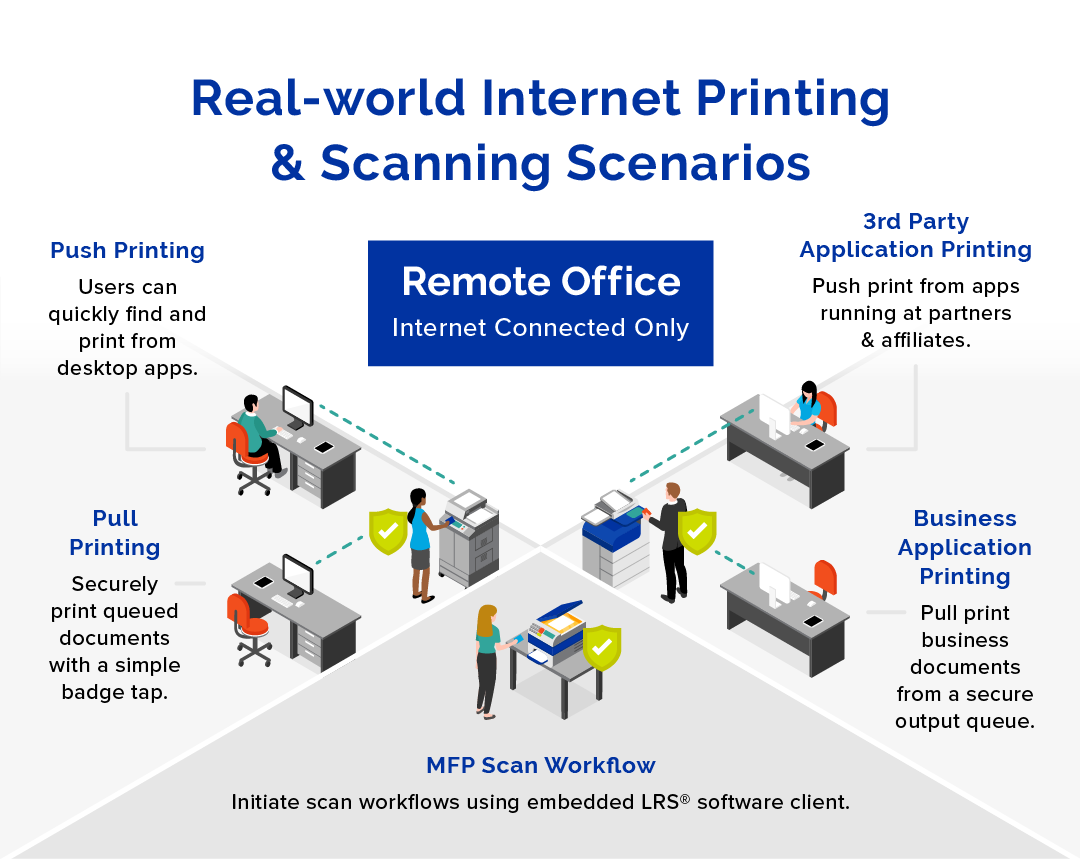
Understanding the difference between push and pull scanning helps you select the best workflow for your needs. Each method initiates the scan from a different location.
Execute Push Scanning from Printer
Push scanning starts when you press a button on the printer control panel. You select Scan to PC or a similar option on the device screen.
The printer sends the data directly to your computer or email address. This method requires manufacturer software to be running on your computer to receive the incoming files.
Perform Pull Scanning from Computer
Pull scanning begins within a software application on your desktop or laptop. You open a scanning program and select your device from the available list.
Click the Scan button within the app to request the image from the hardware. This approach works well with generic drivers and does not need special vendor configurations.
Scan Documents Using Windows Built-in Tools
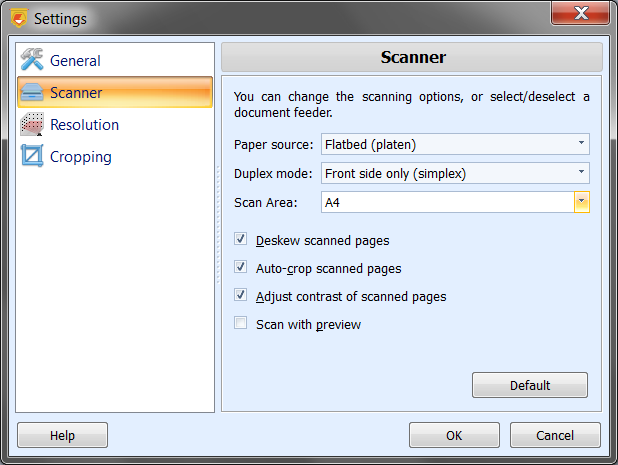
Windows includes a native application called Windows Scan that works without extra software. This tool provides a clean interface for most standard digitization tasks.
Configure Windows Scan Settings
Open the Windows Scan app from your Start menu search bar. Ensure your specific printer is selected in the Scanner drop-down menu.
Set the Source to Flatbed or Feeder depending on your document type. Choose JPEG as your file type for the best balance of quality and size.
Click Show more to select a specific folder for saving your files. Press the Scan button at the bottom to begin the process.
Access Legacy Scanning Options
Search for Devices and Printers in your taskbar if you prefer the older interface. Right-click your printer icon and select Start scan from the context menu.
Uncheck the option to Preview or scan images as separate files for multi-page documents. Click Scan to generate your digital file using this traditional method.
Scan Files on Mac Using Native Features
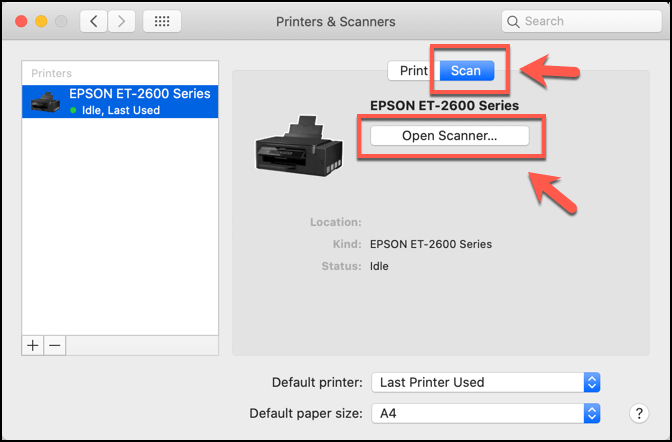
macOS integrates scanning capabilities directly into the system preferences for seamless operation. You do not need third-party applications to scan documents on a Mac.
Open the Mac Scanner Interface
Click the Apple menu and select System Settings or System Preferences. Navigate to Printers & Scanners and choose your device from the list.
Click Open Scanner or Scan to launch the scanning window. The interface will display your device status and available options immediately.
Adjust Scan Quality and Destination
Select your desired image kind such as Color, Grayscale, or Black & White. Set the resolution to 300 DPI for text or higher for detailed photos.
Choose your destination folder in the Scan To field. Enable Duplex if your device supports two-sided scanning and you need both sides digitized.
Optimize Scan Quality and File Formats
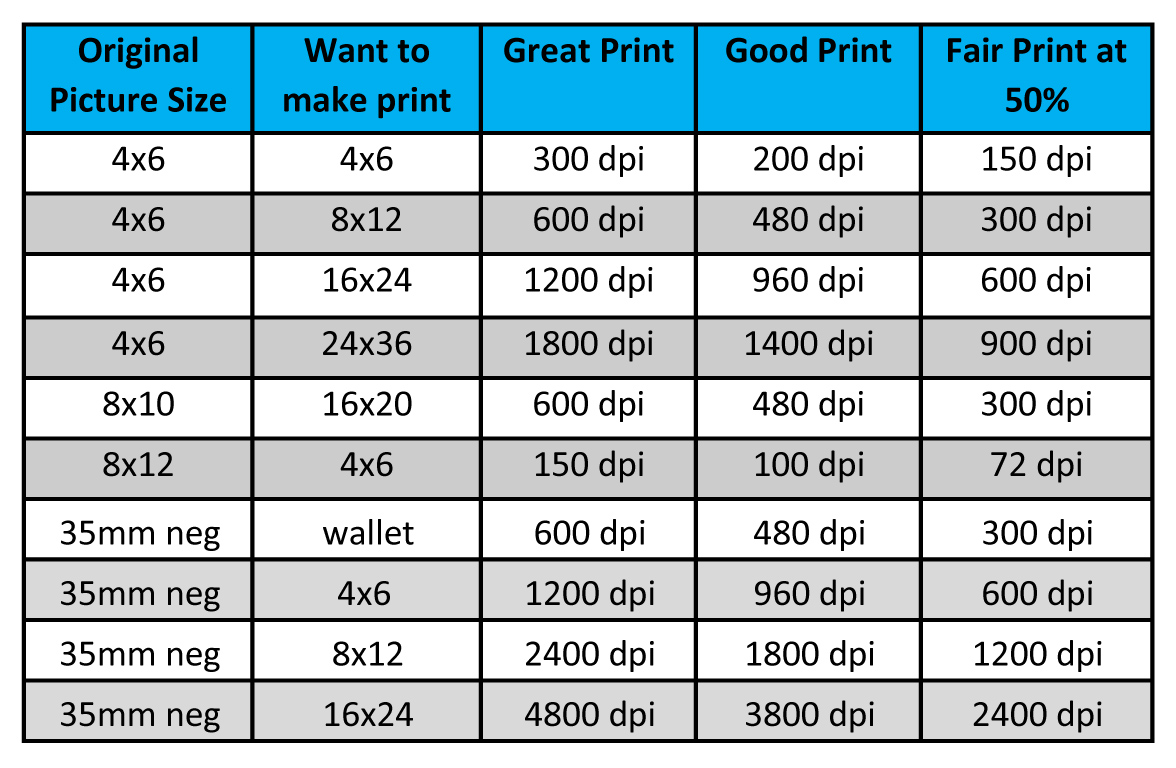
Selecting the correct resolution and file type ensures your digital copies are clear and manageable. Poor settings can lead to unreadable text or massive file sizes.
Select the Right DPI Resolution
Use 300 DPI as the minimum standard for readable text documents. Increase to 600 DPI or higher for photographs or graphics requiring re-printing.
Avoid using 1200 DPI for standard documents as it creates unnecessarily large files. Higher resolution increases scan time and storage requirements significantly.
Choose the Best File Format
| Format | Best Use Case | File Size |
|---|---|---|
| JPEG | General docs and photos | Small |
| PNG | Text with graphics | Medium |
| TIFF | Archival and legal docs | Large |
| BMP | Rare uncompressed needs | Very Large |
JPEG remains the recommended choice for most everyday scanning tasks.
Troubleshoot Common Scanning Errors
Connectivity issues often prevent scanners from functioning even when hardware is intact. Follow these steps to resolve the most frequent detection failures.
Fix Scanner Not Found Errors
Verify that your printer is powered on and connected via USB or network. Reboot both the printer and your computer to refresh the connection.
Go to Printers & scanners and click Add a printer or scanner again. For network devices, ensure both the computer and printer are on the same Wi-Fi network.
Resolve No Scanner Detected Messages
Reinstall the full-feature driver from the manufacturer if the basic driver fails. Restart the Windows Image Acquisition (WIA) service to reset scanning functions.
Press Win + R, type services.msc, and locate Windows Image Acquisition (WIA). Right-click the service and select Restart to clear any temporary glitches.
Maintain Scanner Performance and Cleanliness
Regular maintenance prevents streaks, dark spots, and mechanical jams in your scanner. Dust accumulation on glass surfaces degrades image quality over time.
Clean Glass Surfaces and Rollers
Power off your printer before cleaning any internal or external glass components. Wipe the flatbed glass gently with a microfiber cloth and glass cleaner.
Use a dry lint-free cloth to clean the rollers inside the automatic document feeder. Never spray liquid directly onto the scanner components to avoid internal damage.
Update Drivers for Compatibility
Visit the manufacturer website regularly to check for driver and firmware updates. Outdated software often causes issues after operating system upgrades.
Note that Windows 10 support ends on October 14, 2025. Consider upgrading to Windows 11 to ensure continued security and driver support for your scanning needs.
Frequently Asked Questions About Scanning from Printer to Computer
Why does my computer say no scanner is detected?
This error usually means the driver is missing or the connection is unstable. Reinstall the full manufacturer driver and ensure the USB cable is plugged in securely.
Where do my scanned documents save by default?
Scans typically save to the Pictures/Scans folder in your user directory unless you change the setting. Always check the Save file to path in your scanning app before starting.
Can I scan multiple pages into one PDF file?
Yes, if your printer has an Automatic Document Feeder (ADF) or supports multi-page flatbed scanning. Select the option to combine pages or scan to PDF in your software settings.
What DPI should I use for scanning text documents?
Use 300 DPI for standard text documents to ensure readability while keeping file sizes small. Higher resolutions are only necessary for photos or detailed graphics.
How do I scan from a network printer to my computer?
Ensure both devices are on the same network and install the network-capable drivers. You may need to configure a shared folder or use the manufacturer’s network scanning utility.
Key Takeaways for Scanning from Printer to Computer
Successfully scanning from printer to computer requires verifying hardware support and installing the correct drivers for your specific model. You should choose between push scanning from the panel or pull scanning from your computer based on your workflow needs.
Regularly clean your scanner glass and update your drivers to maintain high-quality digital copies. Start by checking your Printers & scanners settings today to ensure your device is ready for action.


