

You unboxed your new Rollo thermal printer and connected the USB cable, yet your computer still says “Driver Unavailable.” This frustrating Rollo thermal printer not installing error often stops users from printing shipping labels right when they need them most. The issue usually stems from a missing driver file or a skipped extraction step during setup.
This guide explains exactly why your USB model needs a specific driver while wireless models do not. You will learn how to download the correct file, extract it properly, and configure your system to recognize the device immediately. Follow these steps to resolve connectivity errors and get your printer working again.
Distinguish Between USB and Wireless Rollo Models

Your first step is identifying your specific hardware because the installation path differs completely. Confusing these two types is the primary reason users download the wrong files or expect a driver where none is needed.
USB Models Require Specific Drivers
Rollo USB label printers rely entirely on a dedicated software bridge to communicate with your computer. Without the official Rollo-Windows-Latest.zip package installed, your system cannot translate print commands into hardware actions. These devices will show a “Driver Unavailable” status until you manually install the software.
Wireless Models Operate Driver-Free
Rollo Wireless label printers function without any driver installation on Windows systems. They use built-in network protocols to connect directly to your router. If you own this model, attempting to install the USB driver will only cause confusion and potential system conflicts.
How to Identify Your Device
Check the physical ports and buttons on your printer to confirm your model type:
* Look for a Wi-Fi button or antenna indicator to confirm a wireless model.
* Check for only a USB-B port and power input to confirm a USB model.
* Review your original purchase receipt or box for the specific model number.
Pro Tip: If your printer has Wi-Fi capabilities, skip the driver download entirely on Windows. Connecting via the Rollo app or network settings is all you need.
Download the Official Rollo Driver File
Using outdated or incorrect files from third-party sites often leads to installation failures. You must source the latest package directly from the manufacturer to ensure compatibility with your operating system.
Access the Support Portal
- Open your web browser and navigate to the official Rollo support website.
- Locate the section dedicated to Windows drivers.
- Click the button labeled “Download Rollo driver for Windows.”
- Wait for the file named
Rollo-Windows-Latest.zipto save to your Downloads folder.
Verify File Integrity
Ensure your internet connection remains stable during the download to prevent file corruption. A partial download will fail during the installation phase. Check that the file size matches the description on the website before proceeding.
macOS Download Steps
Mac users follow a similar path but require a different file format:
* Select “Install Driver” on the support page.
* Choose your specific macOS version from the list.
* Download the .pkg installer file directly.
* No extraction is necessary for Mac packages.
Extract and Install the Windows Driver Correctly
Most installation failures occur because users try to run the installer directly from the compressed ZIP folder. Windows security protocols block this action, requiring you to extract the contents first.
Decompress the ZIP Archive
- Open your Downloads folder and locate
Rollo-Windows-Latest.zip. - Right-click the file to open the context menu.
- Select “Extract All” from the options list.
- Choose a destination like your Desktop and click “Extract.”
Critical Note: You must see a new folder appear on your screen. Do not attempt to run anything inside the blue compressed folder icon.
Execute the Installation Wizard
- Open the newly created folder containing the extracted files.
- Double-click the setup executable file to launch the wizard.
- Follow the on-screen prompts to install the driver components.
- Click “Finish” once the process completes successfully.
The entire installation typically takes less than two minutes. Keep your printer connected via USB during this time if possible, as some systems detect the hardware immediately after software installation.
Add the Printer to Your System Settings
Even with the driver installed, you may need to manually add the device to your Windows printer list. This step ensures your shipping software can locate and utilize the thermal printer.
Locate the Device in Windows
- Go to Settings and select Devices.
- Click on Printers & scanners in the left menu.
- Select Add a printer or scanner.
- Wait for Windows to search for available devices.
- Click on “Rollo Printer” when it appears and choose Add device.
Manual Addition Method
If the automatic search fails, use the manual setup option:
* Click the link stating “The printer that I want isn’t listed.”
* Choose “Add a local printer or network printer with manual settings.”
* Select the correct USB port from the dropdown menu.
* Choose the Rollo driver from the manufacturer list.
Resolve Driver Unavailable Error Messages
The “Driver Unavailable” status indicates that Windows sees the hardware but lacks the correct software bridge to communicate with it. This often happens after OS updates or corrupted installations.
Diagnose the Root Cause
Several factors can trigger this specific error message on your screen:
* The driver file was never extracted before running.
* A previous driver version became corrupted or conflicting.
* A recent Windows update broke the existing communication link.
* The USB cable or port is providing unstable power.
Perform a Clean Reinstallation
- Navigate to Control Panel > Devices and Printers.
- Right-click any existing Rollo entries and select Remove device.
- Press
Win + Xand open Device Manager. - Expand Printers and Universal Serial Bus controllers.
- Uninstall any devices showing yellow warning icons.
- Restart your computer completely.
- Re-download and extract the driver fresh from the official site.
- Run the installer as an Administrator by right-clicking the file.
Success Indicator: The printer should now appear in your device list without any warning symbols or error messages.
Configure Label Size and Printing Preferences

Incorrect label settings cause misaligned prints or blank pages even when the driver installs correctly. You must match the software settings to your physical label dimensions.
Set Standard Shipping Dimensions
- Return to Devices and Printers in your Control Panel.
- Right-click Rollo Printer and choose Printing Preferences.
- Navigate to the Layout tab.
- Click the Advanced button to open size options.
- Select 100 x 150mm from the Paper Size dropdown.
- Click OK to save these changes.
Create Custom Label Sizes
If you use non-standard labels, you must define them manually:
* Select “Custom Size” in the advanced settings menu.
* Measure your physical labels precisely with a ruler.
* Enter the exact width and height in millimeters.
* Save this preset to avoid re-entering data for future prints.
Troubleshoot Wireless Connection Failures
Wireless models do not need drivers on Windows, but they can still fail to appear in your printer list if the network configuration is incorrect.
Verify Network Configuration
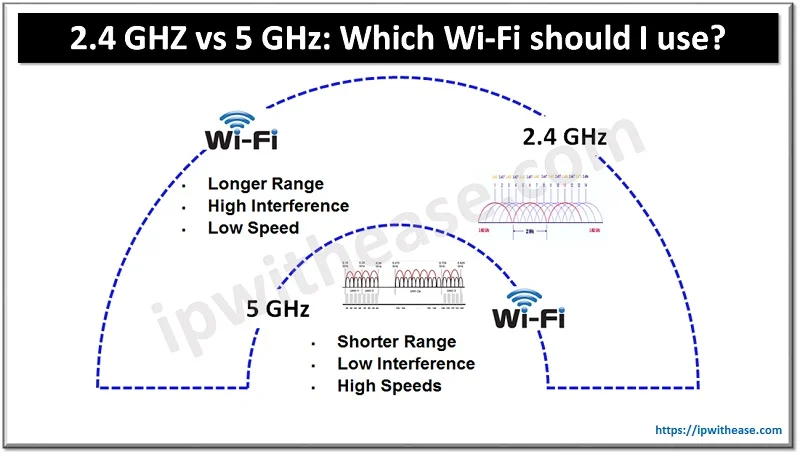
Ensure your printer and computer are on the same network frequency. Rollo wireless printers typically require a 2.4 GHz network rather than 5 GHz. Press the Wi-Fi button on the printer until the light blinks to enter pairing mode. Use the Rollo mobile app to complete the network connection.
Manually Add Network Printer
If the printer does not appear automatically:
1. Go to Settings > Printers & scanners.
2. Click Add a printer or scanner.
3. Select “The printer that I want isn’t listed.”
4. Choose the option for wireless or network discoverable printers.
5. Select your Rollo-XXXXXX device from the results.
Quick Fix: If the device remains invisible, restart both your router and the printer. This refreshes the IP address assignment and often resolves discovery issues.
Address macOS Installation Barriers
Mac users face unique security features that may block the Rollo driver from installing. You often need to manually approve the software in your system settings.
Bypass Gatekeeper Security
- Download the
.pkgfile from the Rollo support site. - Double-click to open the installer.
- If a warning appears saying the file cannot be opened, go to System Settings.
- Navigate to Privacy & Security.
- Find the Rollo driver in the list and click Open Anyway.
- Confirm your choice to proceed with installation.
Reinstall After System Updates
Major macOS updates often remove third-party printer drivers. If your printer stops working after an OS upgrade, simply re-download the latest .pkg file and repeat the installation process. Ensure your macOS version is fully patched to maintain compatibility with current driver certificates.
Prevent Future Installation Issues
Adopting best practices during setup prevents recurring headaches and ensures long-term reliability for your thermal printing tasks.
Always Extract Before Running
Never attempt to run an installer directly from a ZIP file. This is the single most common cause of failure. Always right-click and extract the folder first to create a usable installation directory.
Maintain Driver Currency
Visit the official support page every few months to check for updates. New driver versions frequently include fixes for recent Windows or macOS updates that might otherwise break functionality.
Optimize Physical Connections
Plug your USB printer directly into a port on your computer motherboard. Avoid using USB hubs or long extension cables, as these can reduce power delivery and cause the system to lose connection with the device.
When to Contact Rollo Support
You should seek direct assistance if the printer remains undetected after following all troubleshooting steps. Persistent issues may indicate a hardware defect or a complex system conflict.
Signs You Need Help
Contact support if you experience these specific scenarios:
* The “Rollo Printer” never appears in device lists after reinstall.
* The USB port works with other devices but fails with the Rollo.
* You receive repeated “Access Denied” or “Installation Failed” errors.
* The printer shows error lights that do not clear after resetting.
How to Reach Assistance
Visit the official support website and click “Contact Us.” Provide your printer model, operating system version, and a list of steps you have already tried. Including screenshots of error messages helps the support team diagnose your issue faster. They typically respond within 24 hours with specialized tools or replacement files.
Frequently Asked Questions About Rollo Printer Installation
Do I need a driver for my Rollo wireless printer on Windows?
No, Rollo wireless printers do not require any driver installation on Windows systems. They connect directly via Wi-Fi and appear automatically once configured through the Rollo app or network settings.
Why does my computer say “Driver Unavailable” when the printer is plugged in?
This error means the operating system detects the hardware but lacks the correct software to communicate. For USB models, this usually happens because the driver was not extracted from the ZIP file before installation.
What is the correct label size setting for 4×6 shipping labels?
You should select 100 x 150mm in the Printing Preferences under the Layout tab. This metric measurement corresponds exactly to the standard 4×6 inch shipping label size used by most carriers.
Can I run the Rollo installer directly from the downloaded ZIP file?
No, you cannot. Windows security blocks execution from compressed archives. You must right-click the ZIP file, select “Extract All,” and run the installer from the new folder.
How do I fix installation issues after a macOS update?
MacOS updates often remove third-party drivers. You must re-download the latest .pkg driver from the Rollo website and reinstall it, potentially approving it in Privacy & Security settings.
Key Takeaways for Fixing Rollo Thermal Printer Not Installing Errors
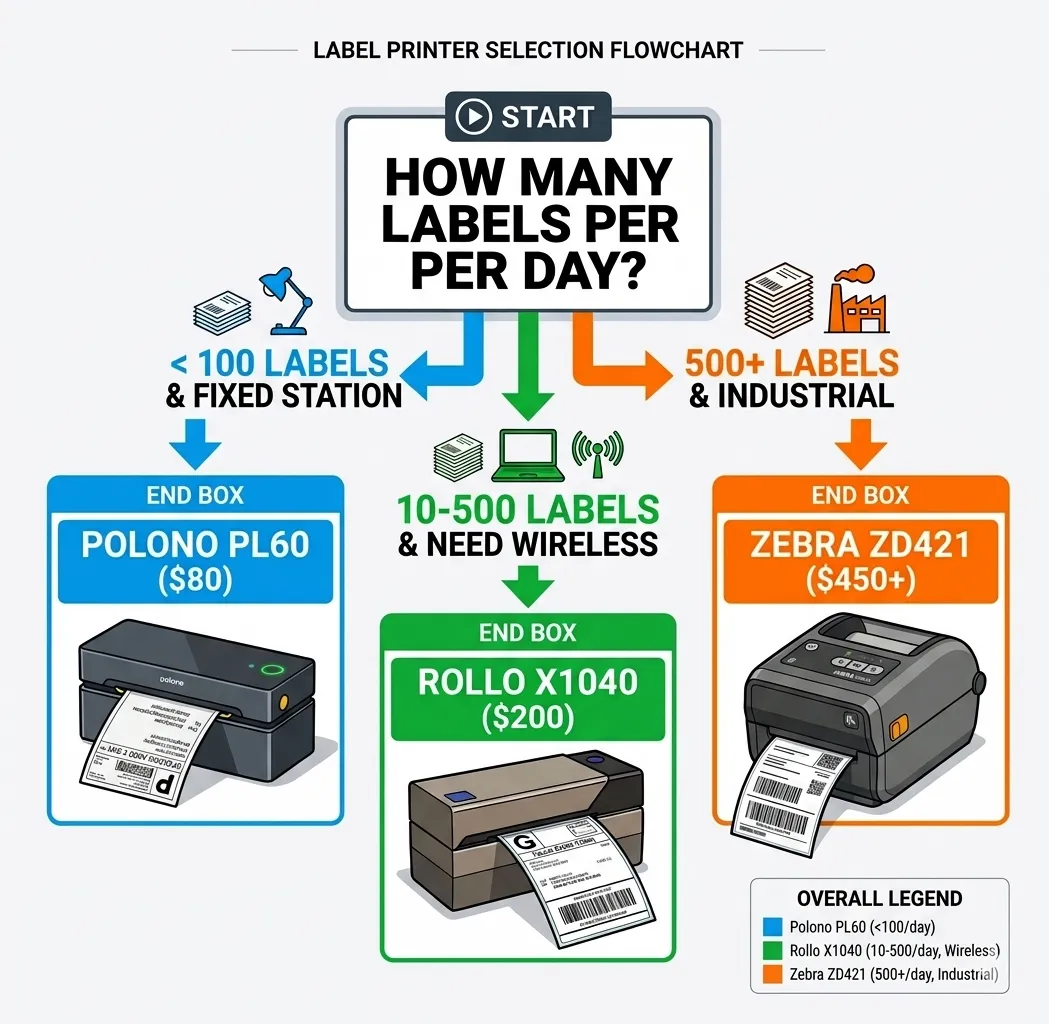
Resolving the Rollo thermal printer not installing issue requires identifying your model type and following the specific protocol for your hardware. USB models demand that you download the official ZIP file, extract it completely, and run the installer from the new folder. Wireless models on Windows need no driver at all, and attempting to install one causes unnecessary confusion.
Always configure your label size to 100 x 150mm for standard shipping tasks to ensure perfect alignment. If problems persist, a clean uninstall followed by a fresh download from the official site resolves most conflicts. Start by checking your model type today, then proceed with the correct installation method to get your labels printing immediately.





