

Connecting your HP printer to Wi-Fi often stalls when you cannot locate the required security code. If you need to find WPS PIN for printer setups, you are likely facing a ticking clock since this 8-digit code expires quickly. This temporary number allows your device to join your network securely without typing your full Wi-Fi password.
This guide explains exactly where to locate this code based on your specific printer model. You will learn how to generate the PIN using touchscreen menus, button combinations, or the HP Smart app before the timer runs out. We also cover troubleshooting steps if the code fails to appear or expires during your setup attempt.
Retrieve WPS PIN on HP Touchscreen Models
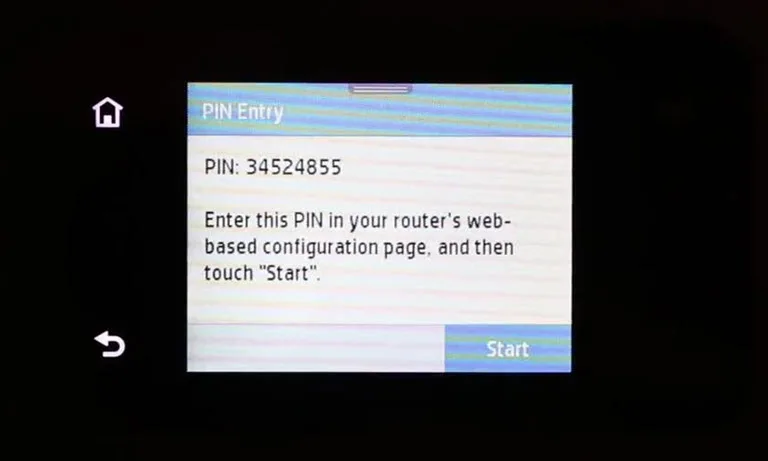
Printers with color displays generate the code directly on the control panel interface. This method provides the fastest visual access to the number you need for connection.
Navigate Network Settings Menu
Access the main Settings icon on your printer home screen. Scroll to select Network Setup followed by Wireless Settings. Choose Wi-Fi Protected Setup and then tap WPS PIN to trigger the code generation.
Monitor the Expiration Timer
The screen displays an 8-digit number that remains valid for only 90 to 120 seconds. You must write this code down or enter it into your router immediately. If the screen reverts to the home menu, the code has expired and you must repeat the steps.
Verify Wireless readiness
Ensure your printer is ready to pair before looking for the code. Press the Wireless button once to activate Wi-Fi mode. A blinking blue light confirms the printer is searching for a connection and ready to display the PIN.
Print WPS PIN on Button-Only Printers

Models like the HP DeskJet 2827e lack a screen, so they cannot display the code visually. You must print a configuration report to see the current WPS PIN.
Execute the Button Combination
Load plain white paper into the input tray before starting. Press and hold both the Wireless button and the Information (i) button simultaneously. Keep them held down for exactly 3 seconds then release to trigger the print job.
Read the Network Configuration Page
The printer outputs a Network Configuration Page containing all current network data. Look for the section labeled WPS PIN near the top of the page. This 8-digit number is your active code for router entry.
Troubleshoot Printing Failures
If the page does not print, check that paper is loaded correctly in the tray. Ensure the printer is not in sleep mode by pressing the power button lightly. Try pressing just the Information (i) button to verify basic printing functions work.
Generate Code Using HP Smart App
The HP Smart app allows you to retrieve network details digitally without standing over the printer. This is ideal for printers placed in hard-to-reach locations.
Install and Connect Your Device
Download the HP Smart app from your mobile app store or visit 123.hp.com. Open the application and follow the prompts to add your specific printer model to the dashboard.
Access Digital Network Settings
Tap your printer name within the app interface to open its details. Navigate to Printer Settings then select Advanced Settings or Network Settings. Scroll through the menu to locate the WPS PIN or network status report.
Utilize Remote Printing Features
Some app versions allow you to trigger a network report print remotely. Use this feature if you cannot physically reach the printer buttons. The app often handles the handshake automatically, bypassing the need to manually type the PIN.
Locate Static Labels on Printer Body
Certain business-grade HP models include default network information on physical stickers. These labels serve as a backup reference for initial diagnostics.
Inspect Common Sticker Locations
Check the back panel, the underside of the unit, or the area inside the ink cartridge door. Look specifically for text reading WPS PIN, Default PIN, or Network Password on the label.
Distinguish Static From Dynamic Codes
Be aware that a default PIN on a sticker differs from the dynamic WPS PIN needed for setup. Modern printers generate a new temporary code for each session, making static stickers unreliable for active connection attempts. Use label information only as a last resort.
Enter PIN During Computer Setup
Your computer operating system may request the WPS PIN at the exact moment you attempt to add the printer. Timing is critical during this phase.
Respond to Windows Prompts
Go to Settings then Devices and select Printers & Scanners on your PC. Click Add a printer or scanner and wait for your HP device to appear. If a dialog box asks for the WPS PIN, generate it on your printer immediately and type it in.
Handle Mac OS Discovery Requests
Open System Settings on your Mac and click Printers & Scanners. Select the + button to discover new devices. When the system identifies your HP printer, it may request the PIN, requiring you to switch to the printer to retrieve the code quickly.
Input PIN Into Router Interface
Generating the code is only half the process. You must enter this code into your router administration panel to complete the secure link.
Access Router Admin Panel
Open a web browser and type your router IP address, such as 192.168.1.1. Log in with your admin credentials and navigate to Wireless then WPS Settings. Select the option for WPS PIN Method to begin entry.
Submit Code During Driver Installation
If you are installing HP drivers manually, run the setup file on your computer. Choose WPS PIN when prompted for a network connection method. Type the 8-digit code from your printer screen or printed report and wait for the success confirmation.
Confirm Successful Wireless Connection
After entering the PIN, you must verify that the printer has successfully joined your network. Visual indicators provide the fastest confirmation.
Check LED Status Lights
Observe the wireless light on your printer control panel. A blinking blue light means it is still connecting, while a solid blue light confirms a successful connection. Touchscreen models will display a Connected message.
Verify Status in Software
Open the HP Smart app or check Devices and Printers in your computer control panel. Ensure the printer status reads Online and attempt a test print to confirm full functionality.
Troubleshoot Expired or Missing PIN
Users often face issues where the code disappears before they can use it. Understanding the timing constraints helps resolve these errors quickly.
Regenerate After Time Limit
The WPS PIN is valid for only 90 to 120 seconds. If you miss this window, the code becomes invalid and cannot be extended. You must return to the menu or button combination to generate a fresh code immediately.
Fix Blank Screen Issues
If no code appears, restart your printer completely to clear any temporary glitches. Ensure the device is not in energy-saving mode, which can block network functions. Re-enter the correct menu path or hold buttons for the full 3 seconds required.
Switch to WPS Push Button Method
If the PIN method fails repeatedly, the WPS Push Button method offers a faster alternative. This approach eliminates the need to read or type codes.
Sync Devices Without Codes
Press and hold the WPS button on your router until its LED blinks. Within 2 minutes, press the Wireless button on your HP printer. The devices will connect automatically without requiring an 8-digit code.
Choose the Best Connection Method
Use the push button method if you have physical access to your router. This option is ideal for quick home setups where security risks from physical access are low. It reduces setup time to approximately 30 seconds.
Optimize Setup Success Rates
Preparation significantly increases your chances of connecting on the first try. Follow these best practices to avoid common pitfalls.
Prepare Your Workspace
Gather your router admin login and a notepad before starting. Ensure you have paper loaded if you are using a button-only model. Keep your phone or computer ready to enter the code the moment it appears.
Maintain Close Proximity
Place the printer within 6 feet of the router during the setup process. A strong signal ensures faster negotiation between devices and prevents timeouts during the short PIN validity window.
Update Printer Firmware
Outdated firmware can cause WPS functionality to fail or behave unpredictably. Use the HP Smart app to check for and install updates monthly. This maintains compatibility with modern router security protocols.
Compare WPS Security Methods
Understanding the trade-offs between PIN and push button methods helps you choose the right approach for your environment.
Evaluate Security and Speed
| Feature | WPS PIN Method | Push Button Method |
|---|---|---|
| Security Level | Higher (requires code knowledge) | Lower (needs physical access) |
| Ease of Use | Medium (timing sensitive) | High (one-button sync) |
| Setup Time | 2 to 3 minutes | Approximately 30 seconds |
| Best Use Case | Remote printers or guest networks | Quick home office setup |
Review Security Ratings
The WPS PIN method offers medium-high security but is less secure than manual WPA3 entry due to the limited digit count. The Push Button method is convenient but vulnerable if unauthorized users access your router physically. Disable WPS in your router settings after setup for maximum security.
Frequently Asked Questions About WPS PIN for Printer
How long is the WPS PIN valid on HP printers?
The code remains active for only 90 to 120 seconds after generation. If you do not enter it within this window, it expires and you must generate a new one.
Where can I find the WPS PIN if my printer has no screen?
Press and hold the Wireless and Information (i) buttons for 3 seconds to print a network configuration page. The 8-digit PIN appears on this printed report.
Can I use the same WPS PIN multiple times?
No, the WPS PIN is a single-use token. Once used for a connection attempt or after the time limit expires, you must generate a fresh code for any subsequent attempts.
What should I do if the WPS PIN method fails repeatedly?
Try the WPS Push Button method by pressing the button on your router and then the wireless button on your printer. Alternatively, use the HP Smart app to automate the connection process.
Is the WPS PIN the same as the Wi-Fi password?
No, the WPS PIN is a temporary 8-digit code generated by the printer for setup. Your Wi-Fi password is the permanent credential for your network, which WPS allows you to avoid typing manually.
Key Takeaways for Finding WPS PIN for Printer
Successfully connecting your device depends on retrieving the code before the short timer expires. Always generate the WPS PIN immediately before you are ready to type it into your router or computer.
Use the method that matches your hardware, whether that is a touchscreen menu, a button combination, or the HP Smart app. If timing issues persist, switch to the push button method for a faster and simpler connection experience.


