

Watching your Brother printer flash an error light because it cannot find paper is a frustrating experience. You need your document printed immediately, yet the machine sits idle waiting for you to master how to load paper in Brother printer trays correctly.
This guide walks you through every step of loading standard and specialty paper without jams. You will learn to adjust guides, select the right tray, and troubleshoot common feeding issues quickly.
Locate and Prepare the Correct Paper Tray

Your Brother printer model determines which tray you must use for your specific printing job. Most standard models feature a main lower tray that holds a large stack of plain paper for daily use. Some compact models utilize a manual feed slot for single sheets or specialty media like envelopes.
Identify whether your task requires the main cassette or the manual feed slot before touching the paper. Using the wrong input source often leads to immediate paper jams or misaligned print jobs. Always check your specific model manual if you are unsure about tray capacity limits.
Open the Tray and Remove Old Stock
Pull the paper tray completely out of the printer until it stops or unlocks. If your model has a cover on the tray, lift it gently to expose the paper compartment. Remove any remaining paper stacks to ensure you start with a clean loading process.
Check the bottom of the empty tray for any small torn pieces of paper or debris. Even a tiny fragment left behind can cause the next sheet to jam during the feeding process. Wipe the interior with a dry, lint-free cloth if you see dust accumulation.
Fan and Align Your Paper Stack
Take your stack of paper and fan the sheets loosely to separate them before placing them in the tray. This simple action prevents multiple sheets from sticking together and feeding at once. Static electricity often causes pages to cling, so fanning breaks that bond effectively.
Tap the stack firmly on a flat surface to align all four edges perfectly. Uneven edges cause the printer to grab paper at an angle, leading to skewed printing or jams. Ensure the stack height does not exceed the maximum mark inside the tray.
Adjust Paper Guides for Perfect Alignment

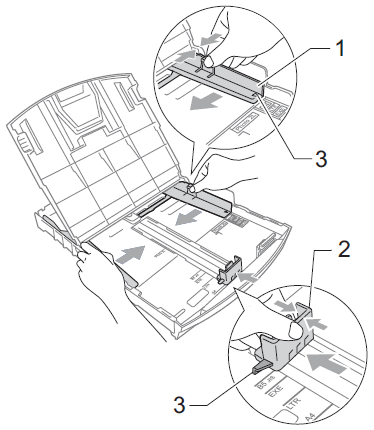
Paper guides are the small plastic tabs inside the tray that hold your sheet stack in place. These guides must touch the paper edges gently without bending or warping the sheets. Incorrect guide placement is the number one cause of paper jams in Brother printers.
Slide the guides to match the specific size of paper you are using, such as Letter or A4. Most trays have visual indicators or labels showing where to position the guides for standard sizes. Never force the guides against the paper so tightly that the stack bows upward.
Set Guides for Standard Letter or A4 Paper
Push the length guide at the front of the tray to match the bottom edge of your paper stack. Slide the side guides inward until they rest lightly against the left and right edges of the paper. You should be able to slide the paper stack slightly with your finger, but it should not wiggle freely.
Verify that the paper lies flat and does not curl up at the corners due to tight guides. If the paper curls, the printer sensors may fail to detect the sheet correctly. Proper alignment ensures the pickup roller grabs the top sheet cleanly every time.
Configure Guides for Envelopes and Specialty Media
Envelopes require precise guide adjustment because they are thicker and less flexible than standard paper. Place the envelope stack in the center of the tray and adjust side guides to touch the long edges gently. Do not overload the tray with envelopes, as their thickness reduces total capacity.
For glossy photo paper, load only one sheet at a time unless your model specifies a higher limit. Adjust the guides to hold the photo paper without touching the printable surface. Touching the glossy side can leave fingerprints that ruin the final image quality.
Load Paper into the Main Cassette Tray

The main cassette tray is designed for high-volume printing with standard weight paper. Begin by holding your aligned stack with both hands to keep the edges straight. Lower the stack into the center of the tray with the side you want to print on facing down.
Most Brother printers require the printable side to face down in the main tray, but always check the icon inside the tray. This icon usually depicts a sheet with lines or a corner fold indicating orientation. Placing paper upside down results in printing on the blank back side.
Insert the Tray Smoothly into the Printer
Hold the tray level as you push it back into the printer slot. Do not tilt the tray upward or downward, as this can cause the paper to shift inside. Push firmly until you feel the tray click or lock into its final position.
If the tray does not slide in easily, remove it and check for obstructions in the printer cavity. Forcing the tray can damage the internal rails or the paper pickup mechanism. Once inserted, close any external covers that protect the tray from dust.
Verify Paper Detection on the Display
Look at your printer’s LCD screen or computer status monitor to confirm paper detection. The display should change from a “No Paper” warning to show the correct paper size and type. If the error persists, open the tray and press down gently on the paper stack.
Sometimes the paper weight sensor needs a firm push to register the new load. Re-adjust the guides if the printer still claims the wrong paper size is loaded. Proper detection ensures the printer applies the correct heat and pressure for your media type.
Use the Manual Feed Slot for Specialty Items

The manual feed slot is ideal for thick cardstock, labels, or envelopes that do not fit in the main tray. Locate this slot usually found at the front or top rear of your Brother printer model. You must often open a small cover or pull out an extension to access it.
Insert your single sheet or small stack into the slot with the printable side facing up. Unlike the main tray, the manual feed often requires the print side to face upward. Watch for arrows near the slot that indicate the correct insertion direction.
Adjust Manual Feed Guides for Single Sheets
Slide the side guides of the manual feed slot to match the width of your paper exactly. These guides are critical for preventing the sheet from entering the printer at a skew. Ensure the paper slides in smoothly without resistance from the plastic guides.
Do not force the paper into the slot, as the rollers will grab it automatically. Pushing too hard can cause the paper to buckle before it reaches the imaging drum. Let the printer pull the sheet in at its own pace for best results.
Select Manual Feed Mode in Printer Settings
You must tell your computer or printer to pull from the manual feed slot instead of the main tray. Go to your print dialog box on the computer and change the paper source setting to “Manual Feed.” Failure to do this causes the printer to keep pulling from the empty main tray.
Confirm the paper type setting matches what you loaded, such as “Thick Paper” or “Envelopes.” This setting adjusts the roller speed and fuser temperature to prevent smudging or jams. Once settings match, press the print button to start the job.
Troubleshoot Common Paper Loading Errors
Even with careful loading, you might encounter errors like “Paper Jam” or “No Paper” messages. These issues often stem from minor adjustments rather than mechanical failure. Understanding these common pitfalls saves you time and frustration during critical printing tasks.
Check that your paper stack is not too high above the maximum fill line. Overfilling the tray puts excessive pressure on the pickup rollers, causing them to grab multiple sheets. Remove excess paper if the stack looks bulky or uneven.
Fix Multiple Sheets Feeding at Once
If multiple pages come out together, your paper guides are likely too loose or the paper is static-clumped. Remove the stack and fan the pages vigorously to separate individual sheets. Tighten the side guides slightly so they hold the stack firmly but do not bend it.
Ensure you are using paper that is not damp or humid, as moisture increases sticking. Store your paper in a dry place away from windows or water sources. Using fresh, dry paper significantly reduces the chance of multi-feed errors.
Resolve Paper Jam Warnings After Loading
A paper jam warning immediately after loading suggests the paper edge is not straight. Open the printer covers and gently remove any crumpled paper following the arrow directions inside. Never pull paper out backward against the roller direction, as this damages internal gears.
Inspect the pickup roller for dust or slickness that prevents it from gripping the paper. Clean the rubber roller with a soft cloth dampened with water if it looks dirty. Allow the roller to dry completely before attempting to load paper again.
Frequently Asked Questions About Loading Brother Printer Paper
Can I load different paper sizes in the same tray?
No, you should not mix paper sizes in the same tray load. Always remove all existing paper before switching to a different size to prevent jams. Mixing sizes causes the printer to grab unevenly and often results in a misfeed error.
Which way should the paper face when loading?
For the main tray, the printable side usually faces down, while the manual feed slot often requires it to face up. Always look for the diagram inside the tray or on the manual feed cover for confirmation. Following the specific icon ensures you do not waste ink on the wrong side.
How many sheets can I load at one time?
Capacity varies by model, but standard trays typically hold up to 250 sheets of plain paper. Do not exceed the maximum fill line marked inside the tray to avoid feeding issues. Specialty media like envelopes or cardstock have much lower limits, often around 10 to 20 sheets.
Why does my printer say no paper when the tray is full?
This error often occurs if the paper guides are too loose or the stack is not pushed back fully. Try lifting the stack slightly and pushing it toward the back of the tray. Cleaning the pickup roller can also help if the sensor fails to detect the paper presence.
Is it safe to leave paper in the tray when not in use?
Yes, you can leave standard plain paper in the tray, but cover the printer to prevent dust accumulation. However, remove glossy photo paper or envelopes when finished to prevent curling from humidity. Storing specialty media in its original packaging extends its life and print quality.
Key Takeaways for Loading Paper in Brother Printer
Mastering how to load paper in Brother printer models ensures smooth operations and high-quality prints every time. Remember to always fan your paper, align the guides correctly, and choose the right tray for your media type. These simple steps prevent the vast majority of jams and feeding errors.
Take action today by checking your printer tray alignment and clearing out any old or dusty paper stacks. A quick maintenance check now saves you from frustrating interruptions during your next important print job. Your printer will run faster and last longer with proper paper handling habits.


