

Is your Canon Pixma printer frozen, unresponsive, or flashing a persistent error code? A hard reset often clears these glitches and restores communication without needing a service call. Whether your model has an LCD screen or simple buttons, specific steps exist to force a reboot.
This guide explains exactly how to reset Canon Pixma printer units using three distinct methods: power cycling, menu resets, and button combinations. You will learn which technique fits your specific issue and how to avoid common configuration mistakes during the process.
Perform a Power Reset to Clear Temporary Glitches
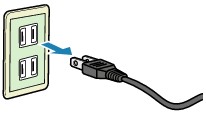
A power reset clears the printer’s temporary memory and reboots the internal system completely. This simple fix resolves most communication errors, frozen displays, or unresponsive controls effectively.
Turn Off and Disconnect Power Source
Shut down your Canon Pixma printer completely to begin the process safely.
* Press the Power button to turn the device off.
* Unplug the power cord directly from the wall outlet.
* Disconnect the USB cable if it is currently connected to a computer.
* Wait at least 60 seconds to allow internal capacitors to discharge fully.
Reconnect and Restart the System
After waiting for the full minute, you can restore power to the unit.
* Plug the power cord back into the wall outlet securely.
* Reconnect the USB cable if your setup requires a wired connection.
* Press the Power button to turn the printer on again.
The printer will initialize its systems and typically return to normal operation immediately. If lights blink or the display shows startup messages, this behavior is normal during the boot sequence.
Pro Tip: Use a surge protector outlet for your printer. Frequent power surges can cause internal errors that mimic hardware failure.
Reset Using the Display Menu on LCD Models

If your Canon Pixma model has an LCD screen, such as the MG3600 or TS9100 series, you can use the built-in settings menu. This method performs a system reset without needing physical button combinations.
Access Setup Mode on Screen
Follow these steps to navigate to the reset options on your display.
* Press the Setup button, often marked with a wrench or gear icon.
* Use the arrow keys to navigate to Device settings or Reset settings.
* Select Reset all or Clear settings depending on your specific model options.
Confirm the Reset Action
The printer will prompt you to confirm that you want to proceed with the reset.
* Choose Yes or OK on the display screen.
* Wait while the printer resets, a process that may take up to 2 minutes.
* Allow the device to restart automatically when the process finishes.
⚠️ Warning: This action clears custom settings like Wi-Fi network info, date, time, and language preferences. You must reconfigure them afterward.
Common Display Reset Options Explained
Depending on your specific model, you may see different reset choices in the menu.
* Network reset: Clears Wi-Fi settings only without affecting other configurations.
* Ink counter reset: Used after refilling cartridges, though not available on all models.
* All settings reset: Performs a full factory reset to original defaults.
Use the “Reset all” option only if simpler fixes fail to resolve your issue.
Reset With Button Combinations for Non-Display Models
Many Canon Pixma printers like the iP2800 or MG2900 lack a display screen. These models require a manual button sequence to trigger a reset or enter service mode.
Power Off and Prepare the Device
Ensure the printer is ready before attempting the button combination sequence.
* Turn the printer off using the power button.
* Make sure no error lights are flashing before you start.
* Note any light patterns if they are present for later troubleshooting.
Hold Stop and Power Buttons Simultaneously
This sequence works for most older or basic Canon Pixma models without screens.
* Press and hold the Stop/Reset button, identified by a triangle inside a circle.
* While holding it, press and hold the Power button immediately.
* Keep both buttons pressed for 10–15 seconds until the LED lights up or flashes.
Execute Factory Reset Sequence
Some models like the MG2920 require an extended sequence to enter service mode.
* After holding Power and Stop/Reset, release the Stop/Reset button twice while still holding Power.
* Press the Stop/Reset button 2 times quickly in succession.
* Release the Power button to finalize the command.
* Wait for the printer to reset, which may take about a minute.
The printer will enter service mode or perform a self-reset automatically. Lights may blink in a specific sequence, which indicates the process is working correctly.
✅ Visual Cue: If the power light turns solid green or blue, the reset was successful.
Fix Common Error Codes Before Resetting

Check if your specific error code has a dedicated fix before resetting. A reset will not help if the issue involves low ink, a paper jam, or physical hardware failure.
E01 or E02 Ink Cartridge Issues
These codes indicate the printer cannot detect the ink cartridges properly.
* Turn off the printer completely.
* Open the cartridge cover to access the ink slots.
* Remove and reinsert ink cartridges firmly.
* Ensure all protective tape is removed from new cartridges.
* Close the cover and restart the printer.
E04 or E05 Paper Jam Errors
These codes mean paper is stuck inside the printing mechanism.
* Open the rear tray or front cover gently.
* Pull out jammed paper slowly to avoid tearing it.
* Check for small scraps stuck deep inside the rollers.
* Close all covers securely and restart the device.
E16 Ink Absorber Full Warning
This appears when the internal waste ink pad is saturated with excess ink.
* You can temporarily bypass it using a service mode reset via button combo.
* Contact Canon support or a technician for long-term solutions.
* Physical cleaning or part replacement is eventually required.
❌ Note: Ignoring E16 may lead to permanent damage. Resetting only delays the necessary fix.
When to Factory Reset Your Canon Pixma
Not every problem requires a full factory reset. Use the right level of reset for your specific issue to avoid unnecessary configuration work.
| Issue | Recommended Reset Method |
|---|---|
| Printer unresponsive | Power reset |
| Wi-Fi disconnected | Network reset via menu |
| Frozen screen | Button combination reset |
| Repeated error codes | Full factory reset |
| Preparing to sell | Reset all settings |
A factory reset should be your last step after trying simpler fixes first.
Prevent Future Issues With Regular Maintenance
Keep your Canon Pixma running smoothly by adopting these regular maintenance habits.
Update Firmware Regularly
Visit the official Canon Support website and enter your model number. Download and install the latest firmware updates for your device. This often fixes bugs that cause crashes or freezes.
Clean Print Heads Monthly
Clogged nozzles can trigger false errors and poor print quality.
* Go to Maintenance in your printer settings.
* Select Clean Print Heads.
* Run 1–2 cycles per month to keep nozzles clear.
Use Genuine Ink and Proper Paper
Third-party ink or thick paper can cause jams and sensor errors. Stick to Canon-recommended supplies when possible for best results.
Troubleshooting After Reset Fails
Did the reset fail to solve your problem? Try these final diagnostic steps.
Check Power Supply Stability
Test the outlet with another device to ensure it provides consistent power. Try a different power cord if available. Avoid extension cords and plug directly into the wall.
Reinstall Printer Driver Software
On Windows, go to Settings > Devices > Printers & scanners. Remove the Canon printer from the list. Download the latest driver from the Canon website and reinstall it.
Reset Router for Wireless Models
If your printer will not reconnect to Wi-Fi, restart your router. Reconfigure Wi-Fi via WPS or the setup wizard. Ensure the printer is within range of the signal.
Frequently Asked Questions About Resetting Canon Pixma Printers
Does resetting a Canon Pixma delete all my settings?
A full factory reset deletes Wi-Fi passwords, date, time, and language settings. A simple power reset does not delete any user configurations or preferences.
How long should I wait during a power reset?
You should wait at least 60 seconds after unplugging the printer. This allows internal capacitors to discharge fully and clears temporary memory errors.
What if the button combination does not work?
Ensure you are pressing the buttons in the exact order and timing specified for your model. Some models require holding buttons for 10 to 15 seconds before releasing.
Will resetting fix the E16 ink absorber error permanently?
No, resetting only bypasses the counter temporarily. The waste ink pad is physically full and needs replacement or professional cleaning to fix permanently.
Can I reset my printer if the screen is frozen?
Yes, use the power reset method or the button combination sequence. These methods work even when the display is unresponsive or frozen.
Key Takeaways for Resetting Your Canon Pixma Printer
Knowing how to reset Canon Pixma printer models properly saves time and frustration. Start with a simple power cycle, then try menu resets or button combinations if issues persist. Always address specific error codes like paper jams or ink issues before attempting a full factory reset.
If error codes remain after resetting, the problem may be hardware-related. Consult Canon support or consider professional repair for persistent mechanical failures. Regular firmware updates and cleaning will help prevent future glitches.


