

Faded text, streaky lines, or blank pages often signal a printhead problem that needs immediate attention. These issues usually stem from dried ink, air blockages, or dust interfering with your inkjet printer’s ability to deposit color accurately.
You can resolve most clogs at home by following a specific diagnostic and cleaning process. This guide explains how to identify your printer type, run effective cleaning cycles, and prevent future failures without expensive repairs.
Identify Your Inkjet Printer Type
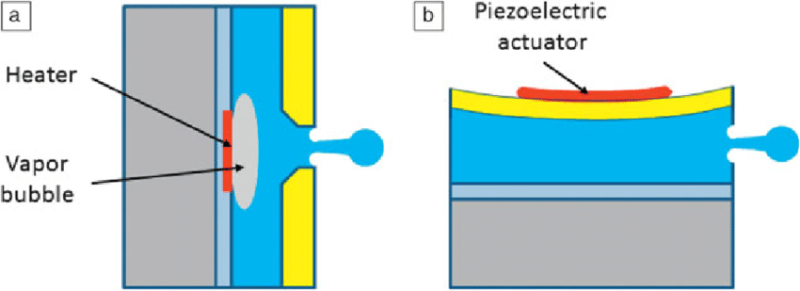
Confirming your device technology is the first step before attempting any repair. Only inkjet printers utilize printheads that clog with dried ink or air. Laser printers use toner and drums, so standard head cleaning methods will not work on them.
Check your user manual or look for the model number on the back of the unit. Knowing if you have an HP thermal head or an Epson piezoelectric head determines if you should replace a cartridge or clean a fixed component.
Check Thermal Versus Piezoelectric Design
HP printers typically use thermal technology where the printhead is often part of the ink cartridge. Replacing the cartridge effectively replaces the printhead in these models. Epson and Canon often use piezoelectric heads built into the printer body, requiring manual cleaning or professional service if damaged.
Verify Model Specifics for Accuracy
Every printer model has unique maintenance requirements found in the official documentation. Consult your specific manual to ensure compatibility with cleaning fluids and replacement parts. Using the wrong method on a specialized model can void warranties or cause permanent damage.
Run a Nozzle Check Diagnostic

Always print a nozzle check pattern before applying any liquids or running deep cleans. This diagnostic page reveals exactly which nozzles are misfiring or blocked. You can usually find this option in your printer software under Maintenance or on the device control panel.
Analyze the pattern for gaps, missing colors, or streaks. A complete absence of one color might indicate an empty cartridge rather than a clog, while faint lines suggest partial blockages needing attention.
Print the Test Pattern Correctly
Access the diagnostic page through your computer settings or the printer’s onboard menu. Ensure you have fresh paper loaded to get a clear view of the output quality. Do not skip this step, as it provides the baseline for all subsequent troubleshooting actions.
Interpret Gaps and Missing Colors
Look closely for breaks in the grid lines or missing blocks of color. Gaps indicate partial clogs that automated cleaning can often fix. Entirely missing sections suggest severe blockages or air locks that may require manual intervention.
Execute Automated Cleaning Cycles
Your printer includes a built-in self-cleaning function designed to force ink through clogged nozzles. Navigate to the maintenance menu on your PC or mobile device and select “Clean Print Head.” The machine will make noise as it pumps ink to clear obstructions.
This process effectively clears minor clogs and air bubbles within one or two minutes. Print another nozzle check after the cycle finishes to see if the quality has improved.
Limit Cleaning Attempts to Three
Do not run more than three consecutive cleaning cycles. Excessive cleaning wastes significant amounts of ink and can cause overflow inside the printer, leading to worse clogs. If three attempts do not fix the issue, stop and wait thirty minutes before trying manual methods.
Allow Time for Ink Settlement
Waiting between cleaning attempts reduces internal pressure and allows ink to settle properly. Rushing the process can trigger false error messages or damage the ink system. Patience here prevents turning a minor clog into a major hardware failure.
Manually Clean Clogged Nozzles

If automated tools fail, you must manually clean the nozzle plate. Power down the printer and unplug it to ensure safety. Open the access door and let the printhead move to the center, then carefully remove the ink cartridges.
Wear gloves to avoid staining your skin with ink. Use a lint-free cloth slightly dampened with distilled water for dye inks or isopropyl alcohol for pigment inks. Gently wipe the nozzle plate without scrubbing, as aggressive motion can damage microscopic components.
Wipe Nozzles With Proper Fluids
Apply the correct cleaning fluid to a lint-free cloth or cotton swab. Hold the damp swab against the nozzles for five to ten seconds to soften dried residue. Wipe softly to remove the buildup without pushing debris deeper into the head.
Avoid Tap Water and Abrasives
Never use tap water because minerals can create new blockages. Avoid paper towels or rough cloths that leave lint behind. Stick to distilled water or specialized cleaning solutions to ensure no new contaminants enter the system.
Soak Removable Printheads
Some printer models allow you to completely remove the printhead assembly. If your manual confirms this, you can soak the nozzle end in warm distilled water or a specialized cleaning solution for ten to fifteen minutes. This deep soak dissolves stubborn dried ink that surface wiping cannot reach.
Blot the head dry with a lint-free cloth before reinstalling. Run a head alignment test after reinstallation to ensure print quality. Do not attempt this on printers with fixed, non-removable heads.
Prevent Future Dried Ink Buildup
Dried ink is the primary cause of most printhead problems. Prevent this by printing a test page at least once a week. Regular use keeps ink flowing and prevents the nozzles from drying out completely.
Clear Air Blockages in System
Air bubbles can block ink flow just as effectively as dried ink. These blockages often cause blank pages or very weak output. Priming the ink system helps push these trapped air pockets out of the nozzles.
Run one or two automatic cleaning cycles and then leave the printer powered on for thirty minutes. The internal pump will gradually move the air out. For severe cases, you may gently shake the cartridges with nozzles facing down before reinstalling them.
Prime Ink Flow Effectively
Letting the printer sit powered on after a cleaning cycle allows the internal mechanism to work naturally. This passive priming is often more effective than aggressive repeated cleaning. White ink models are particularly prone to these air locks due to higher ink density.
Eliminate Dust From Interior
Dust particles settling on the printhead or rollers can disrupt ink delivery. Use a small vacuum nozzle or a can of compressed air to clean the interior of your printer. Focus on the cartridge bay, the printhead rail, and the paper feed path.
Avoid using cloths or paper towels inside the machine as they leave lint. Clean the interior every one to two months, or immediately if you notice speckles on your prints.
Use Vacuum Instead of Cloths
Cloths often push dust deeper or leave fibers that mix with ink. A vacuum or air duster removes debris without adding new contaminants. Hold air duster cans upright to prevent moisture from spraying onto sensitive electronics.
Optimize Power and Usage Habits
Leaving your printer on twenty-four seven prevents it from running its daily maintenance routines. Most printers perform a brief cleaning cycle when they turn on. If the machine never turns off, it never cleans, leading to increased clog risks.
Turn your printer off at the end of the day and back on in the morning. This simple habit forces the daily priming cycle. If you encounter a persistent error, try a hard reset by unplugging the power cord for sixty seconds.
Restart Daily to Trigger Maintenance
Regular power cycling ensures the printer executes its self-cleaning protocols. This practice significantly reduces the chance of dried ink forming overnight. It is the easiest preventive measure you can take to maintain print quality.
Print Weekly to Maintain Flow
Infrequent use leads to negative air pressure and dried ink. Even if you do not need documents, print a test page weekly. Set a calendar reminder to ensure you do not forget this crucial maintenance step.
Update Firmware and Drivers
Outdated firmware can cause the printer to misreport printhead status or fail to execute cleaning commands. Visit the manufacturer’s website and enter your model number to check for updates. Download and install the latest drivers and firmware versions available.
Updates often include improvements to error detection and nozzle control. Restart your printer after installing any updates to ensure changes take effect.
Replace Cartridges and Printheads
Using expired or low-quality ink increases the risk of clogs. Always match the ink type to your printer specifications. If you have tried all cleaning methods and the problem persists, the printhead may be permanently damaged.
Signs of irreversible damage include physical cracks, burnt smells, or repeated failure messages after deep cleaning. In these cases, replacing the printhead or the entire cartridge (if integrated) is necessary.
Choose Compatible Replacement Parts
Ensure any replacement part matches your exact printer model number. Universal parts may not align correctly or communicate with your device. For high-volume users, investing in professional-grade models with durable heads is wise.
Use Professional Cleaning Solutions
For chronic clogs, specialized cleaning fluids are more effective than water. Products like Printhead Doctor dissolve stubborn ink residues without harming delicate components. Apply the solution to a lint-free pad and place it under the printhead for fifteen minutes.
These solutions are especially useful for white ink clogs, which are denser and harder to clear. Regular maintenance with professional kits can double the lifespan of your printhead.
Frequently Asked Questions About Printhead Problems
How do I know if my printhead is clogged or broken?
Print a nozzle check pattern first. If lines are missing but improve after cleaning, it was a clog. If gaps persist after three cleanings and manual wiping, the head may be broken.
Can I use tap water to clean my printhead?
No, never use tap water. Minerals in tap water can create new blockages. Use only distilled water or isopropyl alcohol designed for printer maintenance.
Why does my printer say printhead error after cleaning?
Running too many cleaning cycles can cause ink overflow or software glitches. Wait thirty minutes between attempts and ensure you have not exceeded three consecutive cycles.
How often should I run a nozzle check?
Run a nozzle check once a week or whenever print quality drops. Regular checks help you catch minor clogs before they become severe blockages requiring deep cleaning.
Is it worth replacing a printhead on an old printer?
If the printer is very old, buying a new unit might be more cost-effective. However, for newer models, replacing the head is often cheaper than replacing the whole printer.
Key Takeaways for Fixing Your Printhead Problem
Most printhead problems result from dried ink, air blockages, or dust, all of which are fixable with the right approach. Start by identifying your printer type, running limited automated cleaning cycles, and manually wiping nozzles if necessary. Regular use and proper power habits are your best defense against future issues.
Take action today by printing a nozzle check pattern to assess your current print quality. If basic cleaning does not resolve the issue, consider using professional cleaning solutions or consulting your manual for replacement instructions.




